Periodic Workflow
Feature Overview
A periodic workflow is a time- or event-driven automated workflow. Users chain and orchestrate nodes such as "Flight Plan → Mapping Task → Analysis Task", and the system automatically executes them in sequence at the configured interval, achieving an unattended closed loop of "flight + mapping + analysis". It is suitable for scheduled inspection, scheduled mapping, and periodic AI analysis.
The workflow uses a canvas-based "node + connection" orchestration: once a node finishes executing, its downstream nodes are automatically triggered, enabling automatic data flow.
Built-in Nodes
Trigger
The "inbound start node" of the workflow, which determines when the workflow is launched.
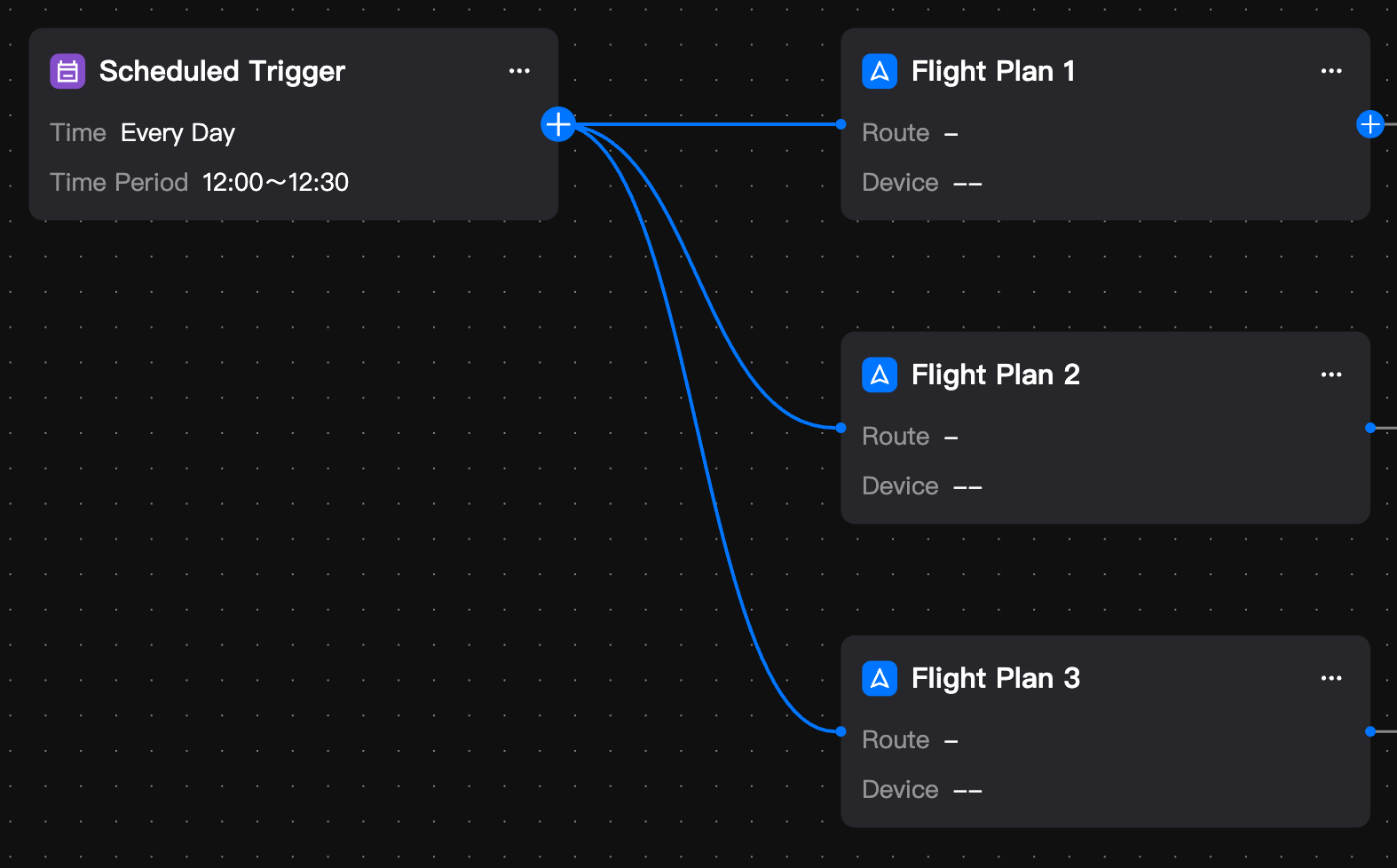
A trigger can only connect to "Flight Plan" or "Notification" nodes. One trigger can connect to multiple flight plans, and multiple triggers can connect to the same flight plan.
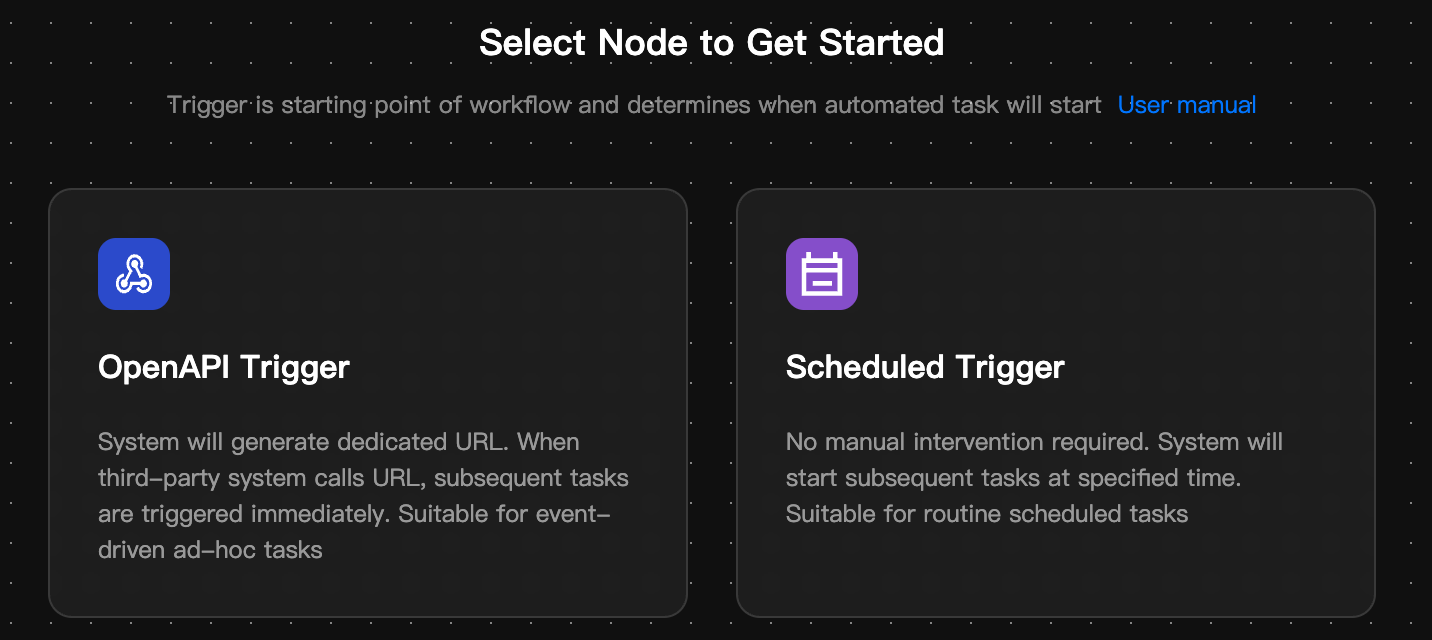
Periodic workflows provide two types of triggers:
| Workflow Type | Description | Parameters |
|---|---|---|
| Scheduled Trigger | Automatically launches the workflow based on the time, time range, and repeat frequency set by the user. Suitable for tasks performed at fixed intervals such as daily, weekly, or monthly. | Execution time, repeat frequency |
| OpenAPI Trigger | The platform automatically generates a POST endpoint for the trigger. Third-party systems can trigger the workflow by sending requests to this endpoint, commonly used for integrations with IoT platforms, operations platforms, and other systems. | POST endpoint |
- Note: The Scheduled Trigger and the "Recurring Task" strategy configured in the flight plan can only be used one at a time, to avoid duplicate triggering. In the current version, the trigger only controls when the workflow starts, and does not yet support passing external parameters to downstream nodes.
Flight Plan
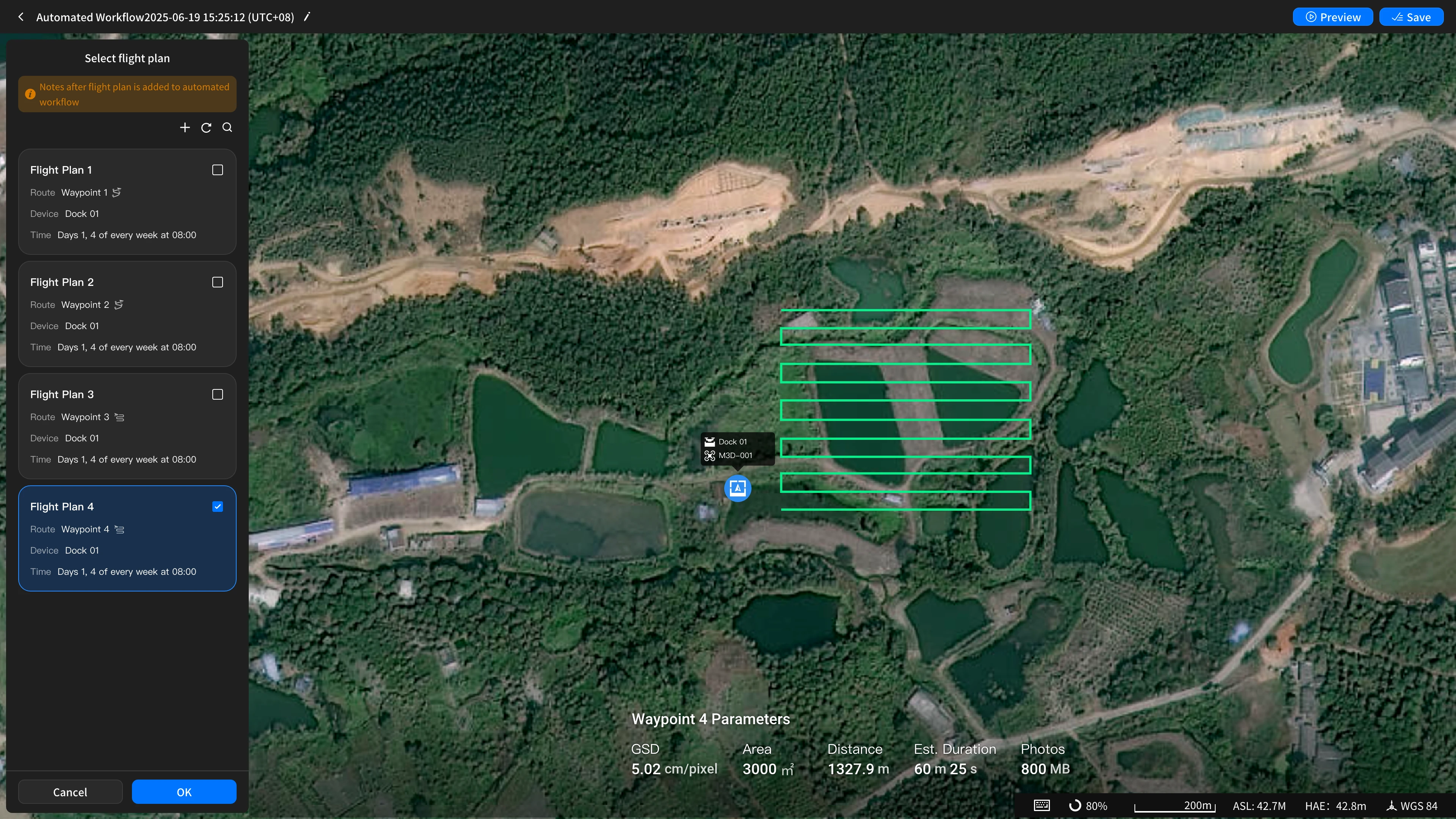
Select an existing flight plan from the plan library or create a new one to control the dock/aircraft to perform capture flights along the preset route. This is the data collection starting point of the workflow.
Click the "+" on the "Trigger card" in the flow blueprint or the "Flight Plan card" in the preset flow to expand the "Select Flight Plan panel". Here you can select one or more flight plans, and you can also create a new flight plan.
Note:
- Automated workflows only support flight plans whose task strategy is "Recurring Task".
- After linking to an automated workflow, the flight plan is automatically upgraded to an automated flight plan. Its performance date follows the automated workflow being enabled/disabled and is automatically rescheduled.
- After linking to an automated workflow, the flight plan will automatically disable the "Media File Direct Transfer" feature.
Mapping Task
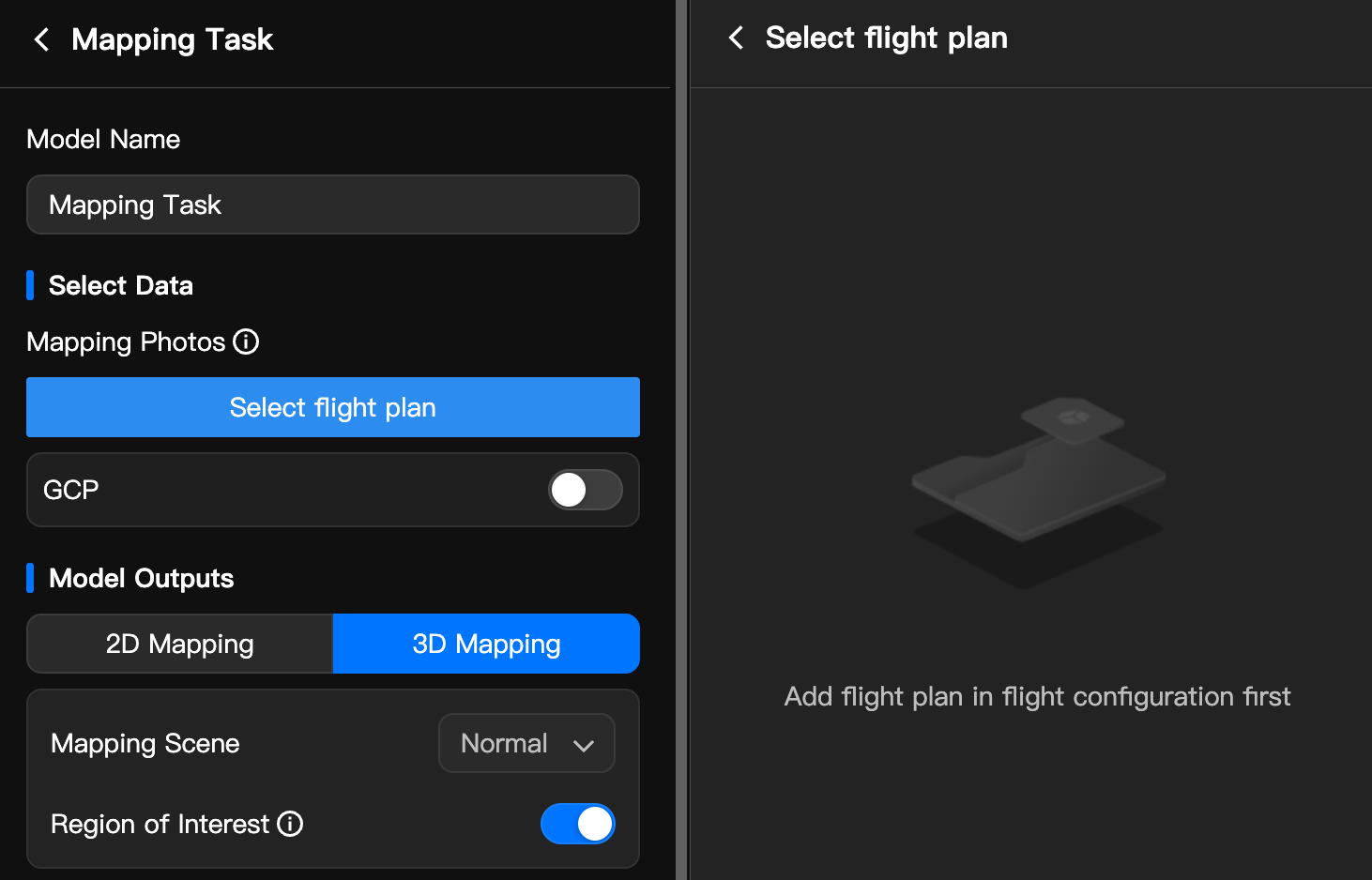
After the flight capture is complete, model reconstruction is automatically initiated based on the photo data captured by the selected flight plan, generating model results.
Click the "+" on the "Flight Plan card" in the flow blueprint or the "Mapping Task card" in the preset flow to expand the "Create Mapping Task panel", where you can edit the mapping task. Its core parameters include:
| Parameter | Description |
|---|---|
| Select Flight Plan | The source of photo data on which mapping depends. You can select an upstream flight plan or directly link a flight plan on the configuration page to automatically import photos, enabling automatic flight-to-mapping chaining. |
| Model Results | High-precision 2D orthophoto or reality 3D model. When 3D is selected, you can set the mapping scene (Normal/Orbit), Mesh model (B3DM/OSGB/PLY/OBJ), and point cloud model (PNTS/LAS/PLY). |
| Region of Interest | Set a region of interest to crop the model outside the region and improve mapping speed. Only one region of interest is supported. |
VLM Detection
VLM Detection refers to the multimodal Vision Language Model (VLM) AI detection capability introduced by DJI FlightHub 2, giving drones the general intelligent recognition ability to "understand what they see and hear".
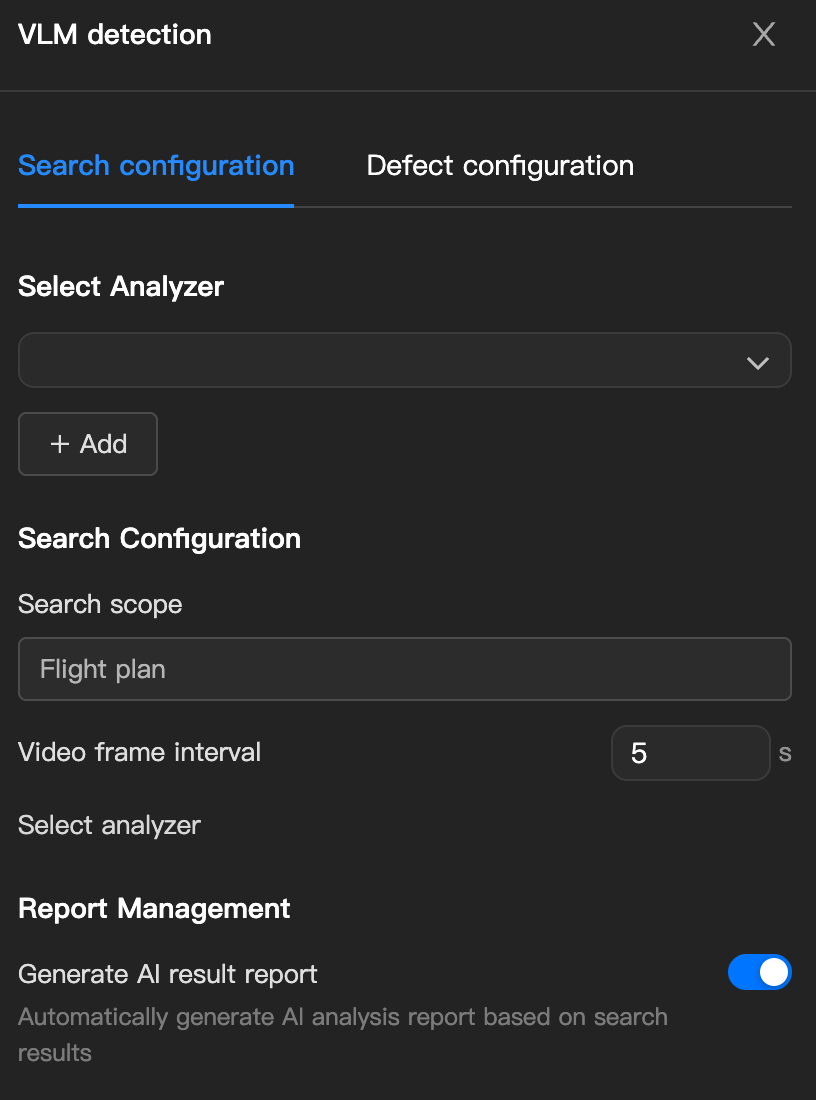
Select or create an analyzer to perform intelligent analysis on captured/mapping results. On the configuration page, you can link the flight plan and mapping task with the analyzer, so that media or models are automatically synced to the analyzer for computation once completed.
Click the "+" on the "Flight Plan card" in the flow blueprint or the "VLM Detection card" in the preset flow to expand the "VLM Detection panel", where you can edit the detection parameters.
The core parameters include:
| Parameter | Description |
|---|---|
| Analyzer Selection / Creation | The analyzer is the core module of FlightHub 2 for 3D result analysis and engineering processing. It aggregates "models/media/design files" into the same spatial coordinate system, providing measurement calculation, defect annotation, timeline comparison, change detection, and analysis report capabilities. |
| Video Frame Capture Frequency | The time interval for automatically capturing and saving static images from the real-time video stream, in seconds. Integers from 1 to 3600s are supported. |
| Generate AI Result Report | After the task is completed, image and video materials are automatically collected to generate a structured, professional-grade task analysis report, clearly presenting target distribution, timeline details, anomaly records, and recognition accuracy, greatly reducing manual analysis time. |
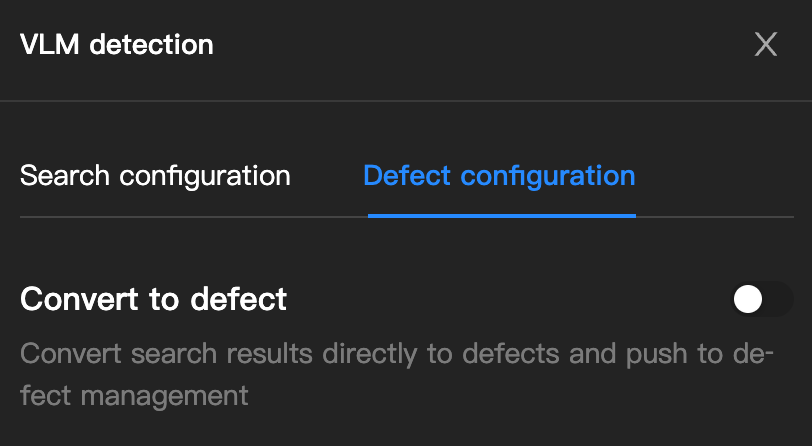
| Convert to Defect | After analysis by the AI algorithm, the system marks the target status confirmed as an anomaly as a specific "defect" or "hazard" and pushes it to defect management. |
Change Detection Pro
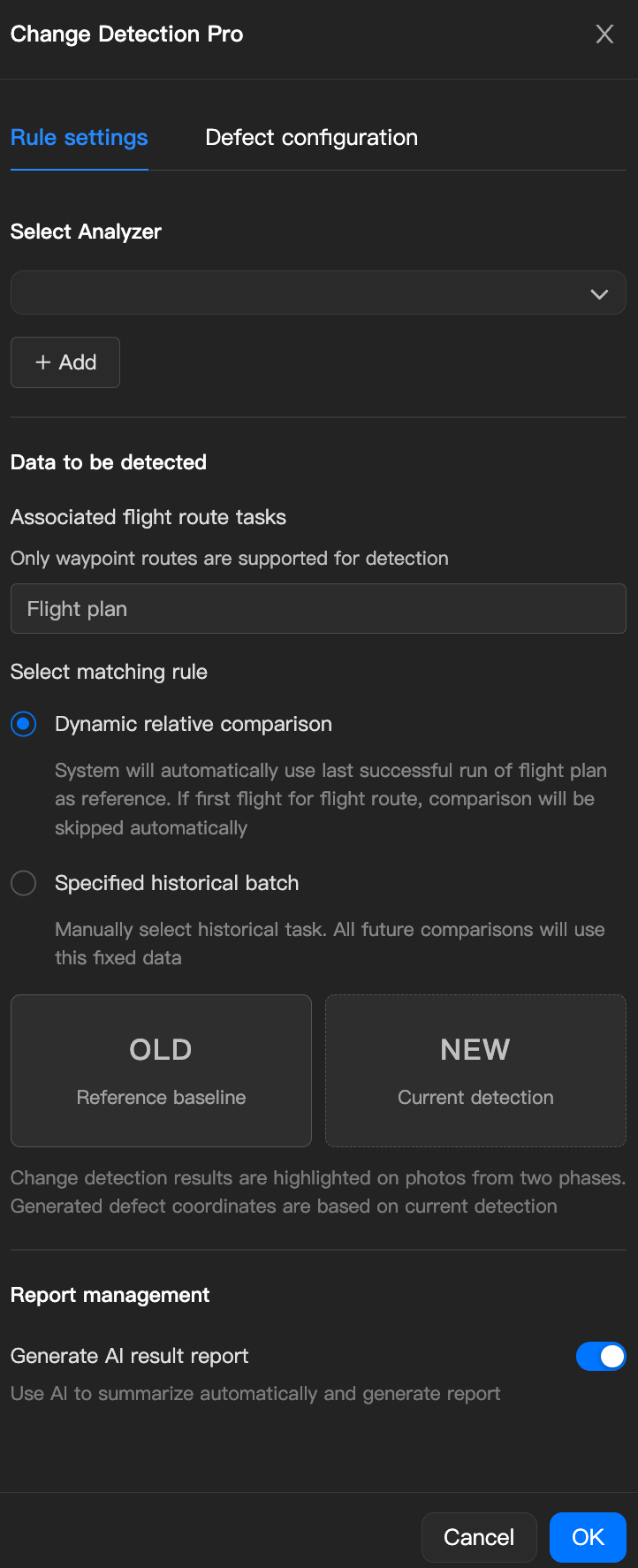
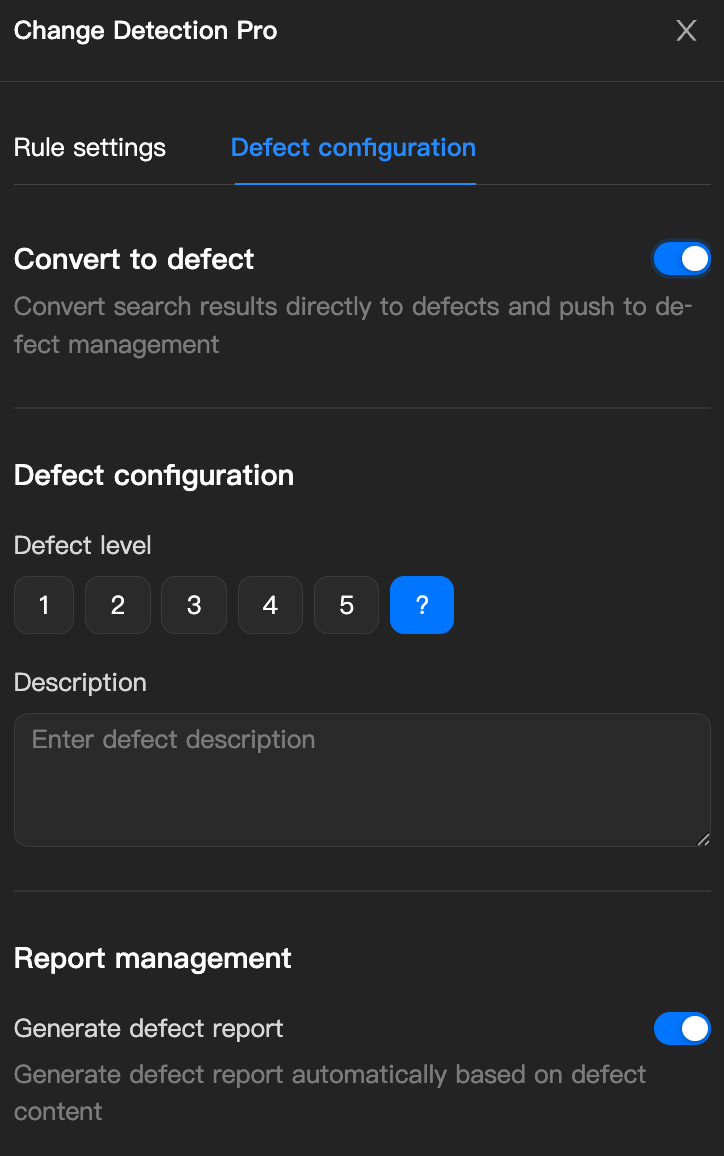
Change Detection uses cloud AI algorithms and multimodal large language models to automatically compare 2D images or 3D reality models captured of the same area at different times, accurately identifying changes such as new cracks, illegal constructions, project progress deviations, or environmental differences.
Click the "+" on the "Flight Plan card" in the flow blueprint or the "Change Detection Pro card" in the preset flow to expand the "Change Detection panel", where you can edit the detection parameters.
The core parameters include:
| Parameter | Description |
|---|---|
| Select Matching Rule | You can choose Dynamic Relative Comparison (automatically finds the last successful execution record of the flight plan as a reference, suitable for daily inspection and continuous progress tracking) or Specify Historical Batch (manually specify a historical task as a fixed baseline, suitable for scenarios requiring strict comparison with the initial state or a pre-construction baseline batch). |
- Note: Currently, change detection is only supported for public-version waypoint route tasks.
Import Analyzer
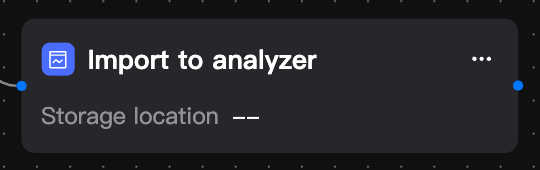
Introduce a specified analyzer into the workflow so that other nodes can call it to complete data analysis, enabling reuse of analysis capabilities.
In the flow blueprint, you can create an "Import Analyzer card" from either the "Flight Plan card" or the "Flight Plan card".
Notification
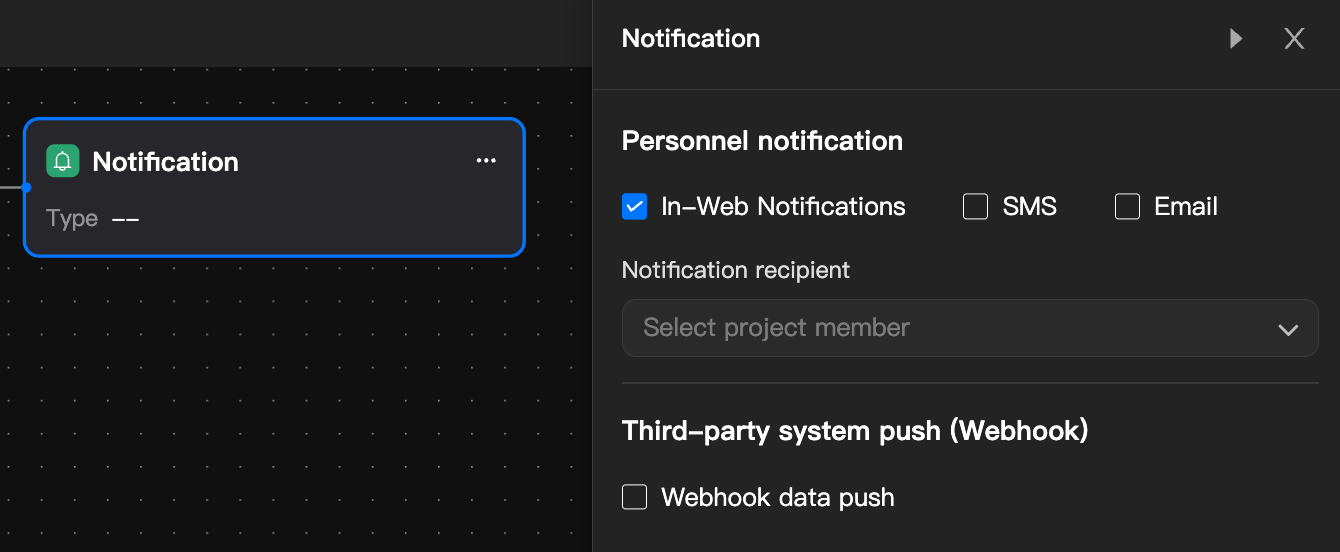
The notification node is the "outbound notification node" within the workflow. When an upstream node finishes executing, it automatically sends notifications to the specified recipients.
Notification nodes can be attached after any "flight task", "mapping task", or "analysis task" node, and multiple notification nodes can be added in the same workflow.
| Notification Type | Description |
|---|---|
| Personnel Message Notification (In-App/SMS/Email) | Select one or more recipients from the organization members. For SMS/Email, the recipient must have a phone number/email bound in their organization profile; otherwise the message will be delivered only as an in-app notification. |
| Webhook Data Push | The platform sends an HTTP POST request to the configured target URL, pushing the upstream node's execution result to external systems (enterprise IM, operations platforms, third-party business systems). The target URL must be reachable from the public internet, and the platform will retry failed requests a limited number of times. |
Data Sync
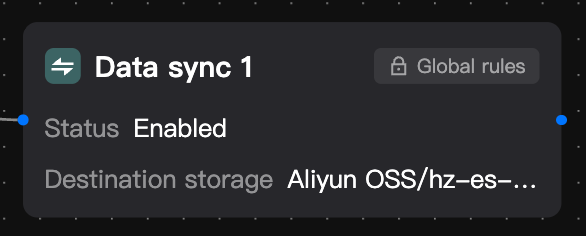
When the project has configured media file sync rules, the data sync node is connected by default after the "Flight Plan" node and "Mapping Task" node. It cannot be deleted or changed and relies on sync capabilities such as FlightHub Sync. When no sync rule is set, this node is automatically skipped during execution.