
Dahua DSS Pro
Dahua DSS Pro & DJI FlightHub 2 Integration Guide
Forward live drone video from DJI FlightHub 2 to the Dahua DSS Pro video management platform over RTSP, and view it centrally on the Monitoring Center video wall.
1Overview
This integration uses the FlightHub Sync livestream forwarding capability of FlightHub 2 to output the drone stream over RTSP. DSS Pro then adds that stream as a device using its RTSP address mode, bringing drone video into your existing video surveillance system.
↓ RTSP
DSS Pro device→Video channel→Monitoring Center video wall
Scope
| Use case | Supported |
|---|---|
| View drone video centrally on the DSS Pro video wall | Yes |
| Multiple operators / clients viewing the same stream | Yes (RTSP is pull-based) |
| Controlling the drone from within DSS Pro | No — this is one-way video ingest only |
| Ingest via the Chinese national standard GB/T 28181 | No — requires GB28181 forwarding, On-Premises only |
FlightHub Sync livestream forwarding supports RTMP, RTSP, and GB28181. This guide uses RTSP because DSS Pro natively accepts an RTSP address as a device source, so no additional gateway is needed. If national-standard ingest is mandatory, note that GB28181 forwarding is available on FlightHub 2 On-Premises only — Public Cloud does not provide it.
2Prerequisites
| Item | Requirement |
|---|---|
| FlightHub 2 account | Organization-level permission to access FlightHub Sync settings |
| Livestream minutes | Sufficient quota remaining in the organization plan (see section 5) |
| DSS Pro | V8.8 (used as the example throughout this guide) |
| Network | The DSS Pro server must be able to reach the RTSP address issued by FlightHub 2 |
| Device status | Drone / dock connected and online, able to take off and stream |
For DSS Pro V8.8 download and base configuration, refer to the official Dahua page:
https://software.dahuasecurity.com/en/download/detail/62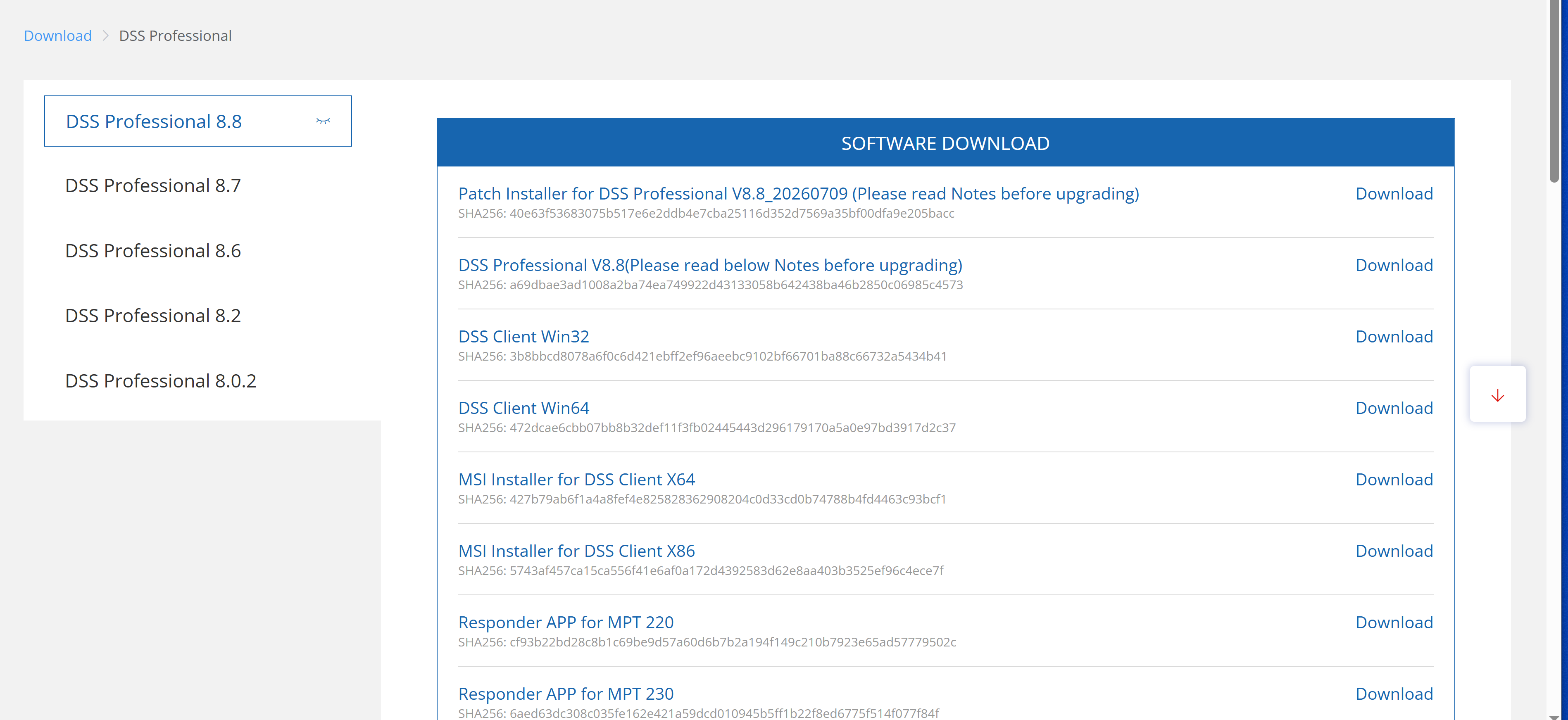
3Part 1 — FlightHub 2 side (obtain the RTSP address)
First create a livestream forwarding task in FlightHub 2 to obtain the RTSP address, which you will later enter into DSS Pro.
Create an RTSP forwarding task in FlightHub Sync
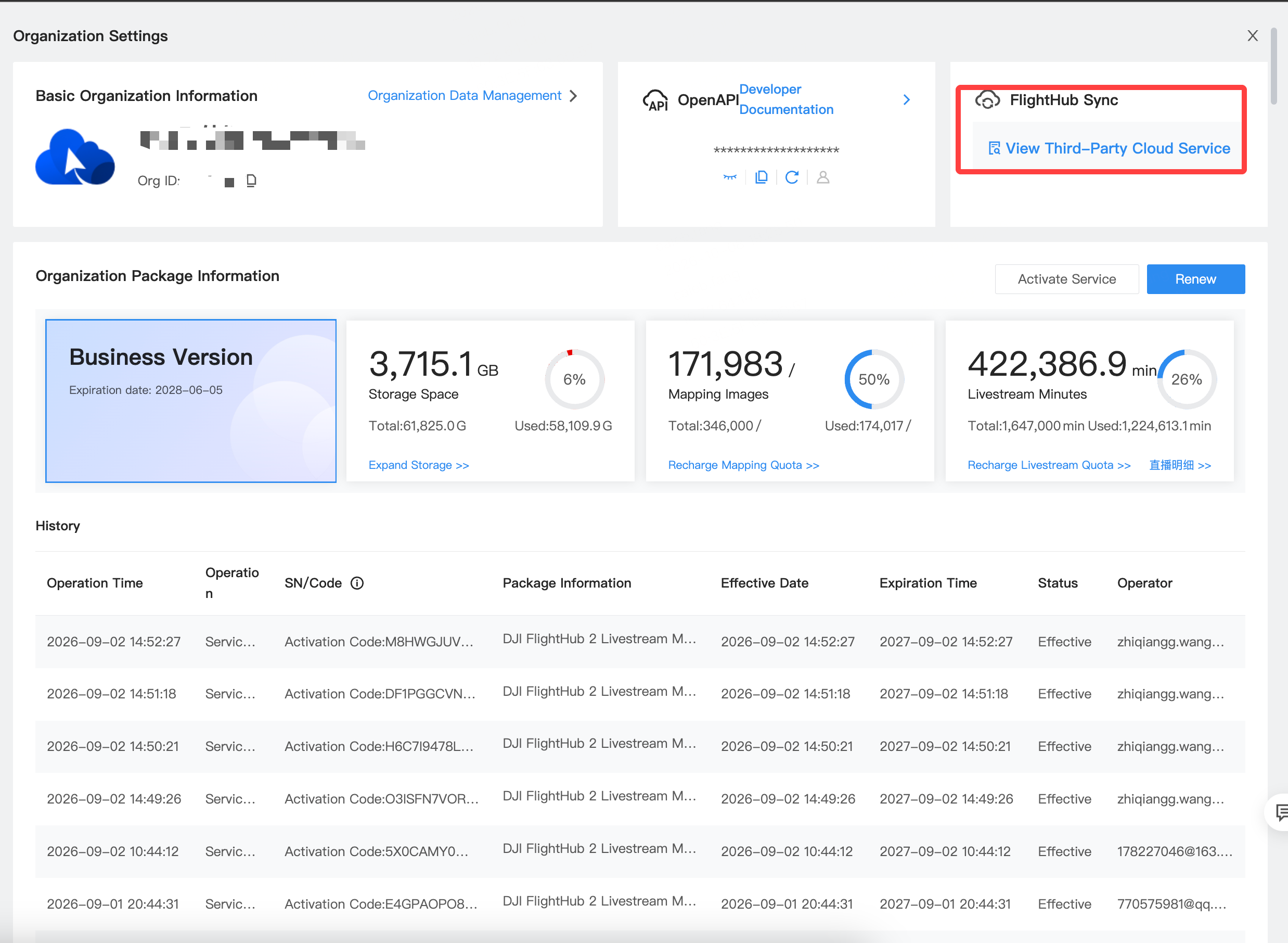
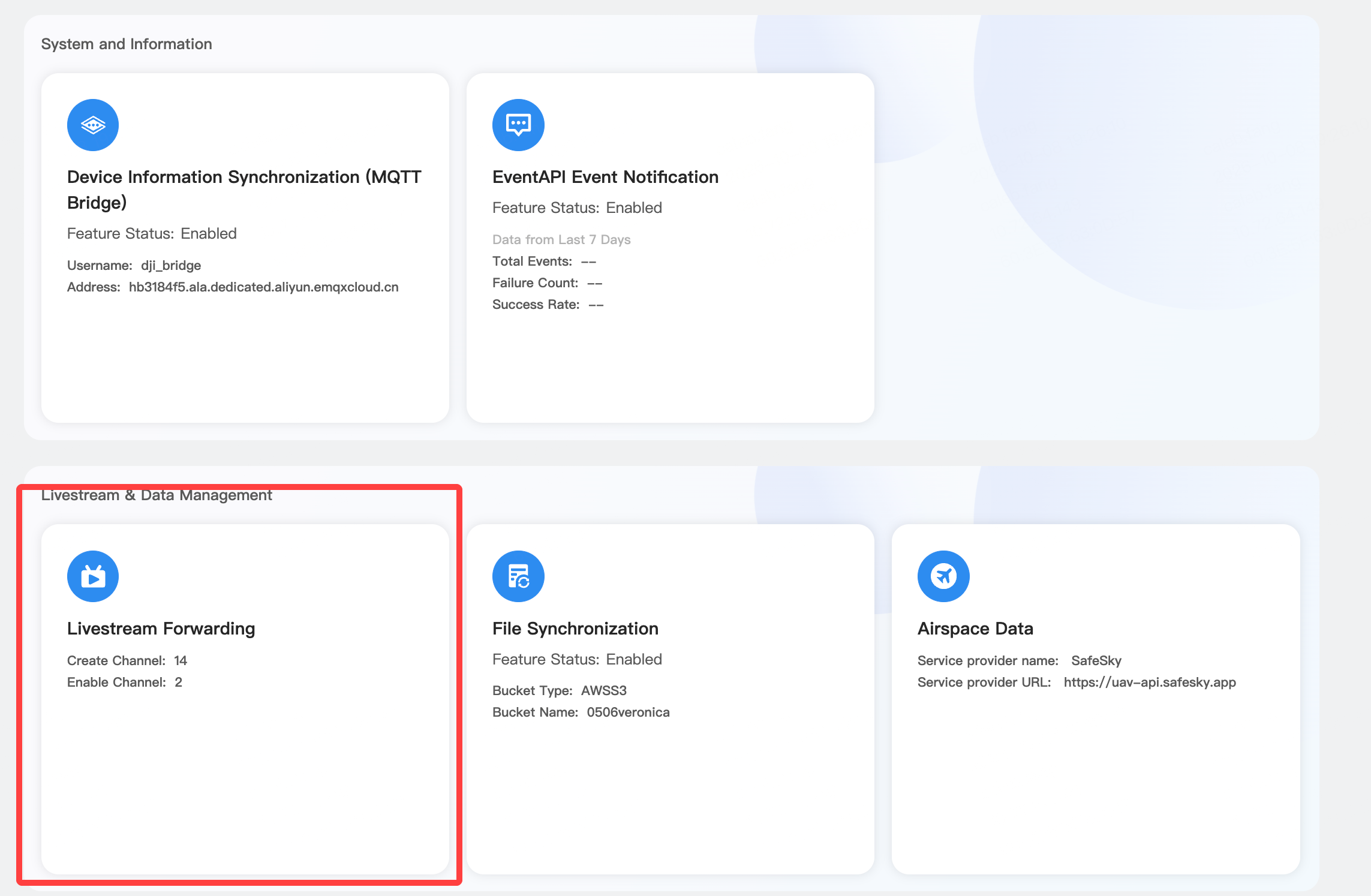
In Organization Management, click the FlightHub Sync card, open the livestream forwarding settings card, click Add, and create a new forwarding task using the RTSP protocol.
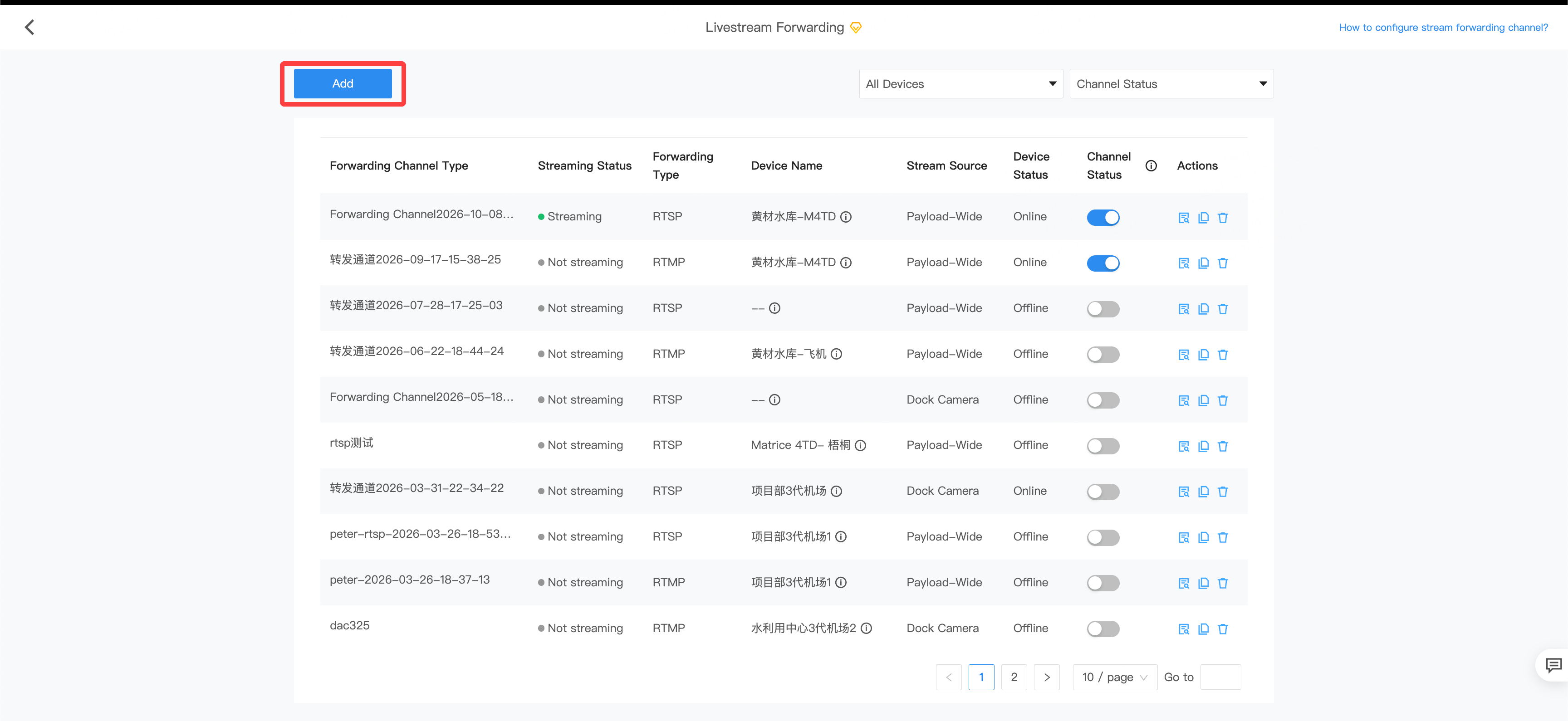
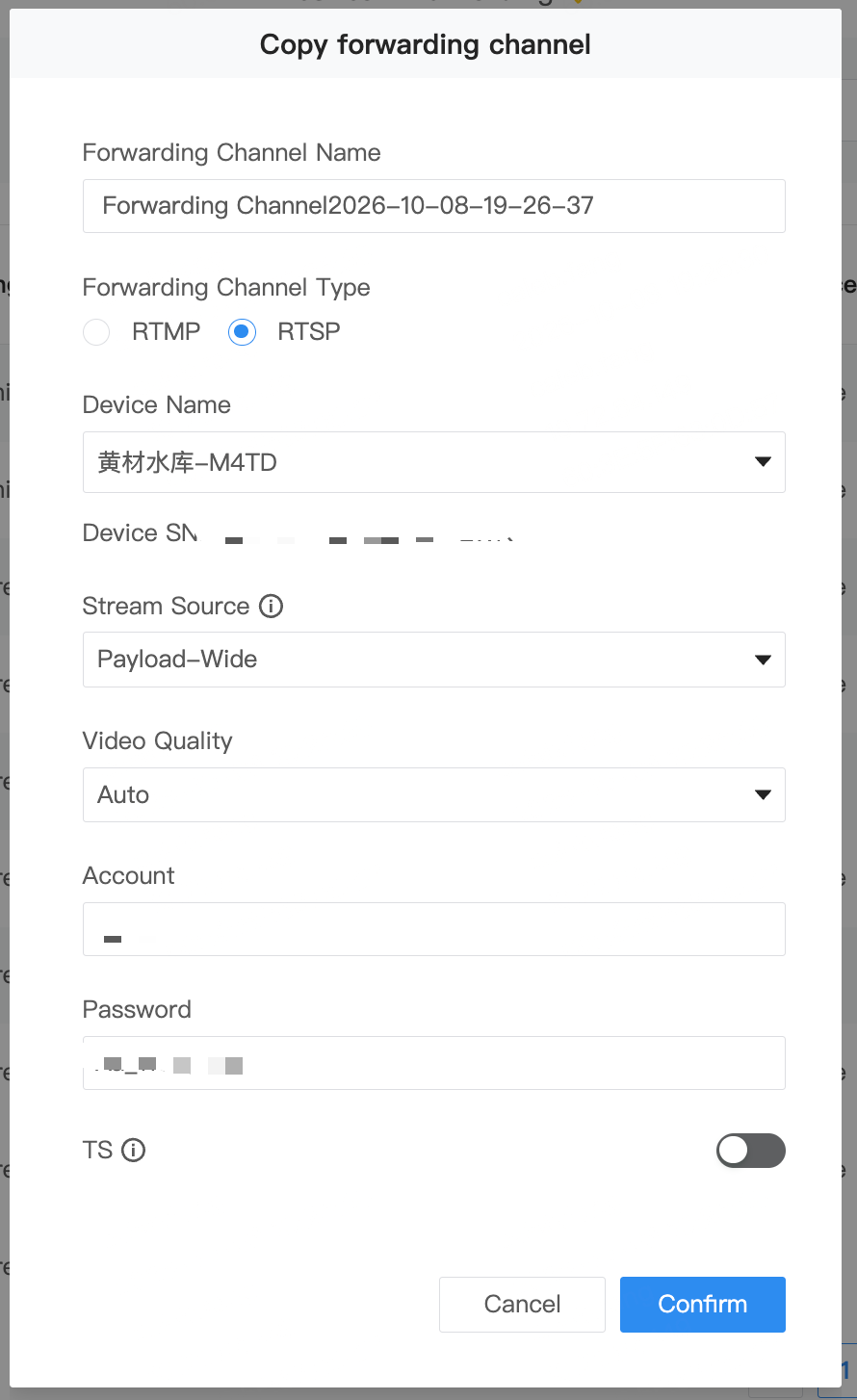
Once the forwarding task is created, an RTSP address is shown. Copy and keep it — it is required in the next part.
4Part 2 — DSS Pro side
The following steps can be performed from either the DSS Pro Client or the Server.
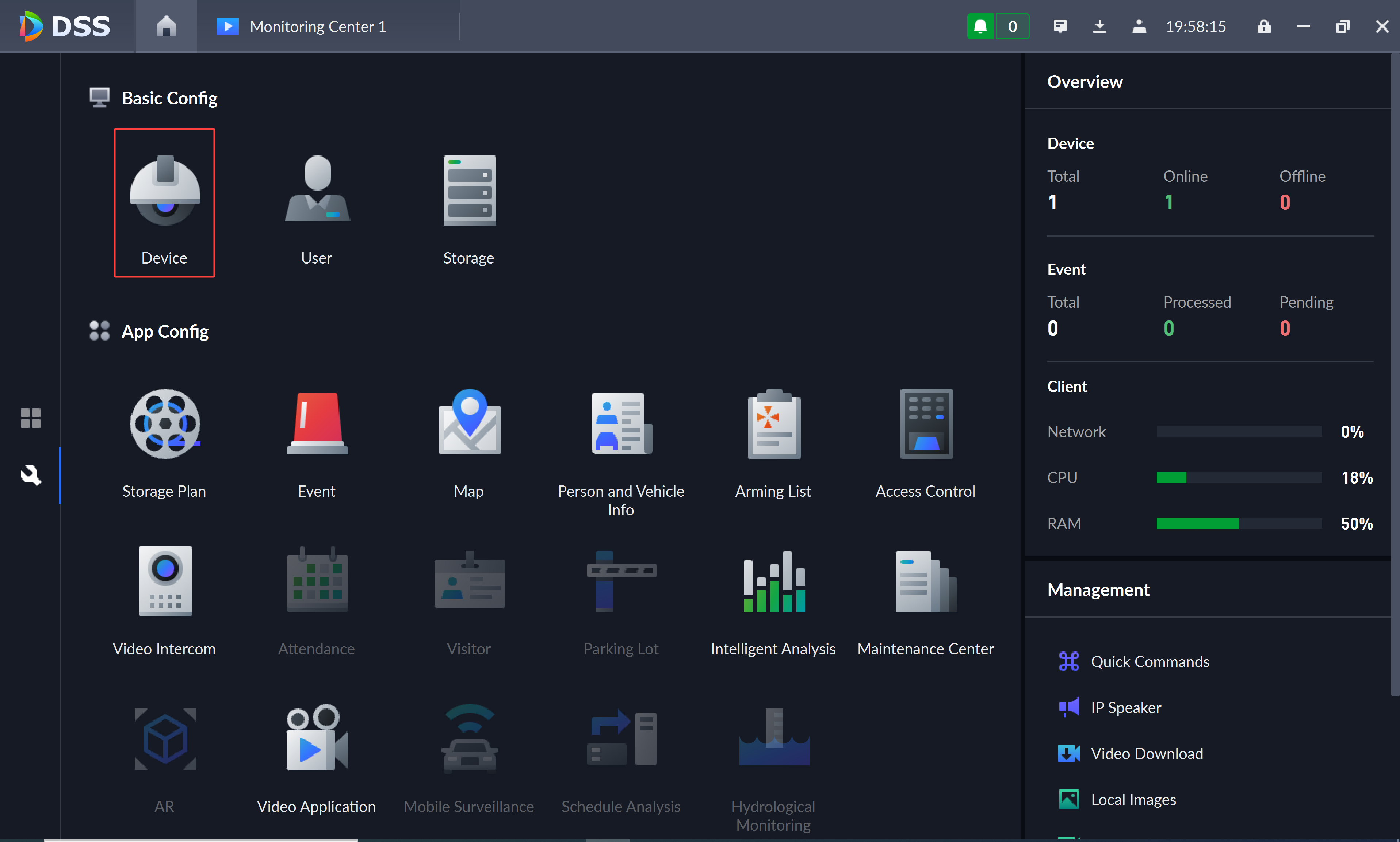
Open device configuration
After downloading DSS Pro and completing the base network configuration, open the DSS Client or Server, go to Configuration, and select Device.
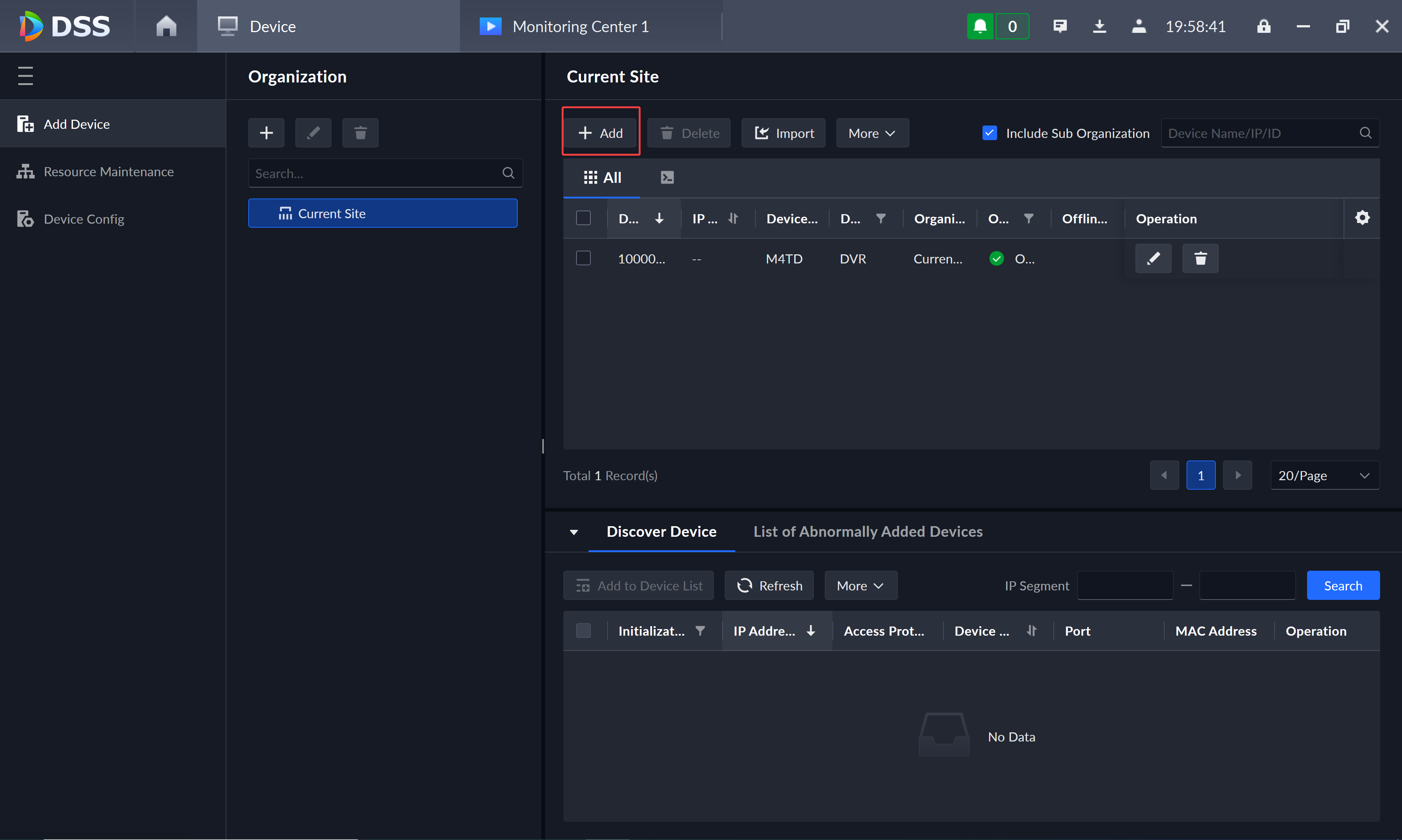
Add a device
On the Add Device tab, click the Add button for the current site to add a device.
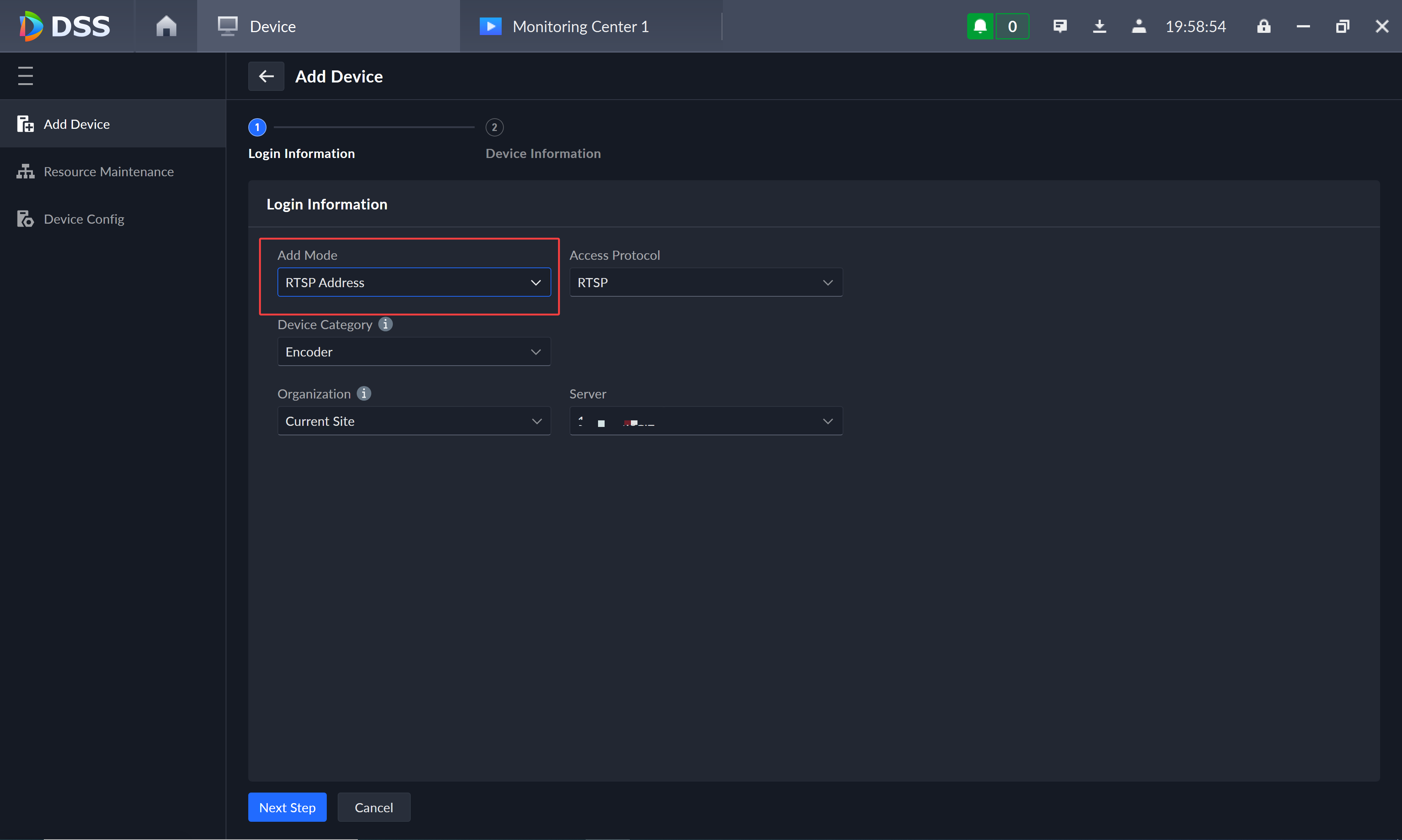
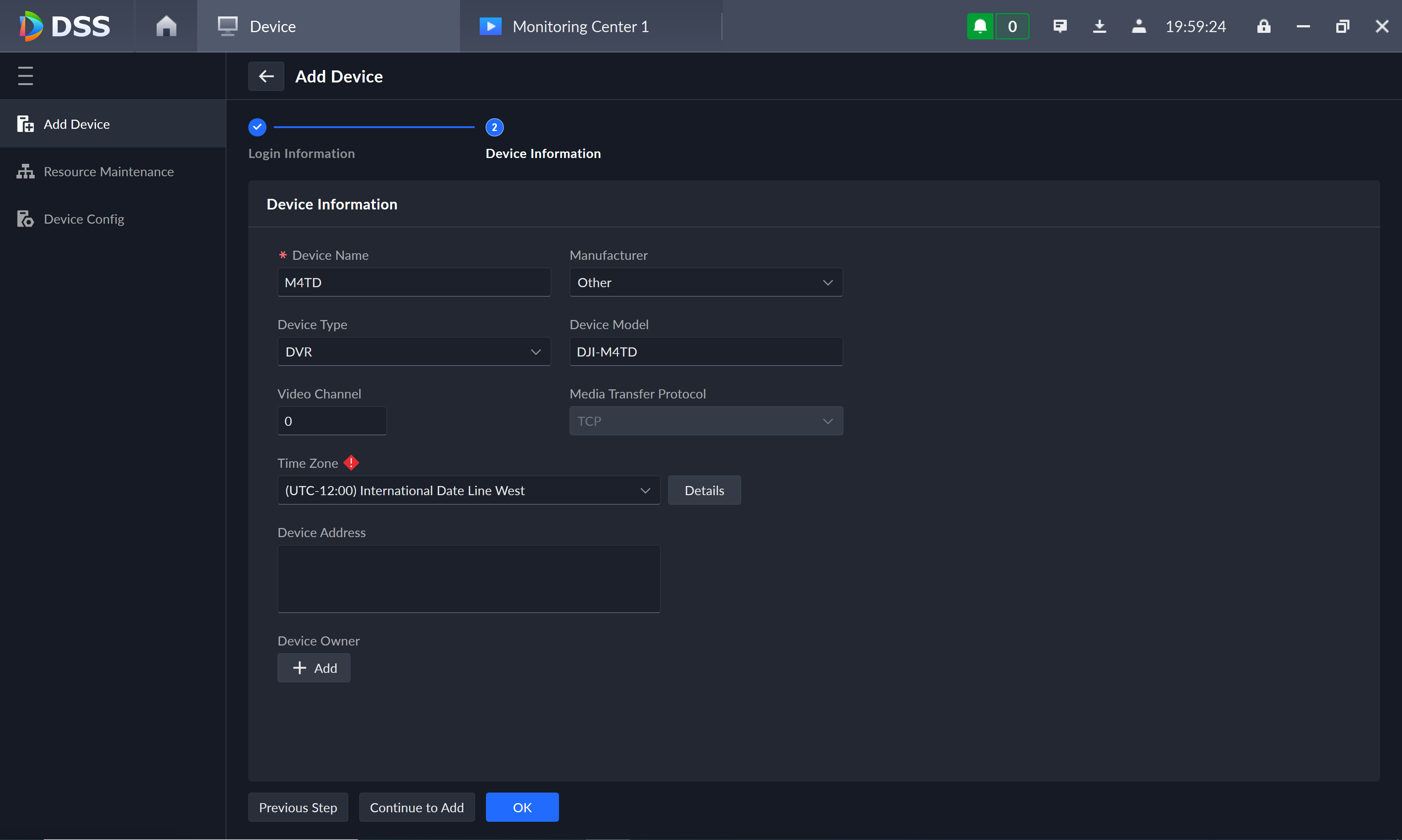
Set the add mode to RTSP address
In the add-device dialog, set Add Mode to RTSP address. Enter a device name under device information; the remaining fields can be filled in as needed.
Open the device for editing
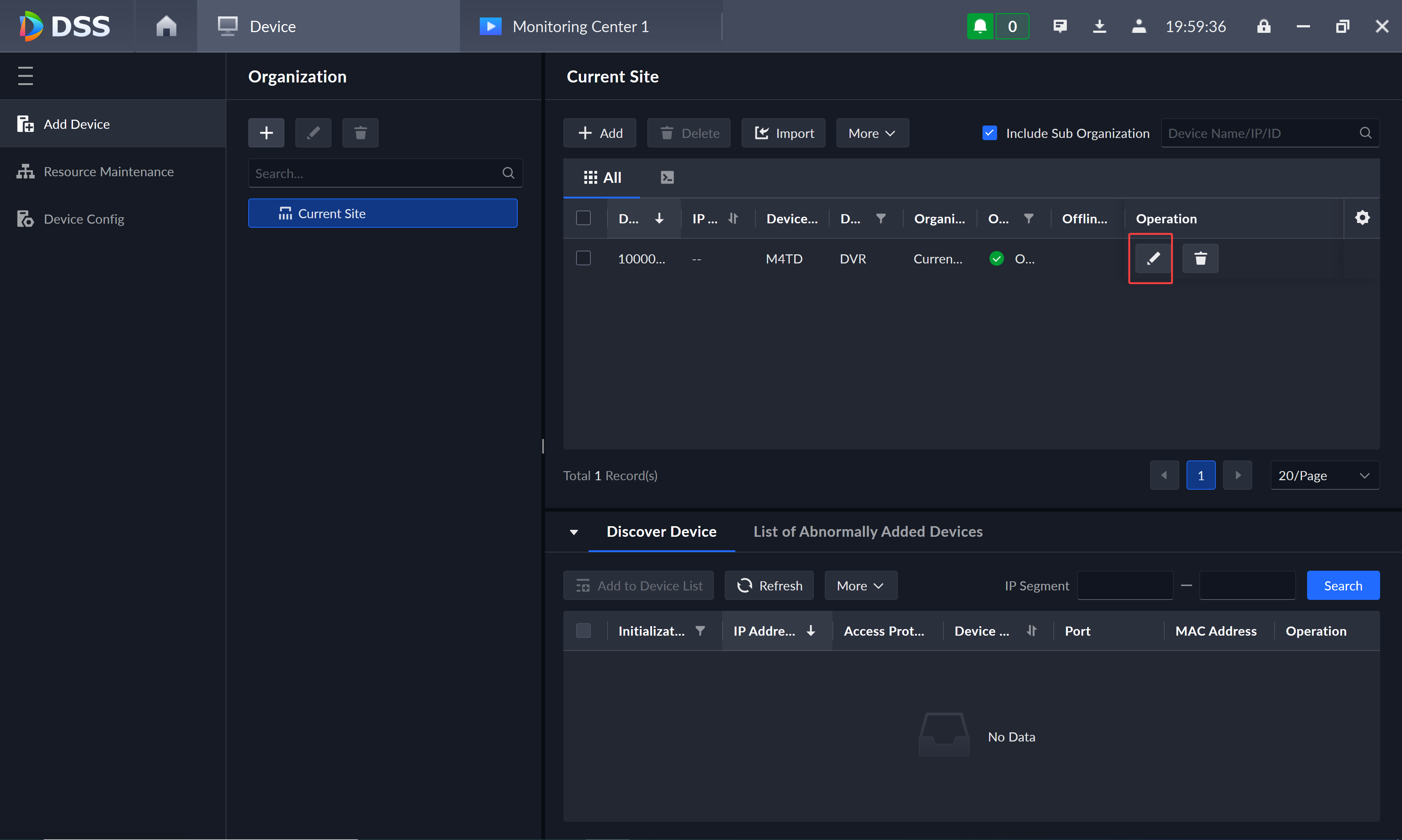
Once the device is added, return to the device list and click the pencil edit button next to the device you just created.
Set the video channel count
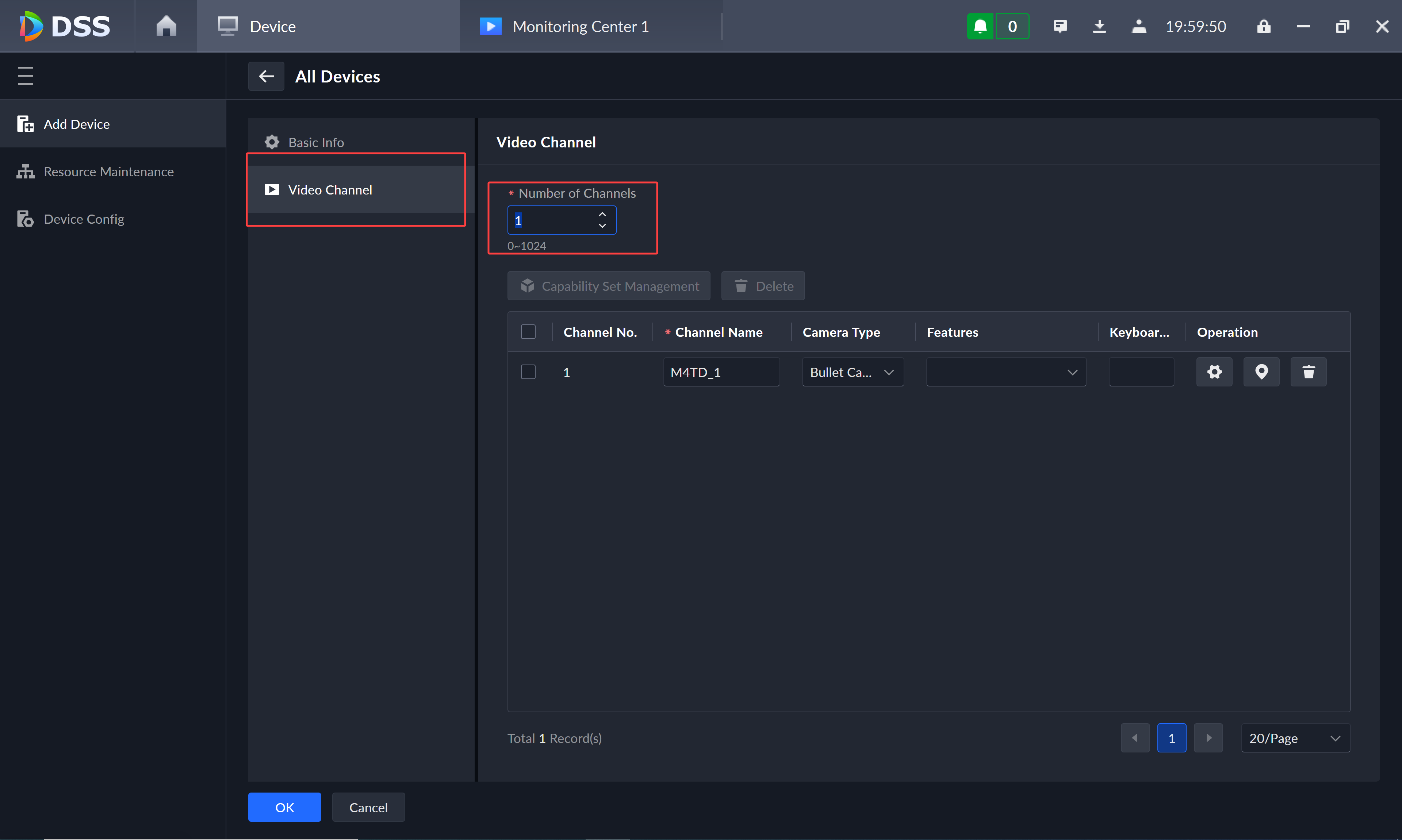
On the single-device edit page, select Video Channel and set the channel count to 1.
Enter the RTSP address
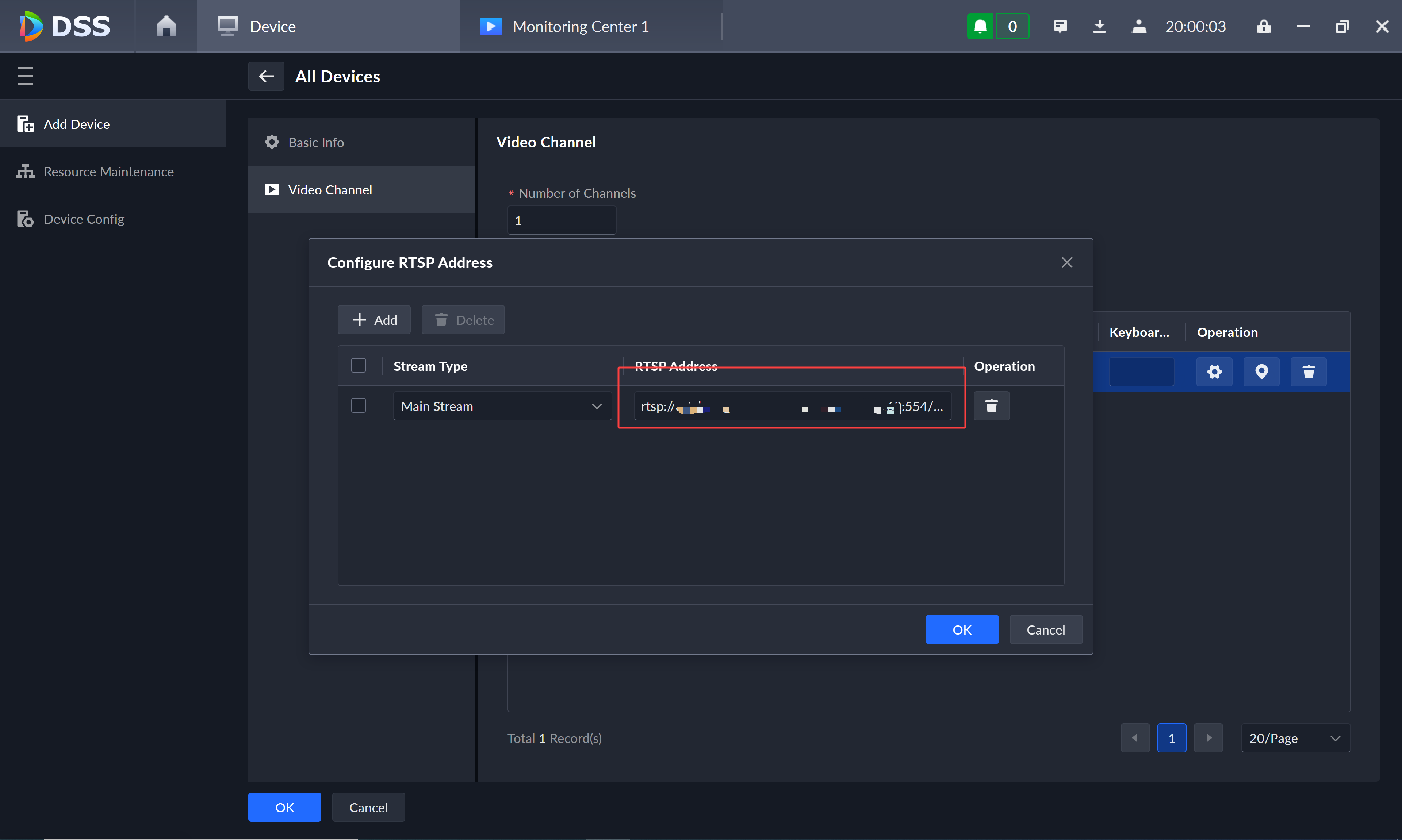
Click the gear button, enter the RTSP address obtained from FlightHub 2, and save.
Drag the channel onto the video wall
In the Monitoring Center, drag the newly created video channel onto the video wall.
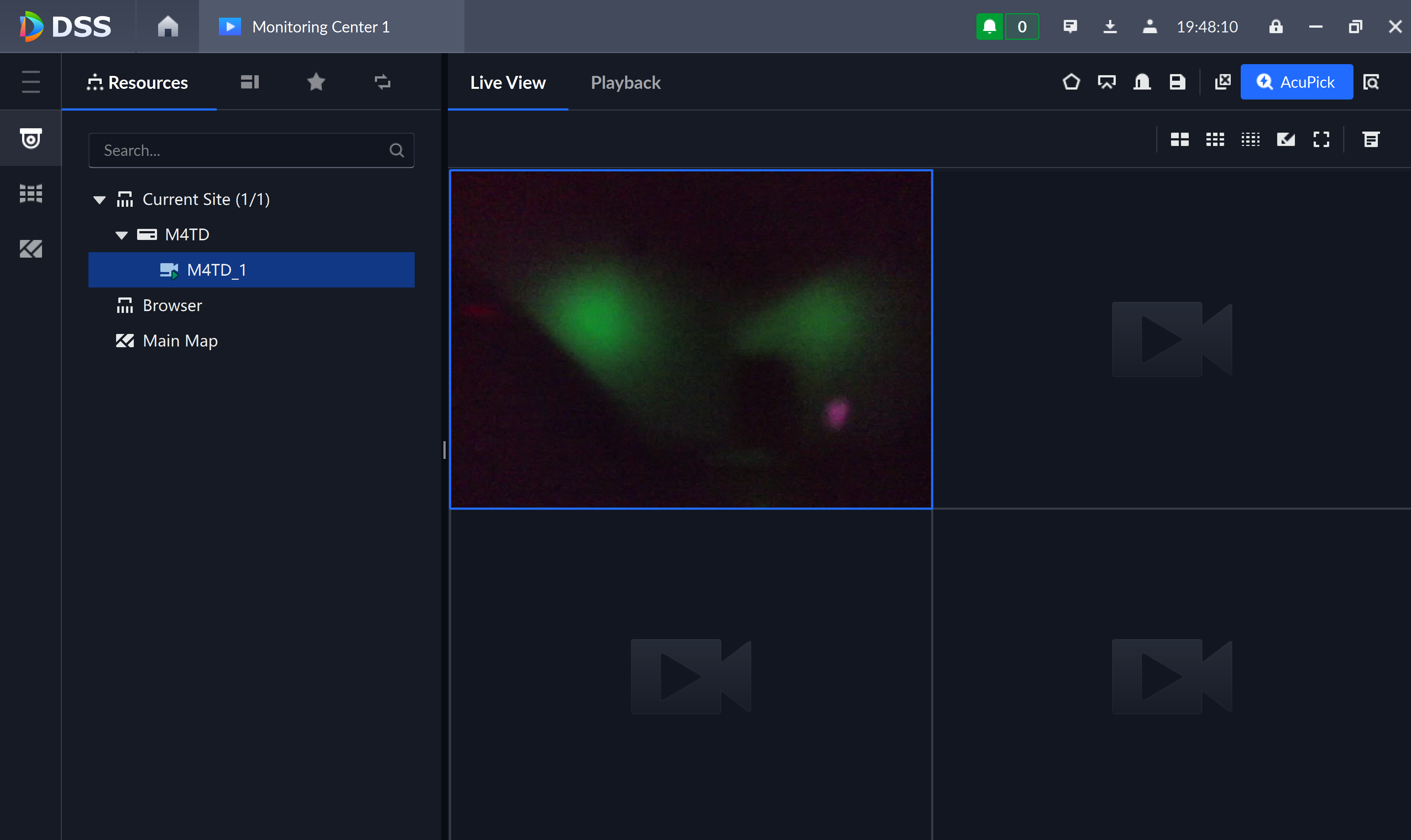
Take off the drone and confirm the FlightHub 2 forwarding channel is switched on. Live video should appear on the DSS Pro video wall. If the view is black, work through section 6 first.
5Operational notes (please read)
For the RTSP protocol, the IP address is not retained after the forwarding channel is switched off. To stream again you must re-enable forwarding, obtain the new RTSP address, and update it in DSS Pro.
This is the most common cause of "it worked yesterday, today the wall is black". Therefore:
- Do not treat the RTSP address as a permanent address in documentation or other systems
- If anyone switches the forwarding channel off, the DSS Pro side breaks and the address must be re-entered
- For stable long-term ingest, keep the forwarding channel switched on, and make "re-obtain the address and update DSS Pro" part of your operations runbook
Forwarded stream data counts against the organization plan's livestream minutes. Following the recommendation above and keeping the channel always on will consume quota continuously.
Before going live, size usage as number of channels × expected duration — particularly for multi-channel or 24/7 ingest — so that exhausting the quota does not interrupt streaming.
RTSP is pull-based, with typical end-to-end latency of 1–3 seconds. Do not use this view for operations requiring precise real-time control. Drone control should remain in the FlightHub 2 cockpit.
6Troubleshooting & FAQ
Check in order: (1) the drone has taken off and is online; (2) the forwarding channel in FlightHub 2 is switched on; (3) the RTSP address has not expired because the channel was previously switched off (see section 5); (4) the DSS Pro server can reach the RTSP address over the network.
The most common cause is that the forwarding channel was switched off and back on, so the RTSP address has changed. Return to FlightHub 2, obtain the new address, and update the DSS Pro device configuration.
No. This is one-way video ingest and carries no control signalling. Drone and gimbal control must be performed in the FlightHub 2 cockpit.
FlightHub Sync livestream forwarding does support GB28181, but only on FlightHub 2 On-Premises — Public Cloud does not provide it. Projects that mandate national-standard ingest therefore require a private deployment.
RTSP is pull-based, so multiple clients can in principle pull the same address. However, concurrency is bounded by server capacity and plan limits. For large-scale distribution, deploy a local media server to redistribute the stream rather than pulling many sessions directly from FlightHub 2.