
Map Photos
Project members can click  to enter Map Photos to manage all the photos that are overlaid on the map.
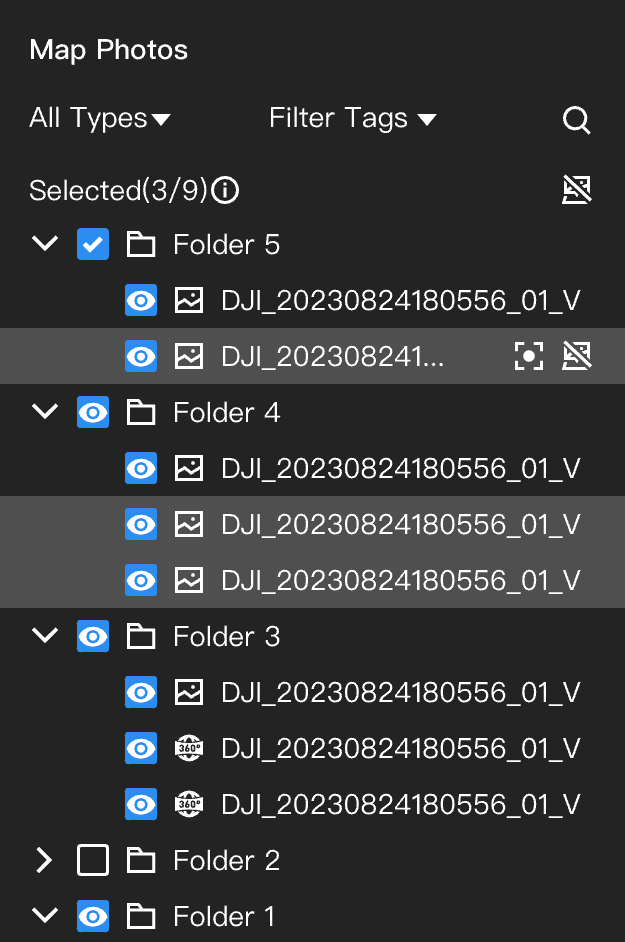
- Click
 to hide the display of a single photo or the entire folder on the map.
 - Click
 to cancel the overlay of a single photo or the entire folder on the map.
Users can click a single photo on the list or the thumbnail on the map to preview the photo.
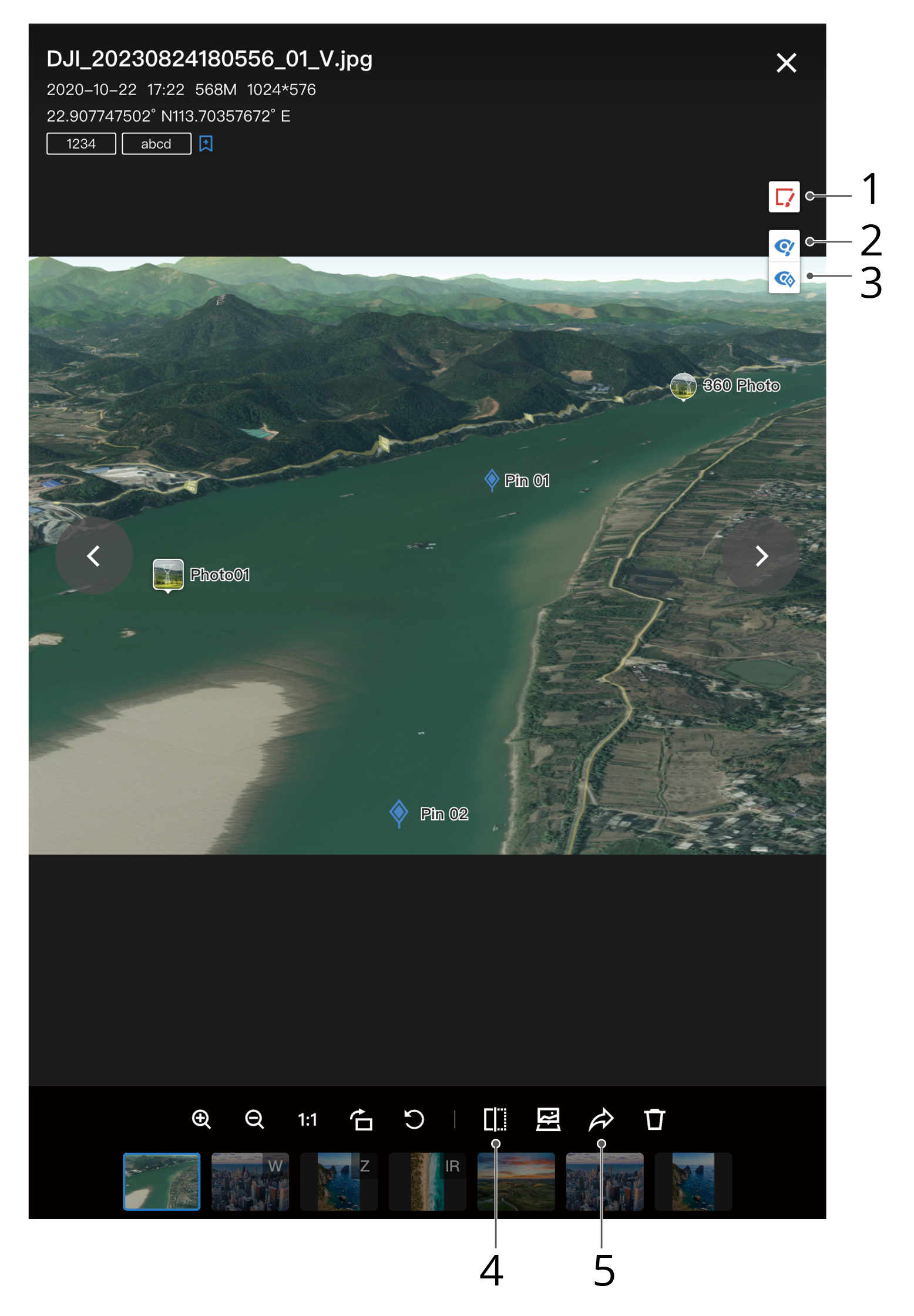
- Click
 to markup photos. Users can add frames and notes on the photos and press [Shift] and drag to move the photos. The notes will automatically become the tags for the photos and can be used for filtering the photos. Users can also filter photos with unnamed markups.
 - Click
 to hide the markup.
 - Click
 to hide annotations.
 - Click
 to compare photos taken by the same Take Photo (Fixed Angle) action at the same waypoint. See Preview Media Files for more details.
 - Click
 to customize the sharing settings and share the current photo.
- Press [T] to add a tag.
- Press [←] [→] to switch photos.
- Press [ESC] to exit the preview.