3D Model Management
3D Model Panel
1. Display the Model on the Map
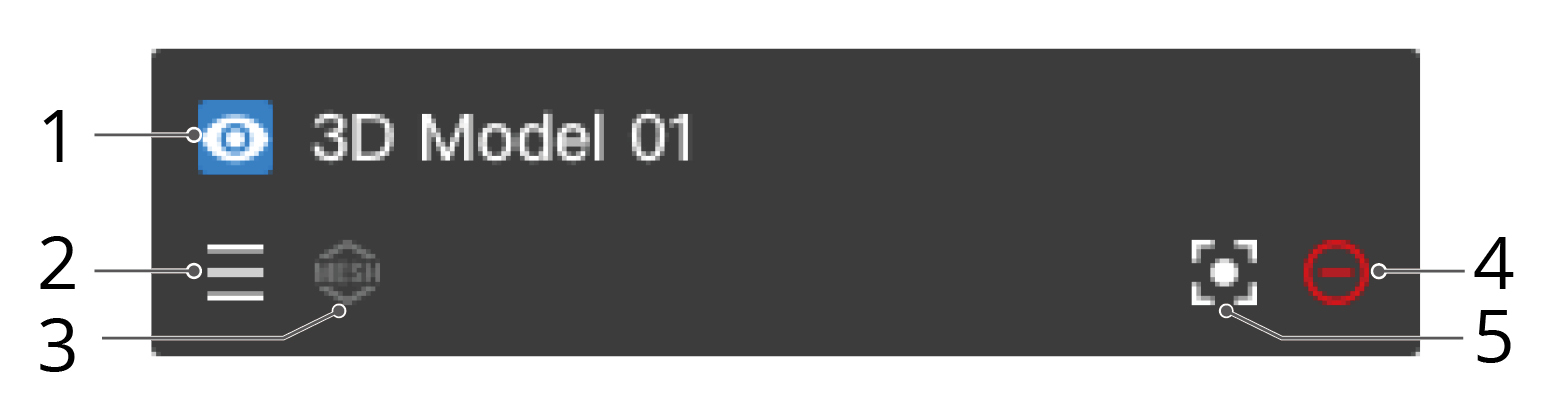
The project administrator can click  to display the model on the map.
2. Change the Display Order
The project administrator can drag  to change the display order of the models. If there are overlapping models in the same area, the 3D models at the top of the list will be displayed on the top of the map.
3. Display the Model Type
The  icon stands for the point cloud model, and
  stands for the mesh model.
4. Center the 3D Model
Users can click  to select the 3D model, and the model will be displayed in the middle of the web page.
5. Remove the 3D Model
Users can click  to cancel the display of the 3D model on the map. The 3D model will still exist in the Model library.
Point Cloud Model Display
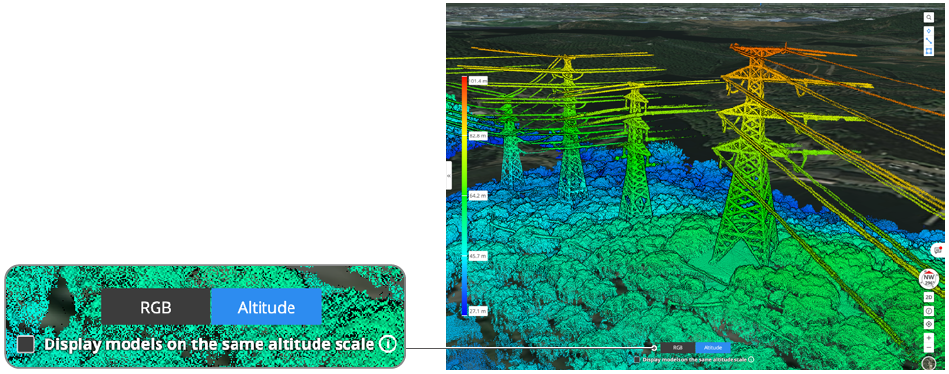
The point cloud models can be displayed in the RGB, Reflectivity, Altitude, or Echo mode, depending on what information is included in the models.
When the model is displayed in the Altitude mode, the altitude scale will be shown on the left. After selecting "Display models on the same altitude scale", multiple selected models will be displayed on the same altitude scale, and the same altitude will be rendered with the same color.