Data Import
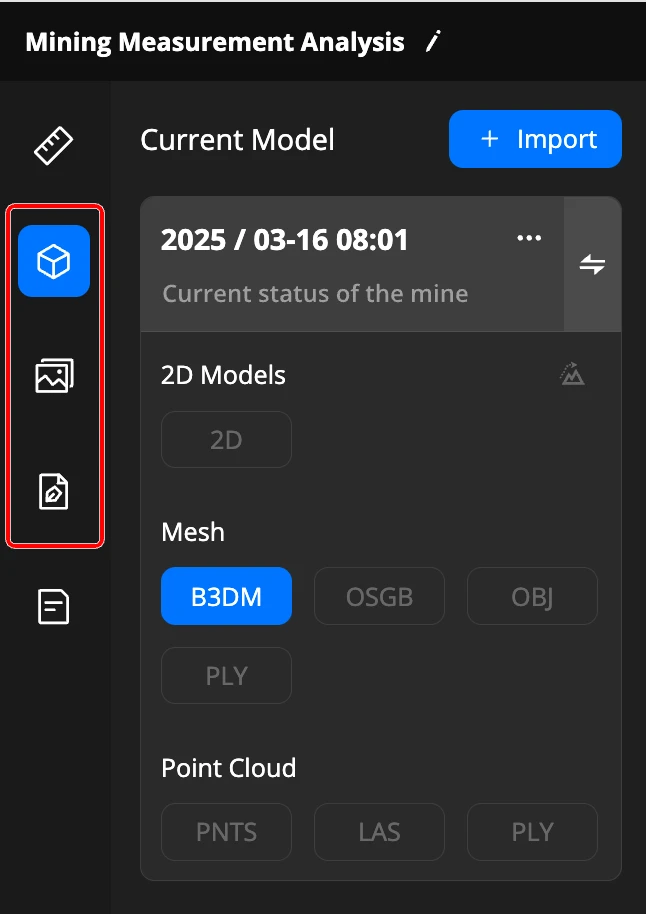
After entering the project, project members click enter the analyzer,After selecting the created analyzer, data can be imported.
Import Data
Click the 「Import」 button on the analyzer to open the import page;
After selecting a single file or folder, click
 to import;
After successful import, the files will be displayed in their respective file lists.
Note:
- The list data is consistent with the model library, media library, and design file library in the project;
- Click to preview data;
- The list supports time filtering, type filtering, and file name search;
- Supported data types for import:
- Media: wide-angle, zoom, infrared, panoramic view;
- Models: 2D model, mesh model, point cloud model;
(Note: To ensure the accuracy of subsequent measurements, it is recommended to use models collected at a flight altitude of 120 meters or less.) - Design files: PDF, DXF.
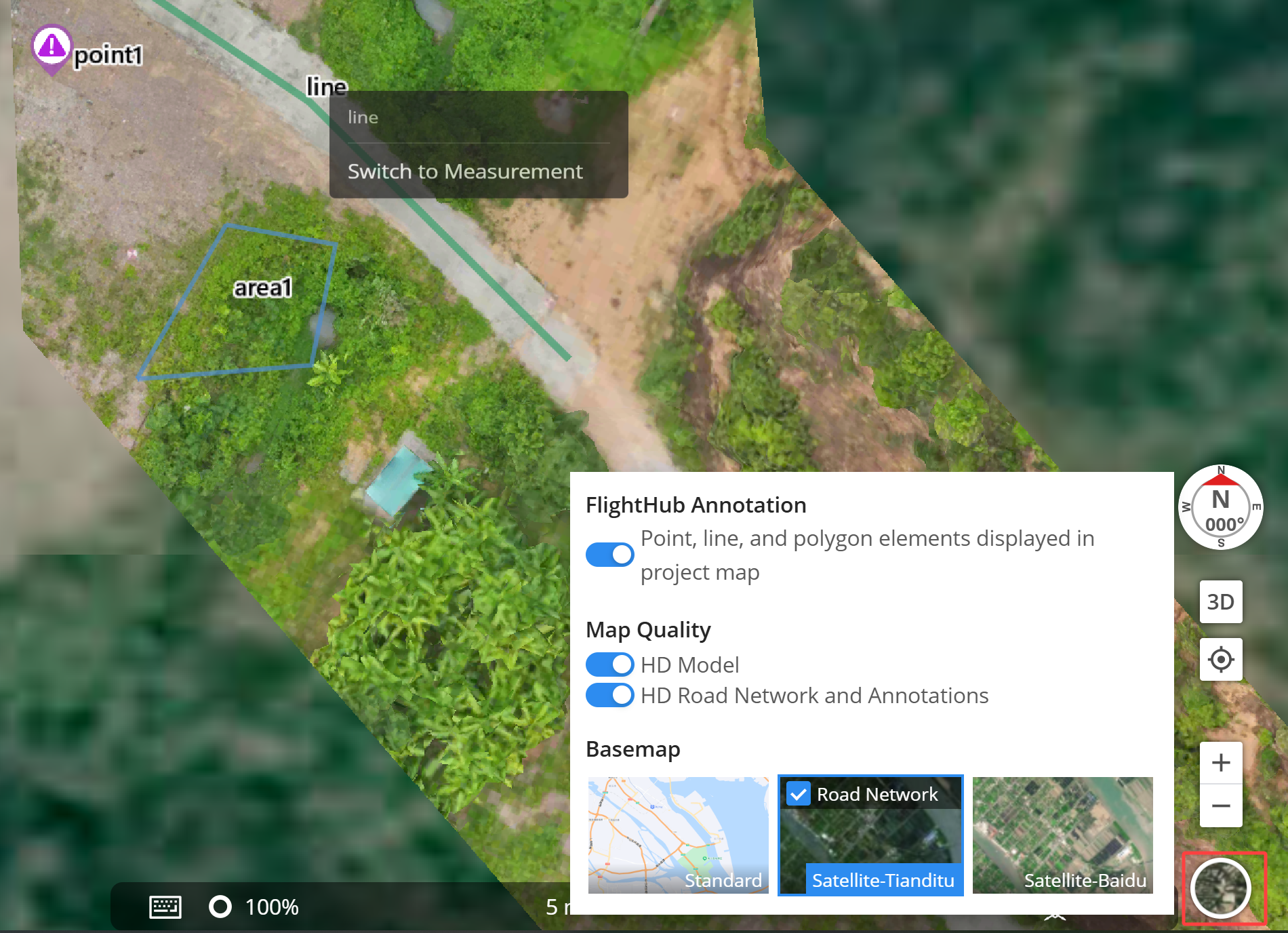
Project Annotation Sync
In the analyzer map settings, you can enable synchronization to display project annotations on the map. You can also right-click an annotation to convert it into measurement within the analyzer.