
Edit Waypoint Routes
The Waypoint Route Editor supports using the mouse and keyboard to control a virtual aircraft to plan waypoint routes, adjusting the waypoint location and shooting angle based on the imported 3D models, as well as checking whether the flight routes are safe. After completing the route planning and first flight, users can enable AI Spot-Check or adjust the subject of interest to capture the desired views in the subsequent tasks.
Editor Interface Introduction
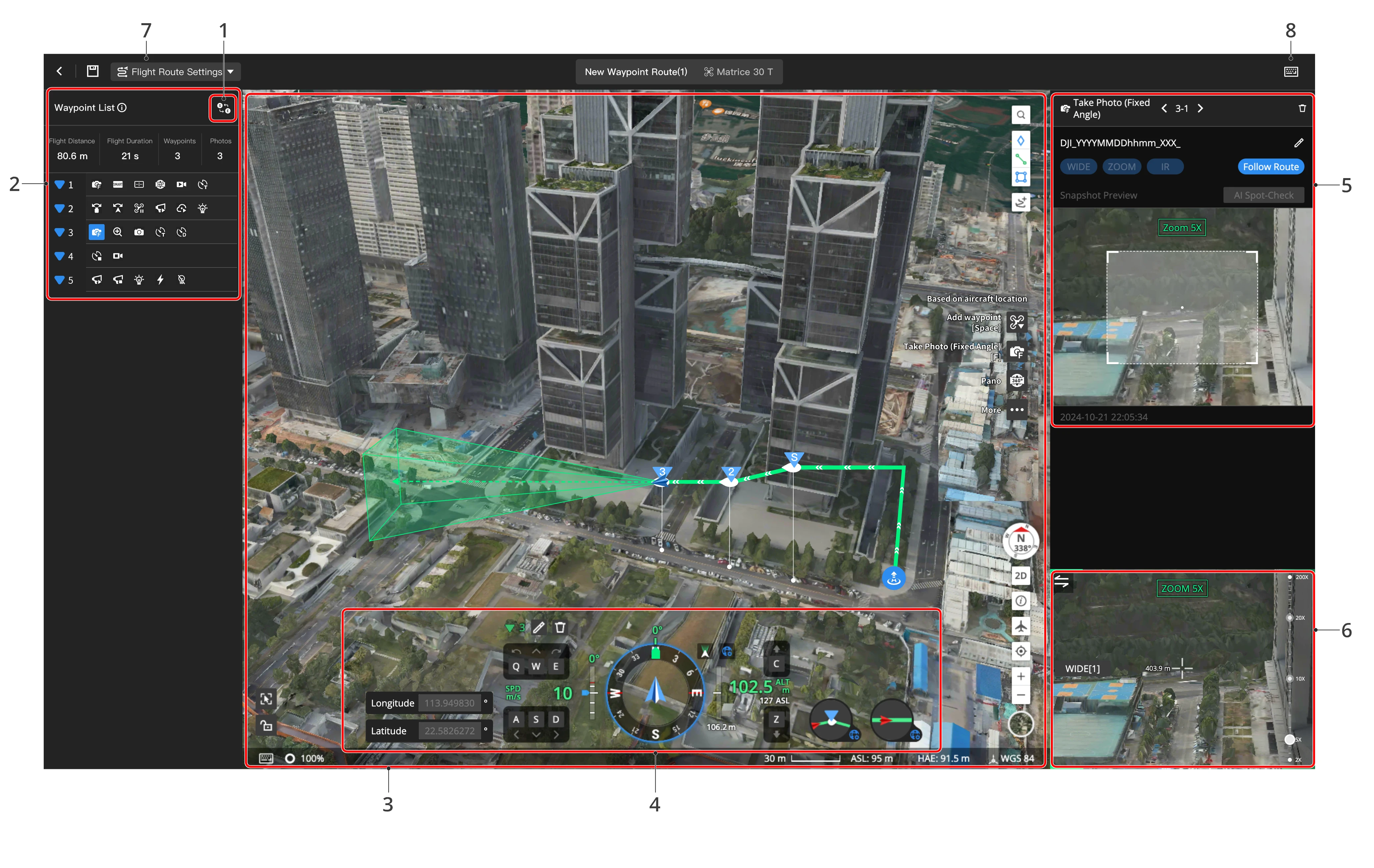
1.Reverse Flight Route
Click  to reverse the waypoint order of the flight route.
For the following waypoint action pairs:
| Start Recording | Stop Recording |
| Start Timed Interval Shot | End Interval Shot |
| Start Distance Interval Shot | End Interval Shot |
The waypoint order can be automatically swapped. Make sure the new flight route meets requirements before reverse.
2. Waypoint List
Displays the added waypoints and waypoint actions.
- Click the waypoint or action icon, and the waypoint will be displayed in the middle of the web page.
- Double-click the Take Photo (Fixed Angle) action and scroll the mouse wheel to zoom in or out or drag the auxiliary view to adjust the shooting angle.
3. Main View
- Displays the flight route based on the map view. Users can drag the map, scroll the mouse wheel to zoom in or out, or press and move wheel to rotate the map view. Users can also click
 or press [~] to switch to the map view.
 - The data in the center of the main view represents the straight line distance between the virtual aircraft and the shooting subject.
4. Flight Data
Displays the altitude and heading of the virtual aircraft, as well as the gimbal angle. Users can also click 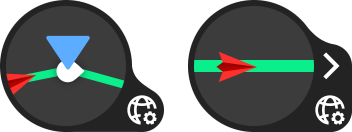 to adjust the waypoint type and aircraft yaw mode.
5. Action Editor
Displays details of the selected waypoint action. For the Take Photo (Fixed Angle) action, users can preview the zoom photo effect based on the imported models. Media files captured will be displayed here after the flight task is completed. Users can enable AI Spot-Check or adjust the shooting angle and start the task again to capture the expected views.
Note: To use AI Spot-Check, users should select to store zoom photos and choose an appropriate zoom ratio so that the subject of interest is within the camera view before tasks.
6. Auxiliary View
Displays the flight route based on the first-person view. Users can scroll the mouse wheel to zoom in or out or drag the auxiliary view to adjust the shooting angle. Users can also click or press [~] to switch to the map view.
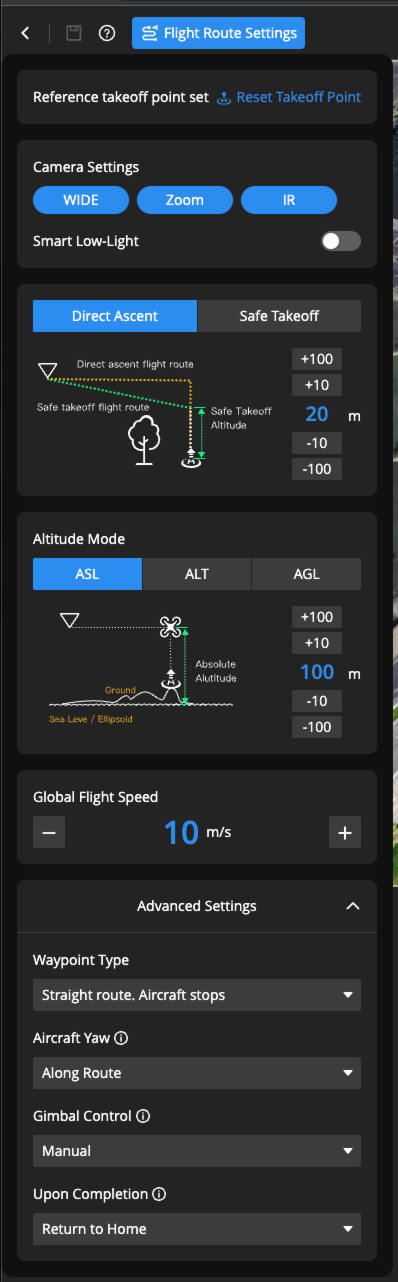
7. Flight Route Settings
Users can move the mouse over  to view the setting descriptions and modify the global settings.
8. Keyboard Shortcuts
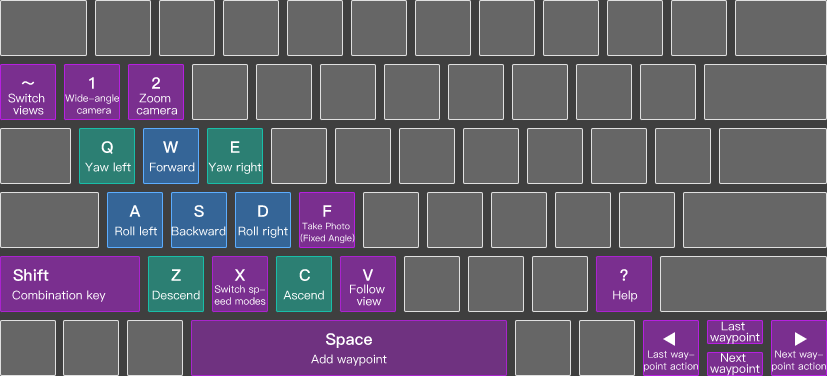
| [1]: Switch to the wide-angle camera | [2]: Switch to the zoom camera |
| [Q]: Yaw left | [E]: Yaw right |
| [W]: Forward | [S]: Backward |
| [A]: Roll left | [D]: Roll right |
| [Z]: Descend | [C]: Ascend |
| [F]: Add Take Photo (Fixed Angle) action in the current virtual aircraft location. Confirm the shooting angle or zoom ratio if the user is editing the action | [Space]: Add a waypoint in the current virtual aircraft location. Confirm the updated waypoint location if the user is editing the waypoint |
| [Shift]+[F]: Insert a Take Photo (Fixed Angle) action after the current action | [Shift]+[Space]: Insert a waypoint after the current waypoint |
| [X]: Switch the speed modes of the virtual aircraft | [V]: Enable the mouselook feature. Press [V] or [ESC] to exit |
| [←]: Select the last waypoint action | [→]: Select the next waypoint action |
| [↑]: Select the last waypoint | [↓]: Select the next waypoint |
| [~]: Switch between the map and first-person views |
Note: The keyboard layout may be different in different countries or regions, and users should follow the actual interface guidance. To change the keyboard layout, go to User Center > Preferences > Keyboard Layout to customize the settings.
9. Flight Route Edit Settings
FlightHub 2 supports synchronizing attitude information when adding a new waypoint. When enabled, it automatically records the virtual aircraft's gimbal yaw and tilt angles, the aircraft's yaw, and camera zoom level upon adding a new waypoint, and adds these data to the action list.
Flight Route Planning and Initiation
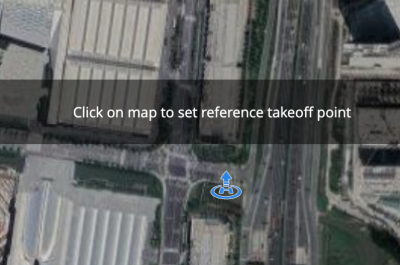
1. Set a Reference Takeoff Point
Select an appropriate location or the dock as a reference takeoff point. It is recommended to set the dock as the reference takeoff point.
2. Add a Waypoint
Control and move the virtual aircraft to a desired location and press [Space] to add a waypoint in that location.
3. Insert a Waypoint
Select a waypoint and press [Shift]+[Space] to insert a waypoint after the selected one.
4. Adjust the Camera View
In the first-person view:
- Drag the camera view to change the camera view or scroll the mouse or adjust the slider to change the zoom ratio.
- Press [V] to enable the mouselook feature so that users can directly adjust the camera view by moving the mouse. Press [V] or [ESC] to exit.
5. Add a Waypoint Action
- Users can press [F] to add a Take Photo (Fixed Angle) action for the current waypoint. If the virtual aircraft is not on the waypoint, a waypoint with a Take Photo (Fixed Angle) action will be added automatically.
- Press [Shift]+[F] to insert a Take Photo (Fixed Angle) action after the selected action. If the virtual aircraft is not on the current waypoint, a waypoint with a Take Photo (Fixed Angle) action will be inserted automatically.
Click  to display more waypoint actions.
 Add waypoint at current virtual aircraft location Add waypoint at current virtual aircraft location |  Start recording (Aircraft yaw and gimbal pan angles and camera zoom ratio will be recorded at the same time) Start recording (Aircraft yaw and gimbal pan angles and camera zoom ratio will be recorded at the same time) |  Add Take Photo (Fixed Angle) action Add Take Photo (Fixed Angle) action |  Stop recording Stop recording |
 Start timed interval shot Start timed interval shot |  Start timed interval shot Start timed interval shot |
 End interval shot End interval shot |  Hover Hover |
 Aircraft yaw Aircraft yaw |  Gimbal yaw Gimbal yaw |
 Gimbal yaw Gimbal yaw |  Gimbal yaw Gimbal yaw |
 Camera zoom Camera zoom |  Create folder Create folder |
 Take panorama Take panorama | |
 Spotlight Spotlight |  Spotlight Strobe Spotlight Strobe |
 Spotlight on Spotlight on |  Spotlight off Spotlight off |
 Speaker Speaker |   Start/Stop broadcasting Start/Stop broadcasting |
 Intelligent recognition Intelligent recognition |   Start/Stop intelligent recognition Start/Stop intelligent recognition |
 Record current attitude Record current attitude |
6. Add a No-Return Point
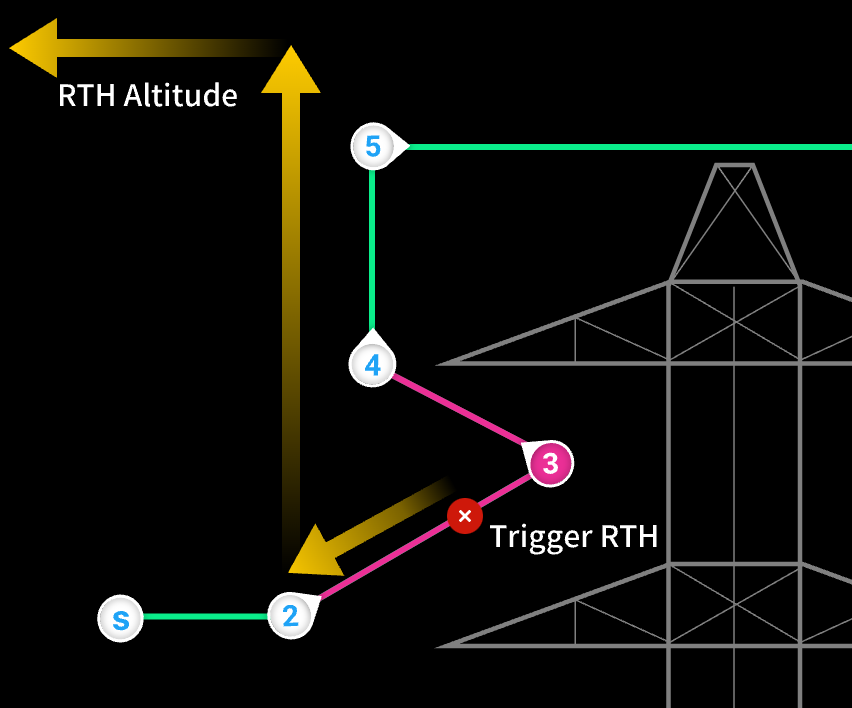
When editing the waypoint route, the waypoint with obstacles above it can be marked as a no-return point. The route from the previous waypoint of the no-return point to its next waypoint will be marked as a no-return area (Both the previous and next waypoints are not included.) When the aircraft is in the no-return area and safe RTH is triggered, the aircraft will follow the route and fly out of the area before ascending to the RTH altitude and returning to home.
As shown in the photo below, Waypoint 3 is a no-return point, and the yellow line is the RTH route.
Ways to add no-return points:
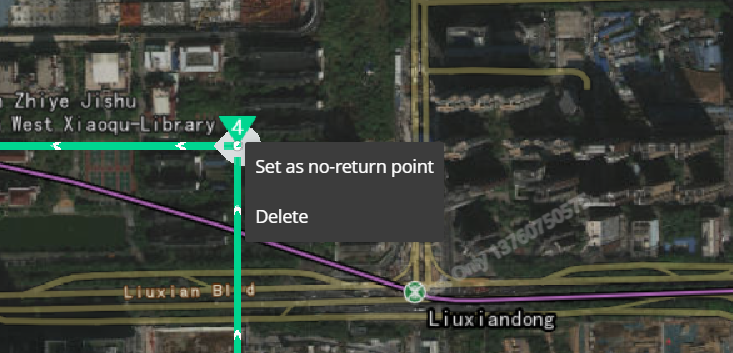
- When the map view is set as the main view, select the waypoint and right-click to choose "Set as no-return point".
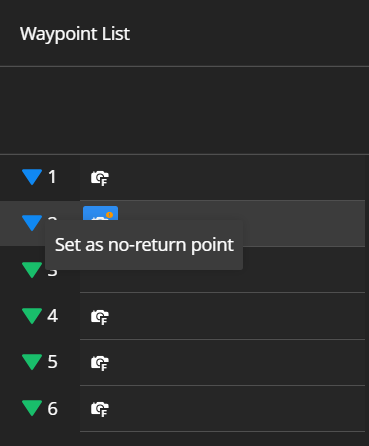
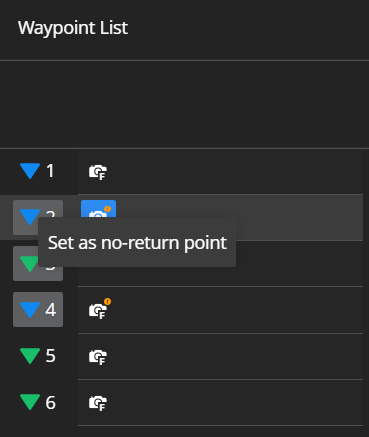
- Select a waypoint in the waypoint list and right-click to select "Set as no-return point".
- Press [Shift] and select the start and end waypoints to set consecutive waypoints as no-return points. Users can also press the left button of the mouse, drag to select waypoints, and right-click to select "Set as no-return point".
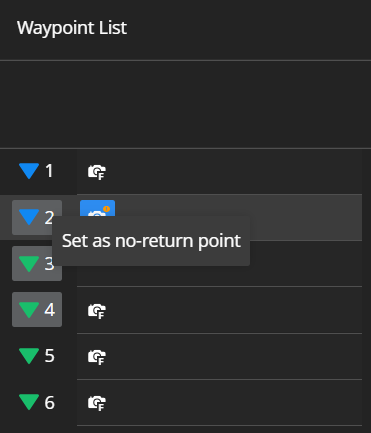
To cancel the no-return point settings, select waypoints and right-click "Cancel no-return point".
7. Perform AI Spot-Check
7.1 Distribute the task
Users can distribute the task to the dock through the plan library after planning the flight route. Wait until the media files are uploaded to the cloud. See Task Plan Library for more details.
7.2 Adjust the shooting angle
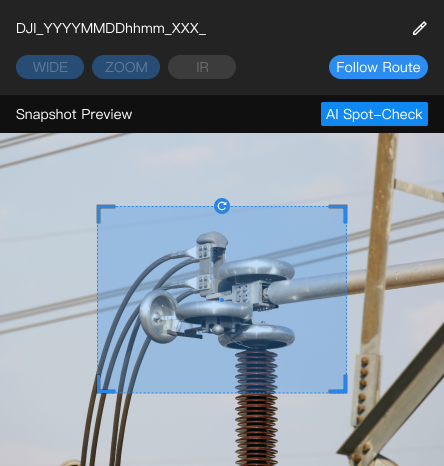
Users can reopen the flight route editor and view the media files captured in the action editor. Click AI Spot-Check and drag or rotate the blue frame to adjust the subject of interest.
7.3 Perform the task again
After adjusting the subject of interest, users can distribute the task again. The dock aircraft will perform AI Spot-Check based on the adjusted angle to capture the desired views.
8. Batch Editing
8.1 Selecting Multiple Waypoints
To select a group of consecutive waypoints, click the first waypoint, then press and hold the Shift key and click the last waypoint. You can then use the Batch Edit Waypoints panel on the right to edit all selected waypoints at once.
8.2 Batch Editing Waypoint Parameters
You can modify the following parameters for all selected waypoints:
- Waypoint Altitude
- Waypoint Speed
- Waypoint Type
- Aircraft Yaw
- Gimbal Tilt Angle Between Waypoints
- No-Return Points
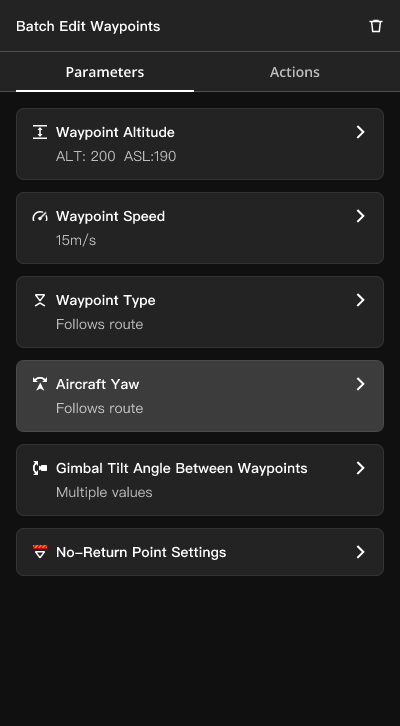
- Note: The Gimbal Tilt Angle Between Waypoints can only be edited after selecting "For Each Waypoint" in Flight Route Settings > Advanced Settings.
8.3 Batch Editing Waypoint Actions
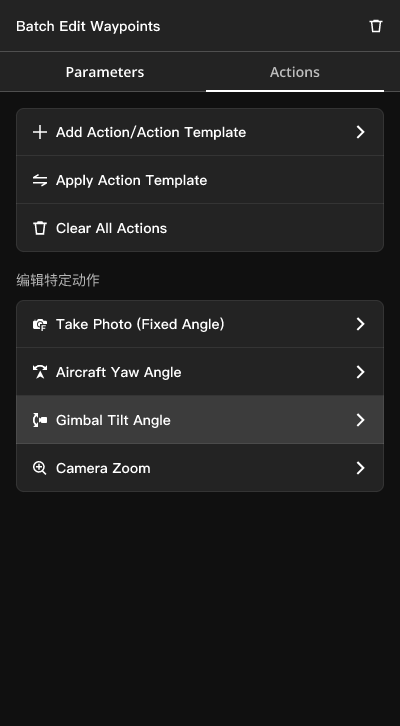
- Add Action/Action Template
- Add Action: Adds a single new action to the start or end of the action list for each selected waypoint.
- Add Action Template: Right-click any waypoint in the list and select Copy as Action Template. You can then add the action template to the start or end of selected waypoint actions.
- Replace with Action Template
- Replaces all existing actions on the selected waypoints with the actions from your template.
- Clear All Actions
- Removes all actions from the selected waypoints.
- Edit Specific Actions
- Click to batch edit action parameters of the selected waypoints.
AI Waypoint Route Planning
The waypoint route supports adding intelligent recognition actions, allowing the identification of people, vehicles, boats, or abnormal high and low-temperature points during the route, and performing actions such as taking photos, recording videos, and waiting for the operator to take over after alerts.
Feature Introduction
- Intelligent recognition supports the recognition of visible light photos, infrared temperature, and infrared objects, and third-party on-aircraft algorithms. If you switch to infrared mode during visible light detection, visible light intelligent recognition will not be available, and vice versa.
- Once intelligent recognition starts, it remains active continuously. After triggering an alert, the pre-set actions will be performed automatically. Once the actions are completed, the intelligent recognition will reactivate after a 10-second interval to avoid repeated alerts.
- Since intelligent recognition actions occur between waypoints, they will automatically be placed as the first action at the corresponding waypoint after saving the route. Their execution order is parallel to waypoint actions.
- Actions between waypoints include starting intelligent recognition, timed shots, and distance interval shots, while waypoint actions include all other actions.
- The intelligent recognition capability will automatically deactivate upon performing the intelligent recognition stop action or at the end of the route. To perform another intelligent recognition start action, add a stop action first to ensure actions are paired. This feature allows for the following scenarios.
- Waypoint 1: Start intelligent recognition - visible light - person recognition
Waypoint 3: Action 1: Stop intelligent recognition; Action 2: Start intelligent recognition - visible light - vehicle recognition
Waypoint 5: Action 1: Stop intelligent recognition; Action 2: Start intelligent recognition - infrared - high temperature
Waypoint 6: Stop intelligent recognition
This route will recognize people between waypoints 1 and 3, vehicles between waypoints 3 and 5, and high-temperature points between waypoints 5 and 6.
- In the current version, the intelligent recognition capability, AI-Spot check, and speaker action are mutually exclusive. Please do not add the above action combinations on the same route.
Visible Light Recognition Configuration
After enabling intelligent recognition, you can set related parameters here, choosing either visible light or infrared recognition.
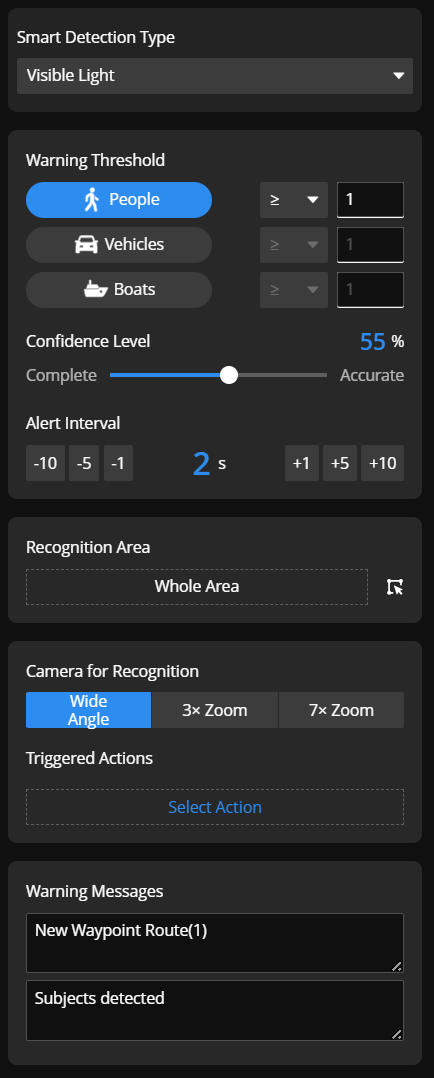
Warning Conditions: You can select multiple options such as people, vehicles, and boats for recognition, and set alert thresholds. For example, a alert is triggered when the number of people is 20 or more. When either the threshold for person, vehicle, or boat recognition is met, the alert will be triggered.
Confidence Level: You can set the confidence level of the intelligent recognition algorithm. Based on the algorithm’s performance in actual scenarios, select an appropriate confidence level to make the alarms more accurate.
Note: Perform person, vehicle, and boat recognition in well-lit environments to avoid recognition errors or blurry snapshots.
Recognition Area: You can set the area for recognition, useful for scenarios where only specific areas need to be recognized. For example, if the camera view includes an 8-lane road, you may only want to recognize a specific lane.
By default, all objects in the camera view will be recognized. After clicking  , you can specify the recognition area by clicking the name of the area annotation marked on the map. The selected area will be highlighted in pink.
The recognition area boundaries are for reference only, and objects at the boundaries may not be accurately recognized.
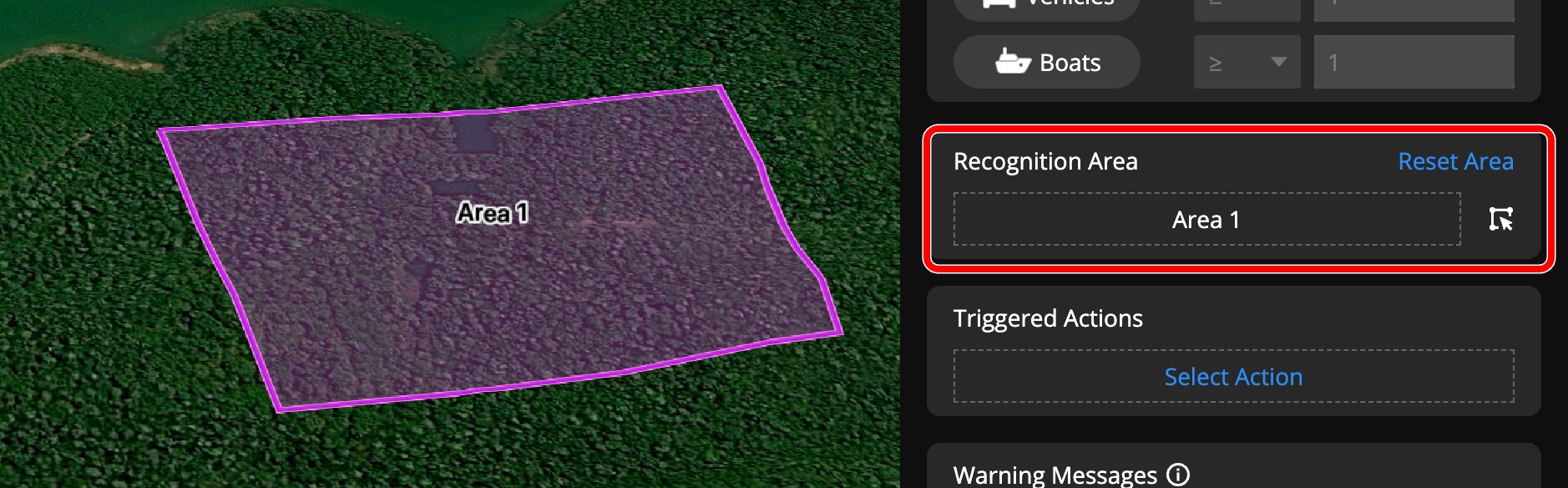
Actions: You can customize alert actions after the set threshold is met. When an alert is triggered, a snapshot will be taken by default for archiving and saved in the Immediate-Media folder under the corresponding route file in the media file library.
Take Photos: After the threshold is met, photos will be taken for each object. If the object moves during the process, the object may not be captured. These photos will be saved in the root directory of the route file. If the virtual cockpit is entered during tasks, photos will be saved in the Remote-control folder.
Record Videos: Video recording will start and continue for a set duration before resuming the route.
Wait for Takeover: The aircraft will hover and wait for user intervention, continuing the route after a set duration.
Speaker: When an abnormality is detected, the aircraft will hover and start broadcasting. You can set the number of broadcasts, and the aircraft will resume flight once completing all broadcasts.
Spotlight: When an abnormality is detected, the spotlight will be turned on, and the aircraft will hover and illuminate for the specified duration before continuing the flight.
Recording Duration & Waiting-for-Takeover Duration: Both will begin calculating at the same time. For example, if recording duration is set to 30 seconds and waiting for takeover 60 seconds, then after recording ends, the aircraft will wait for another 30 seconds, and vice versa. All actions above will be performed simultaneously. For example, if both the speaker and spotlight are configured, when an abnormality is detected, the aircraft will turn on the spotlight and start broadcasting at the same time.
Warning Messages: You can configure the warning message and content to be pushed to specific users after an alert occurs. The title can be up to 60 characters, and the content up to 120 characters. Do not enter characters other than Chinese, English, and common symbols.
When the warning message is pushed, the snapshot and location information will be pushed as well. Due to issues like poor video transmission signals, photos may not be loaded in the message temporarily.
Infrared Recognition Configuration
After enabling intelligent recognition, you can set related parameters for infrared recognition, choosing either visible light or infrared recognition.
Intelligent recognition supports the recognition of infrared objects and infrared temperature, which are used for detecting infrared objects or temperature thresholds.
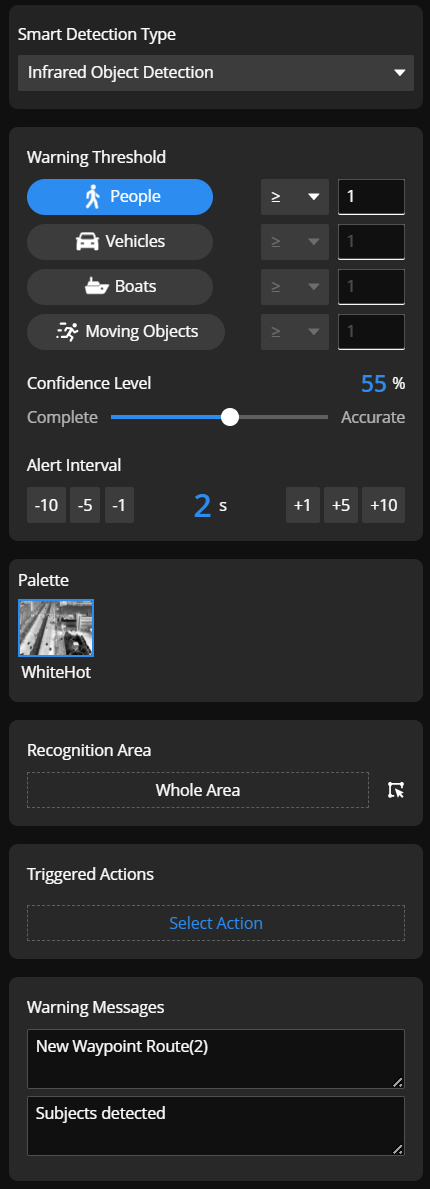
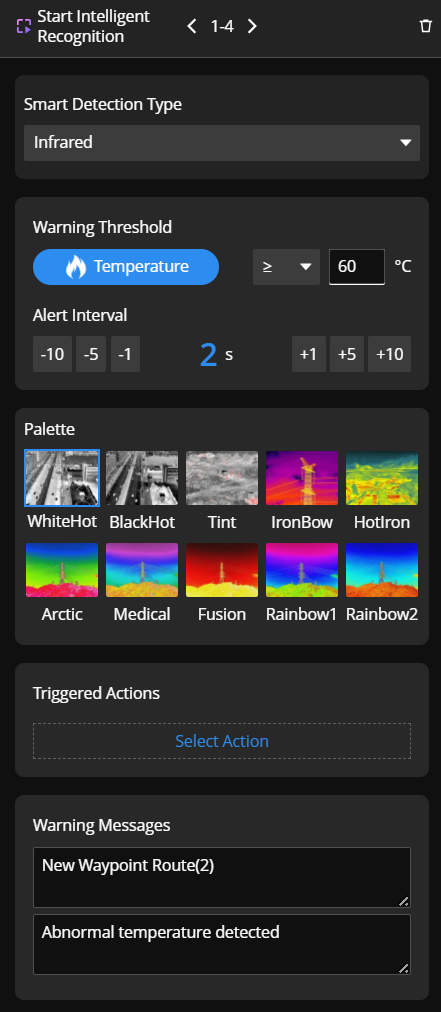
Alert Conditions: For temperature detection, you can set the temperature thresholds. The lower and upper limits are -20℃ and 550℃, with a recommended range of -20℃ to 150℃. For infrared object detection, human, vehicle, vessel, or moving objects can be detected.
Palette: You can set the palette to use for collecting infrared images. For infrared object detection, only White Hot is currently supported. Do not switch palettes during task to avoid detection errors.
Actions: Currently, after the threshold is met, photos will not be taken for each object. The logic for video recording and waiting for takeover is the same as for visible light recognition.
Warning Information: The warning information capability is the same as for visible light recognition.
Third-Party On-Aircraft Algorithm Configuration
Selection of Algorithms on Aircraft: Select available onboard algorithms for aircraft bound to the current project. You can add or manage these by navigating to Algorithms.
Note: You can add multiple Smart Capture actions and configure third-party algorithms, visible light, or infrared recognition within the same waypoint route. However, only one third-party on-aircraft algorithm is supported per flight route.
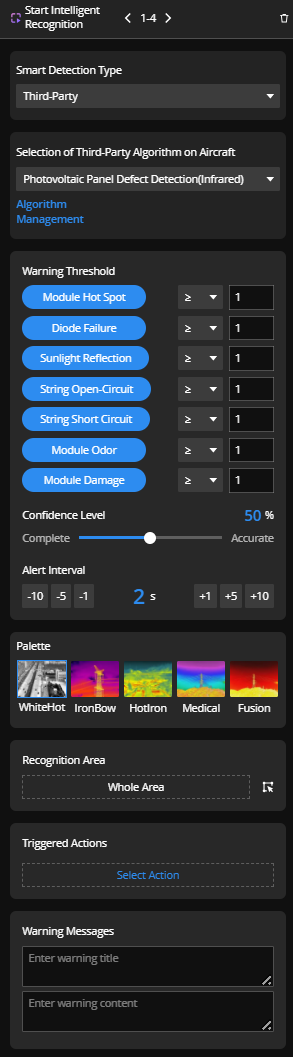
Warning Threshold: Set the trigger threshold for alarms, which are defined by the selected third-party algorithm.
Confidence Level: After selecting a third-party algorithm, the confidence level will automatically adjust to the recommended confidence level set by the developer at the time of algorithm release. We advise not changing this value unless you have a specific requirement.
Recognition Area: Define a specific area for the algorithm to recognize. This works just like the recognition area for visible light recognition.
Triggered Actions: Customize the action when an alarm is triggered. This functions similarly to the triggered actions for visible light recognition.
Note: To ensure a successful task, the algorithms selected in the flight route must match the algorithms loaded on the aircraft. The flight route will fail if the specified algorithm is not available on the aircraft.
Flight Route Execution
Users can configure recognition objects, warning frequency, and methods for routes with intelligent recognition actions. See AI Route Warning Notification section in the Task Plan Library > Single-Dock Plans/Multi-Dock Plans for more details.