
Multi-Dock Plans
Project members can click  to enter the task plan library to view task plans, and the administrators can create and manage multi-dock task plans.
DJI Dock 2 (firmware version must be v09.02.01.08 or later), DJI Dock 3, and DJI Dock 4 support multi-dock task plans.
Create Plans
Click Create Plan to create a task plan.
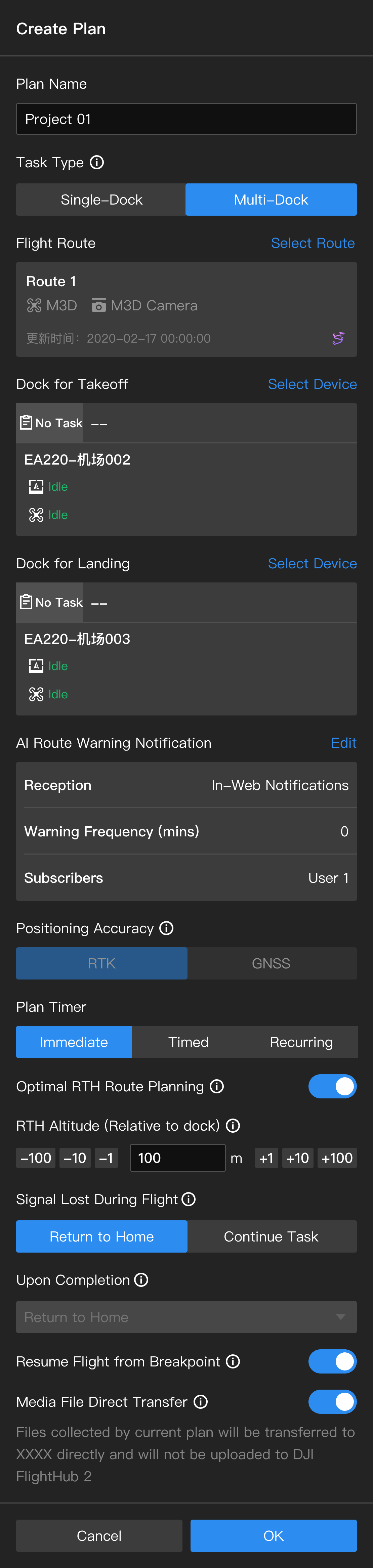
1. Plan Name
The plan name is required and should be within 50 characters.
2. Task Type
Select Multi-Dock.
3. Flight Route
Click to select a flight route. Only flight routes supported by the dock are displayed in the list. A flight route duplicate will be created after selecting a flight route.
- The duplicate cannot be modified after the plan is created, and the duplicate will be deleted after the plan is deleted.
- Modifying the flight route in the flight route library will not affect the flight route duplicate. Users need to create a new plan to perform the edited flight task.
4. AI Route Alert Notifications
Note: Only DJI Dock 3 and DJI Dock 4 support this feature.
See Single-Dock Plans for more details.
5. Dock for Takeoff
Select a dock for takeoff. Make sure there is an aircraft inside the dock before starting tasks.
6. Dock for Landing
Select a dock for landing. Make sure there is no aircraft inside the dock before starting tasks.
Note: The firmware versions of the docks for takeoff and landing should be consistent.
7. Positioning Accuracy (for DJI Dock 2 and DJI Dock 3 only)
Note: Supported by DJI Dock 2, DJI Dock 3, and DJI Dock 4.
To ensure flight safety, only RTK can be selected in multi-dock task plans. The dock aircraft will take off and converge the RTK data in the air before performing the task. Users are unable to pause the task during the convergence.
After enabling Auto Connect to Recommended Ground Station, you do not need to select the positioning accuracy.
8. Plan Timer
The plan timer can be set to Immediate, Timed, or Recurring.
- Immediate: After an immediate task is created, the aircraft will perform the flight task immediately.
- Timed: After a timed task is created, the aircraft will perform the flight task when the set time is reached.
- Recurring: After setting the execution period, execution time, and repeat frequency, the aircraft will perform the flight task each time the set time is reached.
9. Optimal RTH Route Planning
When Optimal RTH Route Planning is enabled, the aircraft will intelligently adjust the flight altitude and speed based on the environment (wind speed and direction, obstacles, etc.), making the RTH more efficient and energy-saving.
- When the environment is suitable for the vision system to work properly or Obstacle Data is enabled, the aircraft will automatically plan an optimal RTH route to improve task efficiency.
- When the environment is not suitable for the vision system to work properly and Obstacle Data is disabled, the aircraft will return home based on the task altitude and RTH altitude settings.
- It is recommended to enable Obstacle Data in Task Area Management for the optimized route planning. See Obstacle Data for more details.
- When the environment is not suitable for the vision system to work properly or other issues occur when the aircraft is performing FlyTo tasks or returning home, the aircraft will not be able to plan an optimal route. Users should set an appropriate RTH altitude before the aircraft returns home.
- When Optimal RTH Route Planning is disabled but the environment is suitable for the vision system to work properly or Obstacle Data is enabled, the aircraft can still avoid obstacles by adjusting the flight route intelligently.
- If the maximum flight altitude is lower than the current aircraft altitude, the aircraft will descend directly to the maximum flight altitude before continuing tasks. If the maximum altitude is higher than the current aircraft altitude, the aircraft will stop ascending when the aircraft reaches the maximum flight altitude.

- When there are obstacles such as wires and electric towers that are hard for the vision sensors to detect, users should disable Optimal RTH Route Planning and make sure the set task altitude and RTH altitude are higher than the obstacle altitude along the route.
10. RTH Altitude (Relative to Dock)
The aircraft altitude relative to the dock when the aircraft is returning to the dock. The RTH altitude should be set based on the actual flight condition, surrounding environment, and GEO information. It is recommended that the altitude is set higher than the highest geographical point in the flight area and should be lower than the maximum flight altitude.
- For DJI Dock, DJI Dock 3, and DJI Dock 4, the RTH altitude range is 20 - 1500 m.
- For DJI Dock 2, the RTH altitude range is 15 - 1500 m.
11. Signal Lost During Flight
The aircraft will return home or continue the flight task when it is disconnected from the dock.
12. Upon Completion
Only Return to Home supported when creating task plans.
13. Resume Flight from Breakpoint
When a task cannot be completed by one single flight, a new task will automatically be generated, and the aircraft will resume the flight from the breakpoint and complete the task after being fully charged. In multi-dock task plans, the aircraft can resume the task from the breakpoint only from the dock that it lands on. If the aircraft stops the task at the breakpoint and returns to the set dock for landing, a plan will be automatically created as a single-dock task plan.
Note: Tasks resuming from breakpoint will automatically expire if the tasks are not performed for more than 3 days.
14. Media File Direct Transfer
When enabled, media files collected by current plan will be directly transferred to third-party platforms.
Perform Plans
Users can view the status of the multi-dock task plan in the dock panel after the task starts. Click the device status window to view the device details and livestream.
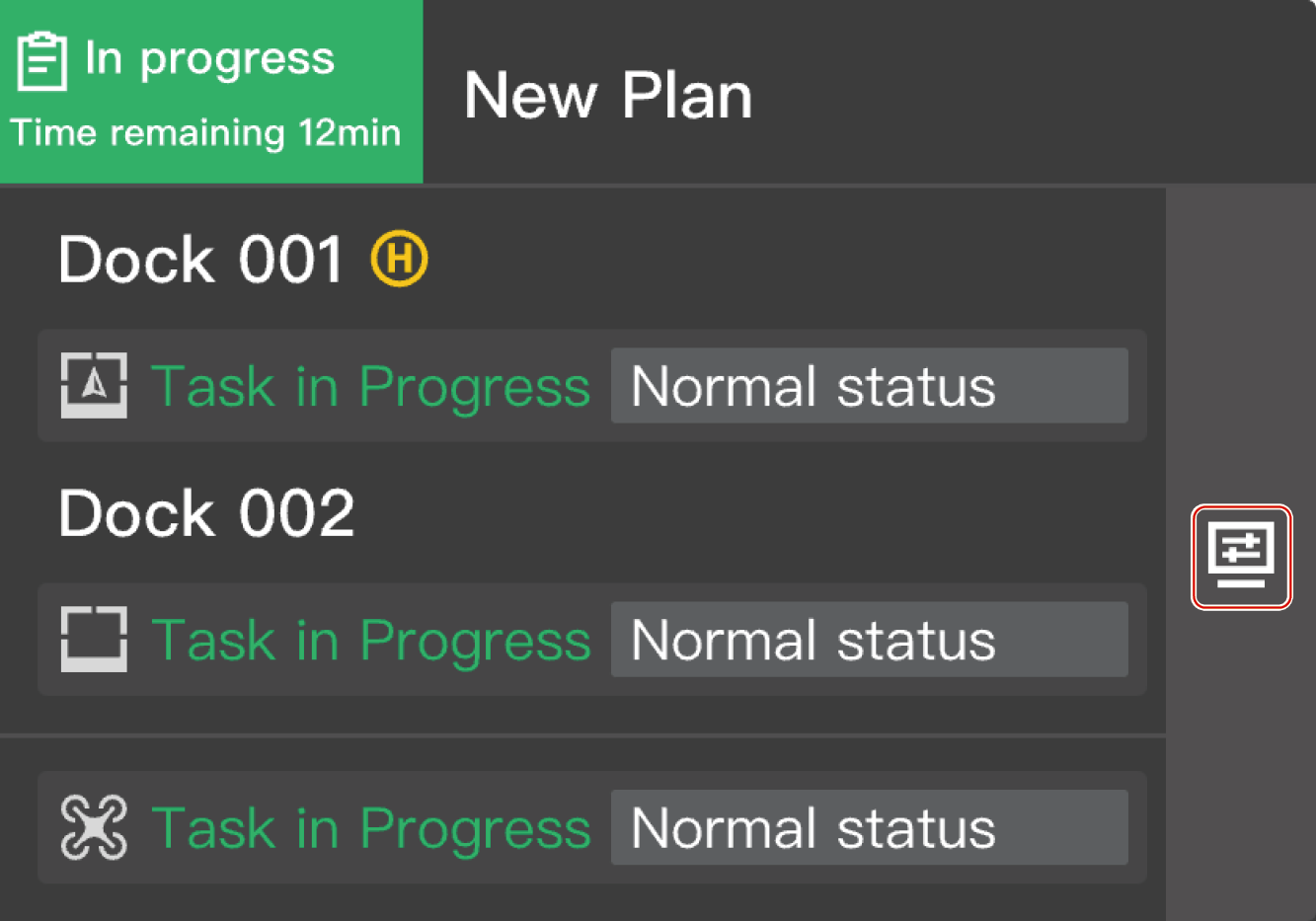
Click the dock name to view the status of the dock.
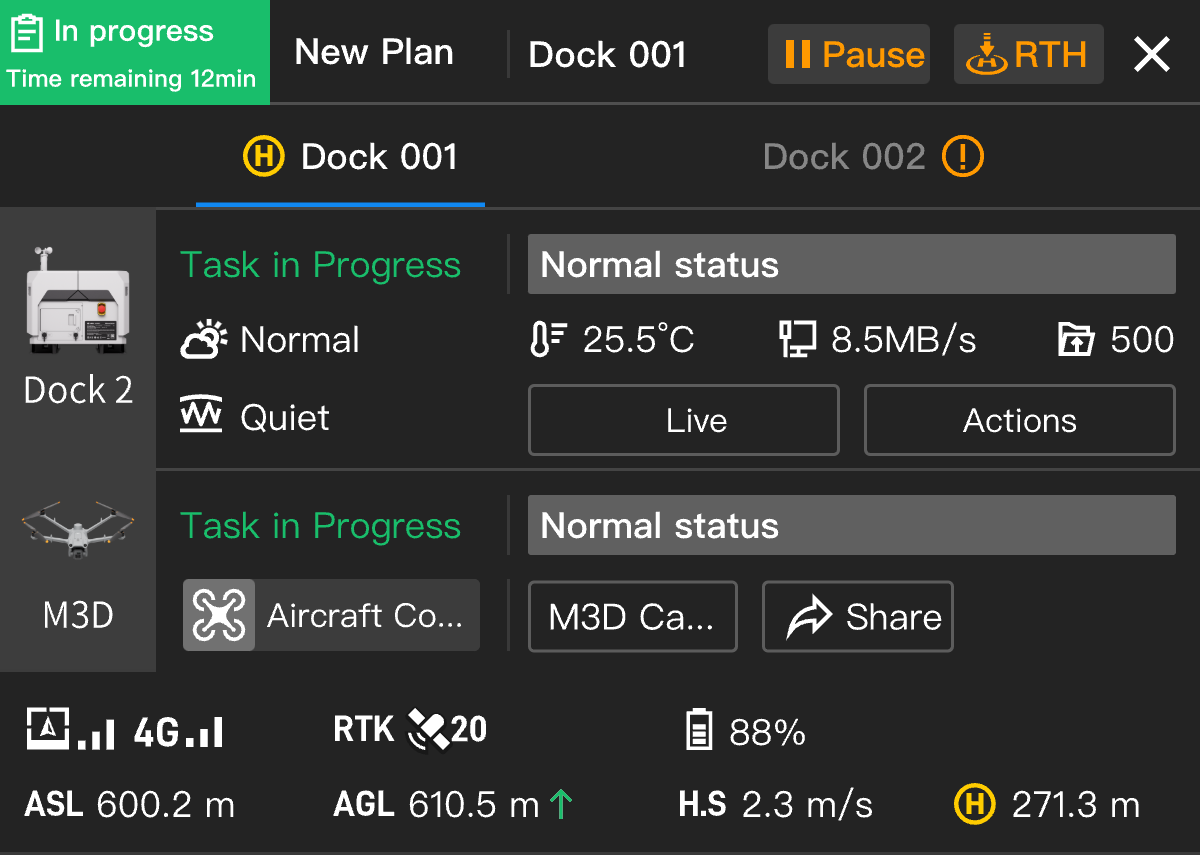
 indicates that the current dock is the set dock for landing.
 indicates that there are warning messages about the current dock. Users need to pay attention to the messages.
Click  and the aircraft will return home. DJI FlightHub 2 will automatically recommend a dock for RTH. Users can also analyze the RTH distance and battery level and select a dock for RTH. The aircraft will automatically return home after the dock is selected. Pay attention to the aircraft status and livestream view. Fly with caution.
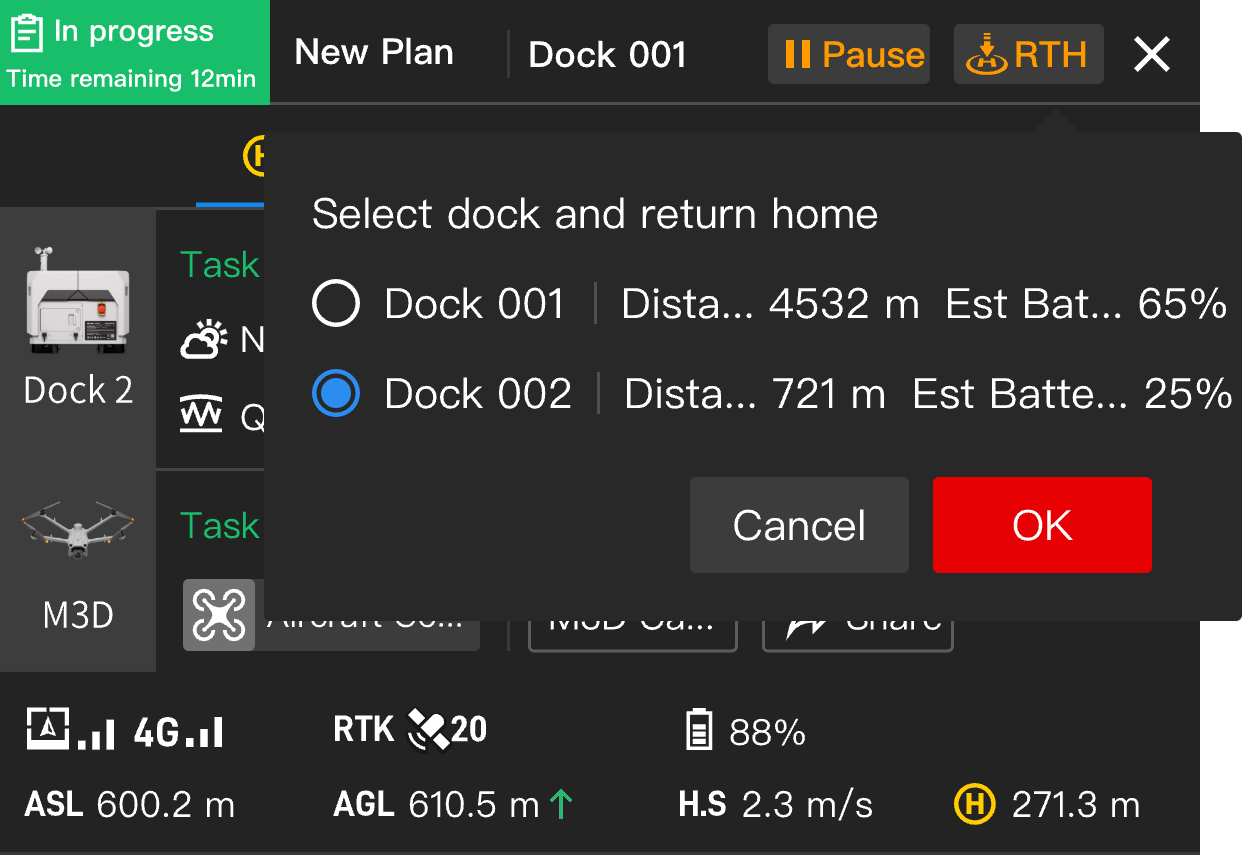
Note: Live Flight Controls is not supported when the aircraft is performing multi-dock task plans.
Manage Plans
For more feature details, please refer to the Single-Dock Plans section.