Map Details
The dock and aircraft locations will be displayed on the map in real time. Users can click the dock or aircraft icon, and a line connecting the dock and its connected aircraft will be displayed.
When the dock is performing tasks, users can click the dock status panel, and the flight route will be displayed in green and the aircraft trajectory in blue on the map. If the aircraft is performing a flight route task, the waypoint number will also be displayed.
Project members can also perform the following actions on the map.
- Click
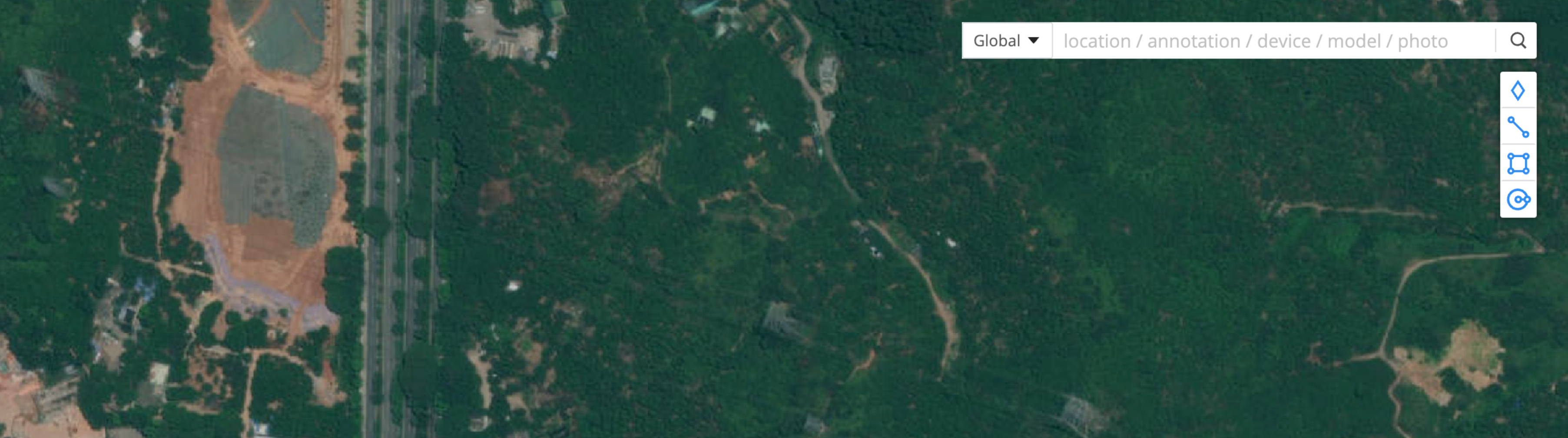
 to search geographic locations, annotations, device information, and models or photos that are overlaid on the map.
- View
 for the map orientation.
 - Click
 to enable the 3D map. Press and hold the Control/Ctrl key and left button of the mouse together to rotate the map.
 - Click
 to view GEO Zone information.
 - Click
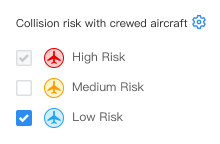
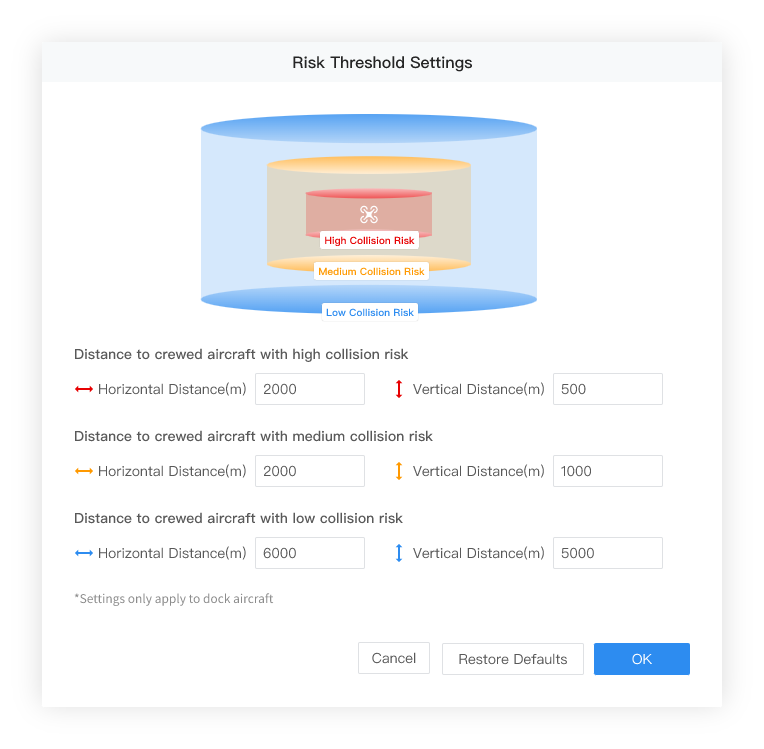
 to adjust how collision risk with crewed aircraft is displayed on the map. You can also customize the threshold for crewed aircraft collision risk.
- Click
 and the project point of interest will be displayed in the middle of the web page.
 - Click
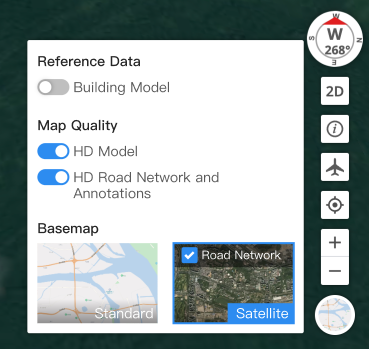
 to view the map lab.
- Building Model: Enable Building Model to display building models on the map.
- HD Model: When enabled, models will be displayed in high definition. Operations may stutter with low computer performance.
- HD Road Network and Annotations: Enabling this feature enhances the display of the map's road network and annotations. Operations may stutter with low computer performance.
- Map Type: Choose to switch between the standard and satellite maps.