Emergency Dispatch
The emergency dispatch feature allows users to quickly dispatch drones to designated locations for reconnaissance or evidence collection through "One-Tap Dispatch" after an exception is found. Alert information from automated workflows can also be viewed and handled in the app.
The "One-Tap Dispatch" feature is not supported in the Public Cloud Standard version.
Initiate a Dispatch Request
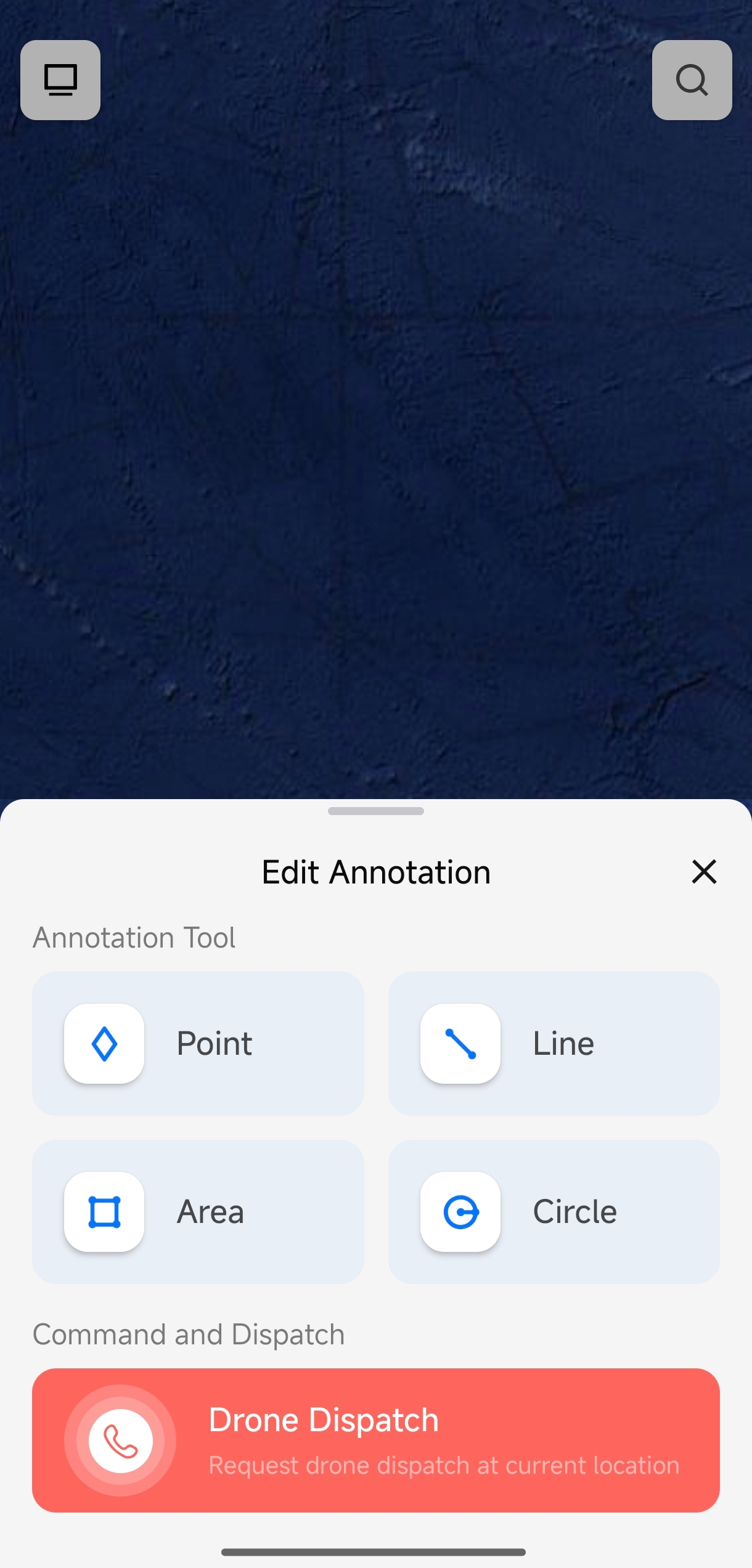
- On the map page, tap an annotated exception point or tap the "+" icon in the lower-left corner.
- Tap the "One-Tap Dispatch" button in the pop-up to initiate dispatch based on the exception point or the current location of personnel.
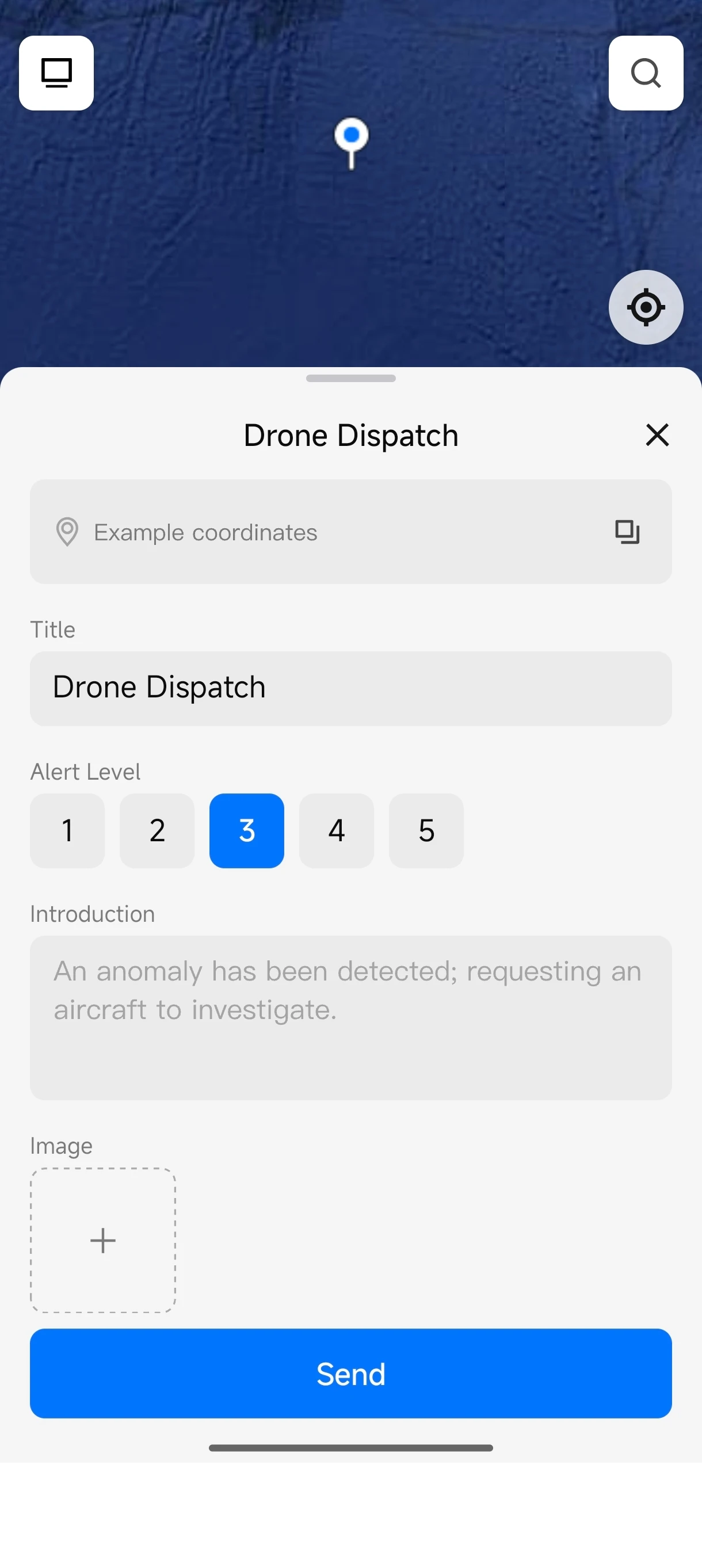
- Select an alert level.
- Tap the "+" icon on the image to upload on-site photos as reference information (optional).
- Tap "Send" to submit the dispatch request.
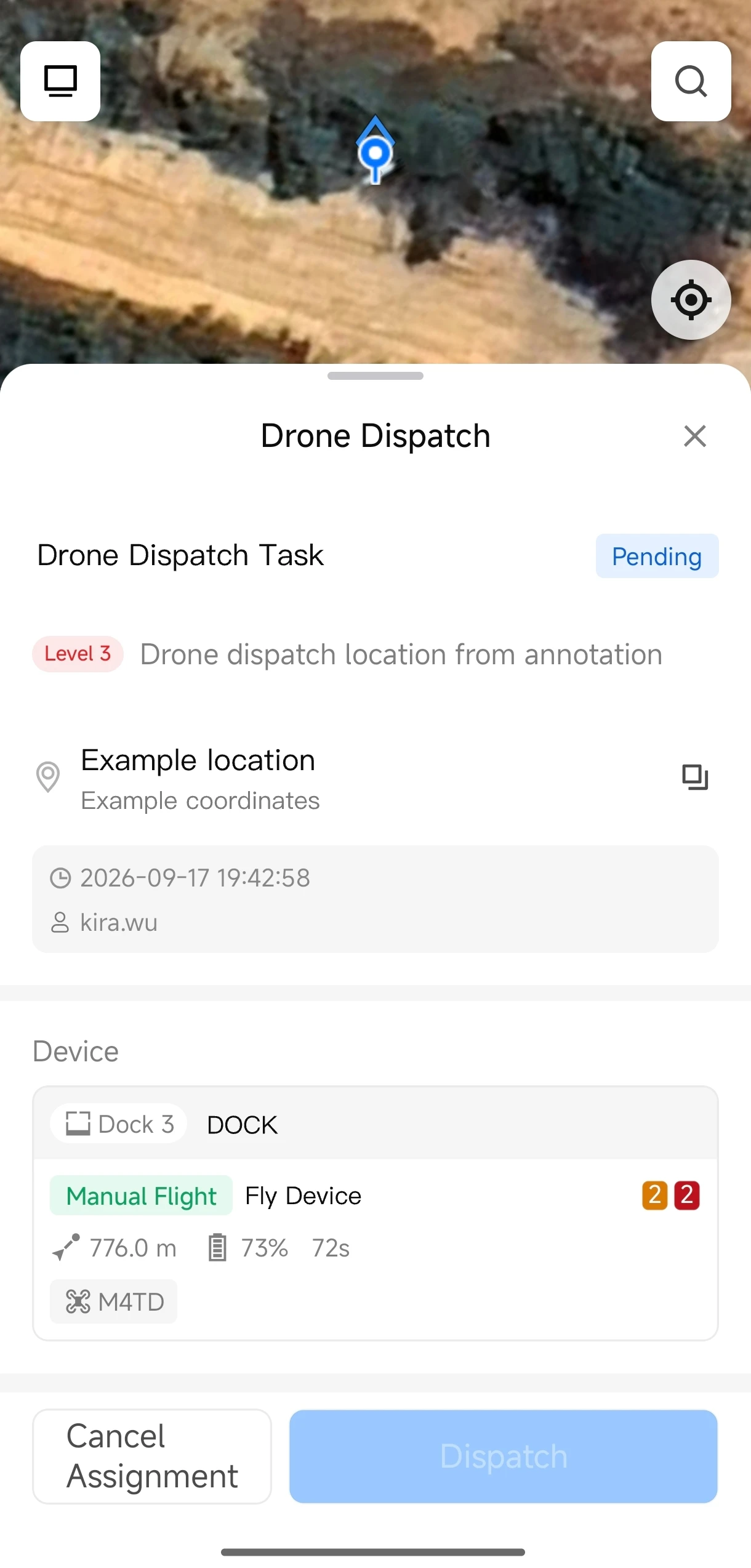
- After the request is sent, a "Pending Dispatch" marker appears on the map. Tap the marker to view the list of available execution devices.
- Select a suitable execution device, then tap the "Dispatch" button.
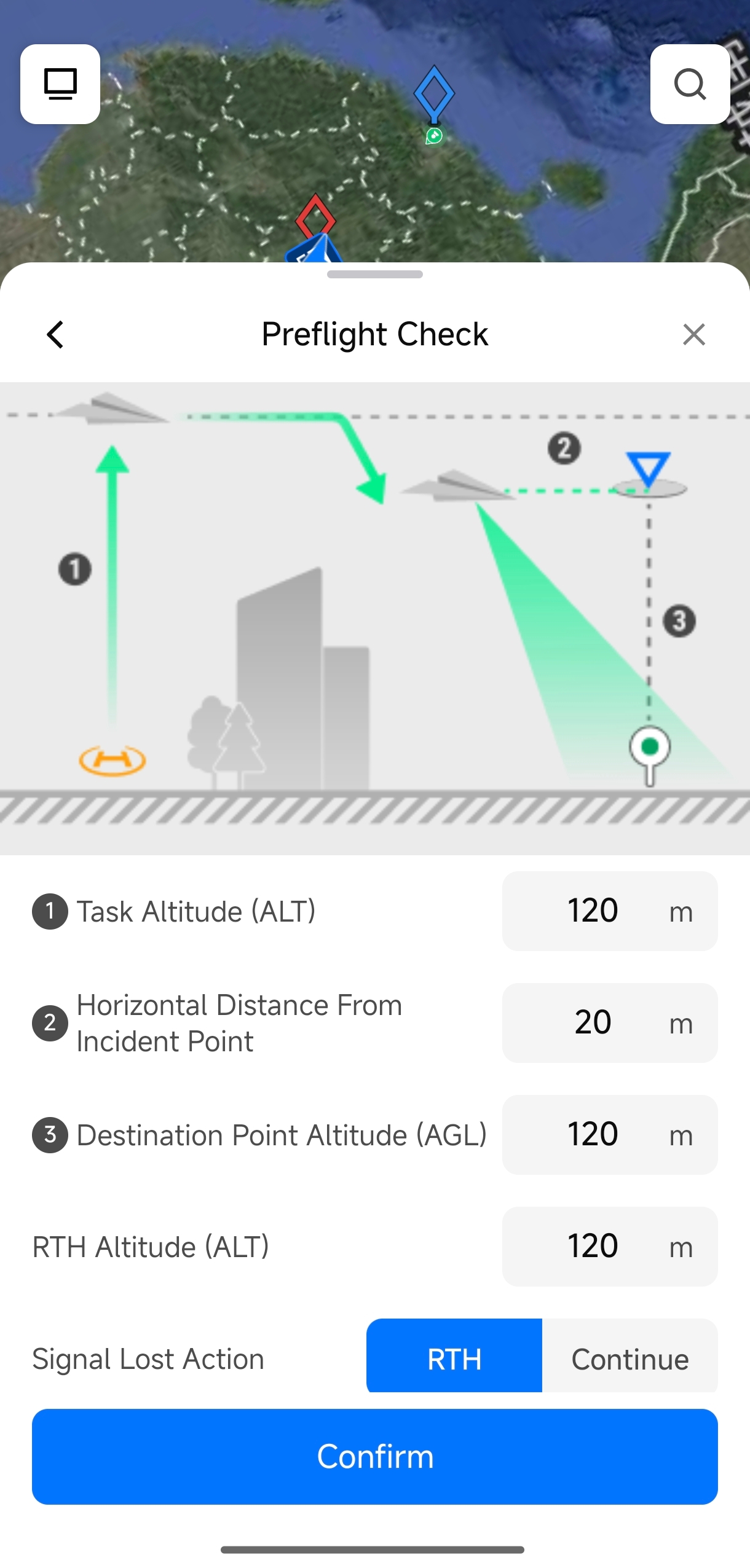
- Modify flight parameters as needed (such as flight altitude and speed).
- After confirming the parameters are correct, tap "Confirm Flight." The aircraft will automatically take off and quickly fly to the exception point.
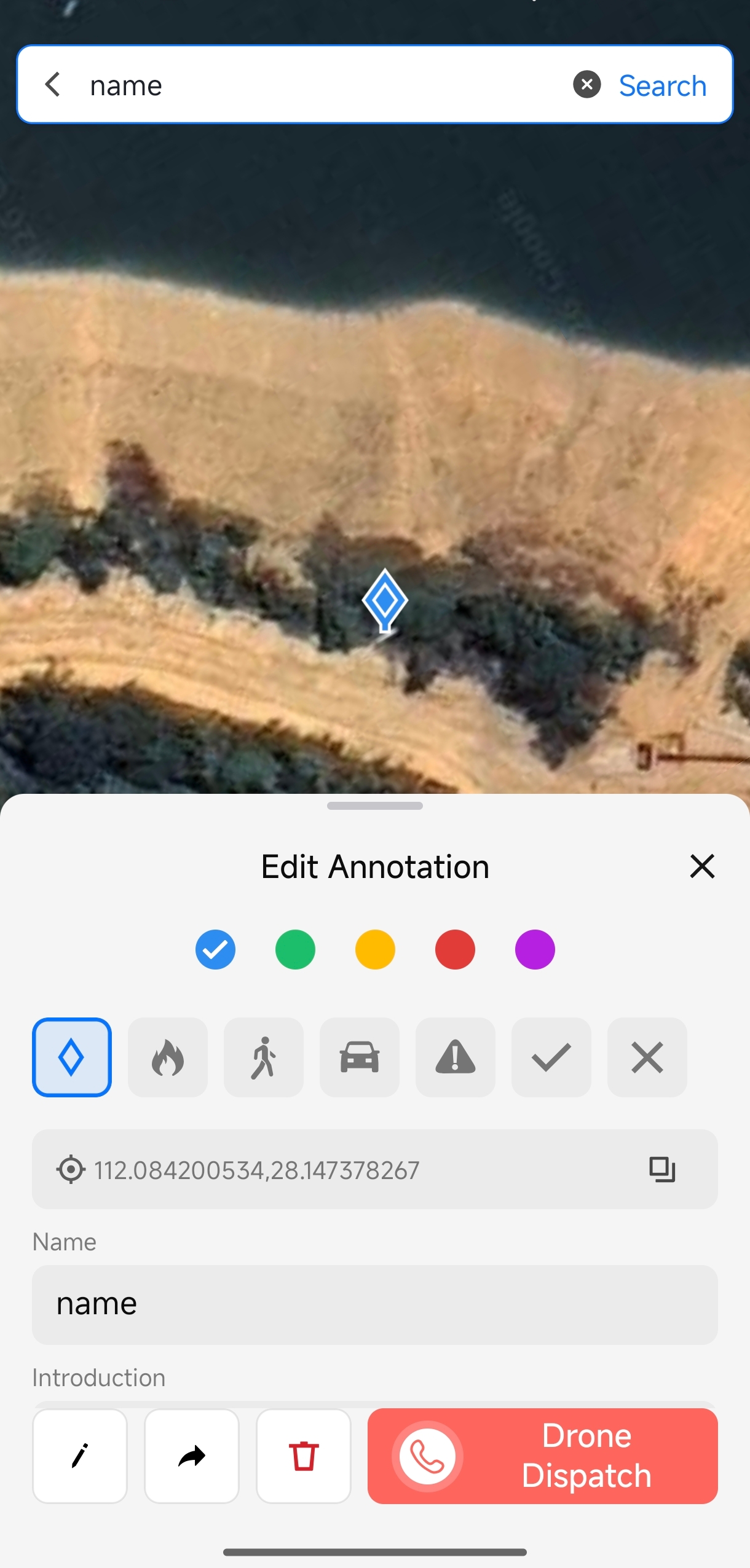
You can also tap the search icon in the upper-right corner to initiate dispatch by using a searched target location.
Dispatch Aircraft
After the aircraft takes off, you can view the execution status on the One-Tap Dispatch page. When the status changes from "Pending Dispatch" to "In Progress," it means the aircraft has successfully taken off.
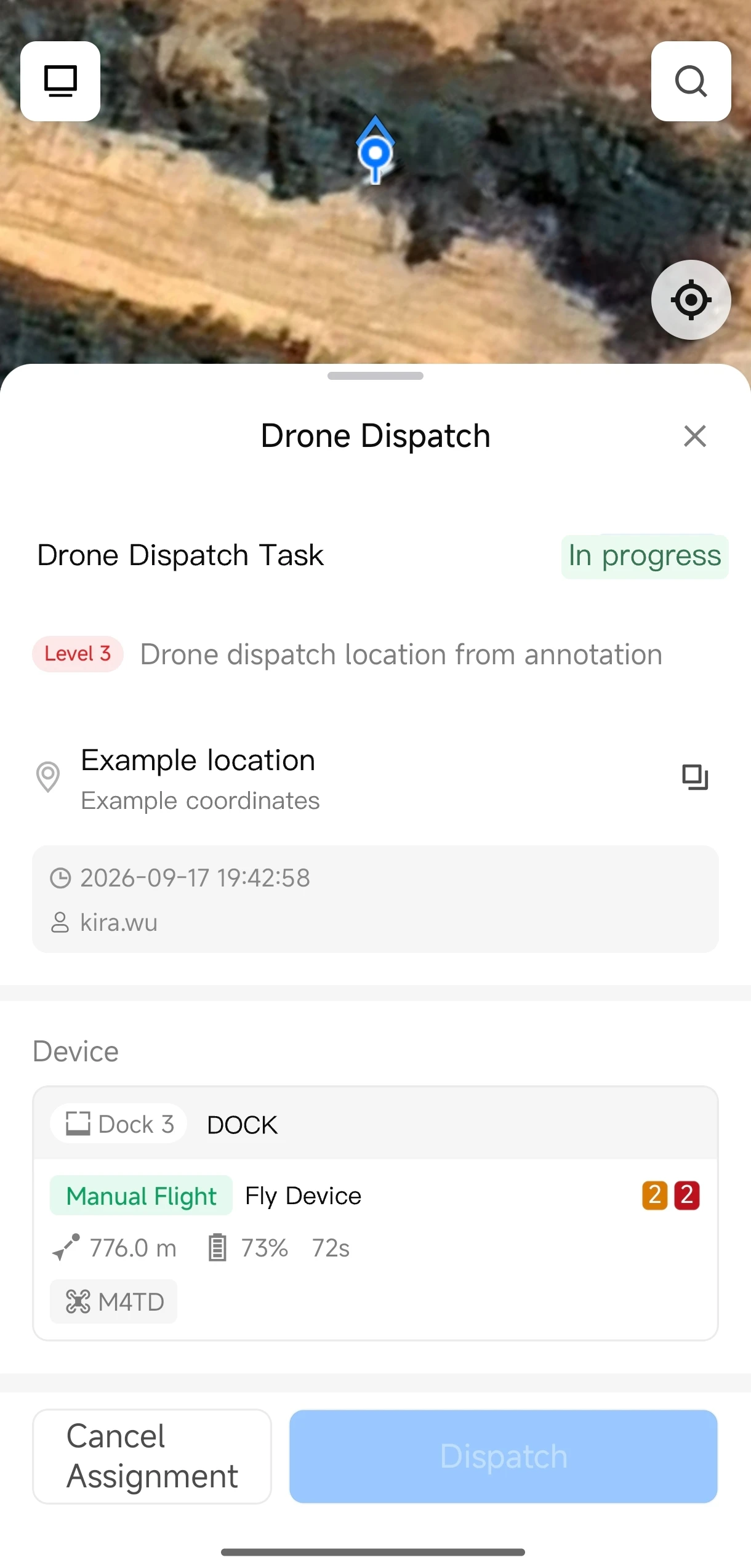
Dispatching aircraft requires "Project Administrator" permission. You can modify personnel permissions in FlightHub 2 under Personnel Management - Role Management.
Advanced Settings
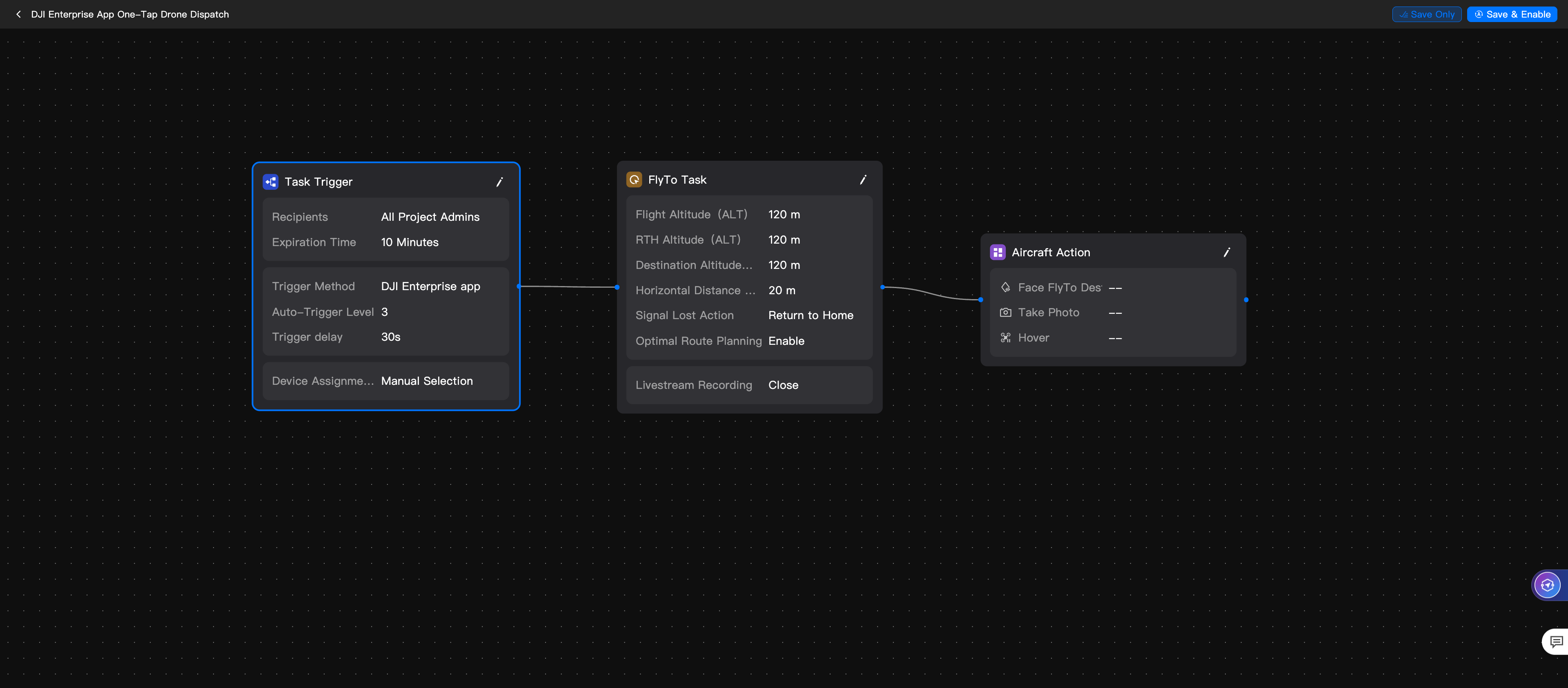
If you need to change recipients, assigned devices, flight parameters, or aircraft actions in the dispatch workflow, log in to the DJI FlightHub 2 cloud platform and edit the configuration in "DJI Enterprise App One-Tap Dispatch" under "Automated Workflow."
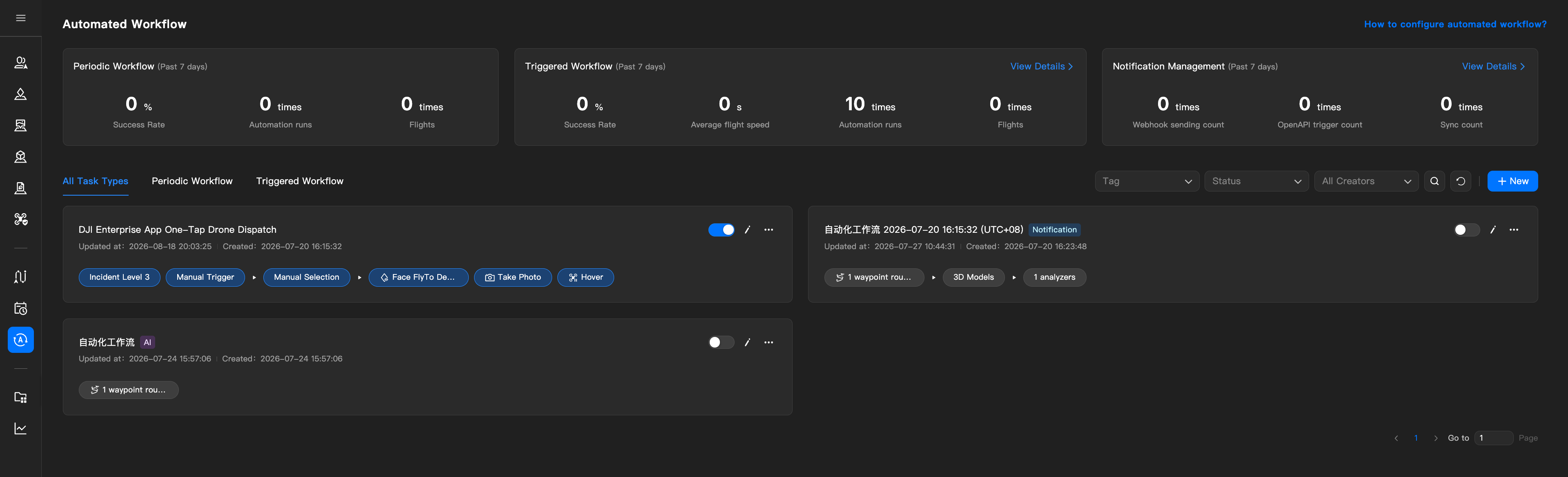
Click the workflow name to enter the editing page, where you can modify parameters such as task triggers, waypoint flight, and aircraft actions.