
Task Management
The task management feature helps users create and manage flight tasks and view their execution status and results.
View Task List
- On the app home page, tap the "Tasks" icon.
- Enter the task list page to view all tasks and their statuses.
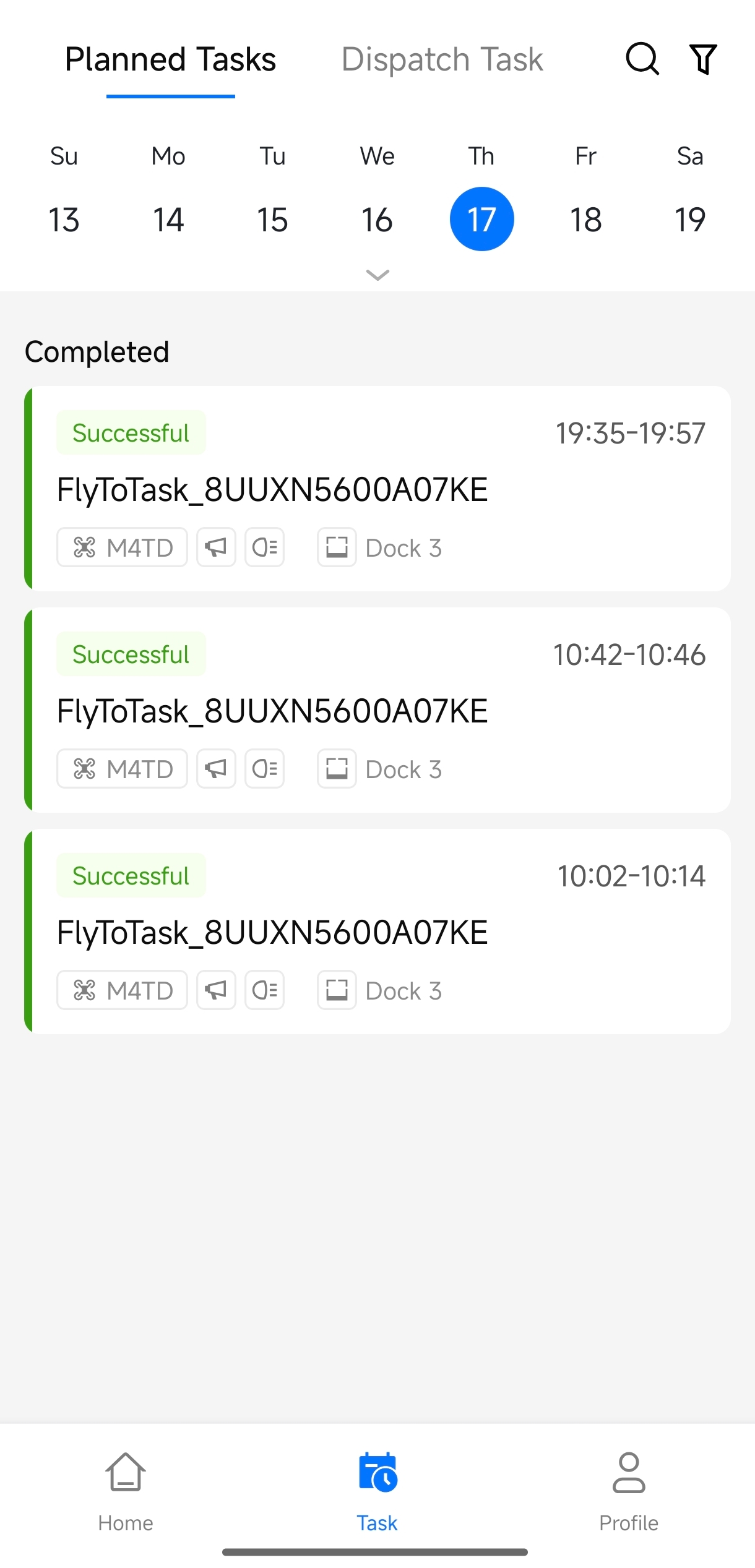
To view the task list, you need role permission for "Plan Management - View Plans" in the current project.
Create Tasks
- On the task list page, tap "+" in the lower-right corner.
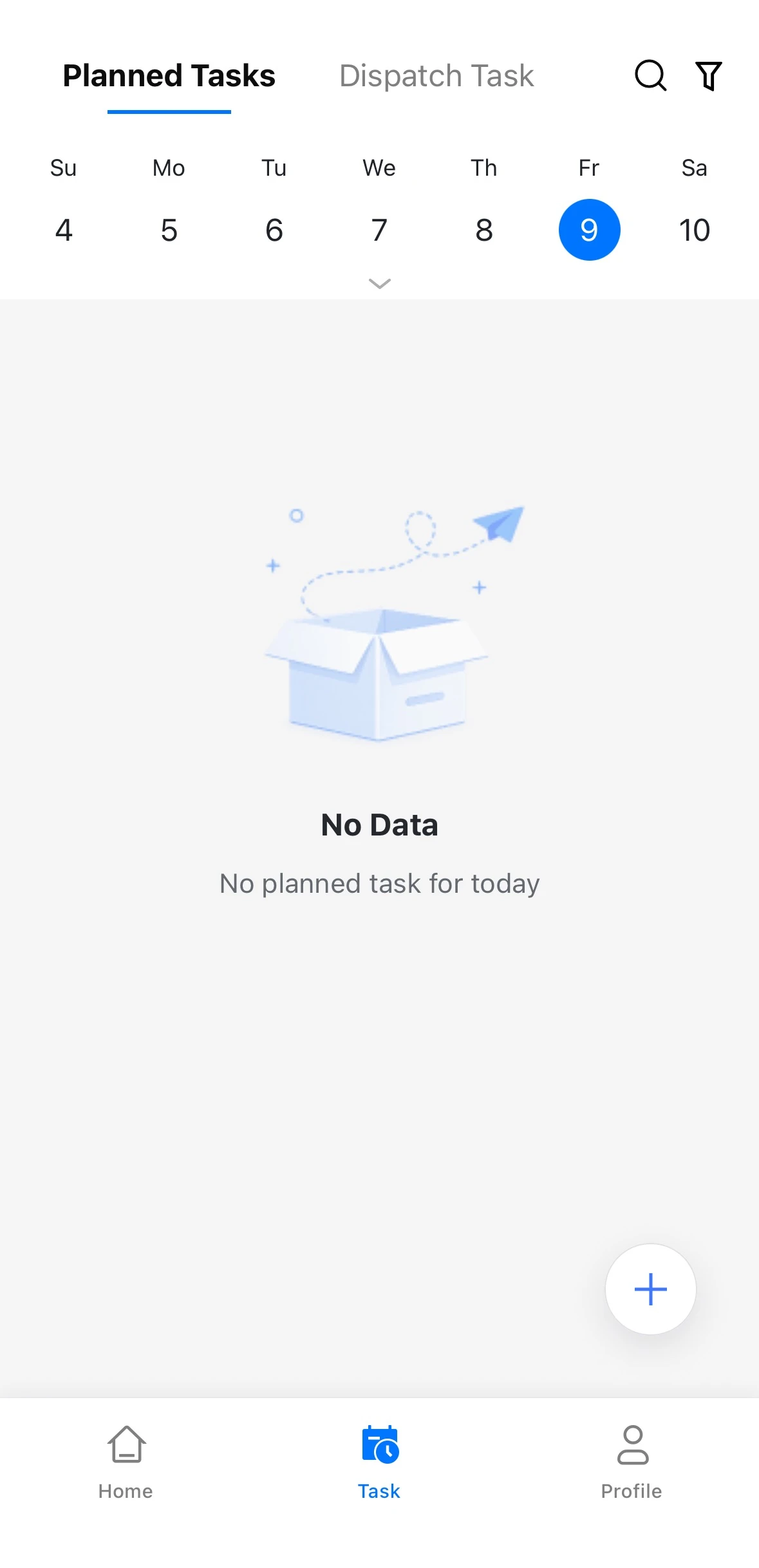
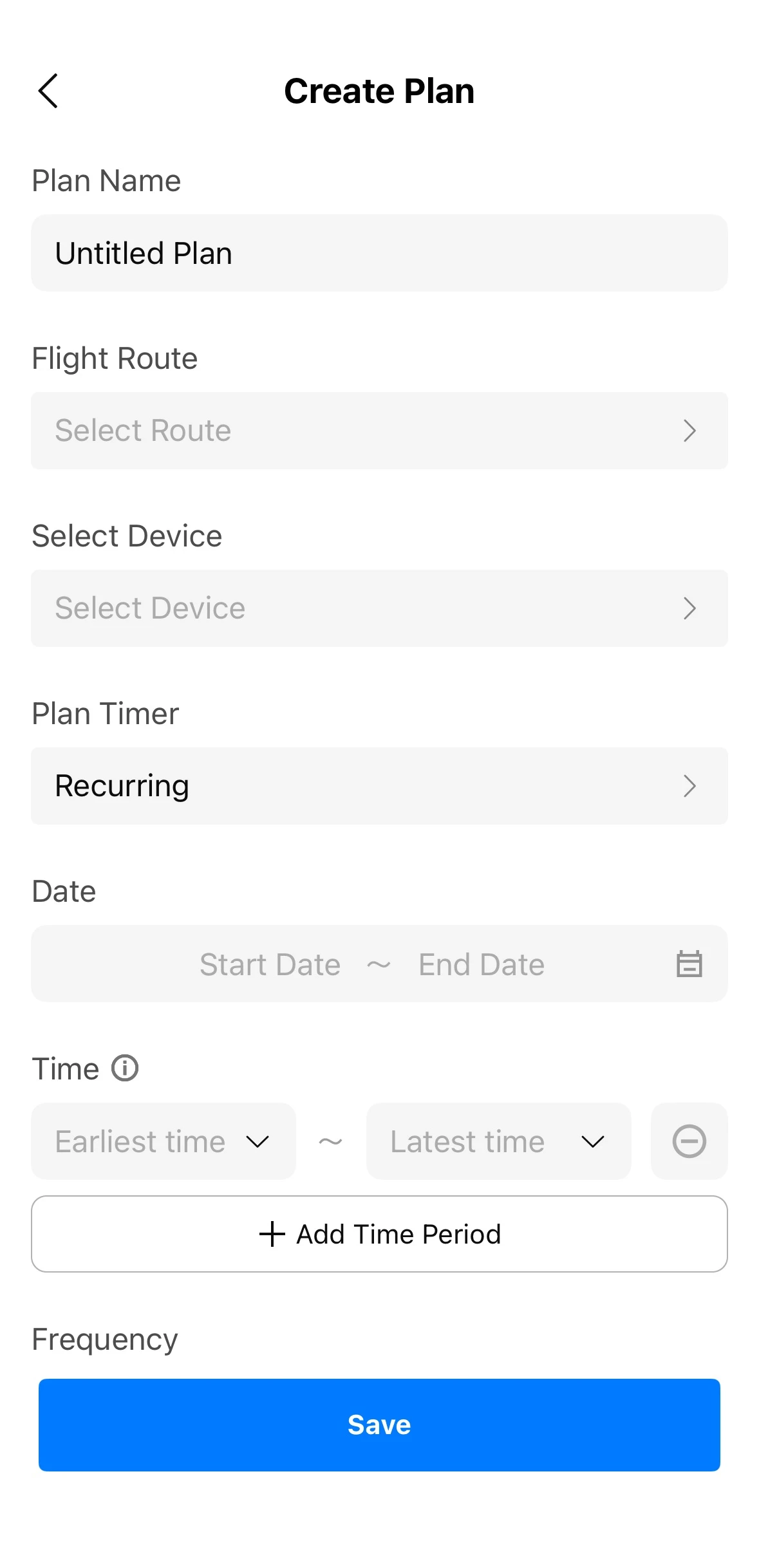
- Enter a plan name, then select an existing flight route and the device that will perform the task.
- Set the plan timer:
- Immediate: The task starts immediately after it is created.
- Timed: Set the execution date and time window (you can specify the earliest and latest scheduled start times for the task).
- Recurring: Set the start and end dates, one or more execution time windows, and a daily, weekly, or monthly recurrence frequency.
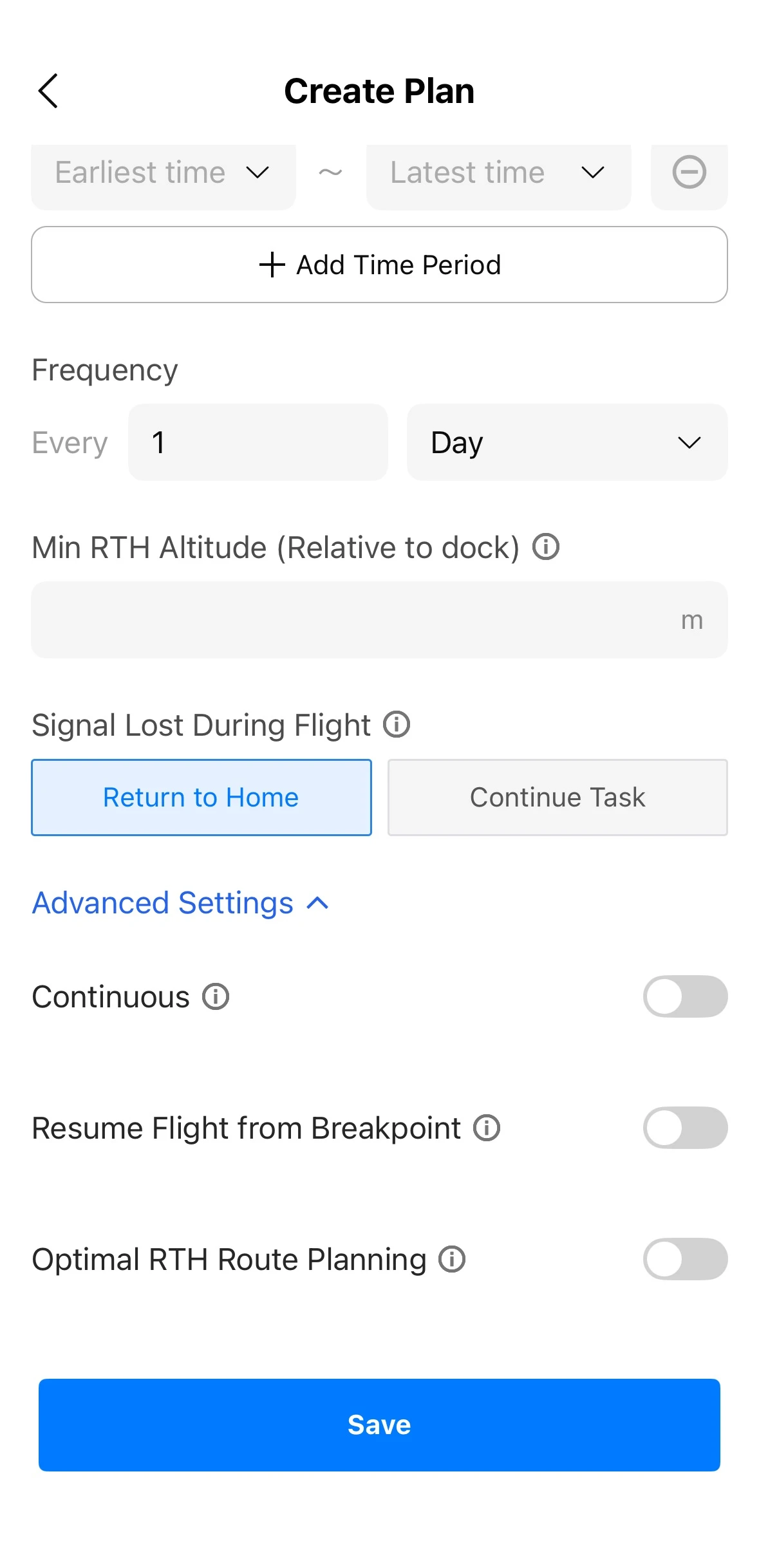
- Set parameters such as the minimum RTH altitude and the aircraft's behavior if the signal is lost during route flight, as needed. You can also expand "Advanced Settings" to configure continuous execution, automatic Resume Flight from Breakpoint, and Optimal RTH Route Planning.
- Check that the settings are correct, then tap "Save".
- The app only supports creating standard tasks using existing waypoint, patrol, area, or strip routes from the flight route library. Smart 3D Capture routes cannot be selected.
- To create tasks, you need role permission for "Plan Operations - Create and Edit Plans" in the current project.
View Task Details and Flight Routes
- Tap a task in the task list to open its details page. You can view the task status, scheduled and actual execution times, execution device, linked flight route, and media records.
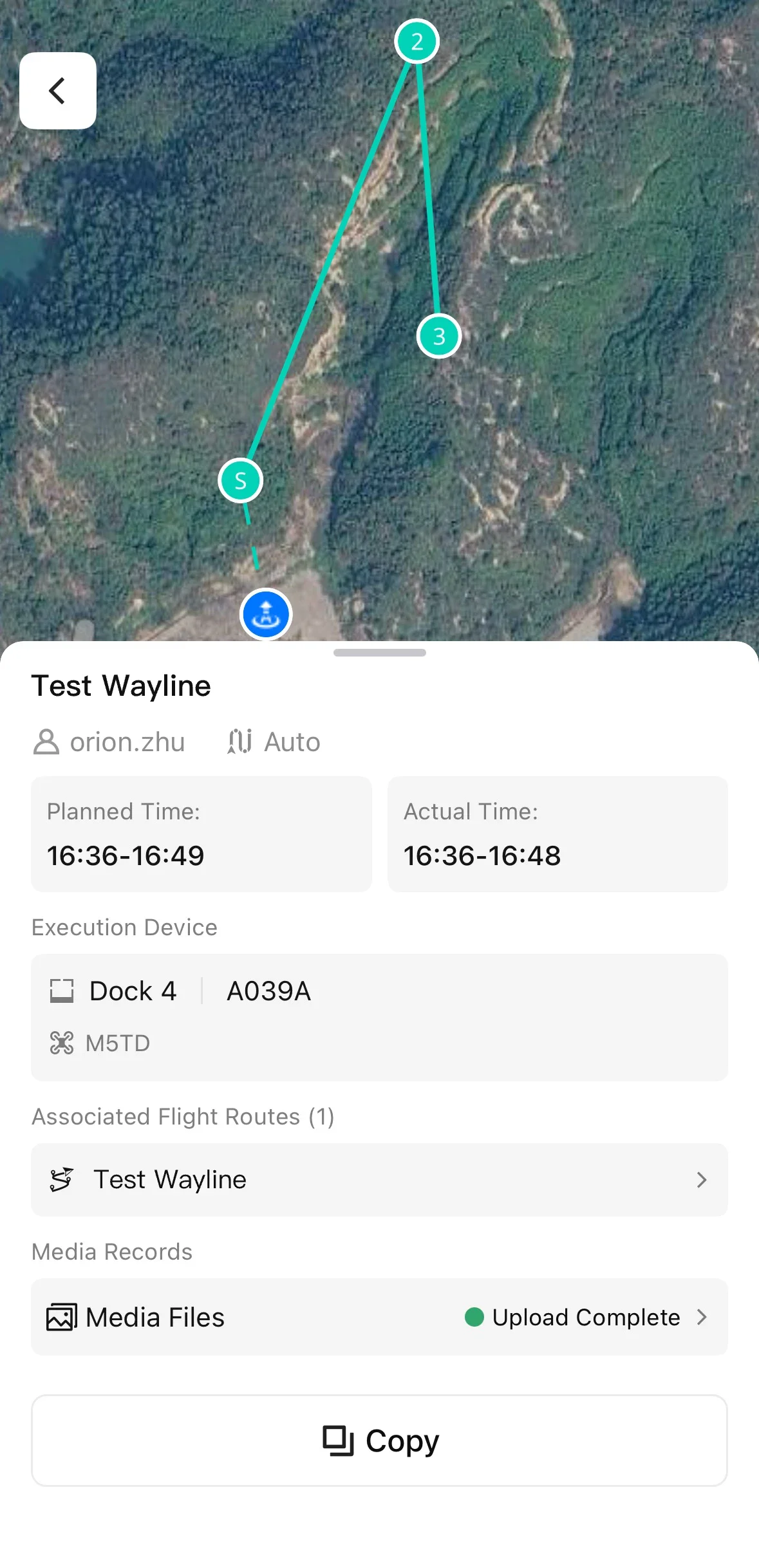
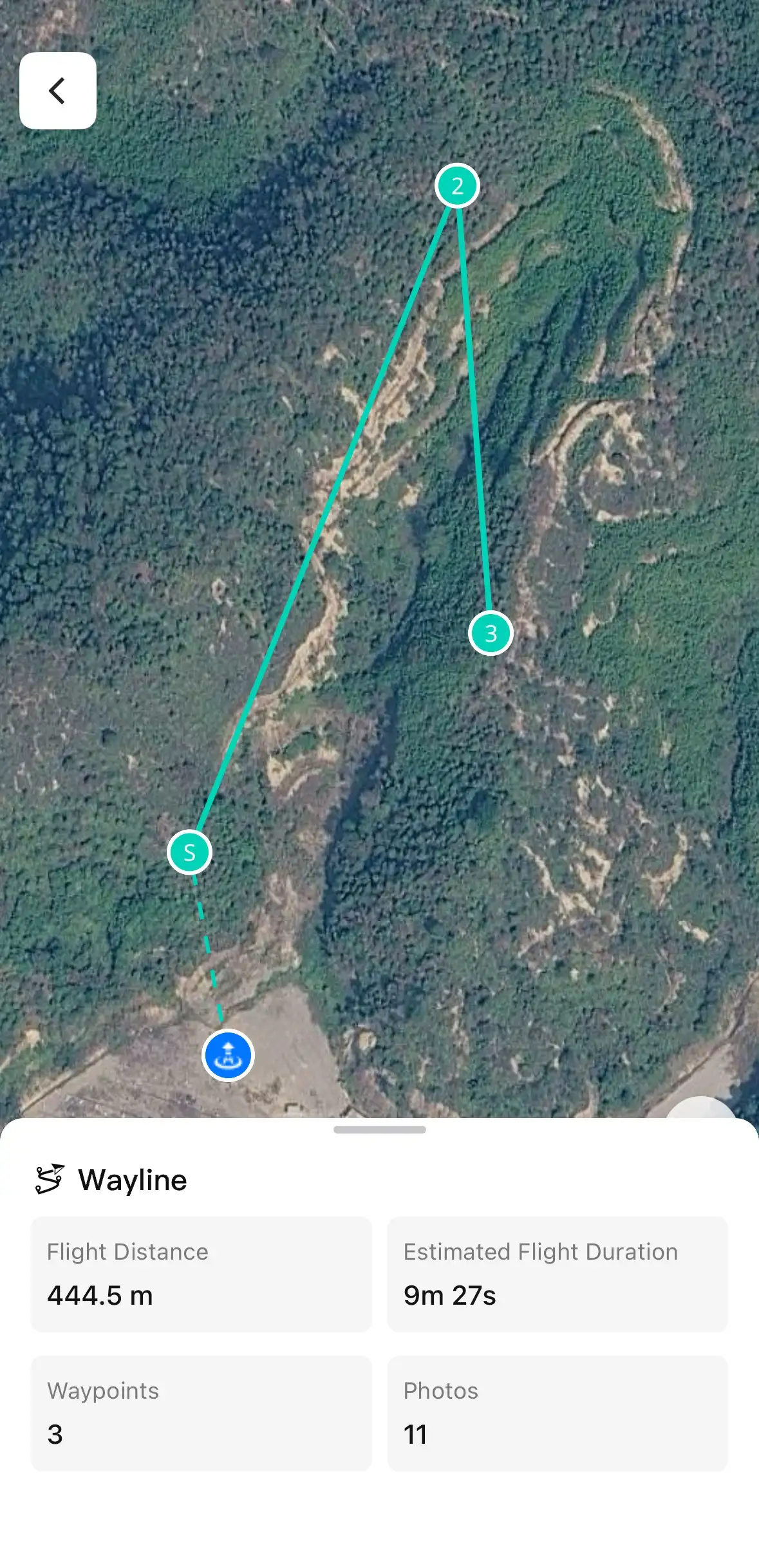
- Tap the route name under "Linked Flight Route" to view the complete route on the map, along with details such as route length and estimated execution time.
View Media Files
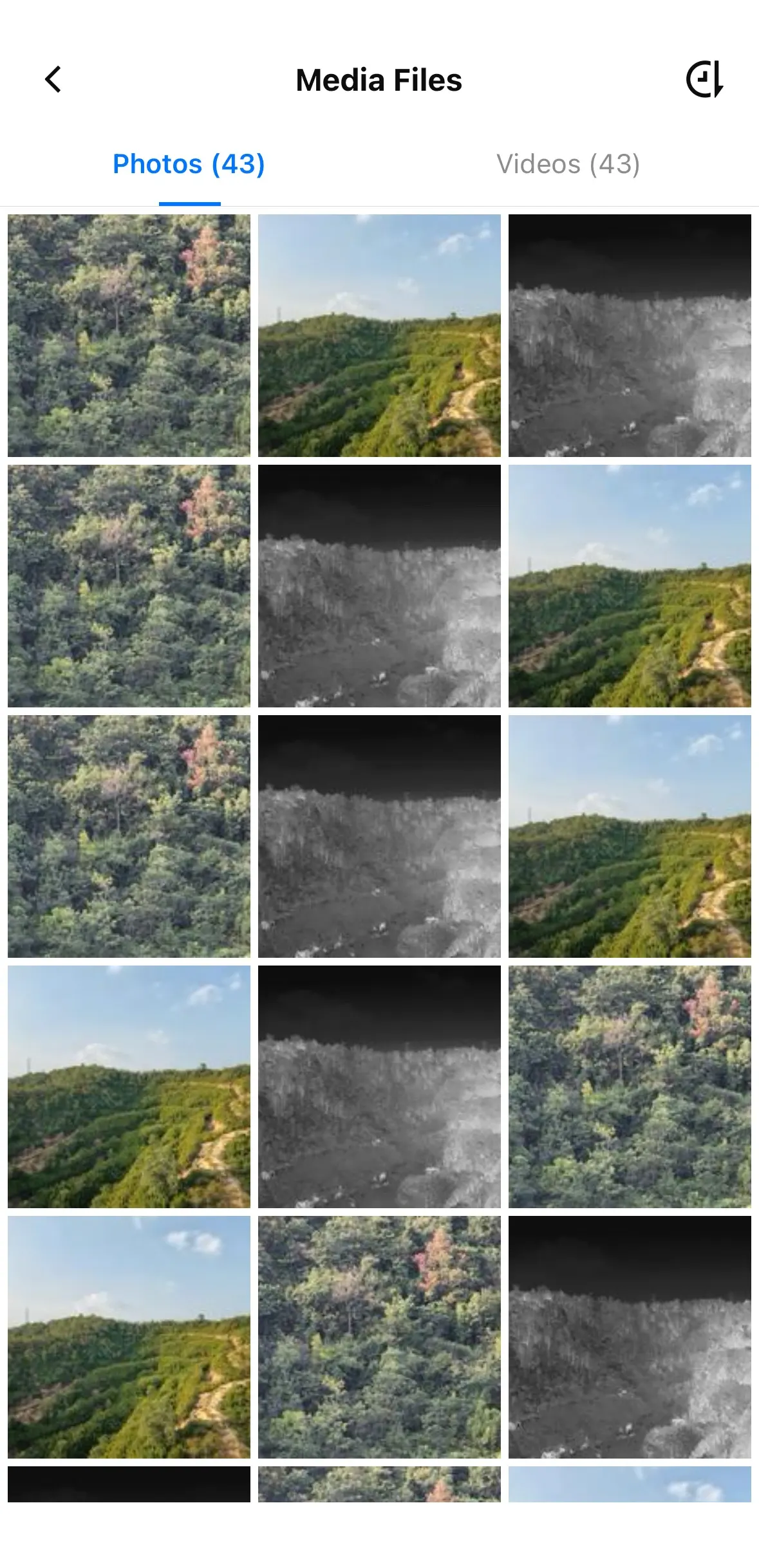
- Open the details page of a completed task and tap "Media Files" under "Media Records".

- On the media files page, switch between "Photos" and "Videos" to view the media files captured during each flight of the task. Tap a thumbnail to view the media in full screen.
- View details such as the media name, capture time, task, flight route, source, resolution, file size, and capture location. When viewing photos, you can switch to the previous or next photo, pinch with two fingers to zoom, or press and hold to download a photo. When viewing videos, you can play or pause playback, seek to a different point, or adjust the playback speed.
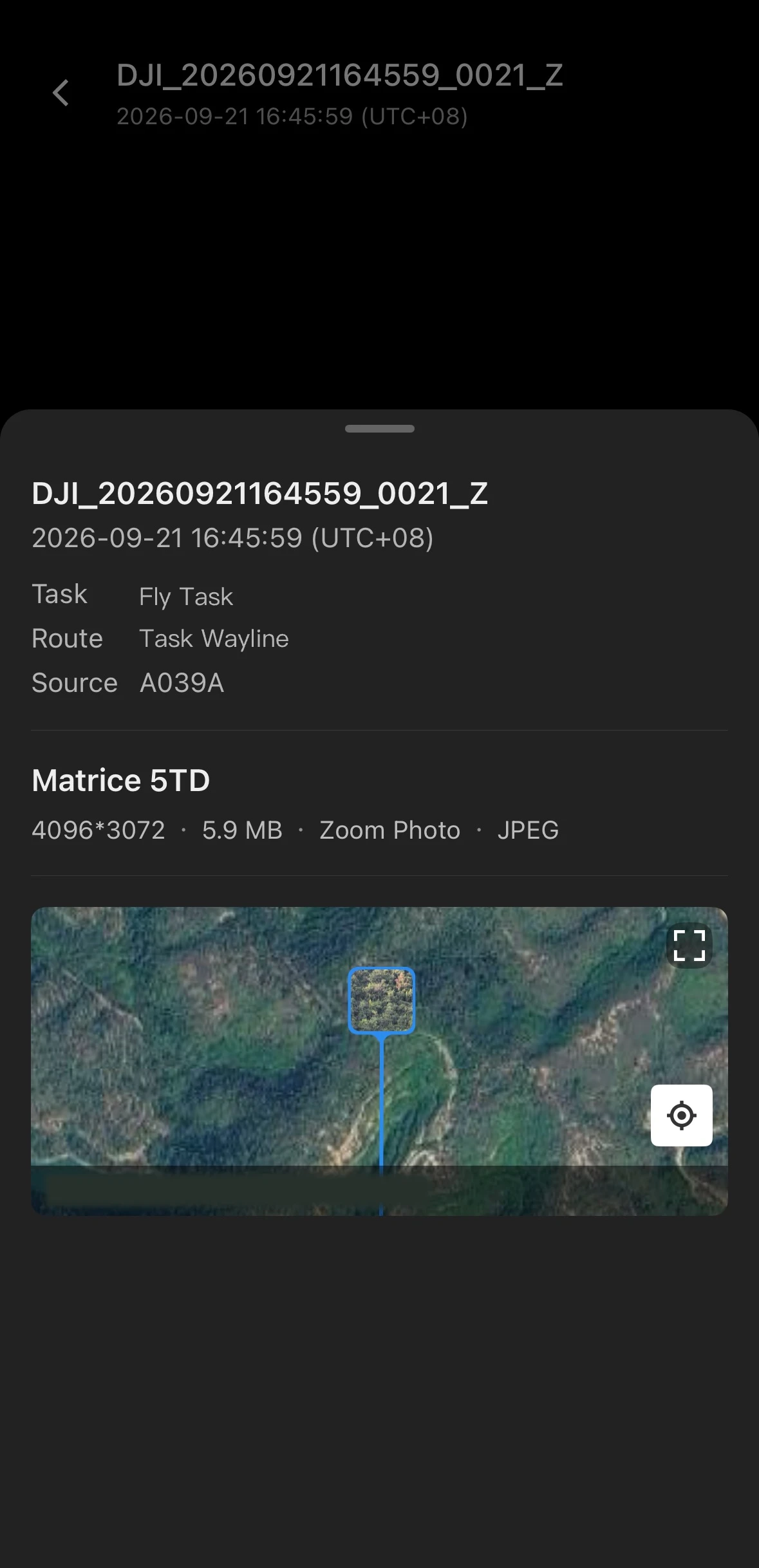
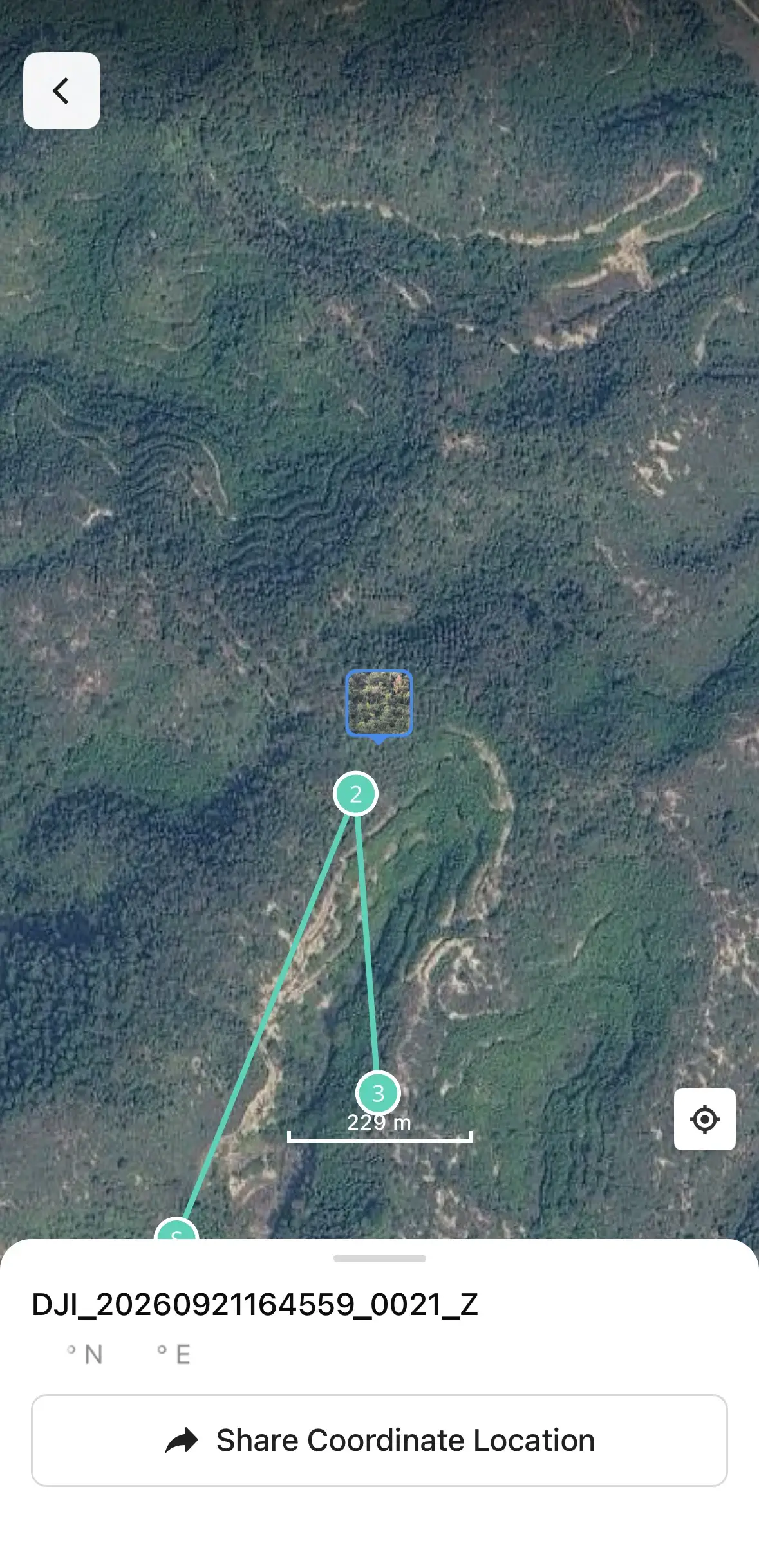
- Tap the media's capture location to view it on the map and share its coordinates.
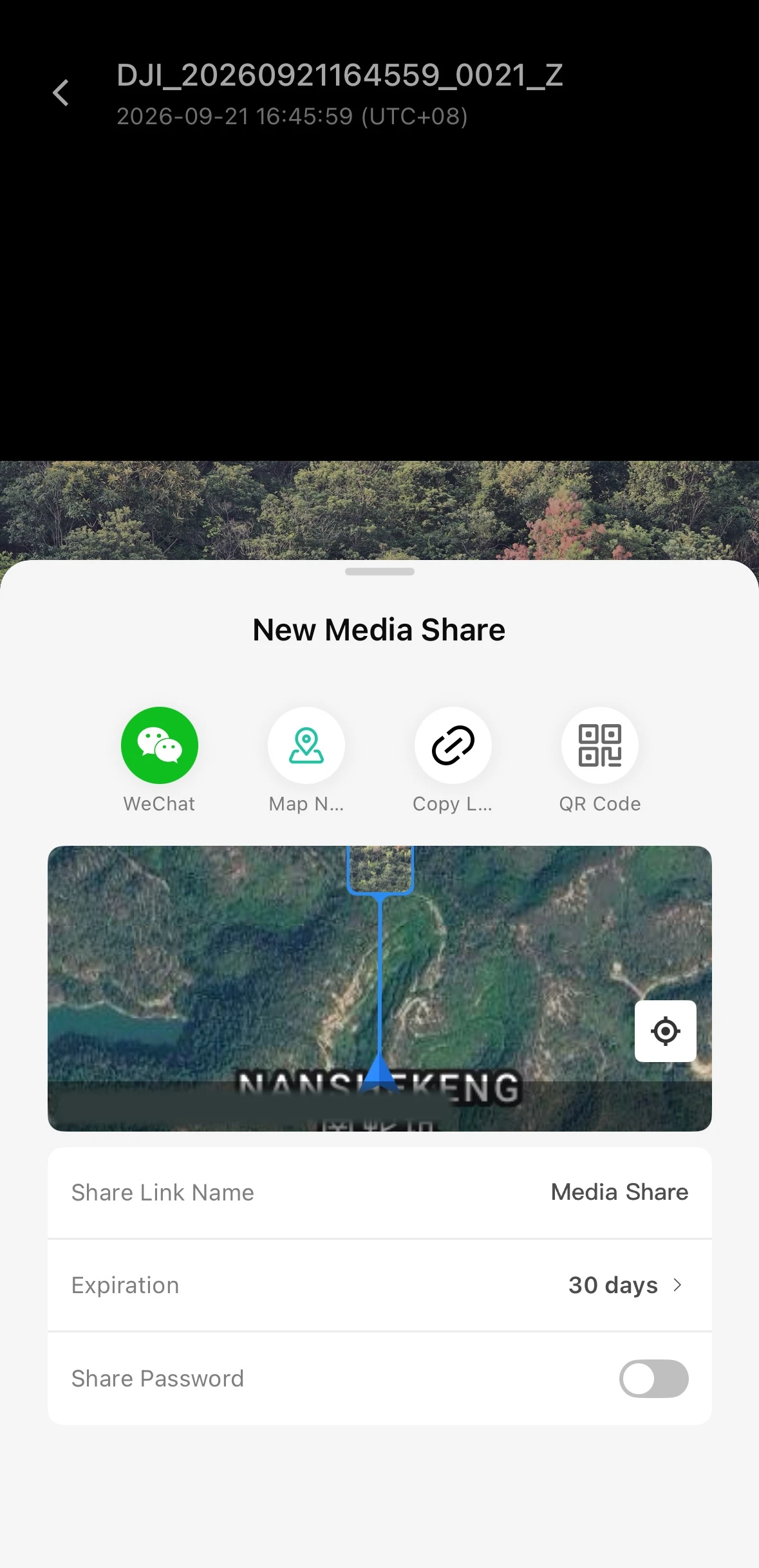
- Tap the share button to set the expiration period and password for the sharing link. You can share media files through third-party apps or navigation apps, copy the link, or generate a QR code.
- To view media files, you need role permission for "View Media Library Files" in the current project.
- To download media files, you need role permission for "Download Media" in the current project.
- To share media files, you need role permission for "Share Media" in the current project.
Edit Tasks
- Open the details page of a task that is awaiting execution or suspended, then tap "Edit".
- Modify the execution device, plan timer, or advanced settings, then tap "Save".
Tasks linked to an Automated Workflow cannot be edited.
Suspend or Resume Tasks
- Open the details page of a task that is awaiting execution and tap "Suspend". Once the task is suspended, the aircraft will no longer perform it.
- To resume a task, resume it from the suspended task's details page. For recurring tasks, you can choose to resume the current task or all linked tasks.
Tasks linked to an Automated Workflow cannot be suspended or resumed.
Delete Tasks
- Open the details page of a task that is awaiting execution or suspended, then tap the delete icon.
- In the confirmation prompt, choose whether to delete the current task or all linked tasks.
Deleted tasks cannot be restored. Tasks linked to an Automated Workflow cannot be deleted.
- To edit tasks, you need role permission for "Plan Operations - Create and Edit Plans" in the current project.
- To suspend or resume tasks, you need role permission for "Plan Operations - Suspend/Resume Tasks" in the current project.
- To delete tasks, you need role permission for "Plan Operations - Delete Plans" in the current project.
View Dispatch Tasks
- In the task list, tap the "Dispatch Tasks" tab.
- View completion details for all dispatch tasks, including execution status, dispatch location, dispatch time, and more.
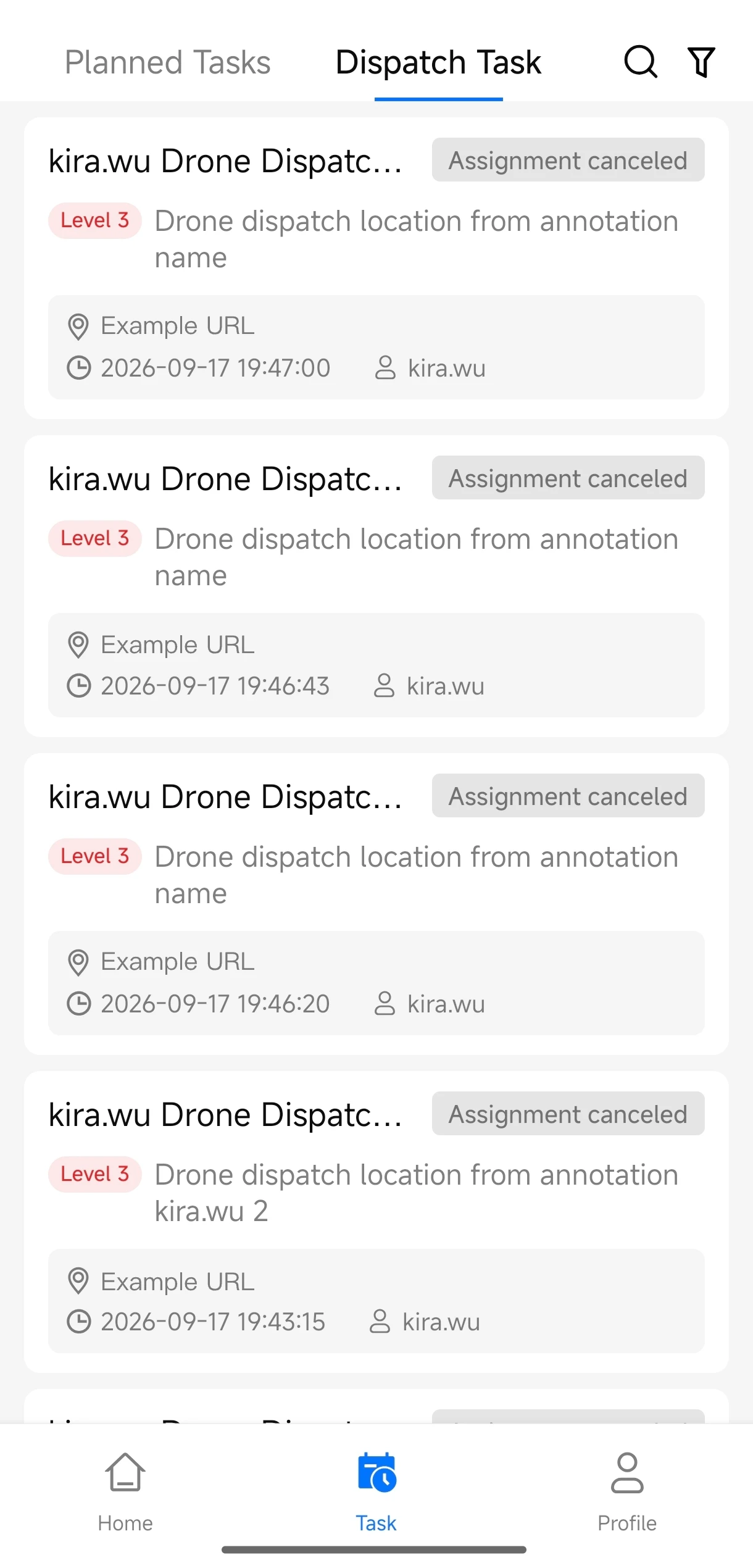
To view dispatch tasks, you need role permission for "Automated Workflow" in the current project.