
Member Management
Notes on Public Version
Both super and organization administrators can manage members on the Members page.
Add Members
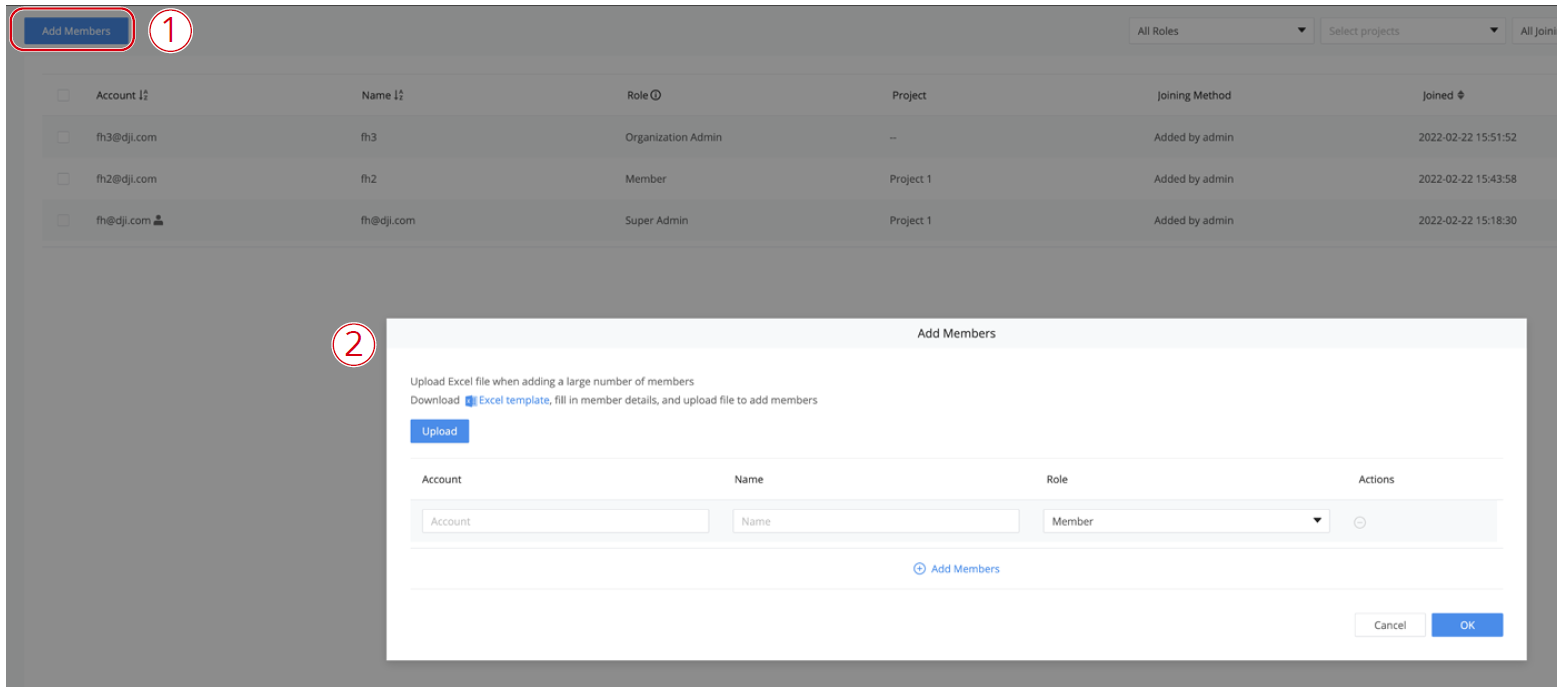
Click Add Members and fill in members’ DJI accounts and organization names and roles. To add multiple members at once, administrators can also download an Excel template, fill in the members’ information, and then upload the file.
Change Member Information
Administrators can edit member information and delete members.
Note: The organization administrator cannot change the role or delete the account of the super administrator.

Administrators can also select multiple accounts and change member roles or delete all accounts at once.

When deploying the FlightHub 2 on-premises version, you can choose between a local account system or a third-party account system. The organizational management methods of these two account systems differ.
- Local account system: Manually add and manage accounts after deployment. Suitable for users without an existing account system.
- Third-party account system: Use by configuring the OAuth2 protocol during deployment. Suitable for users with an existing account system who wish to integrate with FlightHub 2. Unlike the FlightHub 2 public version, after logging in with a third-party account, if not pre-assigned as a super admin, the default role is Guest with no permissions, requiring an admin to set roles.
Note:For specific definitions and permissions regarding roles, please refer to Organization Roles and Permissions.
Notes on On-premises Version
Local Account System
Login with Password
If you use the local account system, a super administrator account will be included during deployment. The super administrator must log in for the first time using the default super administrator username and password. Other members must log in using the accounts and passwords added by the super administrator or organization administrator. After logging in, change your password in the User Center as soon as possible.
Organization Creation
The super administrator can create an organization, and only one organization can be created.
Member Management
The super administrator or organization administrator can manage members on the Members page.
Add Organization Members
The super administrator or organization administrator can go to the Members page, click Add Members and fill in members’ accounts, passwords, and organization names and roles. To add multiple members at once, administrators can also download an Excel template, fill in the members’ information, and then upload the file.
Edit Member Information
You can edit the name and user role of organization members.
Remove Members
The super administrator and organization administrator can delete members by clicking the delete button. Members cannot delete their own accounts or the super administrator account.
Password Loss and Reset
If a password is lost, the super administrator and organization administrator can reset the password for that account. The super administrator's password can only be reset by the super administrator. The reset password will be automatically generated.
It is recommended to set up multiple super administrators and keep account passwords safe. If all super administrator passwords are lost, refer to the deployment manual to redeploy or contact DJI Support.
Third-Party Account System
Login with Password
If using a third-party account system, the super administrator account ID must be configured during deployment. All members can log in using their third-party account credentials. After logging in, members are automatically added to the organization created by the super administrator. By default, their user role is visitor with no permissions. After being assigned another role by the super administrator or organization administrator, members can obtain the corresponding permissions.
Organization Creation
The super administrator can create an organization, and only one organization can be created.
Member Management
The super administrator or organization administrator can manage members on the Members page.
Add Organization Members
If using a third-party account system, including the account system of the public version FlightHub 2, the super administrator is pre-written during deployment, but the super administrator does not have the ability to add members. Therefore, OAuth2 protocol needs to be configured during deployment to use the third-party account system. If you want to continue adding members after the on-premises version deployment, you can add members directly on the third-party platform.
Edit Member Information
You can edit the name and user role of organization members.
Delete Members
If a member is deleted directly from the organization, the member will no longer exist in the organization, but can still log in with the same account. After logging in, their role will be a visitor with no permissions.