
MQTT Integration
Basic Introduction
The MQTT Bridge provides MQTT bridging and forwarding functionality, supporting the forwarding of dock's MQTT information to third-party systems through FlightHub 2 on-premises version, offering a collaborative task solution for third-party systems and FlightHub 2 on-premises version in industry scenarios.
System Topology
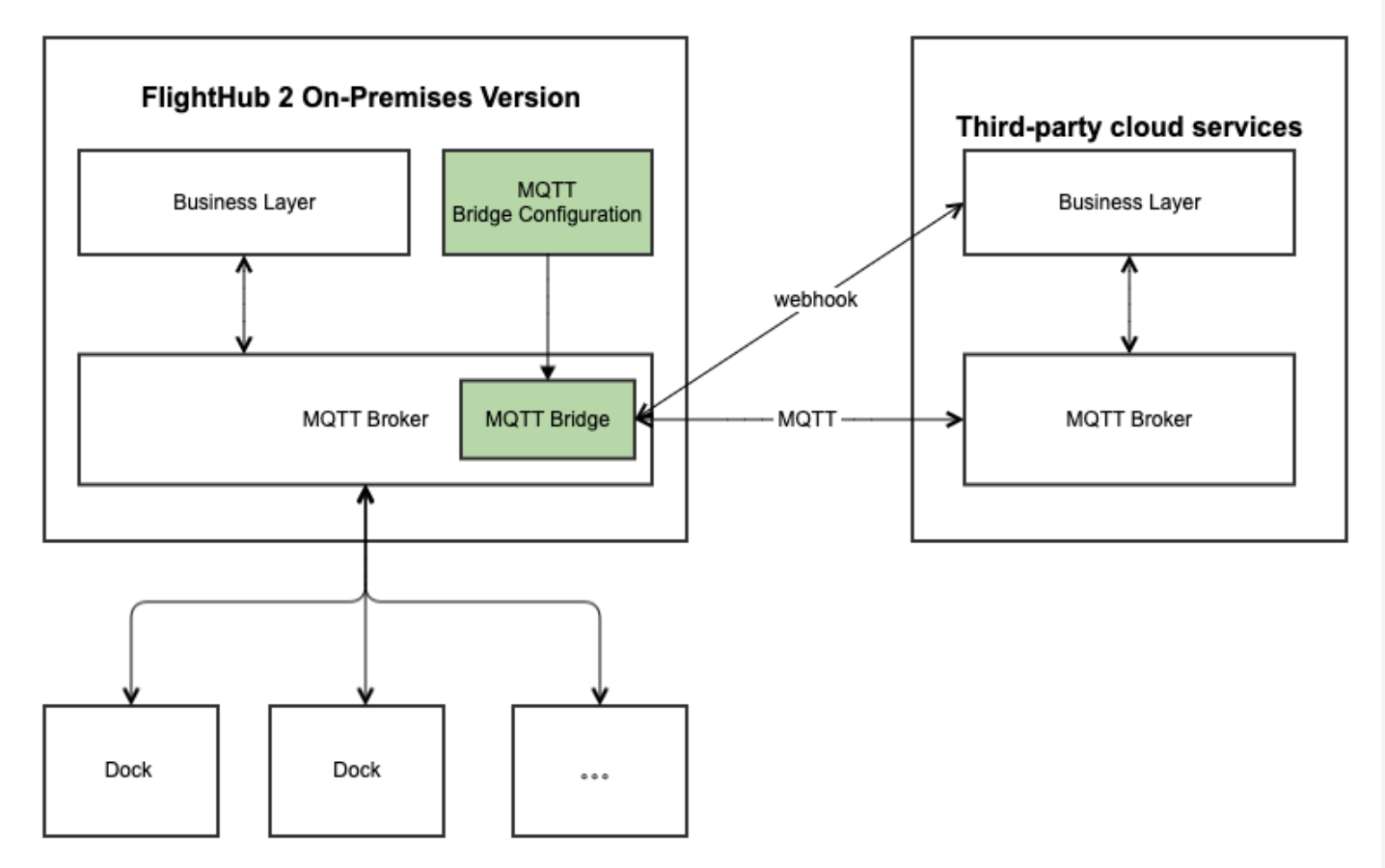
Preparation Before Starting
- Refer to the DJI FlightHub 2 On-Premises Version Deployment Manual to deploy the FlightHub 2 on-premises version.
- The network that hosts the third-party system's MQTT Broker must be connected to the network that hosts the on-premises version of FlightHub 2. The MQTT Broker supports the EMQX type. If an MQTT Broker other than EMQX is used, users need to conduct their own testing to ensure compatibility and functionality.
- The third-party system must ensure that the ports for both the MQTT server and the webhook URL are open. Refer to the
Configuring Bridgesection for more details.
Configuration Steps
Configuring Bridge
Enter the curl command in your terminal to set up the MQTT bridge address and configure webhooks for monitoring device online and offline status.
Example:
curl -X POST "http://10.94.98.15:38080/bridges/v1/resources" -H "Content-Type: application/json" -d '{
    "mqtt": {
        "id": "mqttbridge2",
        "config": {
            "username": "admin",
            "proto_ver": "mqttv4",
            "password": "",
            "address": "10.94.98.17:1883",
            "clientid": "fh2-bridge2"
        }
    },
    "webhook": {
        "config": {
            "url": "http://10.94.98.17:8080",
            "method": "POST",
            "path": "/",
            "body_template": "{ \"username\": \"${username}\", \"timestamp\": ${timestamp}, \"reason\": \"${reason}\", \"action\": \"${event}\", \"clientid\": \"${clientid}\" }"
        },
        "id": "webhook1"
    }
}'
Parameter description:
mqtt:
- "http://10.94.98.15:38080": Needs to be replaced with the address and port where the FlightHub 2 on-premises version is running.
- id: Unique identifier of the bridge. Can be customized and must be letters and numbers only.
- username: Username allowed to connect to third-party MQTT.
- password: Password for connecting to third-party MQTT. Cannot be empty.
- proto_ver: Protocol version number of MQTT. Currently only supports mqttv4. Default is mqttv4.
- address: Access address of third-party MQTT.
- clientid: MQTT client identifier. Can be customized and must be letters and numbers only.
webhook:
- url: URL for the interface that tracks third-party device online and offline events.
- method: Method for the interface that tracks third-party device online and offline events.
- path: Path for the interface that tracks third-party device online and offline events.
- body_template: A string template for the content sent to the third-party interface for device online and offline events. You can modify the keys to fit the specific requirements of your interface.
Configuration verification: The following information indicates successful configuration. If it returns a failure, please check whether the address and port are configured correctly and whether the network is connected.
{"result":{"code":0,"message":"success"},"data":null}
Querying Bridge
Enter the curl command in your terminal to query the status of the MQTT Bridge.
Example:
curl -X GET "http://10.94.98.15:38080/bridges/v1/resources"
Modifying Bridge
Enter the curl command in your terminal to query the status of the MQTT Bridge. When modifying, please ensure that the ID of MQTT and the ID of the webhook cannot be changed. For other parameter descriptions, please refer to the parameter description of the configuration bridge command.
Example:
curl -X PUT "http://10.94.98.15:38080/bridges/v1/resources" -H "Content-Type: application/json" -d '
{
    "mqtt": {
        "id": "mqttbridge2",
        "config": {
            "username": "admin",
            "proto_ver": "mqttv4",
            "password": "",
            "address": "10.94.98.17:1883",
            "clientid": "fh2-bridge2"
        }
    },
    "webhook": {
        "config": {
            "url": "http://10.94.98.17:8080",
            "method": "POST",
            "path": "/",
            "body_template": "{ \"username\": \"${username}\", \"timestamp\": ${timestamp}, \"reason\": \"${reason}\", \"event\": \"${event}\", \"clientid\": \"${clientid}\" }"
        },
        "id": "webhook1"
    }
}
'
Enabling or Disabling Bridge
Enter the curl command in your terminal to enable or disable the bridge function. When disabled, MQTT messages will not be able to be forwarded to the third-party platform's MQTT Broker.
Example:
curl -X PUT "http://10.94.98.15:38080/bridges/v1/resources/switch" -H "Content-Type: application/json" -d '{
    "enabled": true
}
'
Binding Dock to Third-Party System
Refer to the Access to the Cloud Server tutorial to bind the dock a third-party system.
Binding Dock to FlightHub 2
Refer to the FlightHub 2 user manual ->Organization Management->Device Management ->Dock Management section,to bind the dock to an organization in FlightHub.
Verifying Bridge
Mosquitto verification:
- Open two terminals and subscribe to 'thing/product/+/osd' on both FlightHub 2 and the third-party MQTT Broker.
mosquitto_sub -h <FlightHub 2 Broker IP> -p <FlightHub 2 Broker Port> -t "thing/product/+/osd"
mosquitto_sub -h <Third-Party Broker IP> -p <Third-Party Broker Port> -t "thing/product/+/osd"
- In a third terminal, publish the message 'test' to the topic. If 'test' appears in both subscribing terminals, the bridge setup is successful.
mosquitto_pub -h <FlightHub 2 Broker IP> -p <FlightHub 2 Broker Port> -t "thing/product/sn1/osd" -m "test"
FlightHub 2 verification: If the MQTT data received by the third-party broker matches the FlightHub 2 on-premises interface data, the bridge is successful.
Notes
1. Strategy for using the livestream function with the third-party system and FlightHub 2
The third-party system has higher priority. It can take over the livestream from FlightHub 2 after it starts. When the third-party system starts streaming, FlightHub 2 cannot start a livestream. To enable the livestream on FlightHub 2, use the following command to disable the third-party system's livestream.
curl -X POST http://10.94.98.15:38081/thing-access-service/inner/tas/bridges/live/release -H 'Content-Type: application/json'  -d '{
    "sn": "6QCDL870020196"
}'
Note: sn refers to the dock's serial number.
2. After enabling the MQTT Bridge function, the dock will automatically forward media files from the aircraft directly to the third-party system.
Refer to the Media Management tutorial to configure the third-party system's bucket address.