
Copilot Wayline Editing
The Wayline Agent is an intelligent flight route planning tool built into the Copilot Assistant on the FlightHub 2 platform. Users describe flight tasks in natural language, and the system automatically interprets the intent, identifies map targets, and generates or modifies waylines. It is designed for patrol and inspection scenarios.
【Currently supported devices: DJI Dock 3, DJI Dock 2, DJI Dock, Matrice 4 Series, Matrice 3D/3TD】
Overview
The Wayline Agent provides the following core capabilities:
- Natural language input: No need to manually add waypoints or configure flight altitude, speed, gimbal angles and other parameters — a complete wayline can be generated from a spoken-style description.
- Map target picking: Supports picking annotation points on the map, marking custom points, and selecting rectangular areas as inputs for wayline planning.
- Multi-turn refinement: Supports iterative modification and refinement of generated results within the same conversation.
How to Access
The Wayline Agent can be launched from the following locations:
| Entry Point | Applicable Scenario |
|---|---|
| Project page | Plan a new wayline from scratch based on map targets |
| Wayline library / Wayline editor | Modify and adjust an existing wayline |
Basic Concepts
- Picker: An interactive tool for passing map targets to the Wayline Agent. It supports three modes:
- Pick annotation points: Select one or more existing annotation points on the map. The order can be adjusted to indicate the desired waypoint execution sequence.
- Map point marking: Quickly place several points on the map as waypoint inputs.
- Area selection: Select a rectangular area, and the Agent will plan the wayline based on the geographic features (such as buildings, roads, rivers, lakes, etc.) that you specify within that area.
- Altitude reference: All altitude parameters in a wayline require an explicit reference, including Absolute altitude (ASL), Relative to takeoff point, and Above ground level (AGL). If not specified in the command, the Agent will proactively ask.
- Conversation context: The Agent retains context within the same conversation, allowing the wayline to be gradually refined through multiple turns of dialogue.
Usage Flow
Generating a wayline typically involves three steps:
- Launch the Agent and describe the task: Open the Agent dialog on the project page, wayline library, or wayline editor, and describe the task objective and key parameters in natural language.
- Confirm targets and key parameters: The Agent highlights the identified targets on the map. If key information is missing (such as altitude reference or modification scope), the system will proactively ask for clarification.
- Preview, save, and dispatch for execution: Once generated, the wayline can be previewed on the map. The system displays summary information such as the number of waypoints, altitude range, and estimated flight duration. After confirmation, the wayline can be saved or dispatched for execution.
Command Elements
To improve the one-shot success rate, it is recommended that commands include the following elements:
| Element | Description | Behavior When Missing |
|---|---|---|
| Task target | The destination, annotation points to pick, or area to select | The Agent will ask or prompt the user to select on the map |
| Task type | Inspection, orbit, stationary surveillance, etc. | Inferred from keywords; the result may not match expectations |
| Altitude reference | ASL / Relative to takeoff point / AGL | Always asked |
| Shooting action | Recording, photo, AI recognition, etc. | Default action is used, or the Agent asks |
Generating a Wayline from Scratch
Line-Based Inspection (Roads, Rivers, Boundaries)
The Agent automatically identifies road centerlines, river centerlines, or boundary lines, and evenly places waypoints along them.
| Requirement | Example Command | Generated Result |
|---|---|---|
| Pure patrol using defaults | Draw a patrol wayline along Shennan Boulevard | Waypoints placed along the road centerline; altitude and speed use default values |
| Specify flight altitude | Generate a wayline along North Ring Road with a flight altitude of 100 meters | All waypoints have a uniform altitude of 100 m |
| Camera facing a specific direction | Fly along the centerline of the Shenzhen River at 120 m, camera facing the water | Altitude 120 m, gimbal tilted at an appropriate angle toward the water surface |
| Closed-loop boundary flight | Fly one loop around the perimeter of Shenzhen Talent Park | Waypoints placed along the park boundary to form a closed loop |
| Equally spaced photography | Fly this inspection route and take a photo every 50 meters | Waypoint spacing about 50 m, each waypoint has a photo action |
When multiple candidate targets exist, the Agent presents a candidate list for selection. Annotations with the same name that already exist in the project are prioritized.
Orbit and Spiral Flight
Perform circular flight around buildings, transmission towers, or points of interest, with the gimbal always aimed at the center.
- Orbit flight: For example, the command "Fly one loop around Ping An Finance Center, camera always looking at the building" causes the Agent to generate circular waypoints with yaw mode set to "Always toward POI" and the gimbal facing the center.
- Spiral flight: For example, the command "Spiral upward around this transmission tower with a radius of 50 meters" causes the Agent to generate a wayline with a radius of about 50 m, progressively increasing altitude at each waypoint, and the gimbal facing the center.
Area Coverage Inspection
Select an area, and the Agent will plan an inspection wayline based on the geographic features (buildings, roads, rivers, lakes, etc.) within it.
Note: In this release, the Wayline Agent is positioned for patrol and inspection scenarios and is not recommended for mapping or 3D modeling tasks.
Stationary Hover and Custom Waypoints
| Scenario | Example Command | Generated Result |
|---|---|---|
| Stationary surveillance | Generate a stationary hover surveillance task at this point on the map, lasting 10 minutes | Single waypoint + 600 s hover |
| Multi-point route | (After marking three points) Connect these three points into an inspection wayline | Points connected in the picking order with default actions |
| Path navigation | Generate an inspection wayline along the shortest road route from point 1 to point 3 | Path planned along roads between the points with waypoints placed |
| Custom point inspection | Generate a patrol wayline based on these points, photographing each outdoor A/C unit at a 45° angle, altitude 120 m, zoom 7x | Match annotation points, gimbal about -45°, altitude 120 m, focal length corresponding to 7x |
The Agent supports combined AI recognition and action sequences. For example: Inspect along these points for anyone present; if detected, take a photo, start recording, then broadcast "Fishing is prohibited here". The Agent will generate a sequence of "AI recognition → photo → recording → broadcast" actions.
Modifying an Existing Wayline
When modifying a wayline, two elements must be specified: which parameters to modify and the scope of application (all waypoints / a specific waypoint range / a specific lens type).
Global Batch Modification
Increase the altitude of the entire wayline by 20 meters→ All waypoint altitudes are increased by 20 m.Change the flight speed to 8 m/s→ The global flight speed and all waypoint speeds are unified to 8 m/s.
Local Modification
Change the altitude of waypoints 3 to 5 to 320 meters→ Only waypoints 3, 4, and 5 have their altitude changed to 320 m.
Adding and Removing Actions
| Operation | Example Command | Generated Result |
|---|---|---|
| Batch add action | Add a photo action to every waypoint | Each waypoint gains an oriented photo action |
| Batch remove action | Remove the second photo action from all waypoints | The second photo action is removed from each waypoint |
| Unified gimbal angle | Change the gimbal action angle at all waypoints to vertical downward | Waypoint action gimbal pitch is unified to -90° |
| Local hover | Hover for 2 seconds at each photo point | A 2-second hover is inserted before each photo point |
Geometric Transformations
- Reverse wayline:
Swap the start and end points; I want to fly it in reverse - Translate:
Shift the entire wayline 50 meters to the east - Split:
Split from the 6th waypoint into two segments - Combined command:
Altitude +20 m, speed changed to 6 m/s, gimbal down -90°
Note: Locked waylines cannot be edited. When multiple users or multiple Agents edit the same wayline simultaneously, each pipeline is independent, and the last saved state becomes final.
Practical Examples
The following are comprehensive task examples demonstrating the Agent's ability to handle multiple conditions and segmented actions.
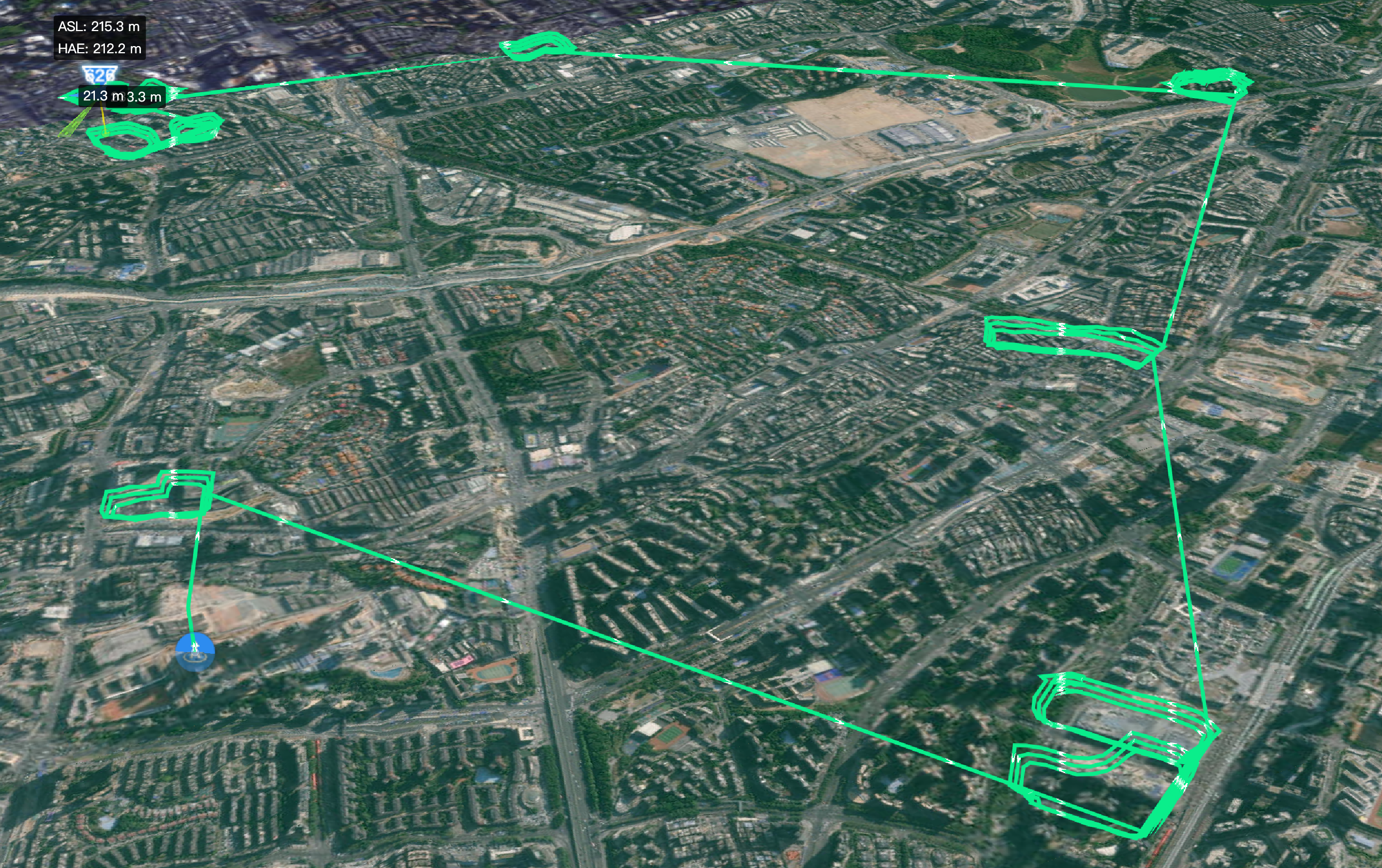
Example 1: Commercial District Area Inspection
Command: Inspect the commercial centers within the selected area. For each commercial center, continuously shoot along the mall perimeter with the gimbal pointed straight down. At the first waypoint of each commercial center, add a gimbal -45° action and start recording; stop recording when the inspection of one commercial center is complete, then move on to the next. Orbit each commercial center 3 times before flying to the next.
Key points: Area selection automatically identifies multiple commercial centers / 3 orbits around each mall perimeter / Independent recording start/stop for each segment / Gimbal -45° at the first waypoint.
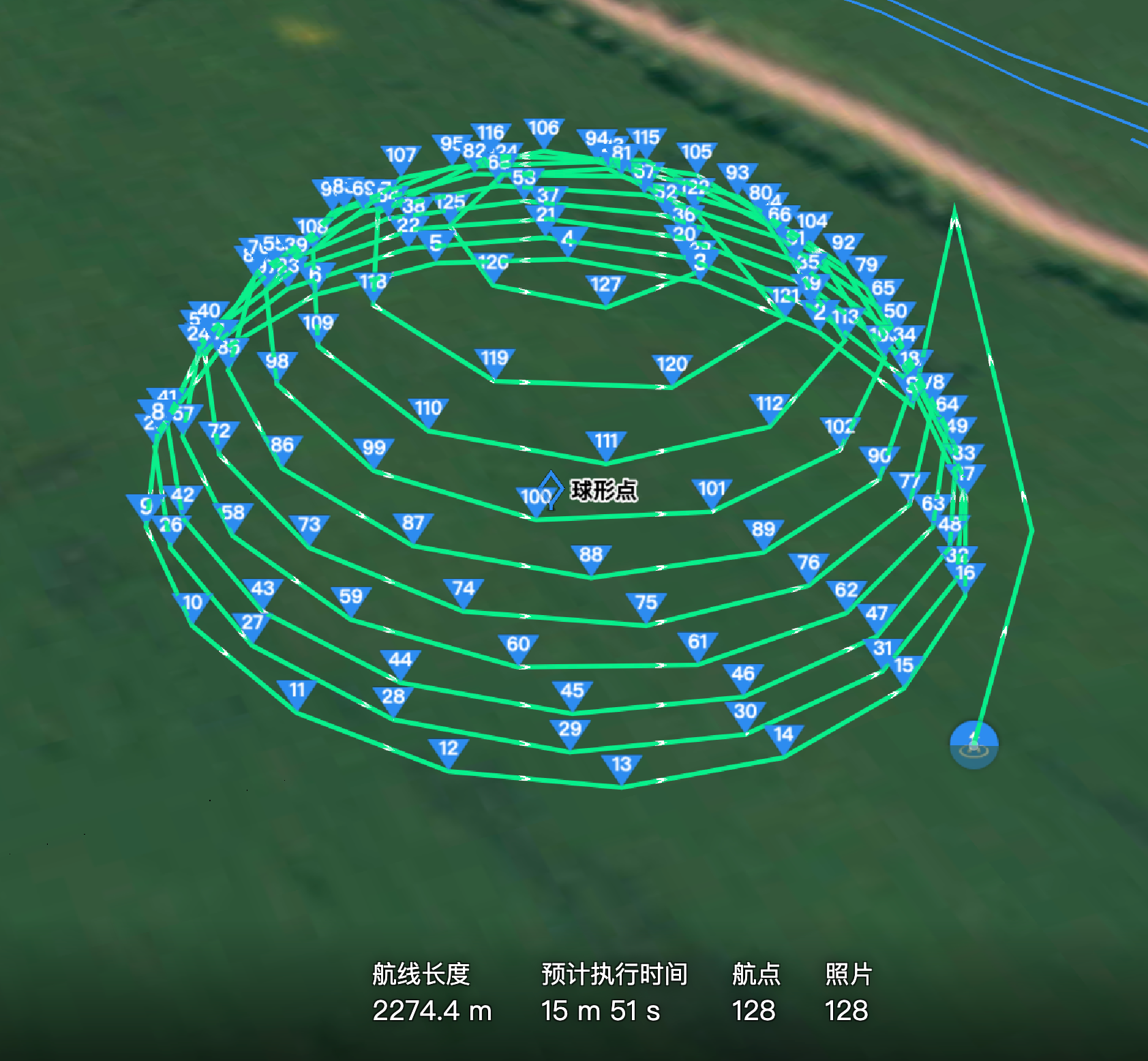
Example 2: Hemispherical Photography Wayline
Command: Based on this point, generate a hemispherical photography wayline that spirals upward ring by ring. The sphere radius is 50 meters. At each point, look toward the center point for photography. The bottom layer of the sphere should be 10 meters above the ground.
Key points: Hemispherical ring-by-ring ascent / Sphere radius 50 m / Each point aimed at the center for photography / Bottom layer 10 m above ground.
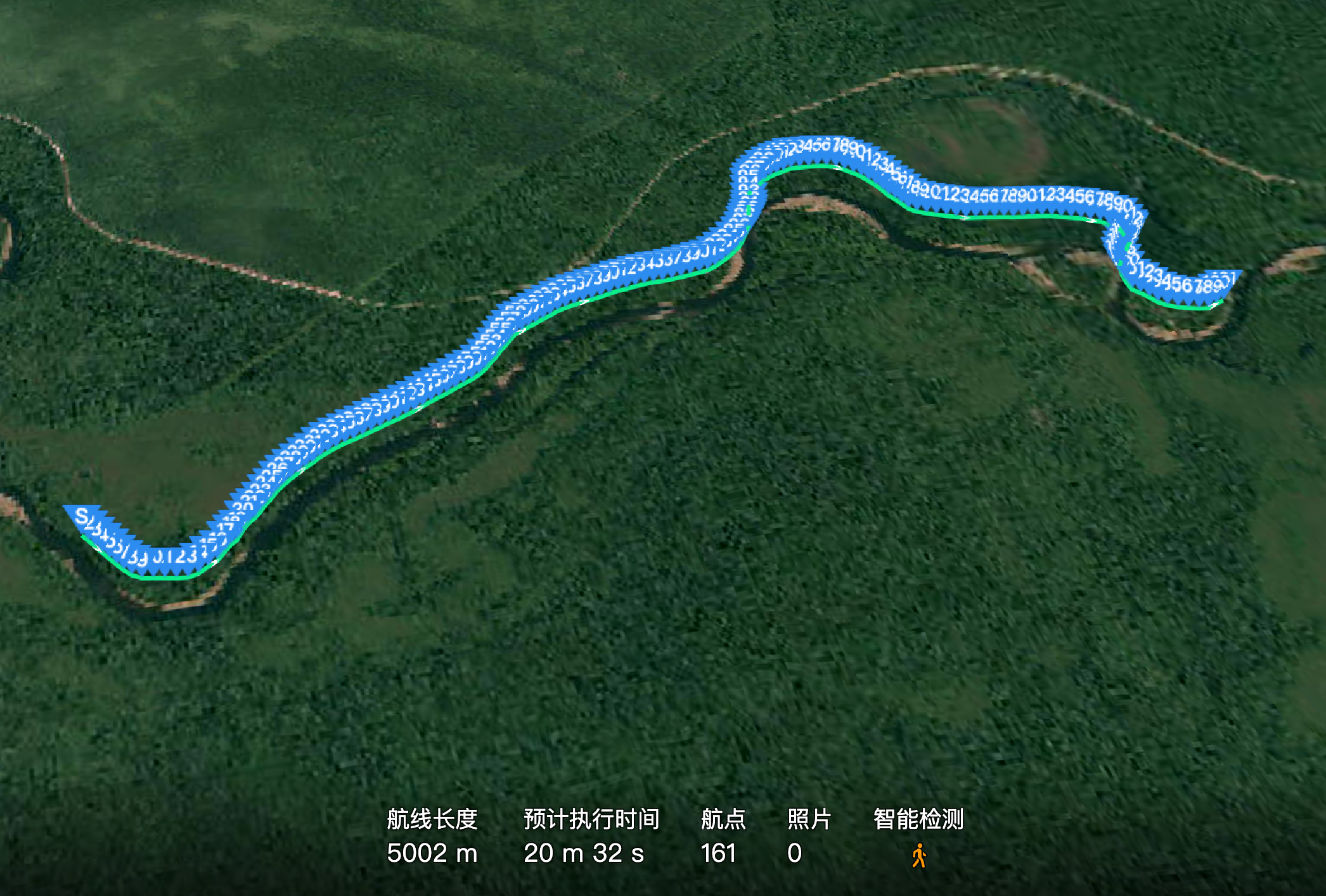
Example 3: River Inspection + AI Recognition + Broadcast
Command: Along the river within the area I selected, inspect with the aircraft nose facing north. Add a gimbal -45° action looking at the ground at the first waypoint. During the flight, search for people; if any are detected, trigger an oriented photo, then broadcast "This is a forest water source protection area, leave immediately".
Key points: Area selection identifies the river / Aircraft nose unified toward north / AI person detection → oriented photo → broadcast / Gimbal -45° at the first waypoint.
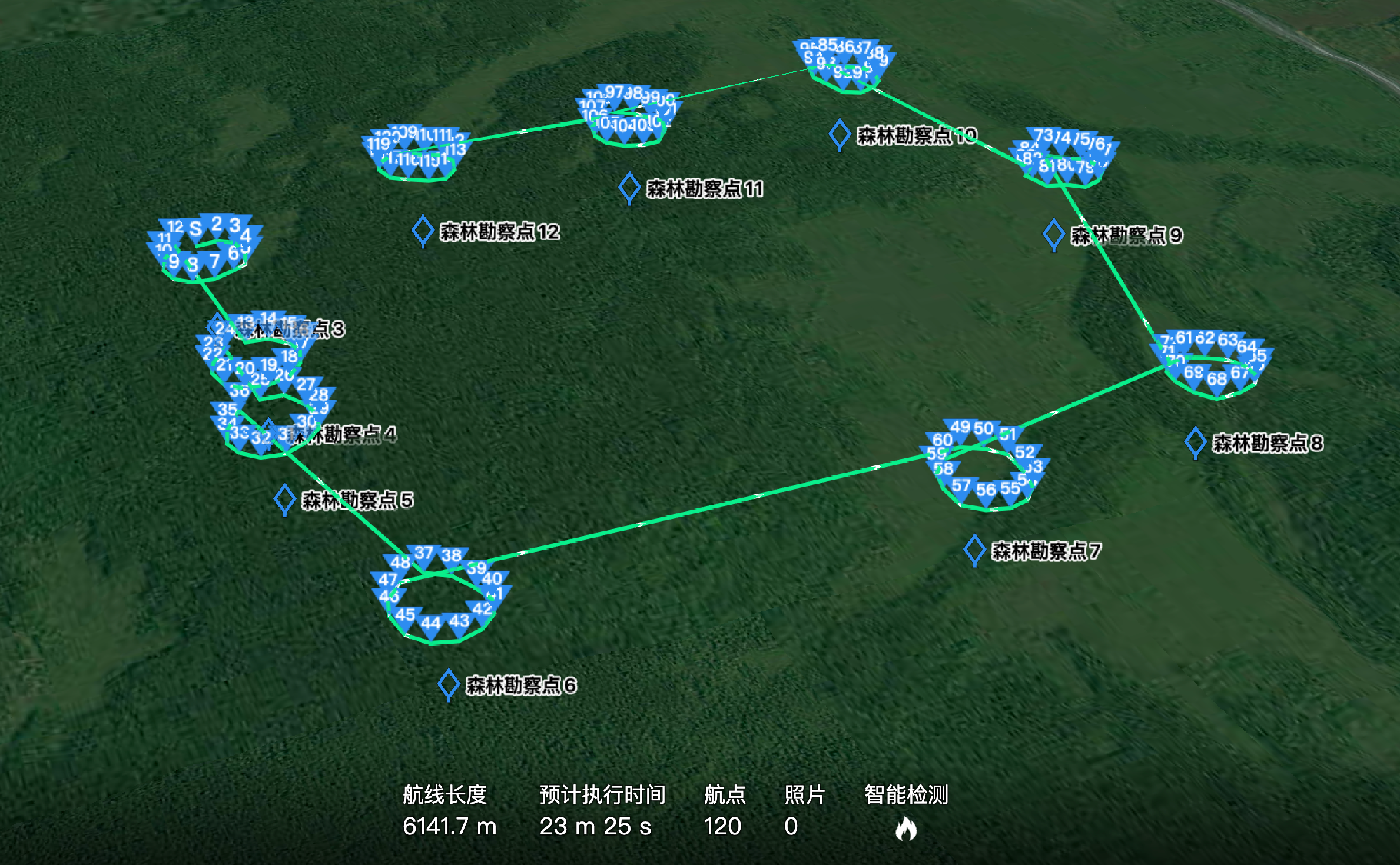
Example 4: Forest Critical Risk Point Orbit + Thermal Imaging
Command: Inspect for fire risks along forest survey points 3 to 12. At each point, orbit 1 loop with the point as the center at 120 meters above. Start recording when the orbit begins, and simultaneously enable thermal temperature detection. If the detected temperature exceeds 50°C, start recording for 30 seconds.
Key points: Pick survey points 3–12 / 1 orbit at 120 m above each point / Thermal temperature >50°C trigger / Conditional recording for 30 s.
Dialog and Clarification Mechanism
Continuous Dialogue
Context memory is supported within the same conversation, allowing the full "decompose → confirm → execute" flow through multiple rounds of dialogue.
When the Agent Proactively Asks
| Priority | Trigger Condition | Typical Question |
|---|---|---|
| Mandatory | Altitude reference unclear (ASL / relative to takeoff / AGL) | Do you mean absolute altitude or relative to the takeoff point? |
| Mandatory | Modification scope unclear (global / local) | Do you want to modify all waypoints or specific waypoints? |
| Mandatory | Target object unclear | Please specify the target object or select it on the map |
| Frequent | Only vague expressions such as "faster / slower / higher" without a value | What is the target speed? |
| Frequent | Angle sign ambiguity | Do you mean gimbal pitch down 60° (-60°)? |
Common Misunderstandings
- Three meanings of "altitude":
ASL 300 m≠Relative to takeoff point 300 m≠AGL 300 m. When in doubt, use "relative to takeoff point" (the most common reference). - Angles include sign: Gimbal "pitch down 60°" means -60°, not 60°. Direction convention: North = 0°, East = 90°, South = 180°, West = -90°.
Recommended complete command structure: Target + shape/task + altitude + reference + speed + shooting action. Example: Generate a patrol wayline along Liuxian Boulevard, relative to takeoff point 120 m, record throughout.
Capability Boundaries and Safety Limits
Safety Guardrails
The Agent validates commands based on numerical boundaries of wayline parameters:
| Command | Agent Response | Type |
|---|---|---|
| Set speed to 100 m/s | Exceeds safety range (max 15 m/s depending on aircraft model), limited or please reset | Blocking |
| Set altitude to 0 m | Risk of ground collision, please confirm | Warning |
| Generate a wayline with 1000 waypoints | Warning about waypoint quantity limits or performance risks | Warning |
Unsupported Capabilities
| Capability | Description |
|---|---|
| Real-time event triggering | For example, "Take a photo when a violating vehicle is seen" — only preset waypoint execution is available; recommended to approximate via "route + AI recognition" |
| Fine-structure recognition | For example, "Automatically recognize insulators on power towers and generate shooting points" — fine structural components cannot be recognized; annotate points manually |
| Environmental adaptation | For example, "Adjust automatically based on today's wind speed" — real-time weather data cannot be obtained; specify parameters manually |
| Dynamic obstacle avoidance | Dynamic obstacle avoidance based on 3D models is not yet supported |
| Mapping and modeling | This release focuses on patrol and inspection; mapping or modeling tasks are not recommended |
| Cross-session memory | For example, "Fly like last time" — the Agent cannot access historical conversations; provide a specific wayline file or parameters |
Subjective Description Commands
For subjective description commands such as "Make it look nicer" or "Make it more cinematic", the Agent will not adjust parameters on its own. It will ask the user to specify concrete parameters (gimbal angle, focal length, camera movement style) or select a preset camera movement template.
FAQ
Q: Can the wayline generated by the Agent be dispatched for execution directly?
Yes, but it is recommended to preview it first. After generation, the Agent provides summary information such as the number of waypoints, altitude range, and estimated duration, and performs checks such as overspeed, ground collision risk, and waypoint count limits based on numerical boundaries. Note: This release supports only "immediate tasks" (dispatched for execution immediately after generation), and does not yet support "scheduled tasks" (reserved for timed execution).
Q: Why does the Agent repeatedly ask when I modify altitude?
"Altitude" involves two frequent ambiguities: reference (ASL / relative to takeoff / AGL) and application scope (all waypoints or specific ones). When both are made explicit in the command (for example, "Change waypoints 3 to 5 altitude to 120 m relative to takeoff point"), the Agent will execute directly.
Q: Can the Agent recognize specific place names such as "Dasha River" or "Shennan Boulevard"?
Yes. Based on the current project coordinates, the Agent picks the closest matching or similarly-named target and highlights it on the map for confirmation. If multiple candidates exist, the Agent presents a candidate list; annotations already existing in the project with the same name are prioritized. You may also select an annotation on the map first, then issue the command.
Q: After switching aircraft model, is the original wayline still usable?
You can instruct the Agent to switch the aircraft model (for example, "I'm switching to M350, please switch the aircraft model for me"), and the system will update the corresponding aircraft parameters. Note that different aircraft models have different capabilities (for example, speaker, spotlight, and thermal imaging are only supported on some models; maximum speed and gimbal pitch range also differ). After switching, the Agent will proactively notify if any action is no longer supported.
Q: Will conflicts occur when multiple people edit the same wayline simultaneously?
Multiple people can edit simultaneously, with each pipeline independent, but the last saved state becomes final (later saves override earlier ones). Locked waylines cannot be edited.
Q: How can I quickly adjust an unsatisfactory generated wayline?
Simply continue issuing modification commands within the same conversation — the Agent retains context. For example, "The waypoints are too dense, please sparse them out and keep only the key ones" or "Set a larger turning radius". You can also directly fine-tune the picked target lines or points on the map.