
Introduction
Release Notes
FlightHub Sync Beta is now upgraded to FlightHub Sync
- All FlightHub Sync features are integrated into FlightHub Sync. New users should use Sync directly.
- Existing FlightHub Sync users can continue using the service; once all configurations are deleted, the entry will close automatically.
- For a detailed introduction to FlightHub Sync, see FlightHub Sync.
Note: FlightHub Sync Beta has completed public beta testing and been upgraded to "FlightHub Sync". Please migrate to FlightHub Sync as soon as possible to access the full feature set.
API Mapping Reference Table
All FlightHub Sync Beta APIs are now fully supported in OpenAPI. Use the following mapping table to update your API calls. For the complete OpenAPI documentation, see FlightHub OpenAPI.
| FlightHub Sync Beta API | OpenAPI Equivalent | Endpoint Path |
|---|---|---|
| Get the list of devices for a specific project | Get the list of devices under the project | /openapi/v0.1/project/device |
| Get temporary upload credentials for a project | Get the storage upload credentials for a project | /openapi/v0.1/project/sts-token |
| Send flight commands | Issue real-time control commands | /openapi/v0.1/device/{device_sn}/command |
| Initiate live-stream forwarding (create transcoder) | Create stream forwarder | /openapi/v0.1/live-stream/converter |
| Get the transcoder for the stream forwarding channel | Get the stream transcoder list | /openapi/v0.1/live-stream/converter |
| Stop stream forwarding (delete transcoder) | Delete stream forwarder | /openapi/v0.1/live-stream/converter/{uuid} |
| Get the list of flight routes | Get the list of flight routes under the project | /openapi/v0.1/wayline |
| Get the generated file info and download URL | Get flight route details | /openapi/v0.1/wayline/{wayline_id} |
| Flight route upload notification | Flight route upload completion notification | /openapi/v0.1/wayline/finish-upload |
| Task distribution API (create task) | Create flight tasks | /openapi/v0.1/flight-task |
| Get task details | Get flight task info | /openapi/v0.1/flight-task/{task_uuid} |
| Get task trajectory | Get flight task trajectory info | /openapi/v0.1/flight-task/{task_uuid}/track |
| Publish notifications and create map elements | Create map annotations | /openapi/v0.1/map/element |
Configuring Basic FlightHub Sync Information
Organization administrators or super admins can configure Cloud Connect as follows: Navigate to “My Organization” and click  to enter the organization settings page. Select “Add FlightHub Sync Service” and fill in the required basic information.
- Organization Key: Serves as the credential to call FlightHub Sync APIs for the current organization.
- Third-Party Cloud Name: Name of the cloud platform being integrated.
- Webhook URL: Endpoint for FlightHub Sync API interactions; used to send the organization’s information to the third-party cloud platform.
Click "OK" to complete the configuration.
Configure Media File Direct Transfer
When Media File Direct Transfer is enabled, media files generated by the aircraft during operations bypass FlightHub 2 and are sent directly to a third-party cloud storage bucket.
- Complete the basic configuration.
- Click "Configure Media File Direct Transfer" and enter the storage address. For details, see FlightHub Sync documentation.
- Click
 > "Edit" to modify the configuration, or click "Delete" to remove it and stop file transfer.
Configure Telemetry Data Transfer
Telemetry data configuration enables the synchronization of relevant data from the dock and aircraft to a third-party cloud platform during task operation. After configuration, data is synced immediately and matches the device property updates pushed via the Cloud API and device model.
- Complete the basic configuration.
- Click Configure Telemetry Data and enter the MQTT broker information. For details on the pushed data, see DJI Dock MQTT Details and Aircraft MQTT Details.
- Click > "Edit" to modify the configuration, or click "Delete" to remove it and stop data synchronization.
Note: FlightHub Sync now supports pushing telemetry data to third-party servers via the MQTT protocol (migrated to Sync 2.0). Refer to FlightHub Sync for the latest configuration method.
Configure Stream Forwarding
Device stream configuration syncs aircraft stream data to a third-party cloud platform.
- Complete the basic configuration.
- Click Configure Stream Forwarding and set up the RTMP server information.
- To enable stream forwarding, call the
Start Stream ForwardingAPI. The stream data will then be pushed to the third-party cloud platform. - To disable stream forwarding: a. Call the
Get Stream Forwarding Channel TranscoderAPI to obtain theconverter_id. Call theStop Stream ForwardingAPI with theconverter_idparameter. - Click > Edit to modify the configuration, or click Delete to remove it.
Important notes for stream forwarding:
- Currently, only RTMP format streams are supported.
- Device SNs can be retrieved by calling the
Get the List of Devices for a Specific ProjectAPI. - After you finish streaming, call the Stop Stream Forwarding API; otherwise, livestream minutes will continue to be deducted from your organization’s package.
- If multiple transcoders are created for the same livestream, the livestream minutes consumed by each transcoder will be deducted accordingly.
Note: FlightHub Sync livestream forwarding now supports RTSP and GB28181 formats. Refer to FlightHub Sync for the full range of forwarding capabilities.
Synchronizing Post-Reconstruction Model Files
- Complete the basic configuration.
- After model reconstruction is complete, call the
New File Generated NotificationAPI. FlightHub 2 will push a notification to the third-party cloud platform via the configured Webhook URL. Using the returnedfile_id, call theGet Generated File Information and Download URLAPI to retrieve the download link for the generated file, and then download the file.
Synchronizing Flight Route Files
The FlightHub 2 Cloud Platform supports two-way synchronization of flight route files.
Obtain Flight Route Files from FlightHub 2
- Complete the basic configuration.
- When a new flight route file is generated, call the
New File Generated NotificationAPI. FlightHub 2 will push a notification to the third-party cloud platform via the configured Webhook URL. Using the returnedfile_id, call theGet Generated File Information and Download URLAPI to retrieve the download link for the generated file, and then download the file.
Synchronizing Flight Route Files to FlightHub 2
- Complete the basic configuration.
- Call the
Get Temporary Upload Credentials for the ProjectAPI to obtain temporary credentials for uploading files to the FlightHub storage bucket. Use the upload SDK (Alibaba Cloud or AWS) to upload the files to the FlightHub storage bucket. - Call the
Flight Route Upload Completion NotificationAPI to display the notification on the FlightHub 2 page.
Pushing Message Notifications
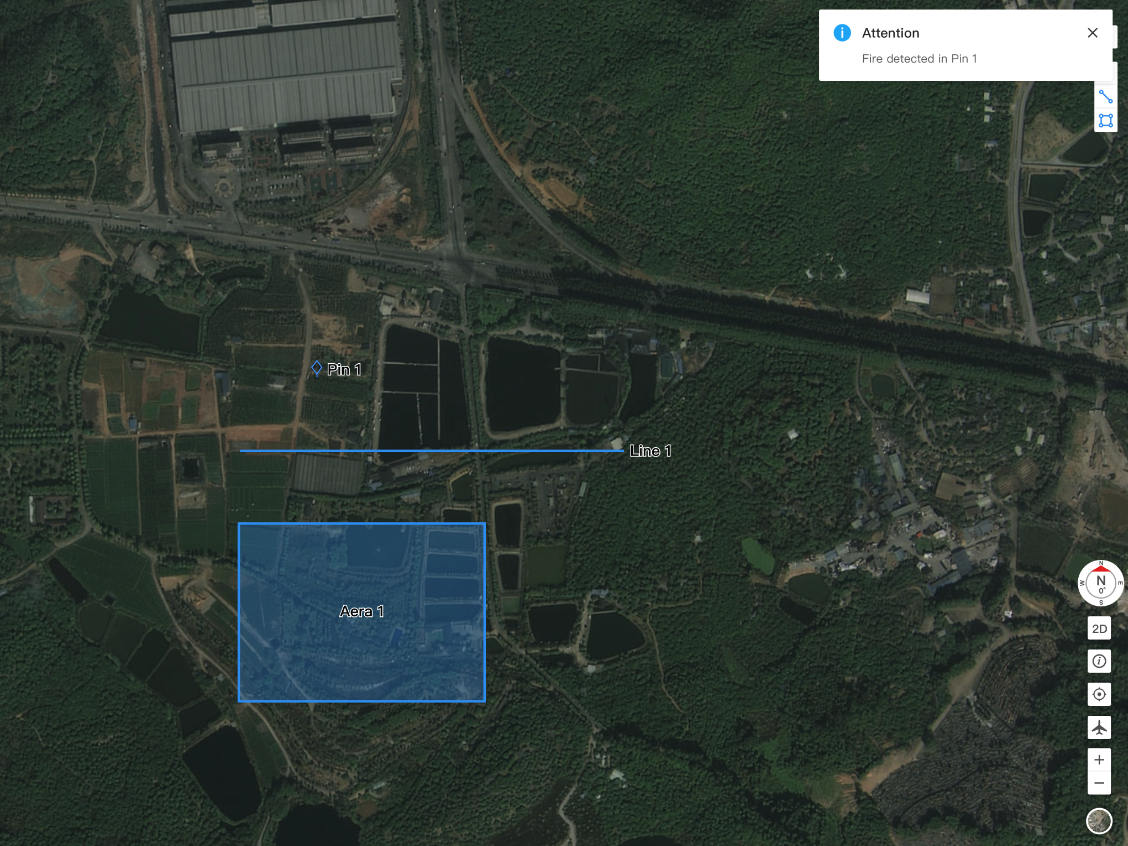
Third-party cloud platforms can send key event information to FlightHub 2, including event time, location, description, and other details.
- Complete the basic configuration.
- Call the
Publish Notification and Create Map ElementAPI to customize the message and create point, line, or area map elements. Push the message to FlightHub 2. Once received, the FlightHub 2 cloud platform displays both the notification content and the associated map element.
Distributing Flight Tasks from Third-Party Cloud Platforms
FlightHub Sync allows third-party cloud platforms to distribute flight tasks, which are then displayed in the FlightHub 2 task plan library.
Usage
- A Super Administrator or Organization Administrator configures the basic information in FlightHub 2 Organization Settings > FlightHub Sync Beta.
- The following operations can be performed via API:
- Distribute tasks:
- Supports single-dock and multi-dock tasks.
- Supports immediate tasks, but does not support one-time scheduled, recurring scheduled, or continuous tasks.
- Supports configuring Media File Direct Transfer to upload media files to FlightHub 2 or a third-party cloud platform.
- Retrieve task progress, task status, and flight trajectory.
- Pause or resume a task.
- Trigger Return-to-Home (RTH) or cancel RTH; retrieve the RTH trajectory and RTH exit status.
- Distribute tasks:
For detailed API usage, see theFlightHub Sync API Overview.
Note: The above APIs will be gradually migrated to FlightHub Sync OpenAPI. Refer to FlightHub Sync for the latest API information.
Flight Safety Notice
The following safety checks are performed. If any of these checks fail, the task will not run:
- All dock and aircraft safety checks.
- Whether the device supports multi-dock planning.
- Whether the required task parameters are empty.
- Flight route validity.
| Unsupported check | Result |
| Does the device support Resume Flight from Breakpoint? | If not supported, the task fails. |
| Does the device support the configured Minimum RTH Altitude? | If not supported, the task fails. |
| Does the device support Smart RTH Altitude Planning? | If not supported, the setting is ignored. |
| Does the device support the specified Flight Route Accuracy Type? | If GNSS is not supported, RTK is used instead. |
| Does the device support Media File Direct Transfer? | If not supported, media files are uploaded to FlightHub 2 instead. |
| Is the distance between the dock and the first waypoint within 5 km? | Task proceeds normally. |
| Do the aircraft model, payload, and gimbal match the flight route requirements? | Task proceeds normally. |
| Weather-Related Flight Restriction Settings in Project Settings | Custom weather-related flight restriction thresholds in Project Settings are ignored; weather restrictions are enforced based on the fixed default values from the device’s weather station. |
For On-Premises Users
DJI FlightHub 2 On-Premises Version supports configuring livestream forwarding, which provides a more flexible and convenient alternative compared to basic stream forwarding.
Configuring Livestream Forwarding
In the on-premises version, super administrators and organization administrators can configure livestream forwarding channels. After configuration, the livestream can be forwarded to third-party cloud platforms. Both RTMP and GB28181 stream formats are supported. You can configure up to 20 streams in total, combining both formats. Configuration can be done either through the API or through the user interface. Detailed step-by-step instructions are provided later.
API Configuration
Refer to the Livestream Forwardingfor details.
Complete API call instructions: ${DOMAIN_PROTOCOL}://${BACKEND_DOMAIN}/${API}
Note:
${DOMAIN_PROTOCOL}and${BACKEND_DOMAIN}are environment variables in the ENV file within the deployment installation package of the FlightHub 2 on-premises version.
Interface Configuration
Forwarding Channel Configuration Process
- Go to My Organization > Organization Settings > FlightHub Sync > Details > Configure Livestream Forwarding to configure livestream forwarding.
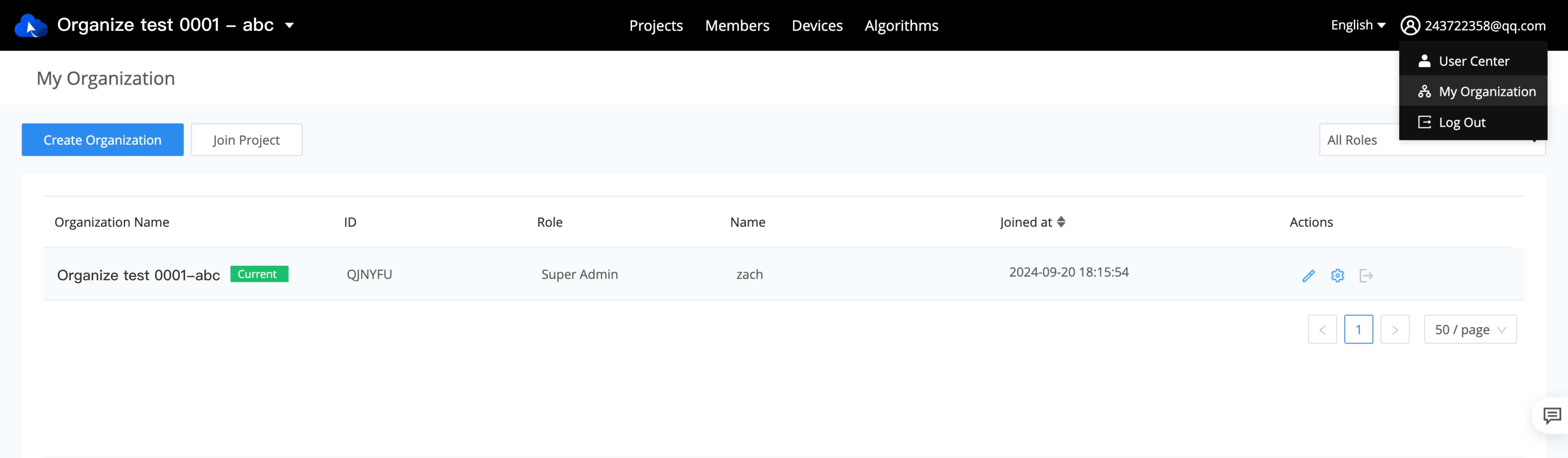
Fig. My Organization > Organization Settings

Fig. Add FlightHub Sync Service

Fig. Configure Livestream Forwarding
- Click New and complete the following parameter configuration.
(1) Introduction to parameters in the RTMP stream configuration interface:
- Forwarding Channel Name
- Forwarding Channel Type: Select RTMP
- Server Address: Please start with RTMP:// .
- Device Name:
- A dropdown will display all bound device names, including docks and aircraft.
- Supports device search.
- After selection, the device SN will be displayed for confirmation.
- Stream Source:
- If dock is selected as the device name, only dock cameras will be available as options.
- If aircraft is selected as the device name, the available camera types for that aircraft will be displayed, such as infrared, wide-angle, and zoom cameras.
Note:
- Selected stream source will become default stream for forwarding after the livestream starts.
- A single aircraft can be configured with up to two stream sources: the first is the FPV Camera, and the second can be either an infrared, wide-angle, and zoom cameras. If the configurations of multiple forwarding channels differ, the latest configuration will prevail.
- The EA610 base station does not support relay capabilities for third-party peripherals. Related devices will appear grayed out in the interface.
- Create Next: When enabled, this window will not disappear after the previous configuration is successfully created, allowing you to continue creating the next one.
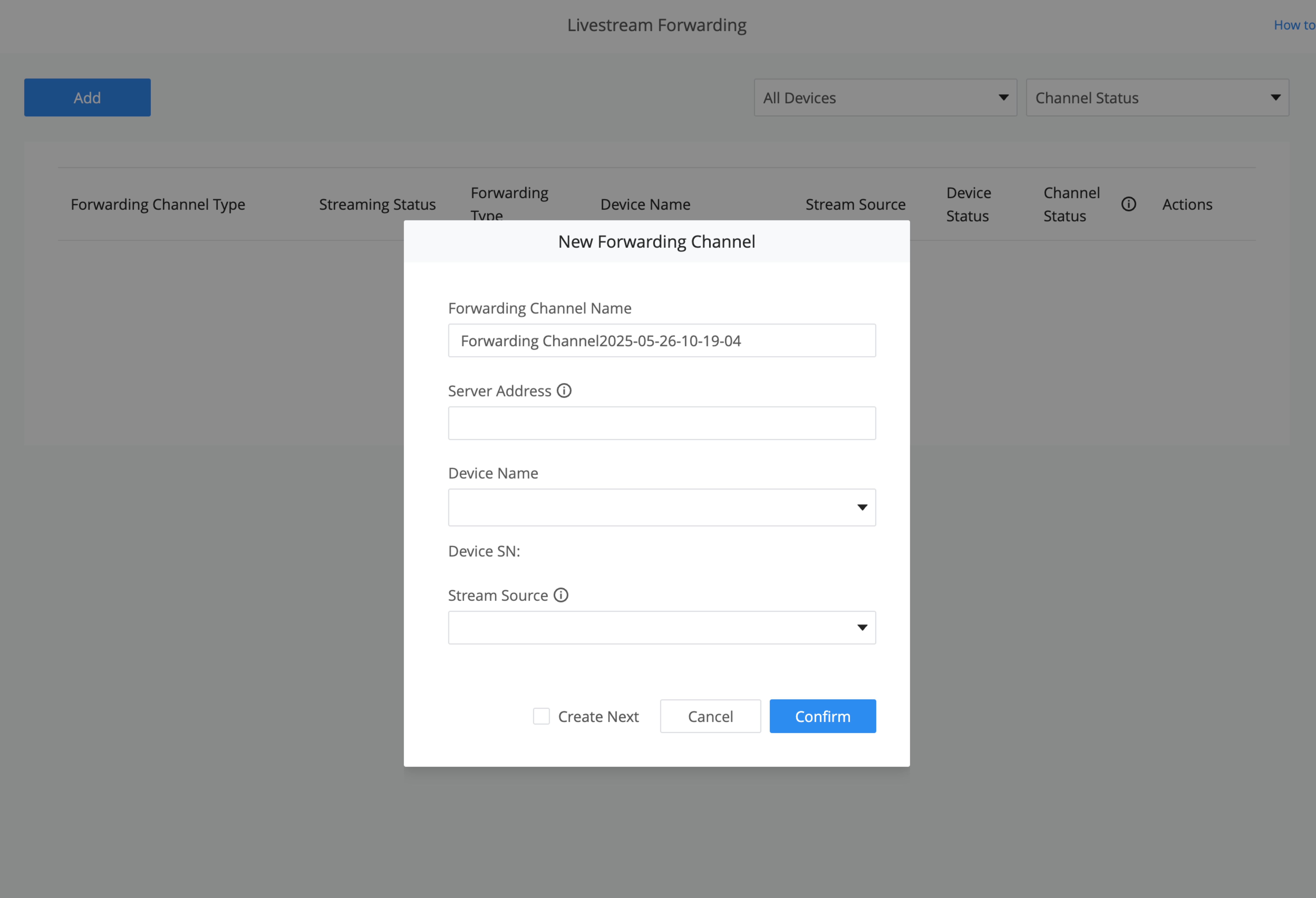
Fig. RTMP Configuration Interface
(2) Introduction to parameters in the GB28181 format stream configuration interface:
- Forwarding Channel Name
- Forwarding Channel Type: Select GB28181
- SIP Server IP: IP format xxx.xxx.xxx.xxx, 0-255
- SIP Server Port: The usage range is usually within [0, 65535].
- Server Number: Globally unique
- Device Number: Globally unique to ensure unique identification among different devices.
- Registration Password
- SIP Local Port: Globally unique, ranging from 10000 to 65535.
- Local Channel: Refers to the video channel number.
Note: Once a GB28181 configuration is created and the device comes online, it will automatically be available for on-demand streaming (meaning the device’s SIP session is active). Third-party platforms can then initiate a stream with a single click. This behavior does not apply to RTMP streams.
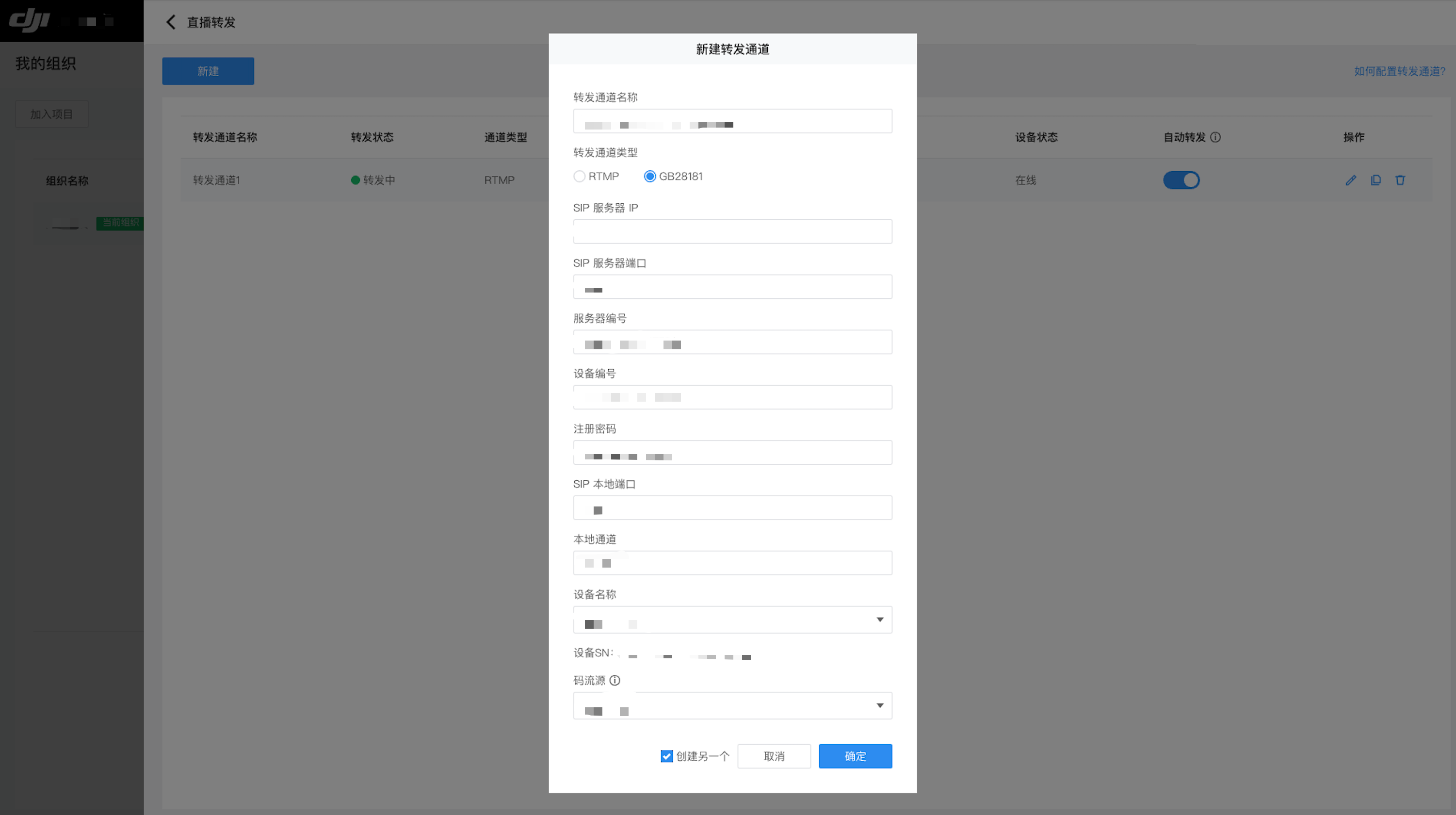
Fig. GB28181 Configuration Interface
Forwarding Channel List Management
After a livestream forwarding channel is successfully configured, it will appear in the configuration list. Each channel in the list supports editing, copying, and deleting.
The configuration list displays the following information for each channel:
- Auto Forwarding Switch:
- For RTMP streams: You can enable the auto forwarding switch. When enabled, the device will automatically start streaming when it comes online and stop streaming when it goes offline. By default, this switch is turned off when a new channel is created.
- For GB28181 streams: You can enable the auto session establishment switch. When enabled, the device will automatically establish a session upon startup, but streaming still requires a request from the playback side.
- Forwarding Status:
- Forwarding
- Not Forwarded
- Forwarding Error. If there is an error, you can click the red exclamation mark next to it to view detailed error information.
Note: Livestream forwarding channels configured via API will also be synchronized in the list.
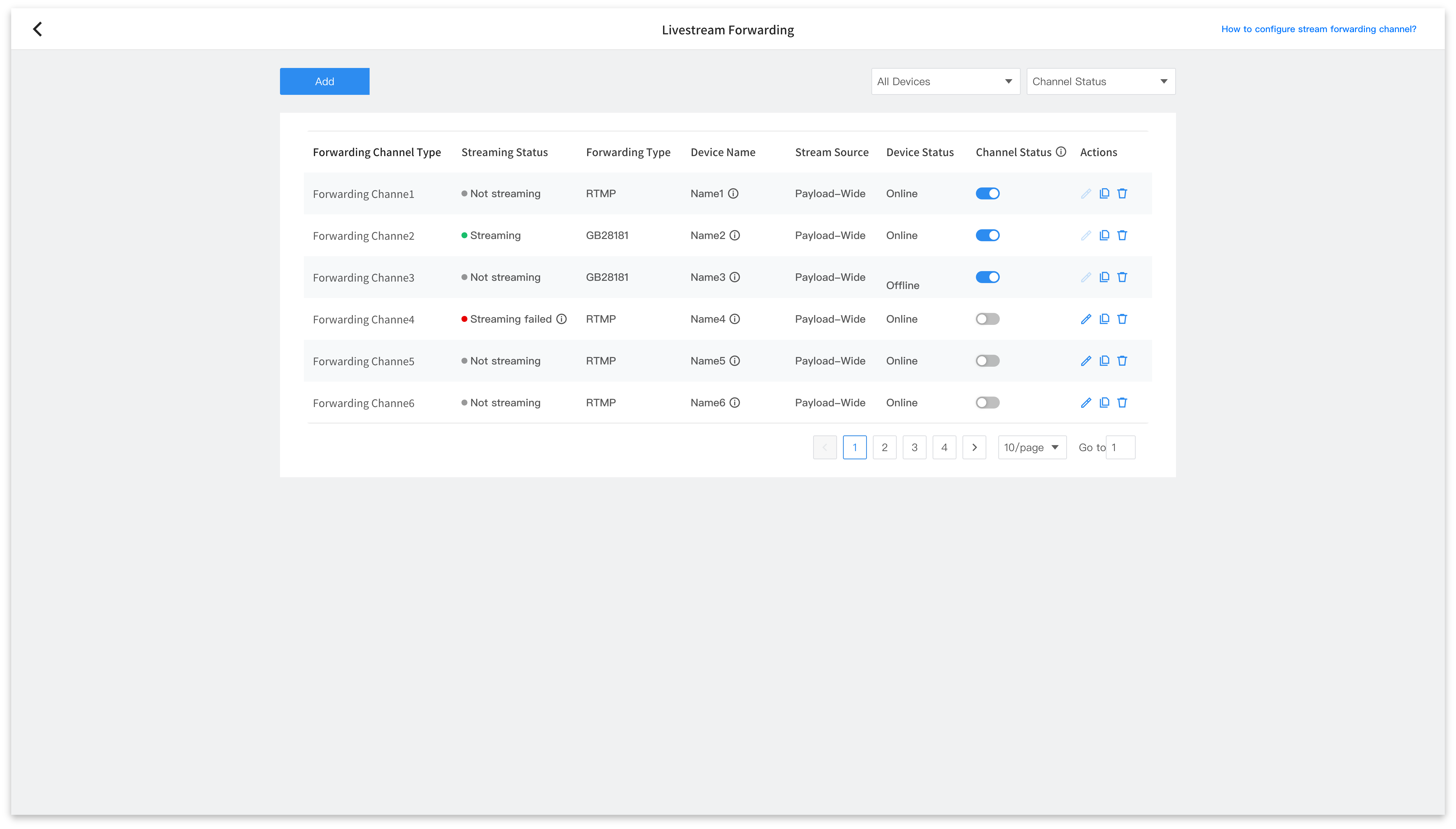
Fig. Forwarding Channel List Management