
Copilot Automated Workflow Generation
Generate an Automated Workflow using natural language, and continue editing the current draft in the conversation window and workflow canvas.
- Entry point: Copilot Assistant
- Mode: Workflow Builder
- Shortcut: Create Automated Workflow
- Applies to: Periodic Workflow / Triggered Workflow
Feature Overview
The Copilot Assistant in DJI FlightHub 2 supports creating an Automated Workflow using natural language. Simply describe the task objective, trigger method, actions to perform, and notification requirements. Copilot automatically identifies the workflow type, generates the corresponding node sequence and connections, and displays the result in the workflow canvas.
The current version supports two types of Automated Workflow:
- Periodic Workflow: Suitable for scheduled inspection, automatic mapping, analysis, and notification scenarios.
- Triggered Workflow: Suitable for alert-driven actions, automatic aircraft dispatch, on-site evidence collection, and emergency response scenarios.
In addition to automatically generating workflows, Copilot supports continued modification of the current draft during workflow creation in two ways:
- Continue entering modification requests in the conversation window.
- Manually edit nodes, connections, and parameters in the workflow canvas.
Note: In the current version, a Triggered Workflow can be fully generated. For a Periodic Workflow, primarily the node structure is generated, and you need to complete some task-specific parameters in the canvas.
How to Access
You can access the Automated Workflow Builder capability in the following ways:
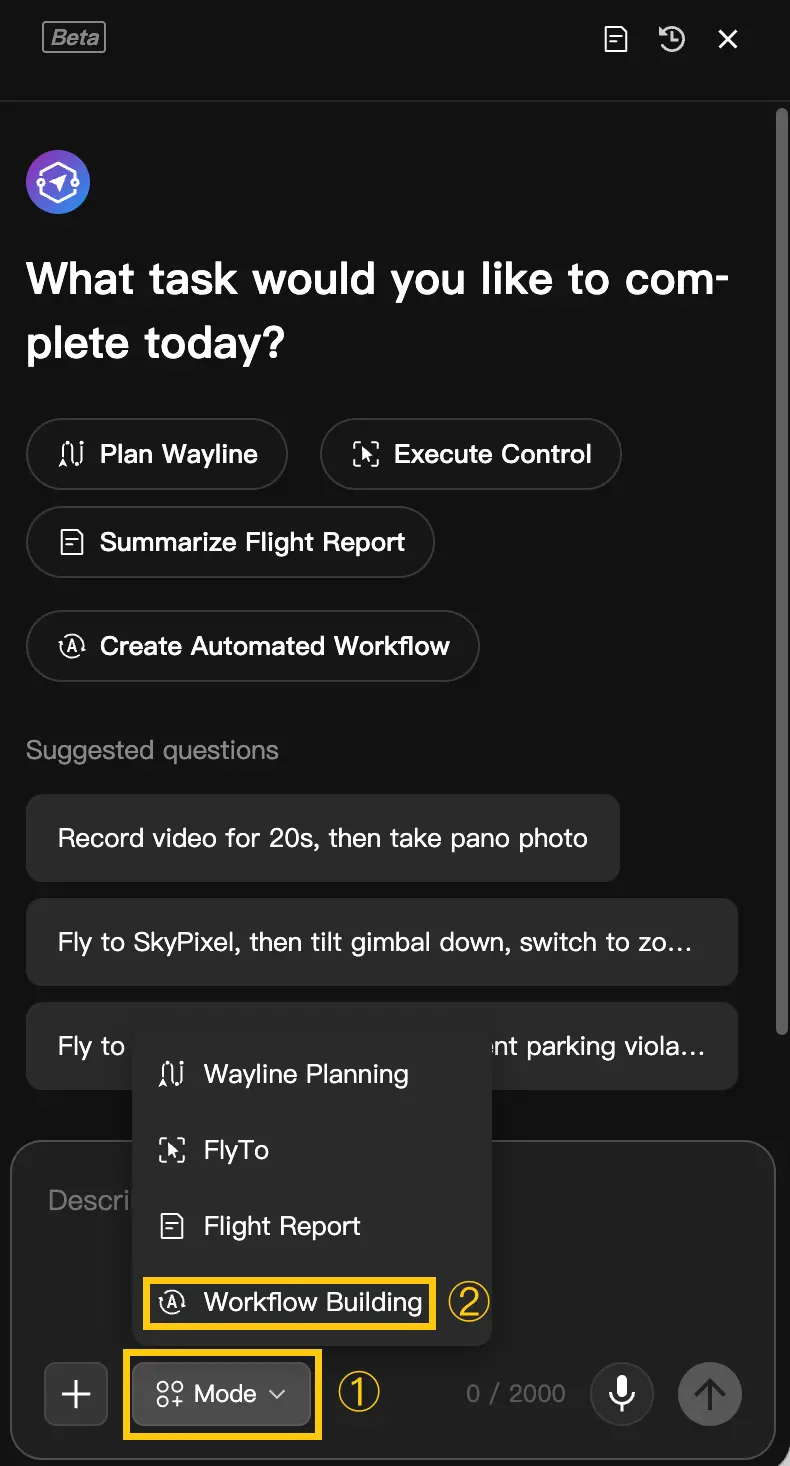
- Click the "Create Automated Workflow" shortcut on the Copilot welcome page.
- Click the mode selector below the Copilot input field and switch to "Workflow Builder".
- Enter a question or request related to an Automated Workflow directly. Copilot automatically identifies it and activates the corresponding capability.
Follow these steps:
- Open the Copilot Assistant in the bottom-right corner of the DJI FlightHub 2 page.
- Select "Workflow Builder mode", or enter your Automated Workflow requirements directly.
- Copilot identifies the requirements and generates a workflow draft.
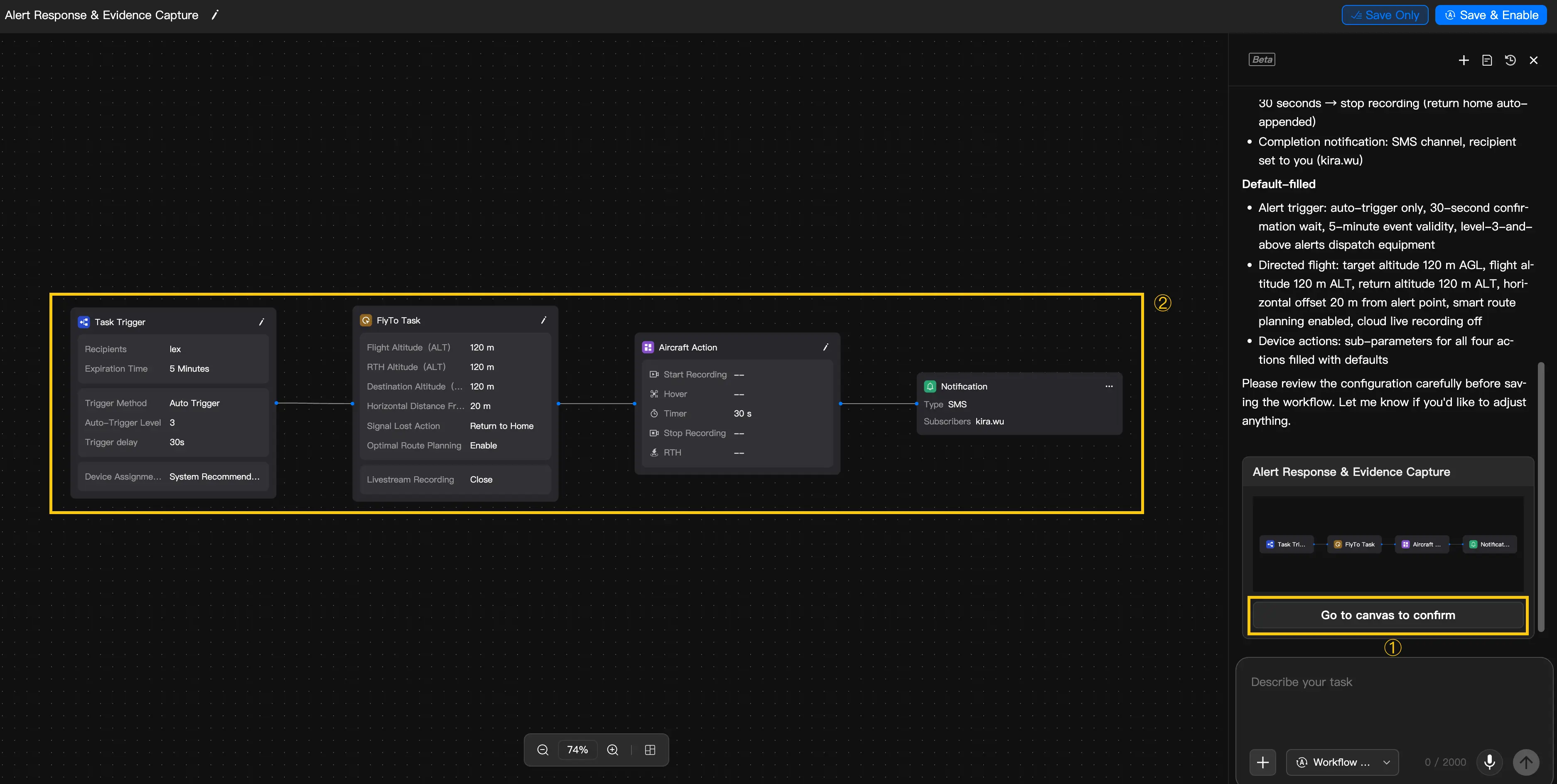
- Click "View Details" to open the workflow canvas page and continue editing.
Basic Concepts
- Periodic Workflow
- Description: A Periodic Workflow automatically performs tasks such as flight, mapping, analysis, and notification at fixed times or based on external trigger conditions. It is suitable for routine inspection, surveying and monitoring, solar power inspection, and construction site review scenarios.
- How it works: Trigger → Flight Plan → Mapping Task → Analysis Task → Notification.
- Triggered Workflow
- Description: A Triggered Workflow automatically dispatches an aircraft to the target location to perform tasks after an alert or event is received. It is suitable for security, emergency response, alarm handling, and on-site response scenarios.
- How it works: Trigger → FlyTo Task → Aircraft Action.
- Workflow Draft
- Description: Results generated by Copilot are displayed as drafts by default. A draft is neither executed nor enabled automatically. You need to open the workflow canvas, confirm the nodes, parameters, and connections, and then manually save or enable the workflow.
Usage Flow
Command Elements
To generate workflows more accurately, include the following elements when describing your requirements whenever possible:
| Element | Description | Example |
|---|---|---|
| Trigger conditions | Describe when the workflow starts executing. | Every day at 8 AM, after an alert is received, or triggered via Webhook. |
| Core actions | Describe the main tasks to complete after the flight or aircraft dispatch. | Inspect Area A, automatically dispatch an aircraft, or perform mapping after the flight. |
| Analysis requirements | Specify whether AI analysis or result processing is required. | Perform defect recognition, generate an AI report, or perform change detection. |
| Notification method | Describe how results are sent to relevant personnel or systems. | Send an SMS, send an email, or push results to a third-party system via Webhook. |
Editing Methods
After a workflow is generated, you can continue adjusting the current draft in two ways:
- Conversation window editing: Continue adding, removing, or modifying nodes and parameters using natural language. This is suitable for quickly expressing your intent and adjusting the structure.
- Canvas editing: Drag nodes, modify parameters, and adjust connections directly in the workflow canvas. This is suitable for detailed modifications and completing resource selections.
Generating a Workflow from Scratch
Periodic Workflow
When you enter descriptions such as scheduled inspection, periodic analysis, or mapping after a flight, Copilot prioritizes identifying the request as a Periodic Workflow.
Note: In a Periodic Workflow, resource parameters such as the flight route, device, analyzer, and recipients usually require further selection in the canvas.
Triggered Workflow
When you enter descriptions such as alert-driven actions, automatic aircraft dispatch, recording on arrival, or using a speaker broadcast to direct people to leave, Copilot prioritizes identifying the request as a Triggered Workflow.
Tip: A Triggered Workflow uses a fixed three-node structure. The current version supports fully generating the main parameters.
Multi-Node Orchestration
For descriptions involving multiple task stages, Copilot automatically determines the node sequence and connections based on the meaning of the request.
| Input Example | Example Generated Result |
|---|---|
| "Inspect the solar power station by aircraft every Monday, perform mapping after the flight, then run AI analysis and email the person in charge when the analysis is complete." | Trigger → Flight Plan → Mapping Task → Analysis Task → Notification |
| "Automatically dispatch an aircraft after an alert is received, then perform a speaker broadcast and take photos on arrival." | Task Trigger → FlyTo Task → Aircraft Action |
Modifying the Current Workflow Draft
Editing in the Conversation Window
After generating a workflow, you can continue entering modification requests in the Copilot conversation window to adjust the current draft.
Common operations include:
- Add nodes, for example:
"Add a Mapping Task node after the flight is complete". - Remove nodes, for example:
"Remove the Notification node". - Modify parameters, for example:
"Change the trigger delay to 60 seconds". - Adjust the notification method, for example:
"Change the notifications to SMS and in-app notification". - Switch the workflow structure, for example:
"Change it to a Triggered Workflow".
Editing in the Canvas
You can also manually modify the current draft in the workflow canvas, including:
- Dragging nodes to reposition them.
- Adding or removing nodes.
- Adjusting node connections.
- Modifying node parameters.
- Completing selections for task resources such as the flight route, device, analyzer, and recipients.
Combining Conversation and Canvas Editing
During workflow creation, you can combine conversation window editing with canvas editing. Copilot continues processing new editing requests based on the current canvas state.
- First, generate a workflow draft using Copilot.
- Manually select the flight route and device in the canvas.
- Return to the conversation window and enter
"Add an email notification after the analysis is complete". - Return to the canvas to fine-tune the notification recipients and parameters.
Note: The current version primarily supports continuous editing during the creation of a new workflow. Directly opening and modifying previously saved workflows is not supported.
Practical Examples
| Example | Input Example | Example Generated Result | Further Editing Options |
|---|---|---|---|
| Weekly inspection with automatic analysis | "Automatically inspect the construction site every Monday at 9 AM, perform mapping and change detection after the flight, and email the results to the project manager." | Scheduled Trigger, Flight Plan, Mapping Task node, Change Detection node, Notification node. | Enter "Add an SMS notification" in the conversation window, or manually select the analyzer, recipients, and flight route in the canvas. |
| Automatic aircraft dispatch for evidence collection after an alert | "Automatically dispatch an aircraft after a site alert is received, record video throughout the on-site operation and take photos, then notify the security team by SMS when finished." | Task Trigger, FlyTo Task, Aircraft Action (recording + taking photos), Notification node. | Enter "Replace recording with a speaker broadcast followed by taking photos" in the conversation window, or manually modify the action sequence and parameters in the canvas. |
| Speaker broadcast on arrival to direct people to leave | "When someone is detected entering the fenced area without authorization, automatically dispatch an aircraft to perform a speaker broadcast and take photos for the record." | Task Trigger, FlyTo Task, Aircraft Action (speaker broadcast + taking photos). | Enter "Add an in-app notification" in the conversation window, and manually specify the notification recipients and speaker broadcast content in the canvas. |
Dialog and Clarification Mechanism
Continuous Dialogue
Copilot supports continuously modifying a workflow draft within the same conversation. You can add requirements step by step, just as you would in a chat.
When the Agent Proactively Asks
| Situation | Typical Question |
|---|---|
| Workflow type unclear | Is this a Periodic Workflow or a Triggered Workflow? |
| Core nodes missing | Is mapping, analysis, or notification needed after the flight? |
| Notification recipients unclear | Please specify the notification recipients or notification group. |
| No matching resources | No matching flight route or device was found. Please select them in the canvas. |
Common Misunderstandings
- "External triggering" does not necessarily mean a Triggered Workflow. If the description involves a third-party system calling an API to start a scheduled inspection, it may still be a Periodic Workflow.
- Mapping Task and Analysis Task nodes cannot be directly added to a Triggered Workflow. If you need "mapping and analysis after the flight", a Periodic Workflow is recommended.
- Copilot generates a workflow rather than executing a task immediately. You still need to confirm and save it after generation.
Capability Boundaries and Safety Limits
Safety Guardrails
An Automated Workflow may ultimately be linked to actual flight tasks, so the system applies necessary safety limits.
- Generates configurations only, without automatic execution
- Automatically validates the workflow topology
- Performs range checks on key parameters
- Displays only resources available under the current permissions
- Asks follow-up questions for confirmation in high-risk scenarios
Unsupported Capabilities
- Creating multiple workflows with a single sentence
- Adding mapping or analysis sequences to a Triggered Workflow
- Coordinated encirclement by multiple aircraft
- Dynamically changing the flight path in real time
- Generating new action sequences in real time based on on-site speech
- Directly modifying previously saved workflows
Complex Resource Selection
The following resource parameters usually need to be completed manually in the canvas:
- Flight route
- Device
- Analyzer
- Notification recipients
- Third-party Webhook URL
FAQ
Q: Can I edit in the canvas while continuing the conversation with Copilot?
A: Yes. The current version supports combining canvas editing with conversation editing. Copilot continues responding to new modification requests based on the current workflow state.
Q: Can I modify a generated workflow in the conversation window?
A: Yes. During the creation of a new workflow, you can continue adding, removing, or modifying nodes and parameters using natural language.
Q: Why can I still ask Copilot to complete the workflow after editing it in the canvas?
A: Copilot processes subsequent requests based on the current canvas state, rather than remembering only the initially generated result.
Q: Why are some parameters still incomplete after a Periodic Workflow is generated?
A: A Periodic Workflow usually involves task resources such as the flight route, device, and analyzer. The current version can automatically generate the workflow structure, but some resources still need to be selected manually.
Q: Why does the workflow not execute immediately after generation?
A: Copilot only generates a workflow draft. For safety reasons, the system does not automatically execute or enable the workflow. You need to confirm it in the canvas and save it manually.