
Smart Search
Smart Search is a powerful feature that helps you quickly and accurately find and mark specific targets from large volumes of media files. You can access Smart Search from the navigation bar at the top of the Media File Library or from within the Analyzer.
Feature Limitations
- Unsupported Media: Panoramic and infrared photos
- File Size and Resolution Limits:
- Files with a resolution exceeding 36,000,000 pixels are not supported.
- Files larger than 10MB are not supported.
- Task Limits:
- A single search task can include a maximum of 1,000 files (photos + video frames), with a maximum of 10 videos.
- Only 1 search task can run per Analyzer at a time.
- A single user account can run a maximum of 20 search tasks concurrently across all projects.
Creating a New Search Task
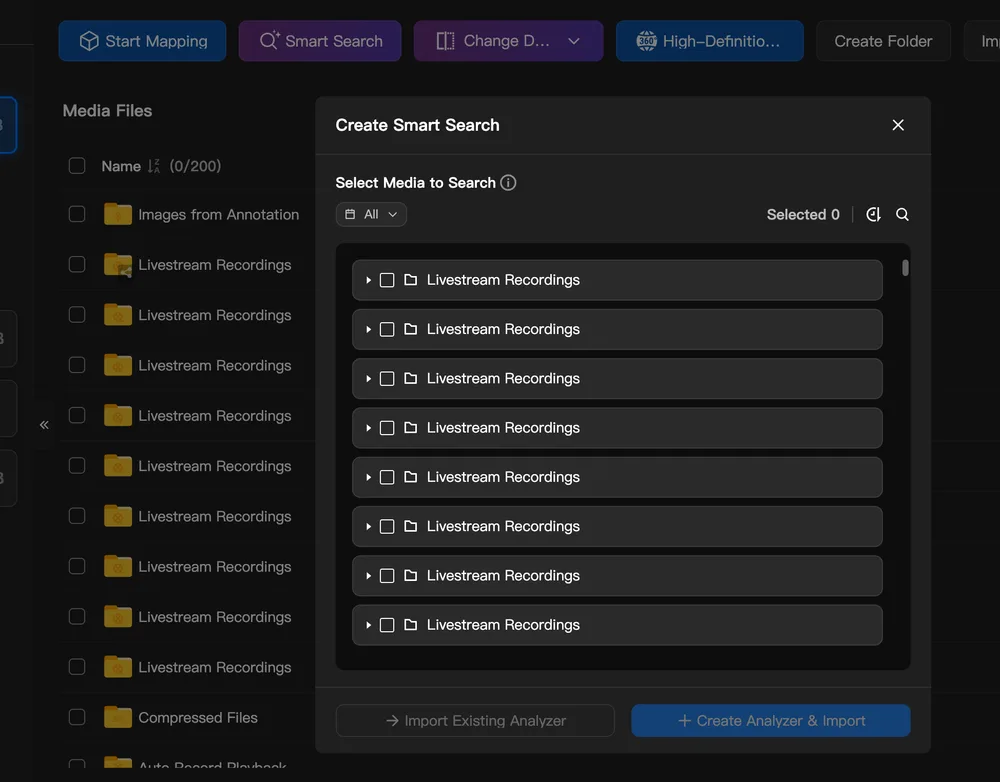
1. Select Media
- Currently supports wide-angle photos, zoom photos, and videos.
- In the Media File Library, click Smart Search, select your media, and import them into the Analyzer to search for objects.
- Or, in the Analyzer, select Smart Search to create a new search task. Then select the media you want.
2. Define Your Search Object
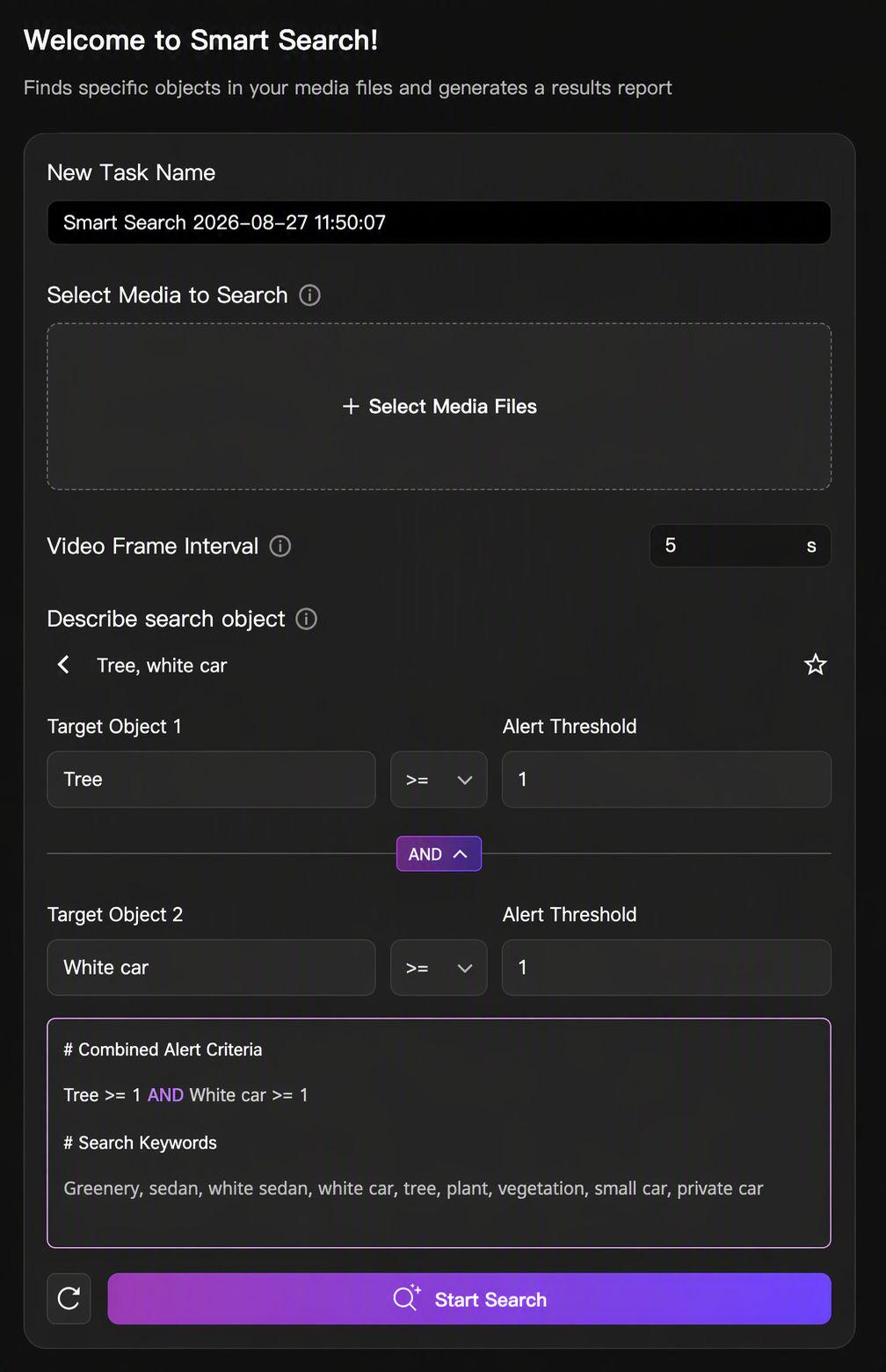
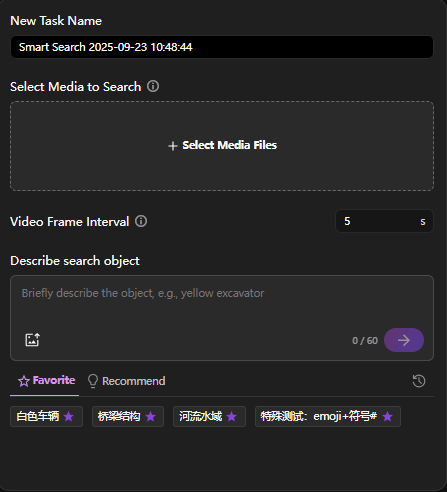
You can describe your search target in two ways:
- Text Description: Simply type what you want to find.
- Image Description: Upload a reference photo and mark up the object you want to find.
The AI model will interpret your input and convert it into optimized search tags. You can set a target count threshold — only results meeting the threshold will appear in the search results. Multi-target combined search is also supported. Converted tags cannot be modified or deleted; if changes are needed, re-enter via natural language.
3. Set Video Frame Capture Interval
If your selection includes videos, you can set the frame capture interval. This helps prevent the model from missing objects or detecting the same object repeatedly.
4. Start the Search
Once you start the task, the page will display real-time progress and update with results as they are found.
Reviewing and Managing Search Results
1. Viewing Results
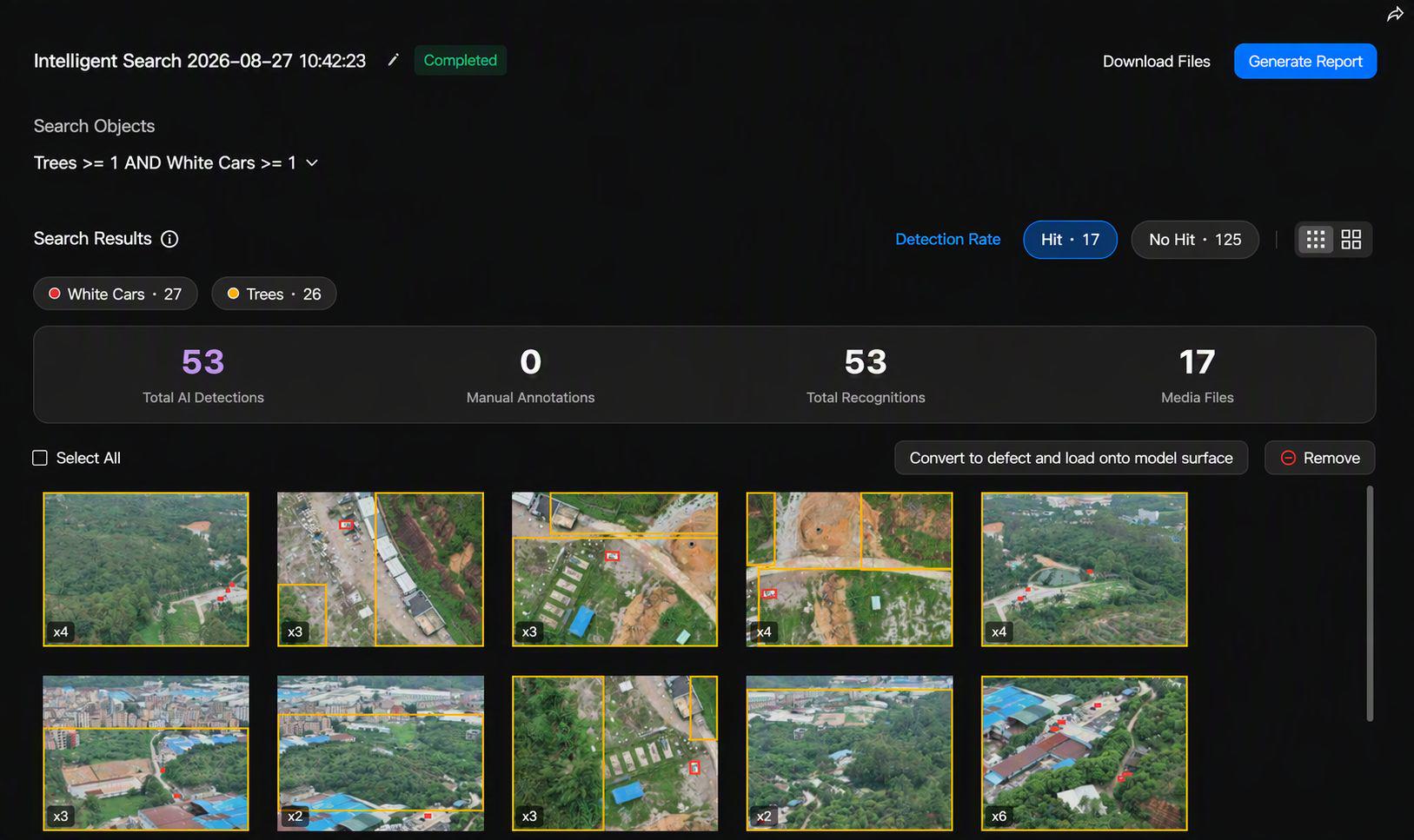
- Found objects will be marked with annotations on the photos and videos. You can show or hide these markups.
- Filter the results by search tags to focus on specific objects.
- Switch between Hit and Not Hit views.
- Summary panel: displays AI-recognized and manually annotated object counts.
- For videos, the timeline will highlight the time periods where objects are found. You can switch between two views:
- Time Series Chart: Shows the exact time points when an object appears.
- Area Chart: Displays the number of objects at each time point.
2. Editing Results
- You can add, modify, or delete objects.
- You can also remove any irrelevant photos, video frames, or entire videos from the results.
3. Saving Your Results
By default, the markups generated by a search will not be saved to the media file library. You can click Save Markups. This will sync the results to the original media files in your media file library and the analyzer.
4. Downloading Media
You can download the original media files or download files with the marked search results.
5. Generating a Report
Create a PDF report of the search results for easy archiving, sharing, and documentation.

6. Important Note on Video Frames
- Storage: Video frames generated during a search are automatically saved in a subfolder and will consume storage space.
- Deletion: If you remove a video frame from the search results, the corresponding frame will also be permanently deleted from the subfolder.
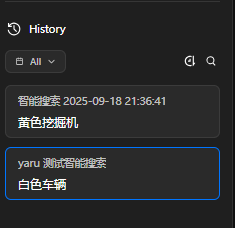
Managing Search History
All past and current search tasks are listed here, allowing you to easily view, manage, and revisit your search history.
For On-Premises Users
The Smart Search feature is also available for on-premises deployments. This version offers the additional benefit of allowing you to integrate custom AI models for your specific search needs.