
Frontend Component Integration
Basic Introduction
Introduction to Frontend Components
The DJI FlightHub 2 frontend components include: flight route creation, flight route editor, virtual cockpit, and project/map. These components support custom themes and styles. This manual will introduce how to integrate these components into your own system from scratch.
Preparation Before Starting
- Technology Stack: React, Vue, and HTML + CSS are all supported.
- Hardware Requirements: Refer to the DJI FlightHub 2 On-Premises Version Deployment Manual to deploy the FlightHub 2 On-Premises Version.
Quick Start
The current version mainly offers the following components and corresponding feature collections. You can download the Demo and refer to this manual for configuration and debugging.
The components released are as follows:
| Component | Feature Collection | Feature Screenshot |
|---|---|---|
| Flight Route Creation | Flight route types: - Waypoint route - Area route - Slope route - Geometric route - Smart 3D Capture route Style customization | 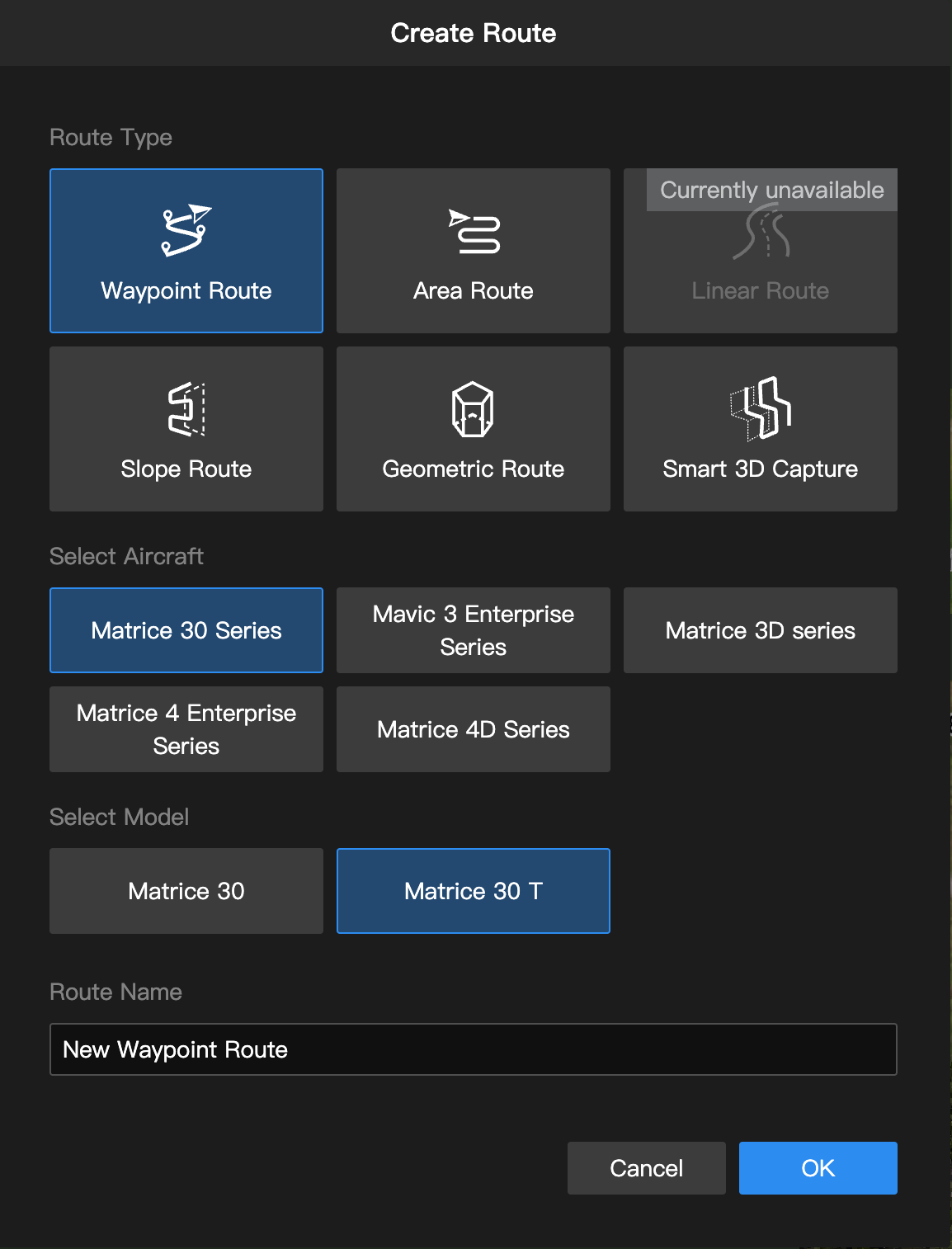 |
| Flight Route Editor | Flight route types: - Waypoint route - Area route - Slope route - Geometric route - Smart 3D Capture route Flight route functions: - Flight route editing and saving - Map annotations - Cesium open - Point, line, area annotations - Model loading Style customization | 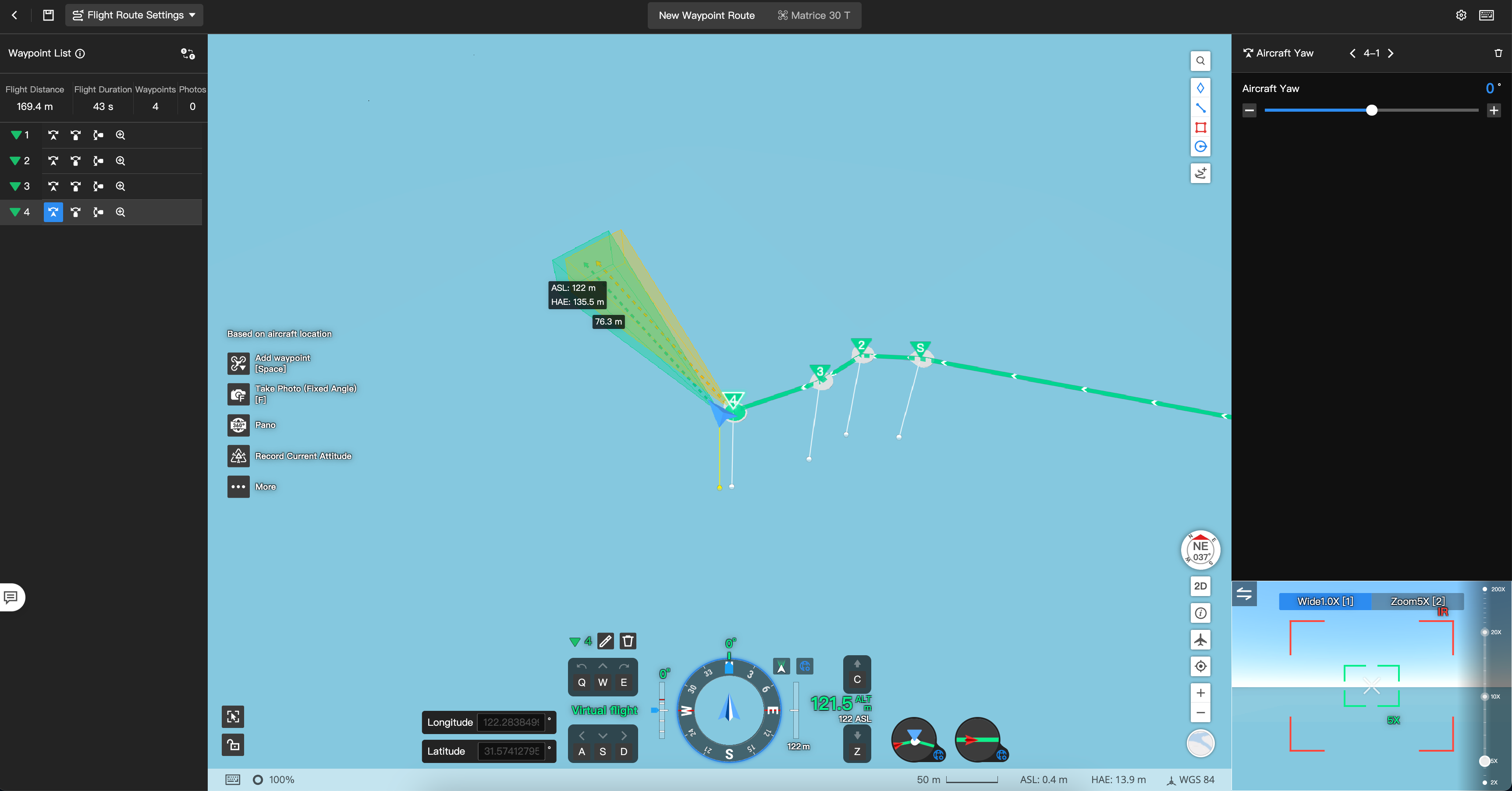 |
| Virtual Cockpit | Remote control functions: - One-click takeoff - Livestream - Manual flight and trajectory display by pressing WASD keys - One-click RTH Style customization | 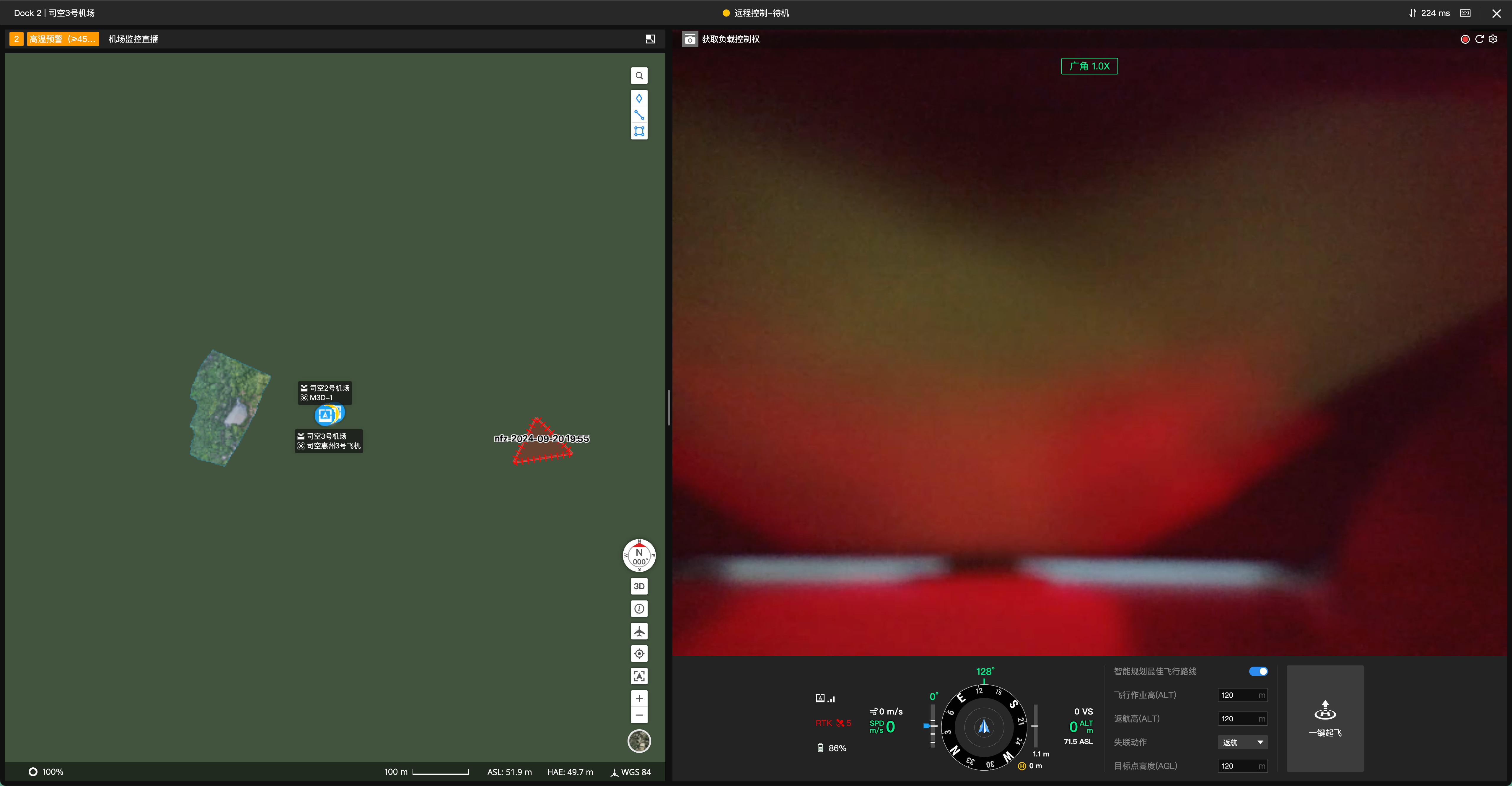 |
| Project/Map | Project map data: - Point, line, area annotations - Flight route and trajectory planning - Custom task area, custom Restricted Zone - Project device list - Dock aircraft - Manual flight aircraft | 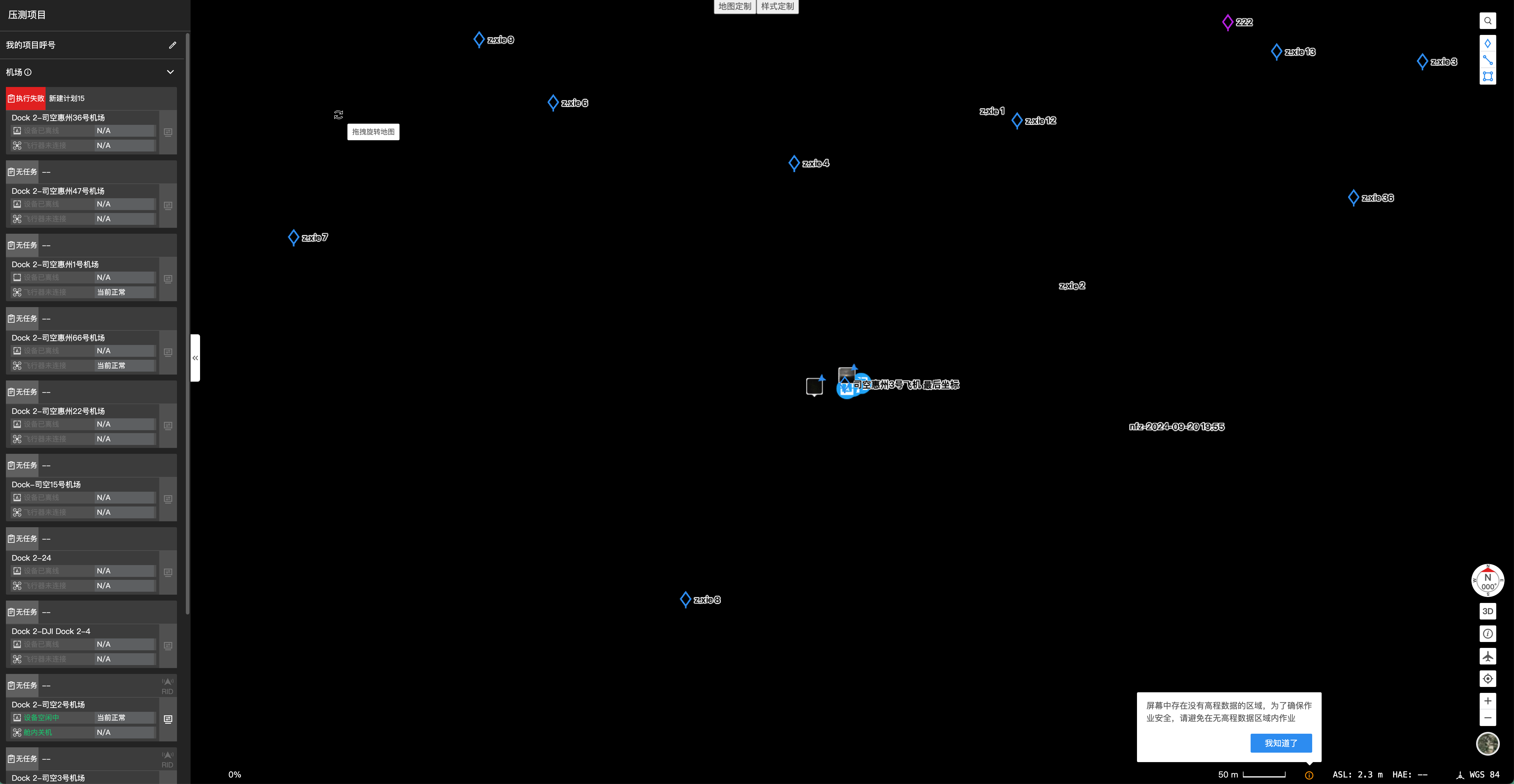 |
Tutorial
Add Required Styles and Dependencies
After completing the FlightHub 2 on-premises version deployment, you will receive a private IP. Enter this private IP or domain name and port into the HEAD section of the code block.
<!DOCTYPE html>
<html>
  <head>
    <script type="text/javascript" src="http://Private IP or domain name/paas.js" fh2></script>
    <title>Demo</title>
  </head>
  <body>
  </body>
</html>
Frontend Component Compliance Information
The frontend components depend on capabilities provided by the FlightHub 2 on-premises version, so it is necessary to obtain the projectToken and prjId of the FlightHub 2 on-premises version. The methods to obtain the information are as follows:
projectToken: Access the FlightHub 2 on-premises version, Go to My Organization (deployed FlightHub 2 domain name/user-center#/my-organization) > Organization Settings > FlightHub Sync to obtain the organization key. This organization key value isprojectToken.prjId: Access the FlightHub 2 on-premises version, click on the project list, select a project, and find the project ID in the URL. For example: https://deployed FlightHub 2 domain name/organization/4bf0039f-6434-44a8-b891-8d7b6b7ff132/project/aa9c7a78-4e97-4ced-8953-2cea96c07c00, where4bf0039f-6434-44a8-b891-8d7b6b7ff132is theorgId, andaa9c7a78-4e97-4ced-8953-2cea96c07c00is theprjId.
Example:
window.FH2.initConfig({
    serverUrl: 'http://Enter the domain name and backend service port here. Default port number is 30812',
    wssUrl: 'ws://Enter the domain name and backend service port here. Default port number is 30812/duplex/web',
    hostUrl: 'http://Enter the IP or domain name of the web page and the port number here',

    // Copy prjId value and paste here
    prjId: 'cdca2736-8096-4729-9bc7-497ad5b60d5e',
    // Copy projectToken value and paste here
    projectToken: 'MTczMDg4NDI1NHx1NUR3RWxNajc5VnF4QWJuY1BvZmxUenlwYzdnRnBUazFSQnRhMXZOODlPSlVrdFhQekdFTjJKb0I1UkNNUlhtaFR0M3k2WllBdWNJTFVGNDZ4eHp3aWJnSnZ0TjVhNDdNMDUtcUlNQmZRUEtKYjNHeWIyLVZNTm80Qzd6TnMyTUNNSmFsWjZVQ0tkVWtEOU1tWVB5cDNSeWhLQW1NUXJrSzhnQkJhVl9saW5Bazhwbl9KQzg2b2FmWUVULWJoMWowbWh2aEV5X1BtZW9pZm1sRGJmajNoa1QxN280emluNDk1eUFaTUw4ZEJMRmljczIxY0twVmZBNVhiMU81b3Y2UmlNY3dZazFHLTY4Q3ljdFJVdWZuUmVxUUo1VGxEcnJrYkFZNGlpTGVjdC1jNnprYU5nSkFpLWdRbXJ5M2JraEVGUlJJY3YwUUk1TUlDMzZDd2tRc2dlOHNIblFVaHNwb1ozVFJ2MmtoenhZa1pMN0RCbVk4QkVNOVNvaVN1NmszVGRBTE1MMWVLRE5wMFY5VmFrN0FJSzgtcjZaaUstaThwNU9yd0E0V05iNE15eWswc1lXRnFVUzJGZm1wdG0xR0k5WXB0TzRZZUpMeHhCNGVBNEZKZkdaTC1NUV9iRGtXR3EwNXBpOUlBSUd2WFBnYl8tbEJ0NV9qRTRtZG45SDJBZkdpUFZJSktrOFhhSkdqNHEtOUxaUXdvT2NSV0FhUklnQXdINFdFRHR3TGhrPXwr7HTdhghvb4TN9rYRlDyCE9Mzc4Q89m4H3_B24WRKVg=='
})
Note
Make sure that the calling of window.FH2 is executed after the page has fully loaded (load). For example, you can use addEventListener('load', cb) to define a callback function cb and call the window.FH2 method within this callback.
Add a Container for the Component
For example, to add a route editor, insert the following code in the section of your code where you want the route editor to be displayed:
<div class="fh2-container">
    <div id="wayline-header"></div>
    <div class="project-details">
        <div id="project-app-container"></div>
        <div id="project-middle-container"></div>
        <div id="project-right-micro-app" class="right-micro-app">
            <div class="maps-micro-app">
                <div id="project-map-app-placeholder" class="map-app-placeholder">
                    <div id="map-app-global" class="map-app-container"></div>
                </div>
            </div>
            <div id="wayline-app-container"></div>
        </div>
    </div>
</div>
Add the Component Container Style
Below are the recommended container styles, which can be directly used in the target code area. If there are other custom requirements, you can modify the style code yourself.
<!DOCTYPE html>
<html>
  <head>
    <!-- start -->
    <style>
        .fh2-container {
            display: flex;
            flex-direction: column;
            /* Set the width and height of the container where you want to load the component */
            height: 100vh;
            width: 100vw;
        }

        #project-app-container>div, .map-app-container>div {
            width: 100%;
            height: 100%;
        }

        .project-details {
            position: relative;
            width: 100%;
            display: flex;
            flex: 1;
            overflow: auto;
        }

        .project-details .right-micro-app {
            position: relative;
            display: flex;
            flex: 1;
        }

        .project-details .right-micro-app .maps-micro-app {
            display: flex;
            flex: 1;
        }

        .project-details .right-micro-app .map-app-placeholder {
            flex: 1;
            position: relative;
            display: flex;
            flex-direction: column;
        }

        .project-details .right-micro-app .map-app-container {
            height: 100%;
        }

        .project-details .right-micro-app #wayline-app-container {
            position: absolute;
            top: 0;
            left: 0;
            width: 100%;
            height: 100%;
            pointer-events: none;
        }
    </style>
    <title>Demo</title>
  </head>
  <body>
  </body>
</html>
Load Frontend Components
Using the flight route editor as an example, you can load the component by passing the id and the corresponding wayline_id to the method. Refer to the Interface Tutorial of the manual for more details.
window.FH2.loadWayline("wayline-app-container", {
      wayline_id: 'bded3cf1-c924-4cd0-95d0-4bd642ddda09',
})
Customize Map Elements (Optional)
Using custom map text as an example, you can click Customize Map at the top of wayline.html and zoom out the map to see the effect.
<!DOCTYPE html>
<html>
  <head>
    <link href="./custom-style.css" rel="stylesheet">
  </head>
  <body>
    <div class="btn-bar">
        <button id="CesiumMapBtn" onclick="addCustomCesiumData()">Customize Map</button>
    </div>
    <script>
        const CesiumMapBtn = document.getElementById('CesiumMapBtn')
        CesiumMapBtn.style.display = 'none'
        window.addEventListener('load', function () {
            // Wait until the map instance is ready, and then display the map customization button
            window.FH2.subscribe('cesium-viewer-change', (key) => {
                if (window.FH2.cesiumViewer.global) {
                    CesiumMapBtn.style.display = 'inline-block'
                }
            })
        })

        // Example: Customize the map, adding custom text to the map
        function addCustomCesiumData () {
            for (const key in window.FH2.cesiumViewer) {
                if (Object.prototype.hasOwnProperty.call(window.FH2.cesiumViewer, key)) {
                    const ins = window.FH2.cesiumViewer[key].entities.add({
                        position: window.Cesium.Cartesian3.fromDegrees(113.93,  22.57, 50),
                        label: {
                            text: "User custom text",
                        },
                    })
                }
            }
        }
    </script>
  </body>
</html>
Customize Theme (Optional)
The demo file showcases the capability to customize styles. You can modify corresponding theme styles in custom-style.css and immediately see the effects across the four HTML files, including wayline.html. custom-style.css is written using CSS, so if your project also employs CSS, you can directly adjust the style variables custom-style within your project.
<!DOCTYPE html>
<html>
  <head>
    <link href="./custom-style.css" rel="stylesheet">
  </head>
  <body>
    <div class="btn-bar">
        <button onclick="changeTheme()">Customize Style</button>
    </div>
    <script>
        function changeTheme () {
            document.body.className = document.body.className ? '' : 'set-change-color'
        }
    </script>
  </body>
</html>
Add Event Listener (Optional)
Using the flight route editor as an example, you can subscribe to the save button and receive corresponding prompts when saving or canceling the flight route.
window.FH2.subscribe('wayline-cancel', () => {
    console.log('Canceled saving flight route')
})
window.FH2.subscribe('wayline-save', () => {
    console.log('Flight route saved')
})
Interface Tutorial
Instance: window.FH2
Method: validateToken
| Parameter | Type | Required | Description |
|---|---|---|---|
| token | string | true | Returns token validation result: true/false |
Method: initConfig
| Parameter | Type | Required | Description |
|---|---|---|---|
| serverUrl | string | true | Backend HTTP service address |
| wssUrl | string | true | Backend Duplex service address |
| hostUrl | string | true | Frontend web entry address |
| prjId | string | true | Project ID |
| projectToken | string | true | OpenAPI authentication token |
Method: loadWaylineCreation
| Parameter | Type | Required | Description |
|---|---|---|---|
| domId | string | true | Third-party frontend provides DOM node ID |
| props | Object<WaylineCreationConfig> | false | For detailed parameter description, see the table below: WaylineCreationConfig |
WaylineCreationConfig parameter description:
| Parameter | Type | Required | Description |
|---|---|---|---|
| folder_id | string | false | The folder where the created flight route is stored. The value is the folder ID. If not provided, it will be the default folder. |
Method: destroyWaylineCreation
| Parameter | Type | Required | Description |
|---|---|---|---|
| - | - | - | Destroy the flight route creation component instance |
Method: loadWayline
| Parameter | Type | Required | Description |
|---|---|---|---|
| domId | string | true | Third-party frontend provides DOM node ID |
| props | Object<WaylineConfig> | true | For detailed parameter descriptions, see the table below: WaylineConfig. |
WaylineConfig parameter description:
| Parameter | Type | Required | Description |
|---|---|---|---|
| wayline_id | string | true | Wayline ID |
Method: destroyWayline
| Parameter | Type | Required | Description |
|---|---|---|---|
| isEffect | boolean | false | Destroy the flight route editor instance. If there are multiple components on the current page, passing true to destroy the instance will not affect other loaded components. If no parameter is passed, it defaults to false. |
Method: loadCockpit
| Parameter | Type | Required | Description |
|---|---|---|---|
| domId | string | true | Third-party frontend provides DOM node ID |
| props | Object<CockpitConfig> | true | For detailed parameter description, see the table below: CockpitConfig |
CockpitConfig parameter description:
| Parameter | Type | Required | Description |
|---|---|---|---|
| gatewaySn | string | true | Gateway SN |
| droneSn | string | true | Aircraft SN |
| map | boolean | false | Whether to load the map. Default value is true. Setting the method parameter to false prevents the map from loading. |
Method: destroyCockpit
| Parameter | Type | Required | Description |
|---|---|---|---|
| isEffect | boolean | false | Destroy the virtual cockpit instance. If there are multiple components on the current page, passing true to destroy the instance will not affect other loaded components. If no parameter is passed, it defaults to false. |
Method: loadProject
| Parameter | Type | Required | Description |
|---|---|---|---|
| domId | boolean | true | Load project map |
Method: destroyProject
| Parameter | Type | Required | Description |
|---|---|---|---|
| - | - | - | Destroy project map |
Method: loadFlightPath
| Parameter | Type | Required | Description |
|---|---|---|---|
| domId | string | true | DOM node ID provided by the third-party frontend |
| params | IFlightPathParams | true | See the table below for parameter details: IFlightPathParams |
IFlightPathParams parameters:
| Parameter | Type | Required | Description |
|---|---|---|---|
| flight_path_id | string | true | Flight path ID |
Method: destroyFlightPath
| Parameter | Type | Required | Description |
|---|---|---|---|
| - | - | - | Unload flight record |
Method: subscribe
| Parameter | Type | Required | Description |
|---|---|---|---|
| eventName | string | true | Subscribe to events: - wayline-save: Triggered when saving a flight route, and the callback parameter is the ID of the successfully saved flight route - wayline-cancel: Triggered when canceling the save of a flight route, and the callback parameter is the ID of the flight route - wayline-back: Triggered when clicking the back button on the flight route editor component, and the callback parameter is the ID of the flight route - wayline-creation-saved: Triggered when saving a flight route creation component, and the callback parameter is the ID of the successfully saved flight route - wayline-creation-cancel: Triggered when canceling the save of a flight route creation component - cesium-viewer-change: Triggered when changes in the loading of each Cesium map are detected - flight-path-back: Triggered when returning from flight record |
| callback | string | false | Pass in the current flight route ID |
Method: cesiumViewer
| Type | Explanation |
|---|---|
| { [key: string]: CesiumViewer } | This method provides access to all Cesium Viewer instances on the current page. The key values currently include: - global: Main map - wayline_editor_support: Auxiliary map in the flight route editor component. |
Instance: window.Cesium
Native Cesium objects can be accessed directly through the window object, so users don't need to import cesium.js themselves.
FAQs
- Why does calling FH2 result in a 'property undefined' error?
Make sure you call the method window.FH2 after the page is loaded (load). You can also use to define a callback function and call window.FH2 within this callback.
- Why does the web page's body background color turn white after loading the FlightHub 2 component?
Currently, loading the FlightHub 2 component applies a global style to the body background color, which may override the original website style. In this case, you need to set a higher priority style for the website's background color, such as using the !important style.
- Why does using the FlightHub 2 component cause some interface elements to have inaccurate positioning?
For example, when adding waypoints, annotations, and message prompts in the flight route editor, some element positioning is inaccurate. Solution: Make sure that the component container and its parent containers do not have the following style properties: 1. transform or perspective is not none; 2. filter is not none; 3. will-change is transform or perspective; 4. contain is paint
- How to perform TypeScript inference?
Refer to the following code:
export type eventName = 'wayline-save' | 'wayline-cancel' | 'cesium-viewer-change'
export interface IWaylineParams {
  wayline_id: string;
}

export interface ICockpitParams {
  gateway_sn: string;
  drone_sn: string;
}

export interface IFH2Config {
  userId: string;
  orgId: string;
  prjId: string;
  serverUrl: string;
  wssUrl: string;
  hostUrl: string;
  token?: string;
}
export interface FH2 extends Record<string, any> {
  validateToken: (token: string) => boolean;
  initConfig: (config: IFH2Config) => void;
  subscribe: (eventName: eventName, callback: (...args: any[]) => void) => void;
  unsubscribe: (eventName: eventName) => void;
  destroyWayline: () => void;
  loadWayline: (domId: string, routerName: string, params?: IWaylineParams) => void;
  updateWayline: (routerName: string, params?: IWaylineParams) => void;
}