
Data Management
Organization administrators and super administrators can use this feature to manage data for various projects within the organization, including annotations, models, and flight routes. You can view data from a specific project or copy it to others.
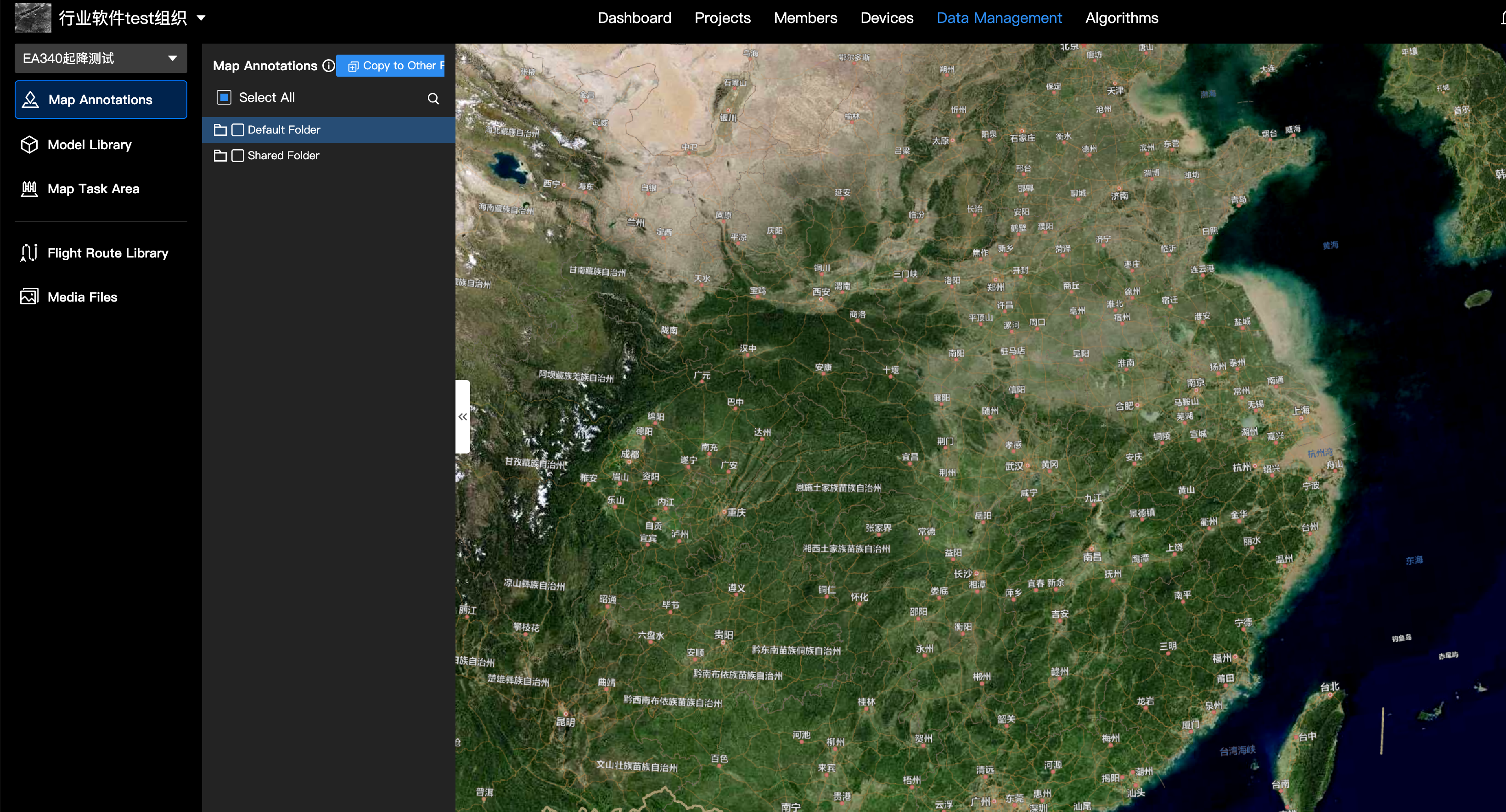
Filtering by Project
Use the Project Selector to filter the data you want to view or manage.
You can select any unarchived project or use the search bar to find a project by name.
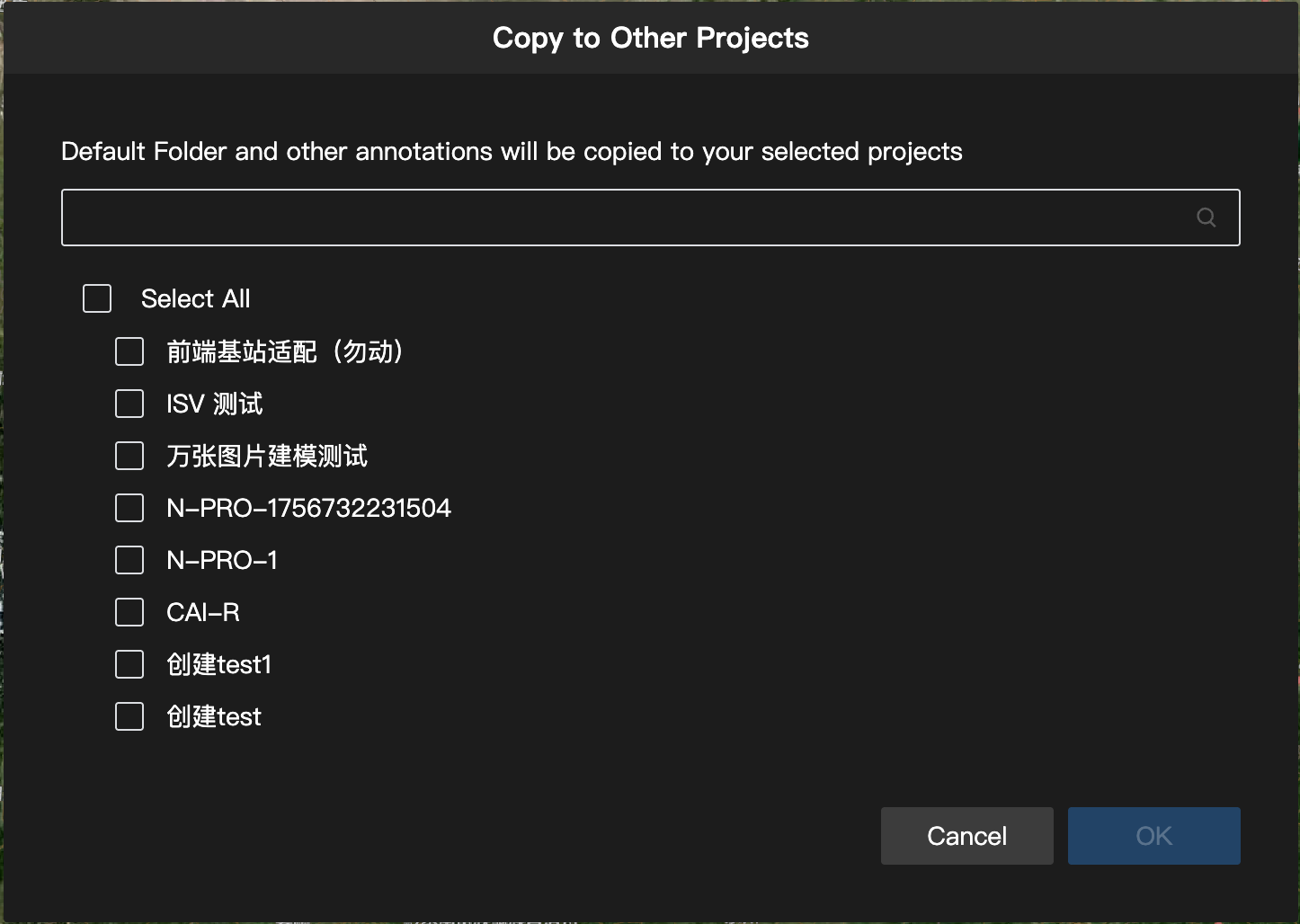
Copying Data Between Projects
In any data module, select the items you need, then click Copy to Project and choose one or more target projects. After copying, the data is automatically placed in a dedicated folder within the target project's corresponding module. Map task areas will be automatically renamed with an -org suffix.
Annotation Management
Viewing Annotations
- Select a project to display all of its annotations (points, lines, and areas) in the annotation tab.
- Hiding annotations here will not affect their visibility in the original project.
Limitations
- Editing: You can only click an annotation to locate it on the map. To edit it, you must navigate to the original project.
- Management: You cannot add, rename, move, copy, or delete annotations.
- Search: You can search for annotations by name.
- Add: Currently you cannot add new annotations.
Model Management
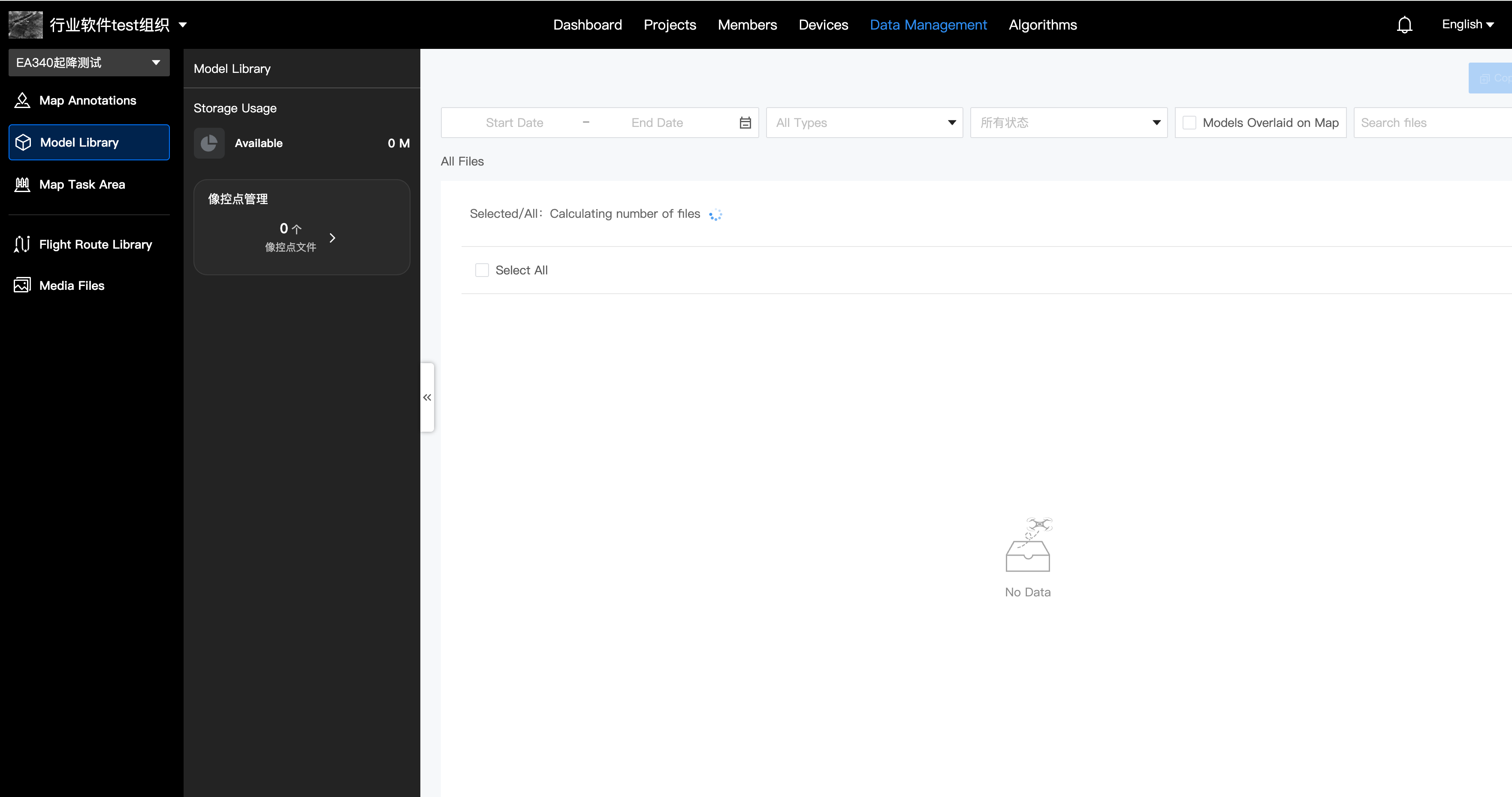
Viewing Models
Click on a model file to open a preview window directly on the page.
Limitations
- Copying: If a model with the same name already exists in the target project, the new file will be automatically renamed to prevent overwriting.
Flight Route Management
Viewing Flight Routes
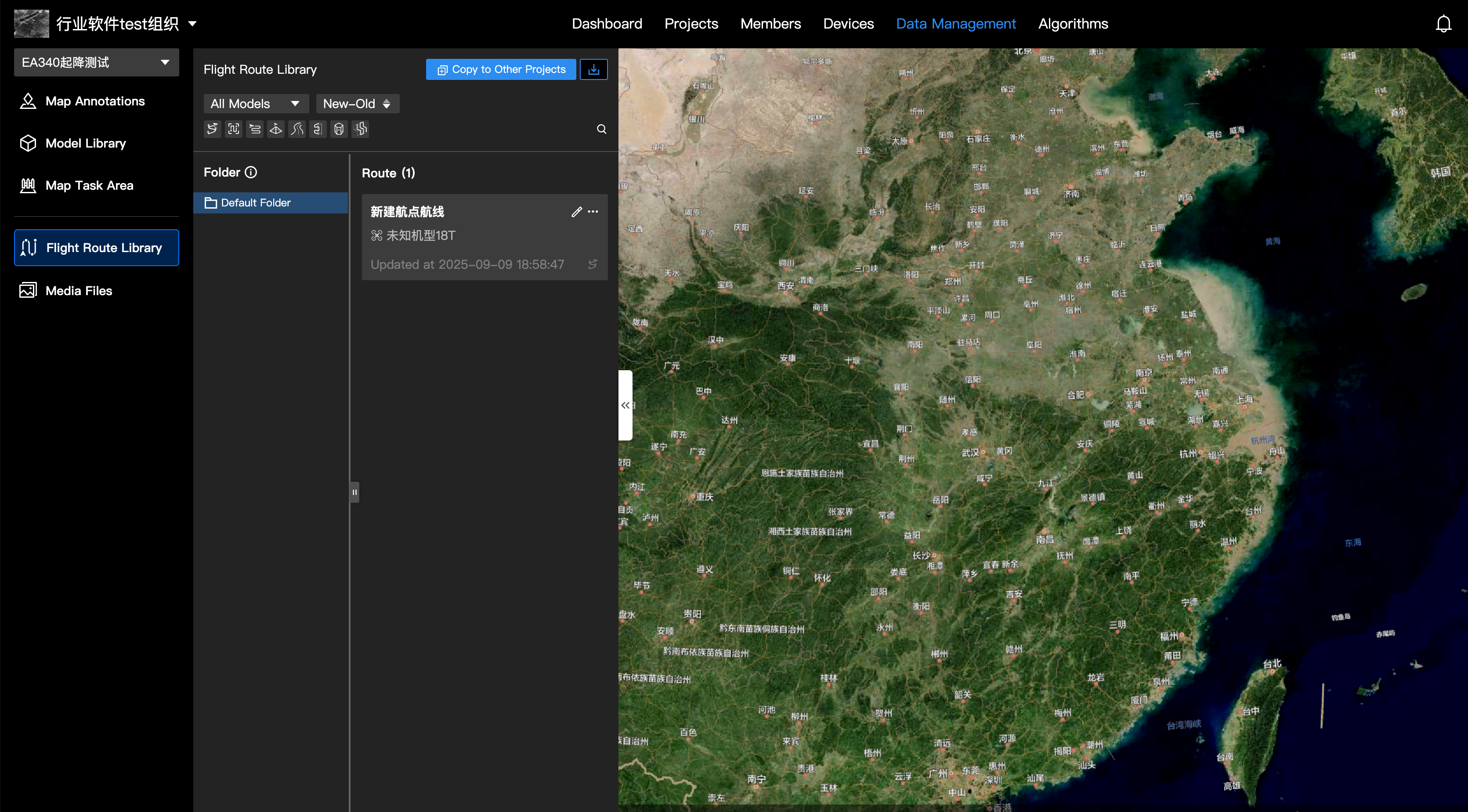
Select a flight route to see its path on the map. You can also download the flight route file from here.
Limitations
- Editing: Clicking Edit will redirect you to the flight route editor within the original project.
- Management: You cannot delete, merge, or move flight routes.
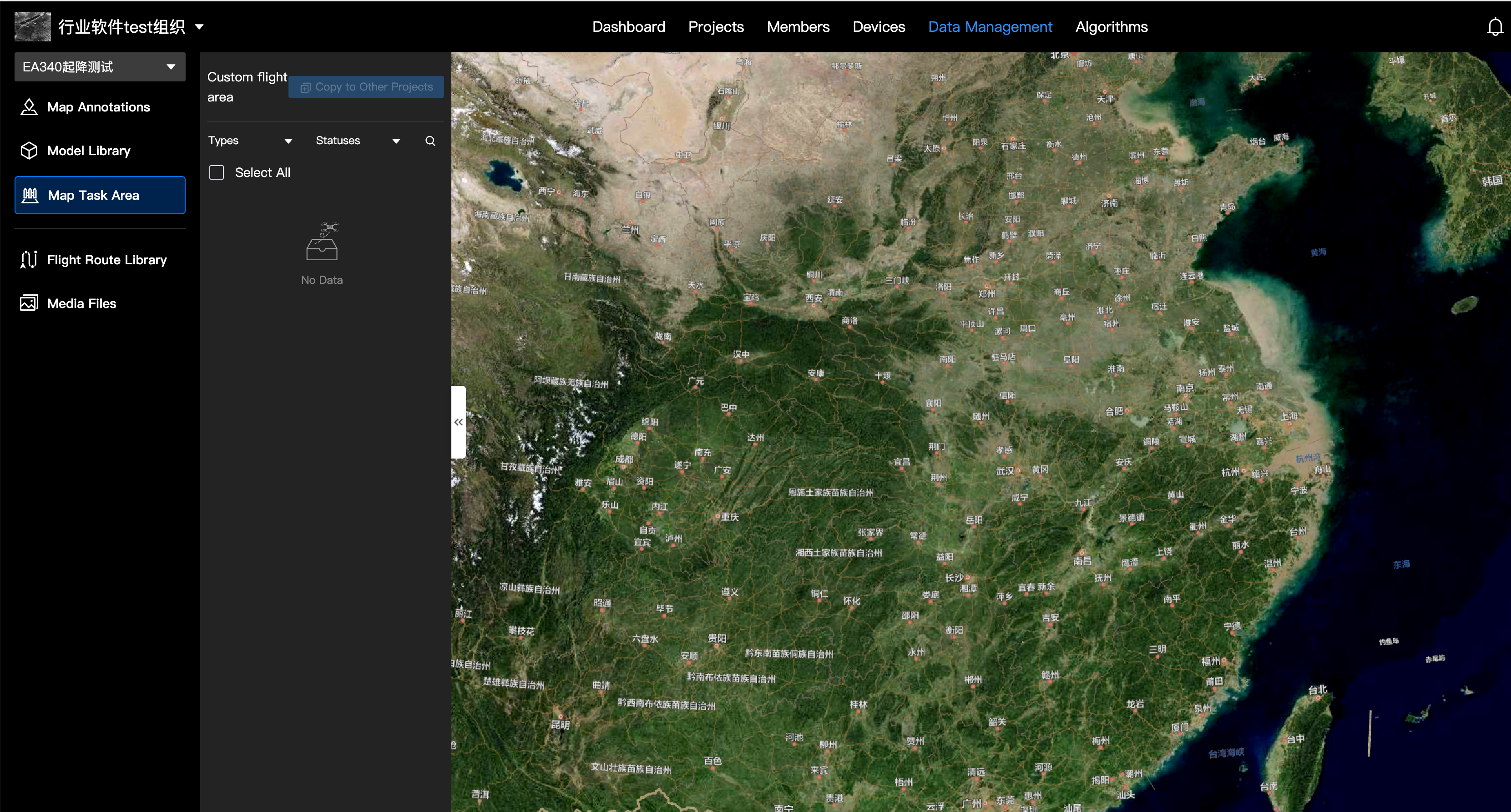
Map Task Area
Viewing Map Task Area
Select a map task area to view its boundaries on the map. Hiding map task areas will not affect their visibility in the original project.
Limitations
- Editing: You cannot rename, enable, or disable map task areas.
Media File Management
Viewing Media Files
Click on a media file to open it in the media browser.
- You can switch between full-screen and half-screen views.
- Limitations: Advanced features like adding photo markups, tagging, renaming, or loading media files on the map are not available here.
- Download: Supports downloading original files.
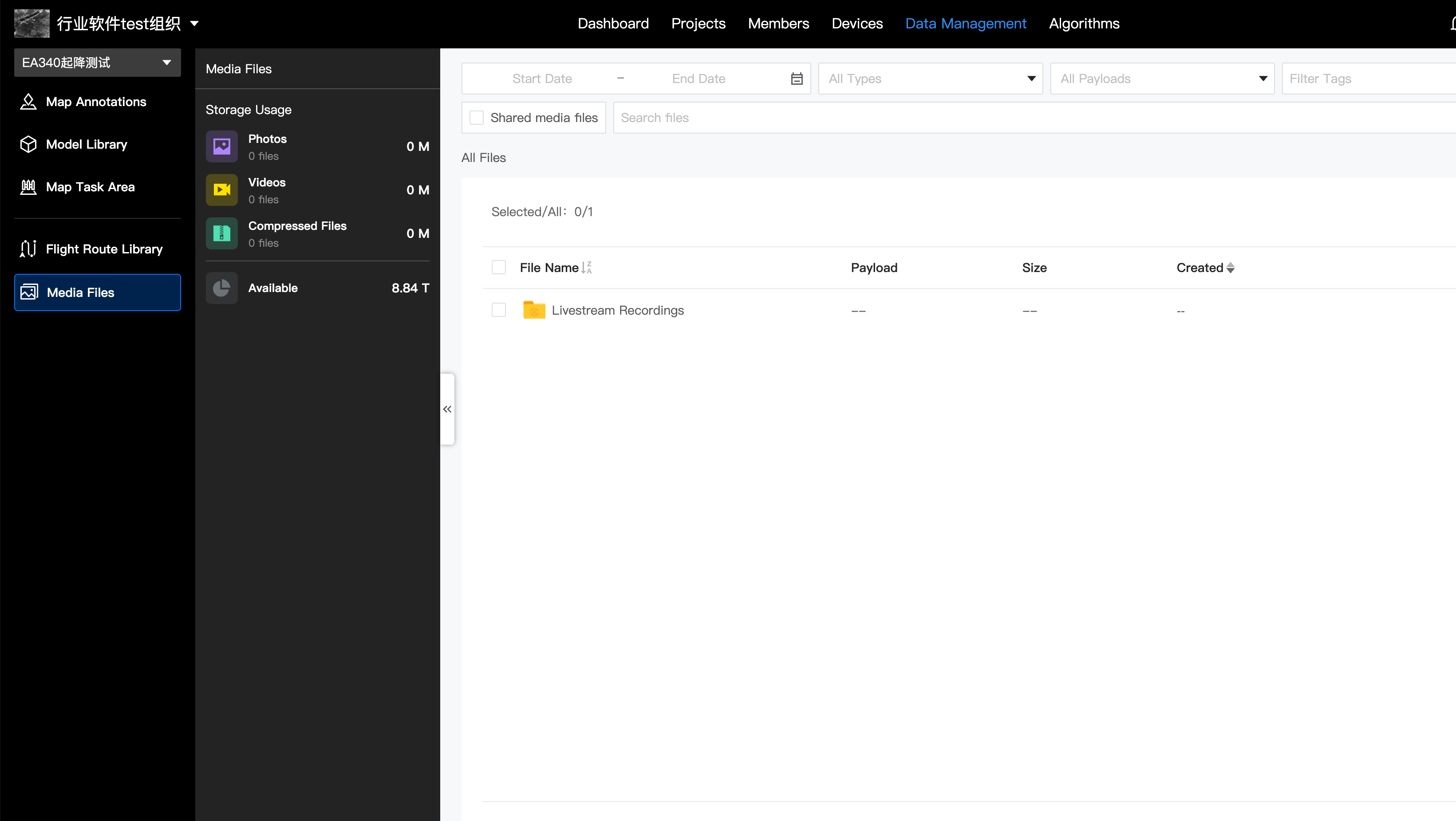
Note: Copying media files is not supported in the current version. This feature is planned for a future release.