
Algorithm Management
Custom Algorithm
Users can configure cloud intelligent algorithms on the Algorithms page, and call deployed algorithm instances in the virtual cockpit in real time.
Create Custom Algorithm
If the algorithm management feature is used for the first time, no algorithm is displayed after entering the Algorithms page. Users can create an algorithm through the following steps:
- View the algorithms provided by vendors: Click Industry Algorithm Vendor and navigate to the DJI Developer website, and view the algorithms provided by vendors. Contact a vendor to obtain the configuration parameters of the desired algorithm, such as the addresses for stream pushing and pulling.
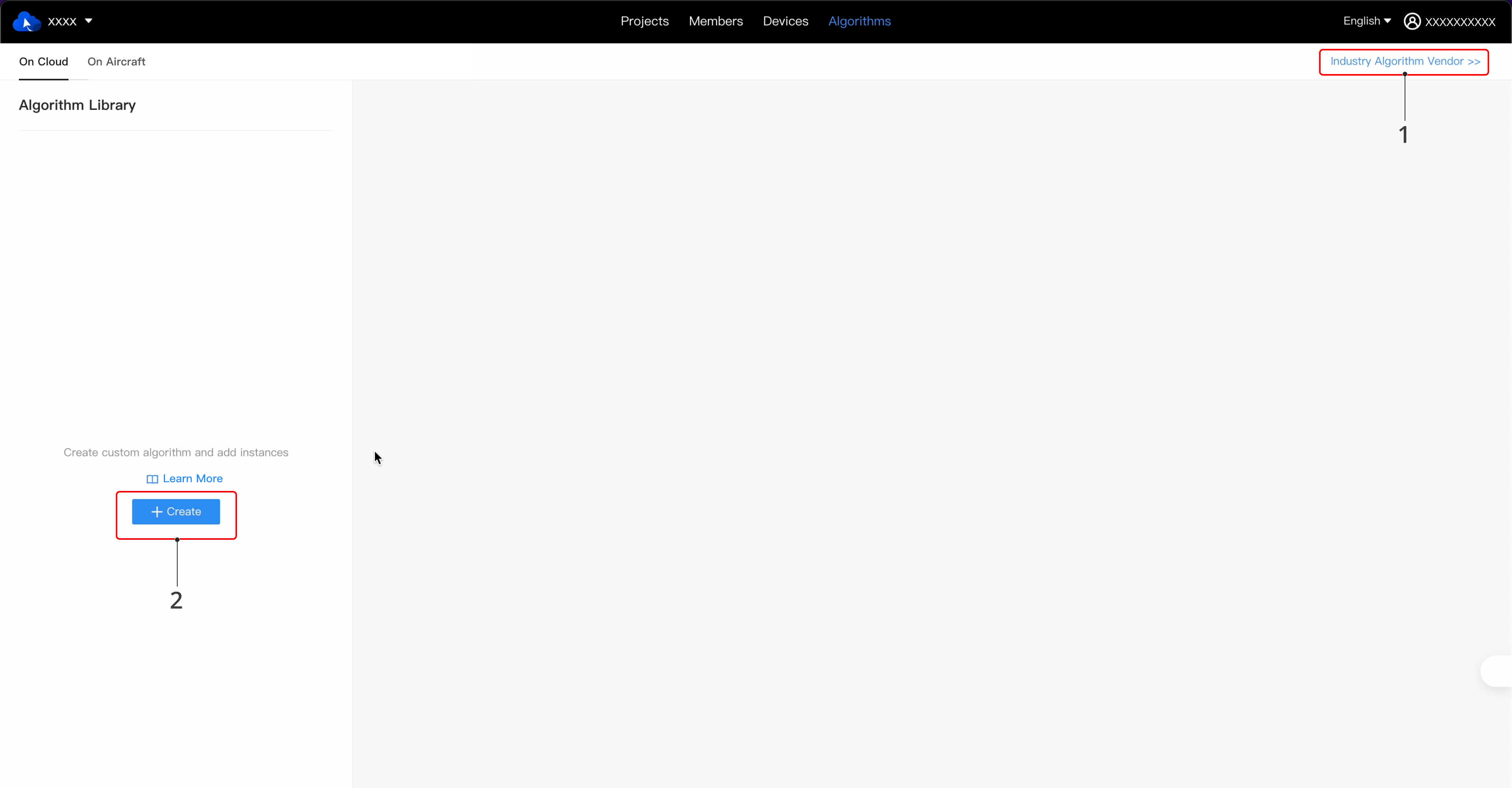
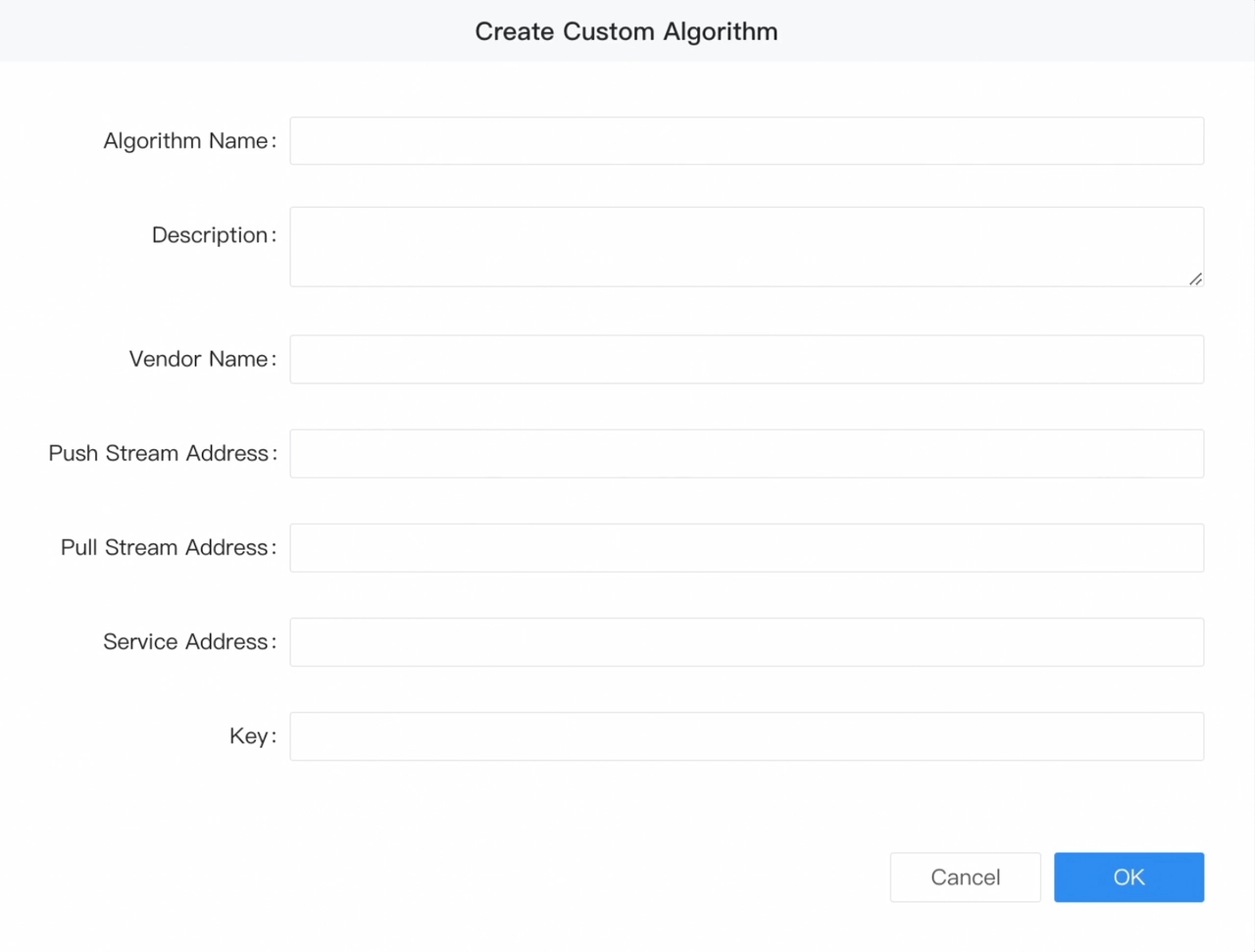
- After obtaining the configuration information about the desired algorithm, click Create Custom Algorithm and fill in the following required fields:
- Algorithm Name: The name of the intelligent algorithm, which can be up to 128 characters in length.
- Description: The description and application scenarios of the algorithm, which can be up to 512 characters in length.
- Vendor Name: The name of the source vendor, which can be up to 128 characters in length.
- Push Stream Address: Formatted as rtmp://x.x
- Pull Stream Address: Formatted as https://x.x/x/x
- Service Address: Formatted as https://x.x
- Key: The key can be 32 to 64 characters in length, which supports only English letters, numbers, underscores, and hyphens.
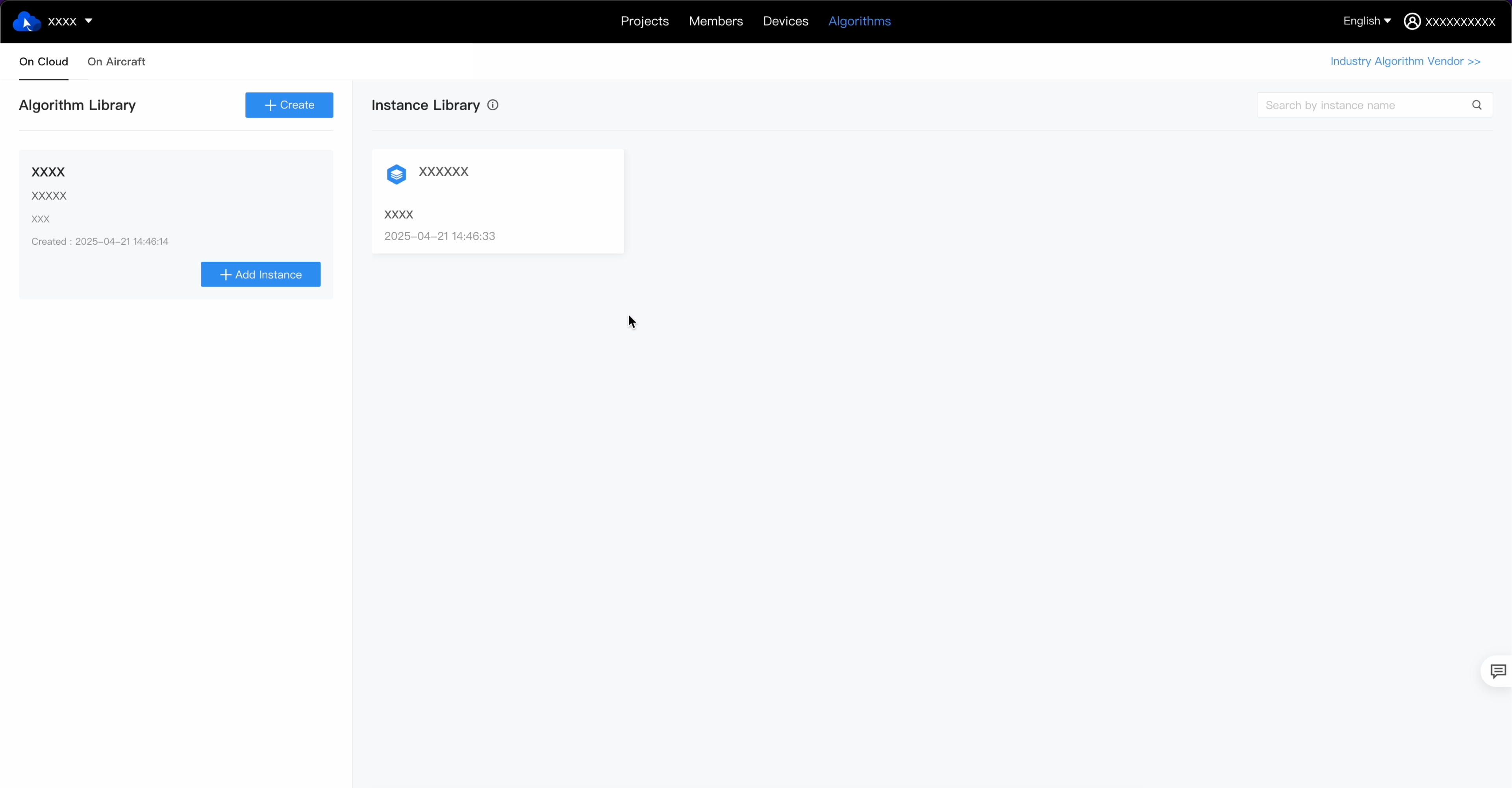
After the algorithm is created, a corresponding card appears in the algorithm library, displaying the algorithm name, vendor, description, and creation time. The created algorithm can be edited or deleted.
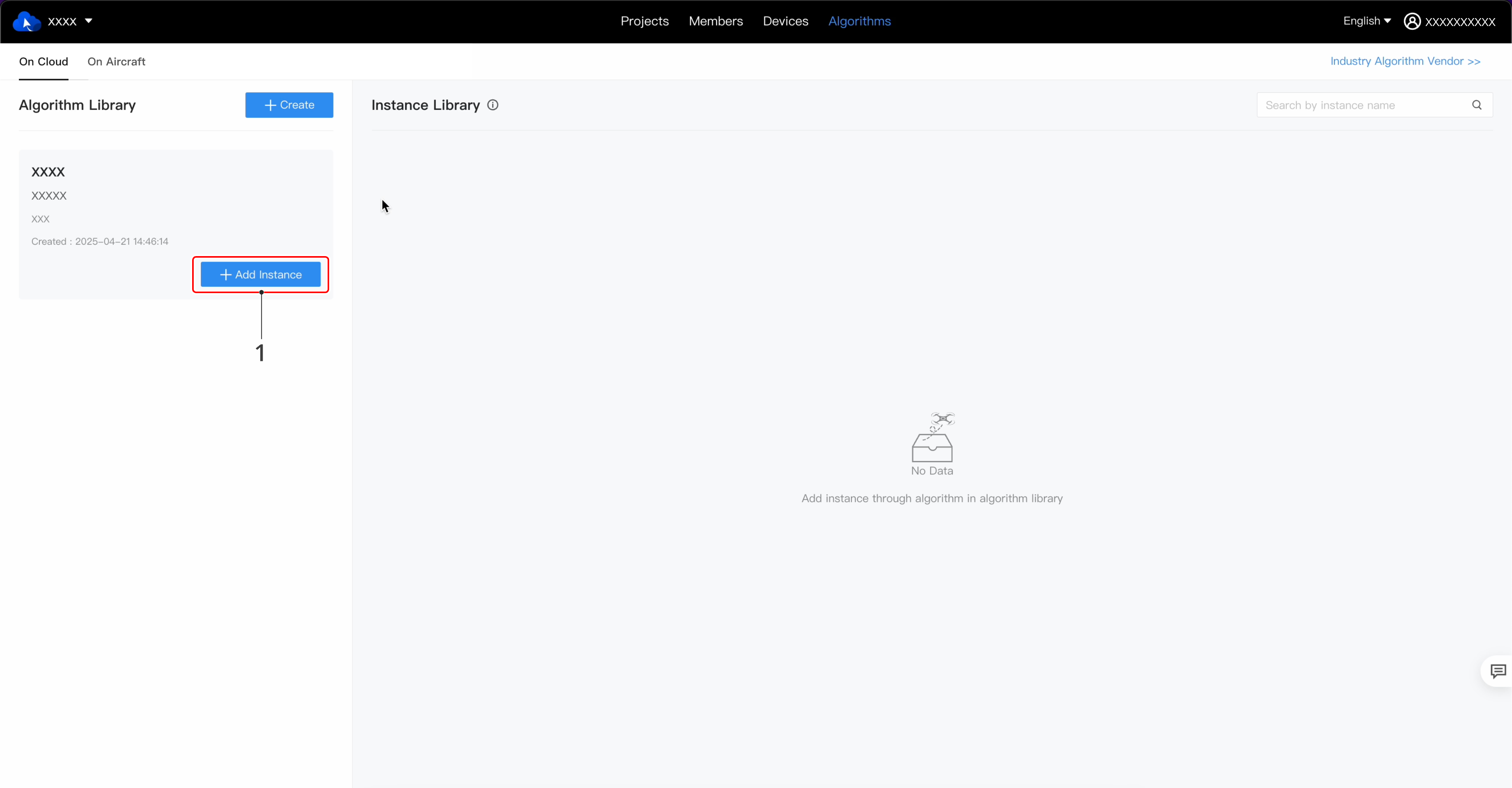
Create Algorithm Instance
Algorithm instances are used to configure scene-specific parameters, such as algorithm confidence level, counting threshold, and recognition type. Users need to create instances before they can call instances in the virtual cockpit.
Procedure
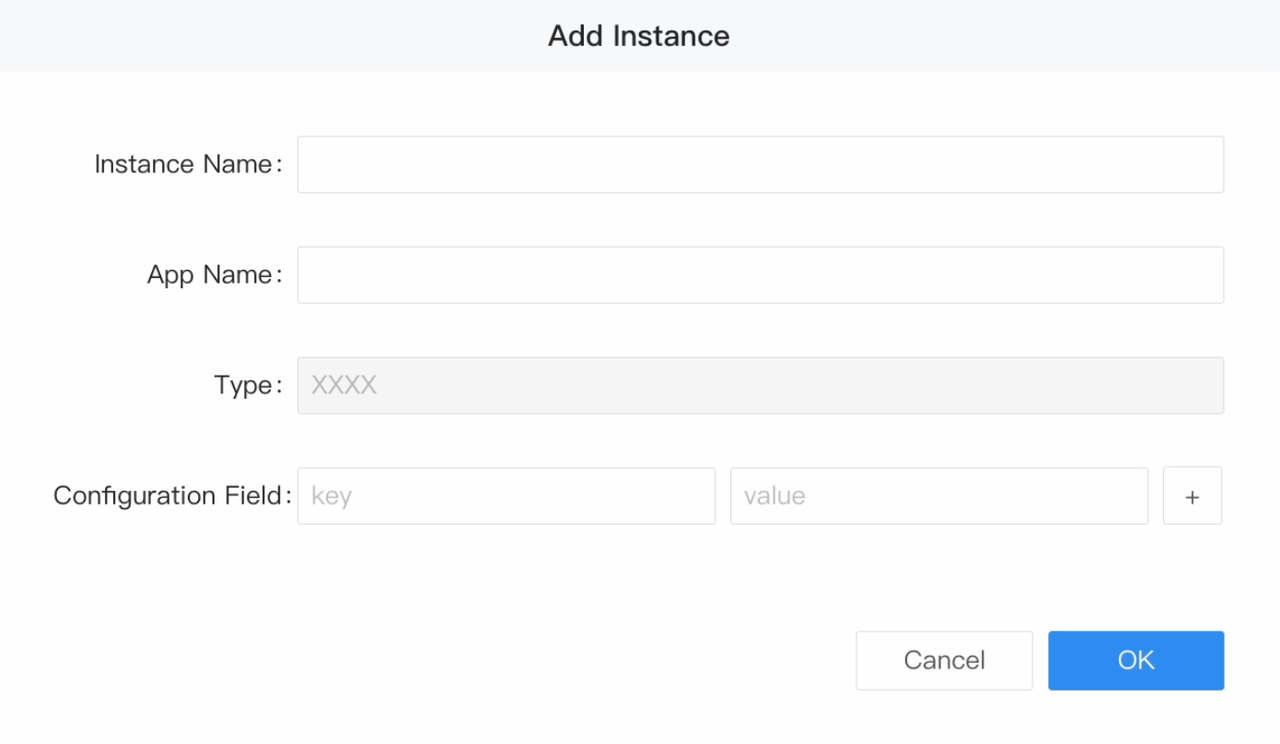
- Create an instance: After obtaining the configuration information about the corresponding algorithm instance, click Add Instance and fill in the following information:
- Instance Name: The custom name of the instance, which can be up to 128 characters in length.
- App Name: The unique identifier of the app, which can be up to 50 characters in length. Example: power_inspection_v1.
- Configuration Field: Optional. Customize the configuration as needed. The key must start with a letter and can only include letters, numbers, and underscores.
- Manage the instance: After the instance is created, a corresponding card appears in the instance library, showing the name, algorithm, and creation time of the instance. The created instance can be edited or deleted. Successfully created instances are available to users in the virtual cockpit. Users can call an instance from the cloud intelligent algorithm instance list in real time.
Management of Algorithms on Aircraft
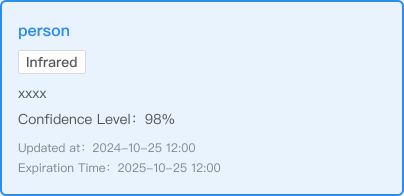
After successfully uploading a third-party infrared intelligent algorithm on the developer website and distributing it to the aircraft, the corresponding algorithm will appear with the Infrared label on the Algorithms > Algorithms on Aircraft page in FlightHub 2. Once the algorithm is loaded, you can call the algorithm for the respective aircraft device within the virtual cockpit.
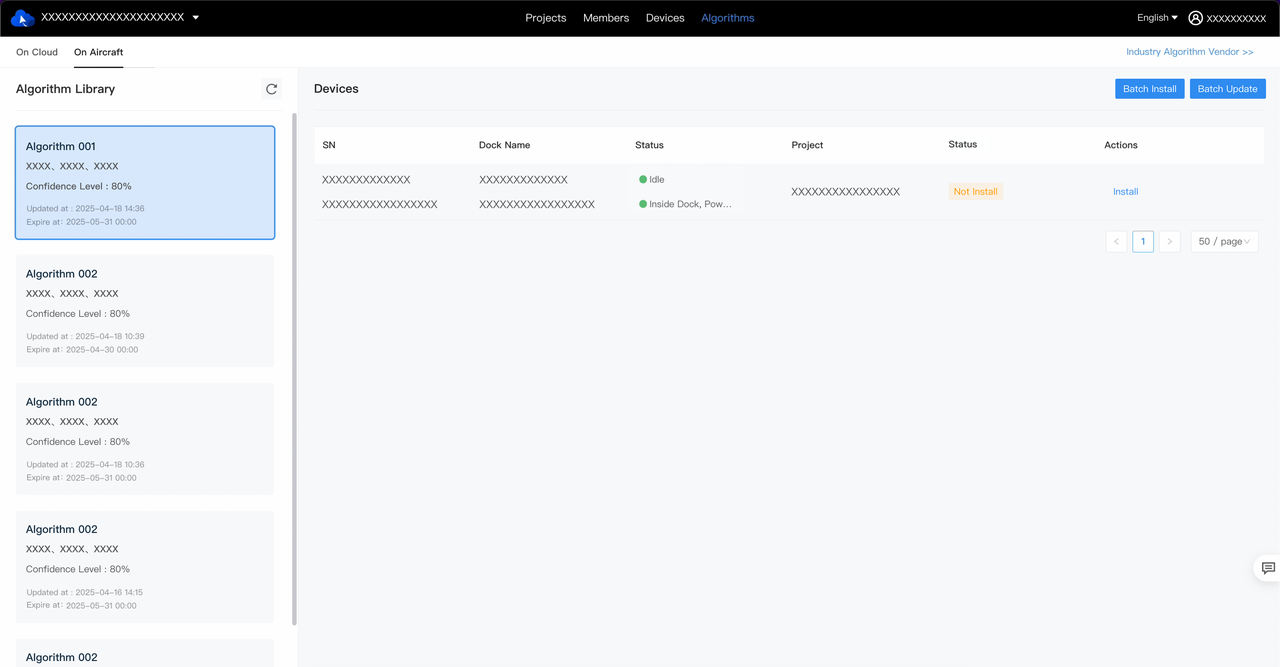
It supports loading third-party algorithms, distributed via the DJI Developer platform, onto aircraft connected to the dock. Successfully loaded algorithms can be used in the virtual cockpit.
View algorithm vendors: Click "Industry Algorithm Vendor>>" to jump to DJI Developer platform. Browse intelligent algorithm cases and contact the corresponding vendor to distribute algorithms to your aircraft.
Supports managing algorithms on aircraft that are distributed through the DJI Developer platform. You can view the latest information about algorithms on aircraft, load or update algorithms, and unload algorithms as needed.
Notes:
- Only super admins and organization admins can view and operate.
- Supported aircraft are Matrice 4D series and aircraft connected to the dock within the organization.
- When the device status is idle, you can load, update, or unload algorithms on aircraft. After starting any of these operations, do not perform other operations on the dock.
Notes on On-premises Version
Management of Algorithms on Aircraft
First, download the ZIP file of algorithms from the DJI Developer website, then import it into DJI FlightHub 2 on-premises version. Through the algorithm management feature, you can load or update algorithms onto the aircraft, as well as uninstall them when needed.
Notes:
- Only super administrators and organization administrators are allowed to view and operate.
- Supported aircraft are Matrice 4D series and aircraft connected to the dock within the organization.
- When the device status is idle, you can load, update, or unload algorithms on aircraft. After starting any of these operations, do not perform other operations on the dock.