
Single Sign-On Management
Single sign-on (SSO) allows users to log in to DJI FlightHub 2 with their enterprise accounts. The enterprise identity provider (IdP) authenticates users, and FlightHub 2 uses the returned identity information and role mappings to establish a login session and grant the corresponding permissions. Enterprise account passwords are managed by the enterprise identity system.
This feature is available for the public-cloud Enterprise plan and the on-premises version. This guide is intended for Organization Admins and enterprise identity system administrators. It covers identity source configuration, authorization management, testing and enablement, and local account login management.
Overview
Identity Sources and Login Process
A Realm is an independent SSO identity source configuration in FlightHub 2. Each Realm uses one protocol and matches login requests by email domain. The corresponding application in the enterprise IdP and the FlightHub 2 Realm must use matching protocols, application credentials, callback URLs, and role output settings.
When a user initiates SSO login from FlightHub 2, the system selects an enabled identity source based on the domain of the entered email address and redirects the user to the enterprise IdP for authentication. FlightHub 2 then validates the returned identity information and matches the user's management role. Users must authenticate again if the enterprise login session has expired or the IdP requires reauthentication.
The email domain is used only to select an identity source. It is not a unique user identifier and does not directly grant permissions. Project access permissions must be configured separately after SSO login.
Choosing a Protocol
FlightHub 2 supports OIDC, SAML 2.0, and OAuth2.
| Comparison | OIDC | SAML 2.0 | OAuth2 |
|---|---|---|---|
| Identity information source | ID Token | SAML Assertion | User information JSON returned by User URL |
| Configuration method | Discovery URL | IdP Metadata URL or Metadata XML file | Manually configure authorization, Token, and user information endpoints |
| Role retrieval setting | Role Path | Role Attribute | Role Path (UserInfo) |
| Unique user identifier | issuer + sub | IdP Entity ID + persistent NameID | Realm + value identified by USER_ID_KEY |
| Suitable use cases | Enterprise identity systems that support OpenID Connect | Enterprise identity systems that already use SAML | Systems that provide OAuth2 authorization and a user information API |
Note:
- OIDC is recommended when the enterprise IdP supports multiple protocols. If the enterprise already uses SAML to integrate other applications, it can continue to use SAML.
- OAuth2 is an authorization protocol. Before selecting OAuth2, confirm with the IdP administrator which fields in the user information API provide the stable user ID, account name, and role information.
- OIDC and OAuth2 both use the authorization code flow with PKCE validation. They retrieve identity information differently:
- OIDC: Verifies the ID Token to establish the user's identity.
- OAuth2: Uses an Access Token to call User URL and retrieve and parse user information. It does not use the OIDC ID Token, Discovery, or JWKS identity validation mechanisms.
- SAML 2.0 supports only login initiated from FlightHub 2 (SP-Initiated), not login initiated directly from the enterprise IdP application portal.
Configuration Preparation
HTTPS must be enabled before SSO can be used in the on-premises version. Configure HTTPS in the deployment environment and confirm that FlightHub 2 is accessible over HTTPS before configuring an SSO identity source.
As an Organization Admin, open SSO Login Settings for the organization, click Create Realm, and select a protocol.
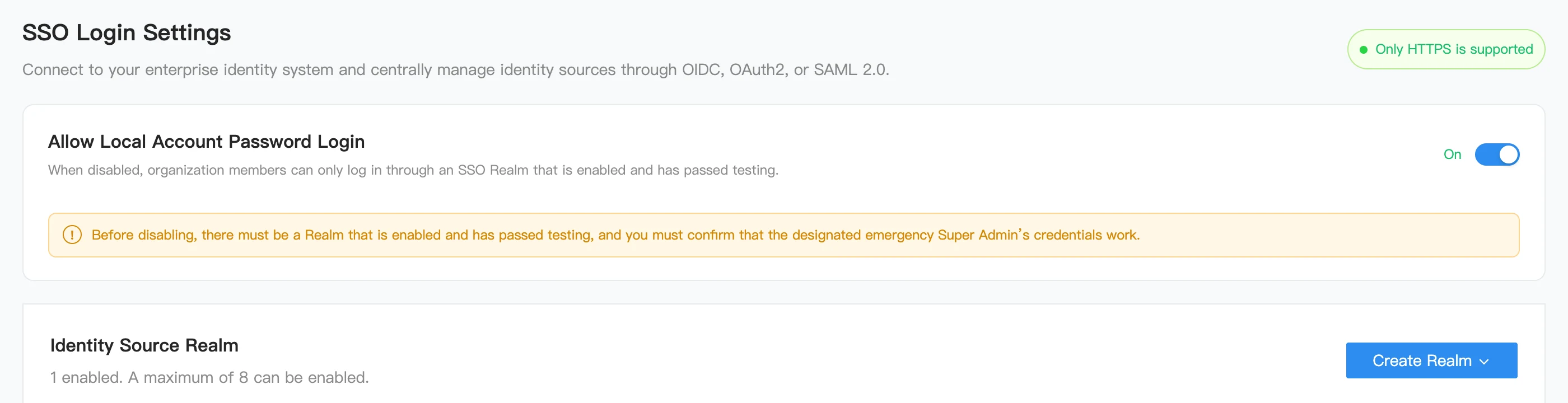
Before configuration, prepare the following information with the enterprise IdP administrator:
- The protocol and the corresponding application's Client ID, Client Secret, or Metadata.
- The email domain used to match the identity source and an enterprise account for test login.
- The role field and role values in the enterprise identity information, and the FlightHub 2 management roles to assign.
- The IdP's HTTPS endpoints and valid certificates. Ensure that the FlightHub 2 backend can access the endpoints and validate their certificates.
Configuration rules:
- A maximum of 8 Realms can be enabled at the same time in an organization. Configurations that are not enabled can be saved as drafts or retained in a disabled state.
- Realm names must be unique within the organization. Display names identify Realms in the administrative interface.
- When creating a Realm, Login routing email can contain a complete, valid email address or a domain only, for example,
user@example.com. The system stores the domain for login routing. The same domain cannot be assigned to different Realms within an organization. - FlightHub 2 access URLs and SSO endpoints must use HTTPS. Register system-generated callback information in the IdP exactly as provided. Do not use the configuration page URL in place of a callback URL.
Identity Source Configuration
Each Realm configuration page has four tabs: Basic Configuration, Authorization Management, Testing and Enablement, and Advanced Configuration. Complete the basic configuration and save a draft first, then configure role mappings, run the tests, and enable the Realm.
OIDC
Basic Configuration
| Field | Configuration instructions |
|---|---|
| Realm name / Realm display name | Enter a name to identify the identity source, for example, Enterprise_OIDC |
| Login routing email | Enter a complete email address. Its domain is used to select the identity source |
| Discovery URL | Enter the complete HTTPS Discovery URL provided by the IdP |
| Client ID | Enter the application identifier registered in the IdP |
| Client Secret | Enter the corresponding application's secret. The plaintext value is not displayed after saving |
| Callback URL | Generated after the draft is saved. Register it exactly as provided as a valid redirect URI in the IdP |
| Web Origin URL | Generated by the system. Register it in Web Origins as required by the IdP |
After saving the draft, copy the actual callback information for the deployment and complete the IdP application configuration. Placeholder URLs in the creation form cannot be used for integration. Normal login and Test Login may use different callback URLs. Register each URL according to the deployment.
In Authorization Management, set Role Path according to the role array returned by the IdP, for example, roles or claims.roles. For role mapping rules, see Authorization Management below.
Advanced Configuration
- Unique identity identifier: Fixed as
issuer + sub. An email address cannot be used instead. - User display name Claim: Defaults to
name. Used only for display and search, not for identity matching or permission assignment. - Discovery refresh: Automatic refresh is disabled by default after the initial retrieval. Use Refresh Now to retrieve the configuration again. If refreshing fails, the most recent valid configuration is retained. Automatic refresh and interval settings depend on the options available in the deployment.
- Advanced protocol options: Configure Scope, which must include at least
openid. Authorization Endpoint, Token Endpoint, and JWKS URI can be overridden manually. - Manual overrides: Overridden fields are not overwritten by Discovery refreshes. Click Restore Automatic Values to restore the discovered values. Manual overrides do not replace Discovery retrieval and validation when saving the configuration.
SAML 2.0
Basic Configuration
- Enter the Realm name, display name, and login routing email.
- Select IdP Metadata URL or Upload XML to import the enterprise IdP Metadata. The system parses the IdP Entity ID, SSO URL, signing certificate, and Binding.
- Save the draft to obtain the generated SP Metadata URL and ACS URL, or download the SP Metadata XML.
- Provide the FlightHub 2 SP Metadata to the IdP administrator to configure the corresponding SAML application. Read the SP Entity ID from the actual generated SP Metadata; do not assume that it is the same as the Metadata URL.
- In Authorization Management, enter the role attribute name and configure management role mappings.
For URL import, the FlightHub 2 backend must be able to access the Metadata URL over HTTPS. For file upload, use the actual Metadata XML exported by the enterprise IdP.
Set Role Attribute to the exact name in <Attribute Name="..."> in the SAML Assertion. The default is roles, and the name is case-sensitive. Multiple roles must be returned as separate AttributeValue elements rather than combined into a single string. For example:
<Attribute Name="roles">
  <AttributeValue>fh2-member-org</AttributeValue>
</Attribute>
Advanced Configuration
- Unique identity identifier: Fixed as
IdP Entity ID + persistent NameID. Configure the IdP to use persistent NameID. - User display name Attribute: Defaults to
displayName. The IdP must output this attribute. - Metadata updates: Automatic refresh is disabled by default after the initial retrieval. For URL import, use the refresh option provided on the page. For XML upload, upload the updated file again. Automatic refresh and interval settings depend on the options available in the deployment.
- Advanced protocol options: Manually override IdP Entity ID, SSO URL, Binding, and the signing certificate, or restore automatic values. Metadata refreshes do not overwrite manually overridden fields.
- Certificate management: Import and update signing certificates through Metadata whenever possible. A certificate fingerprint is used to verify a certificate and cannot replace the X.509 certificate content.
OAuth2
Basic Configuration
OAuth2 does not use Discovery. Configure endpoints and user information field paths according to the IdP API documentation.
| Field | Configuration instructions |
|---|---|
| Realm name / Realm display name | Enter an identity source name, for example, Enterprise_OAuth2 |
| Login routing email | Enter a complete email address. Its domain is used to select the identity source |
| Authorization URL | The user authorization URL provided by the IdP |
| Token URL | The authorization code exchange URL provided by the IdP |
| User URL | The API URL for retrieving user identity and role JSON using an Access Token |
| Client ID / Client Secret | The identifier and secret for the corresponding IdP application |
| USER_ID_KEY | The field path to the stable user ID in the user information response, for example, id or data.id |
| USER_ACCOUNT_KEY | The field path to the account name in the user information response, for example, username or data.username |
| Scopes | Configure according to the permission requirements of the IdP user information API |
| Callback URL | Generated after the draft is saved. Register it in the IdP exactly as provided |
In Authorization Management, Role Path (UserInfo) must point to the array of role strings in the User URL response, for example, roles or data.roles. FlightHub 2 does not retrieve OAuth2 roles from a JWT Access Token or a separate permissions API.
For example, if User URL returns the following structure, set USER_ID_KEY to id, USER_ACCOUNT_KEY to username, and Role Path to roles:
{
  "id": "user-001",
  "username": "sso-user",
  "roles": ["fh2-member-org"]
}
These fields are examples only. Actual field paths must match the IdP response. Scopes do not determine roles, and there is no universal requirement to include openid; follow the IdP API requirements. Even if USER_ID_KEY is sub or Scopes includes openid, this Realm still parses identity and roles through the OAuth2 user information API.
Advanced Configuration
Advanced Configuration displays the stable identity rule associated with USER_ID_KEY and the user display name field path. Display information uses USER_ACCOUNT_KEY; a second field path is not required.
OAuth2 does not provide Discovery or Metadata import or refresh. Update endpoints manually when they change. New Realms do not provide the legacy USE_REDIRECT_URL or SUPER_ACCOUNT compatibility options. Permission compatibility behavior for migrated configurations does not apply to new Realms.
Authorization Management
Role Retrieval and Management Role Mapping
In Authorization Management, configure the role retrieval location and map external Role values returned by the IdP to FlightHub 2 management roles.
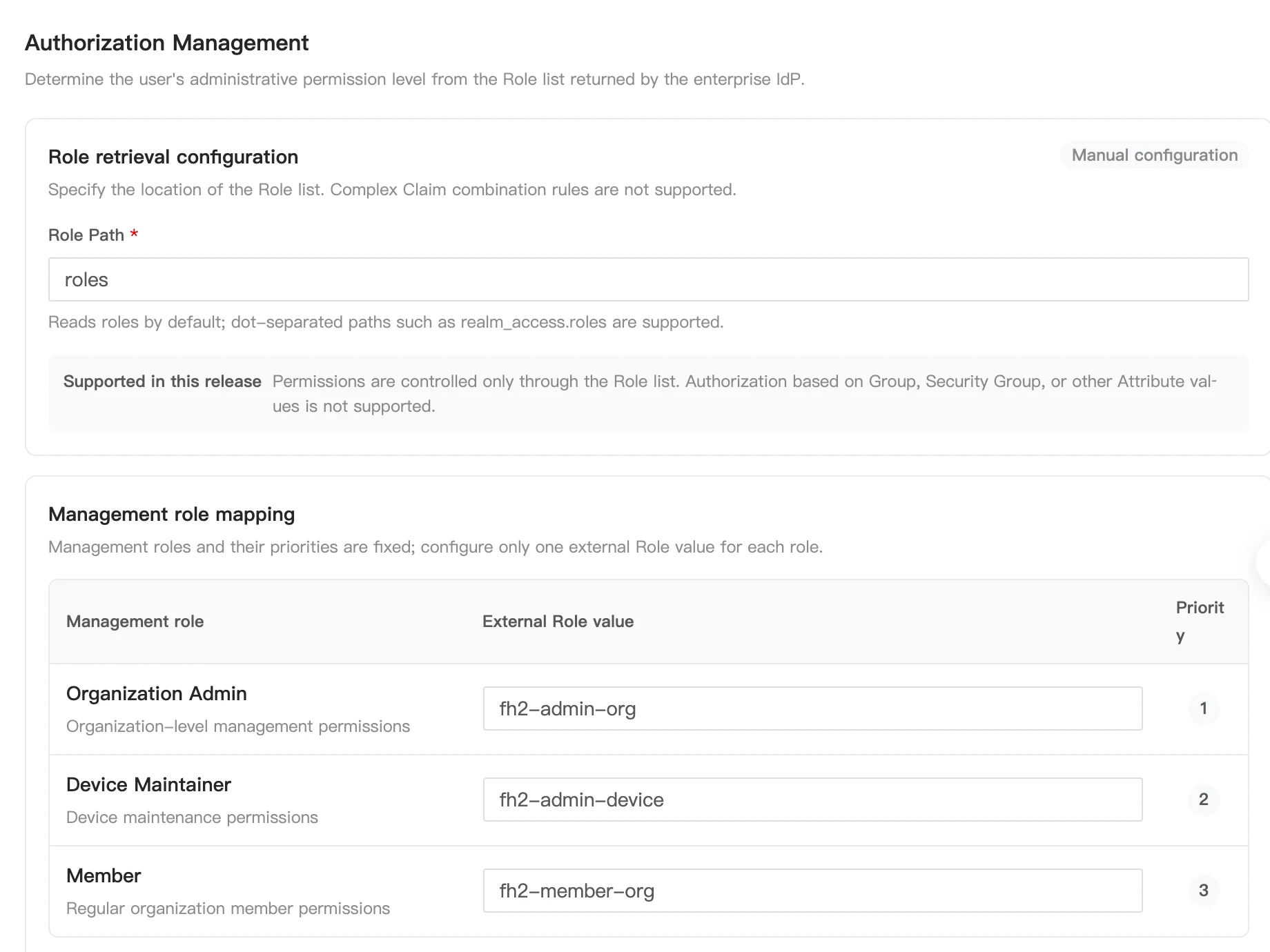
| Protocol | Setting | Requirements |
|---|---|---|
| OIDC | Role Path | Points to the array of role strings in the identity information, for example, roles |
| SAML 2.0 | Role Attribute | Matches the Attribute Name in the Assertion, for example, roles. Use separate AttributeValue elements for multiple roles |
| OAuth2 | Role Path (UserInfo) | Points to the array of role strings in the User URL response, for example, data.roles |
The management roles and their default mappings are listed below. Configure one external Role value for each management role.
| FlightHub 2 management role | Default external Role value | Priority |
|---|---|---|
| Organization Admin | fh2-admin-org | 1 (highest) |
| Device Maintainer | fh2-admin-device | 2 |
| Member | fh2-member-org | 3 |
- Users must match at least one management role to log in through a newly created SSO Realm.
- If multiple management roles match, the role with the highest priority is used. Unrecognized Role values are ignored.
- External SSO users cannot be mapped to Super Admin.
- Authorization is currently based on Roles, not directly on Groups, Security Groups, or other attributes. If the enterprise manages users through groups, configure the IdP to convert group membership into the agreed role list.
Project Permissions
SSO management roles and project permissions are independent. After successful login, an administrator must still add SSO users in project member management, assign project roles, and match users using the stable unique identifier for the corresponding Realm. For project role configuration, see Project User Role Management.
Testing and Enablement
Testing Procedure
- Complete Basic Configuration and Authorization Management, then click Save Draft.
- Open Testing and Enablement and run Connectivity Test to check required fields, HTTPS, protocol endpoints, and the applicable Discovery, Metadata, or certificate configuration.
- Run Test Login, authenticate with a test account on the IdP page that opens, and return to the original configuration page.
- Check the returned stable identifier, display name, email, Role list, and management role. Confirm that role retrieval and mapping work as expected.
- After the tests pass, click Save and Apply and confirm that the identity source is enabled.
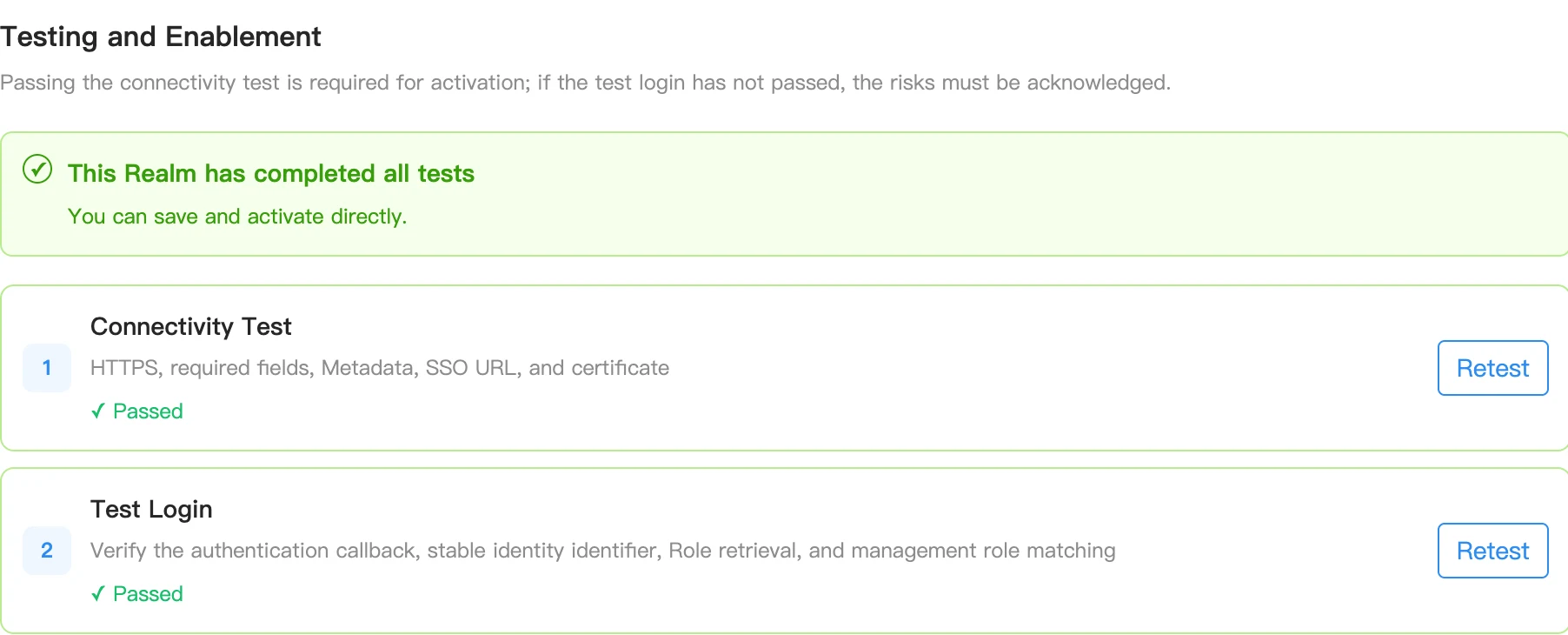
The connectivity test validates configuration and endpoints only. It does not replace an actual user login test. OIDC requires a successful connectivity test before enablement. If Test Login has not passed, enabling the Realm after acknowledging the risks as prompted on the page does not mean that login validation has passed. Completing both tests before enablement is recommended. SAML 2.0 should be enabled after both tests pass. Newly created OAuth2 Realms require both tests to pass; an available button or a generic confirmation message does not indicate that testing has passed.
If Discovery retrieval, Metadata import, or Token exchange fails, check the FlightHub 2 backend network, TLS certificate trust, application credentials, callback URLs, and protocol parameters. Correct the configuration, then save and test again.
Identity Source Maintenance
The list supports editing or continuing configuration, testing, enabling, disabling, and deleting identity sources. Handle each status as follows:
| Status | Action |
|---|---|
| Draft | Complete the configuration, save, and run the tests |
| Retest required | Review changes to key settings and run the tests again |
| Test failed | Review the failure results, correct the IdP or FlightHub 2 configuration, and retest |
| Ready to enable | Confirm the test results and enable the Realm according to the conditions shown on the page |
| Enabled | Available for login. Retest as prompted after changes to key settings |
| Disabled | Configuration is retained but is not available for normal login |
After updating IdP endpoints, certificates, or role output settings, update the Realm accordingly and retest. Manually overridden fields are not updated with automatically retrieved values and must be checked separately.
Local Account Login Management
The Allow Local Account Password Login switch on the SSO Login Settings page controls whether regular local accounts can log in with a password. When it is disabled, regular local accounts cannot use password login, and Members must log in through an SSO identity source that is enabled and has passed testing.
To disable local account password login:
- Configure, test, and enable at least one Realm, and confirm that enterprise accounts can log in successfully.
- Confirm that the emergency Super Admin account and its local password work.
- Turn off Allow Local Account Password Login and select Designate Emergency Super Admin in the dialog.
- Review the impact, select the confirmation checkbox, and click Confirm Disable.
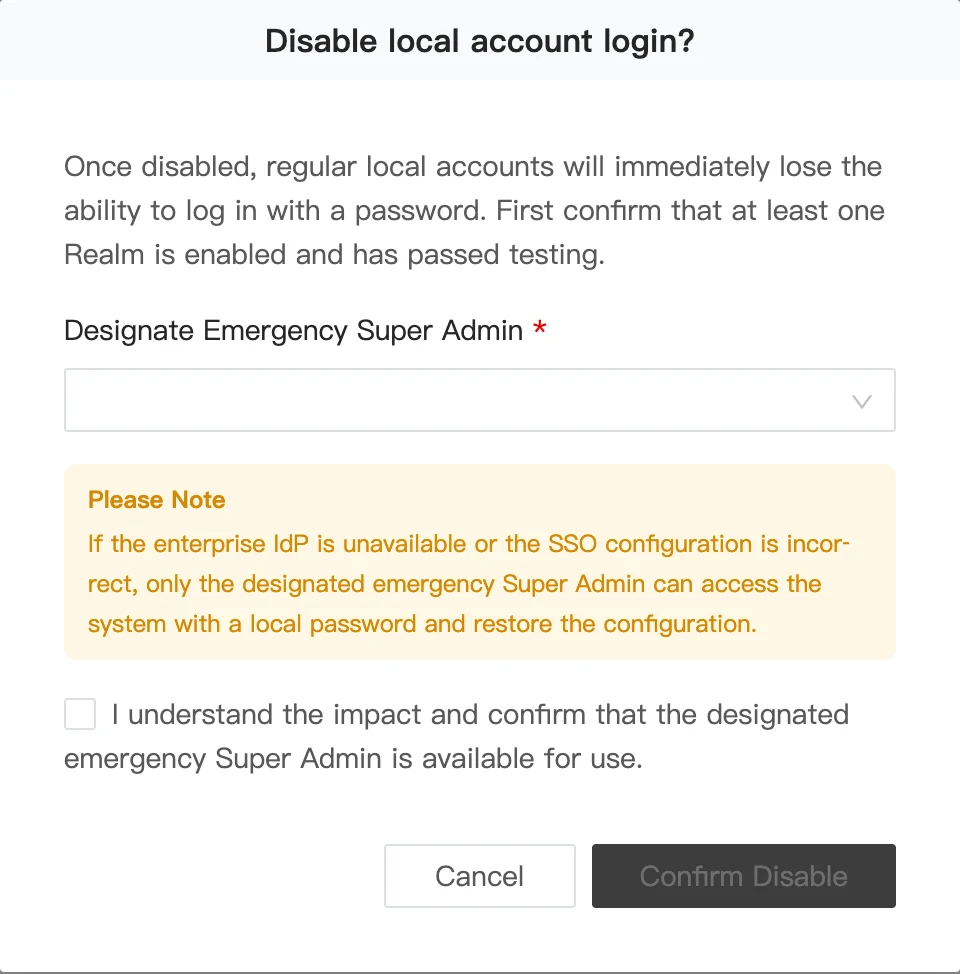
If the enterprise IdP is unavailable or the SSO configuration is incorrect, the designated emergency Super Admin can access the system with a local password to re-enable local account login or correct the SSO configuration. A regular Organization Admin is not an emergency Super Admin, and an account name alone does not determine whether emergency login is available.
Keycloak Integration Example
The following examples describe how to configure each protocol with Keycloak. Replace the example domains, Realm names, Client IDs, and field paths with the values for the deployment. Use the callback URLs and SP Metadata information generated by FlightHub 2. Menu locations may vary between Keycloak versions.
Screenshots illustrate configuration locations and key options. Realm, Client, and test user names shown in the screenshots are examples. Use your enterprise's identity source, application, and user information for the actual configuration.
Creating an Enterprise Identity Source, Roles, and Test Users
Log in to the Keycloak admin console and create or select an enterprise Realm under Manage realms, for example,
Enterprise.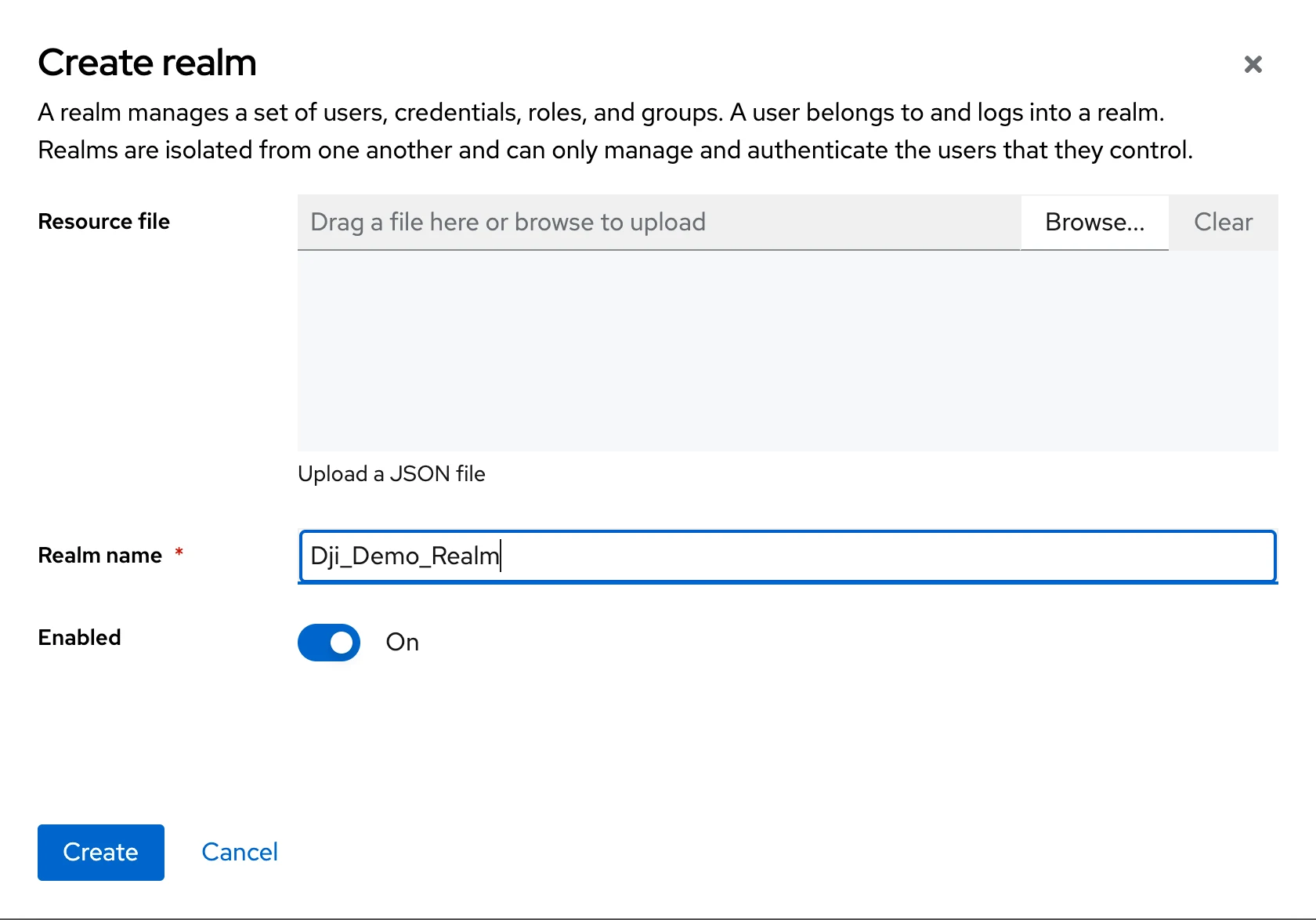
Under Realm roles, create
fh2-admin-org,fh2-admin-device, andfh2-member-org, or create role values that match the FlightHub 2 mappings.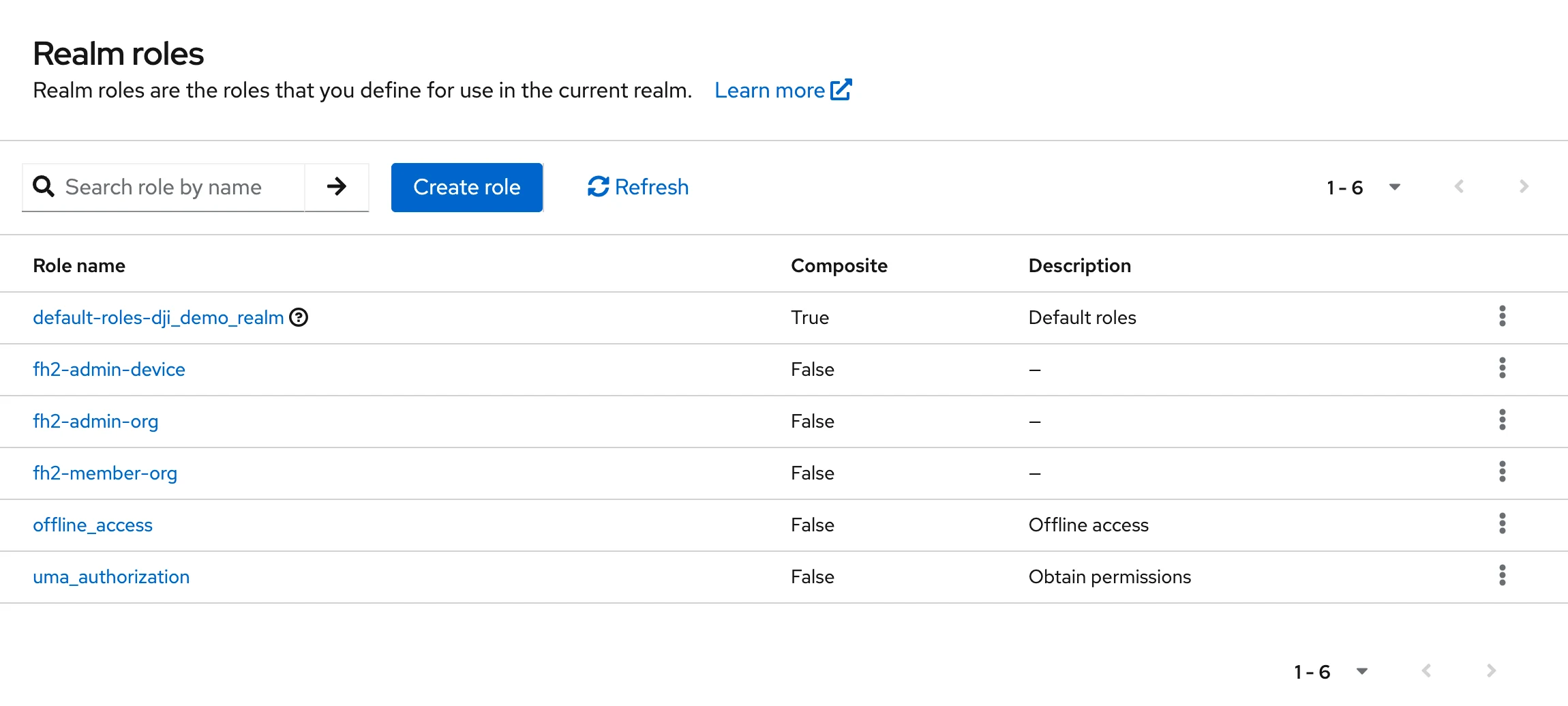
Under Users, create and enable a test user. Set a password under Credentials and complete any required account actions.
Assign a test role under the user's Role mapping tab. For the first test, assign only one management role, such as
fh2-member-org, to make the results easier to verify.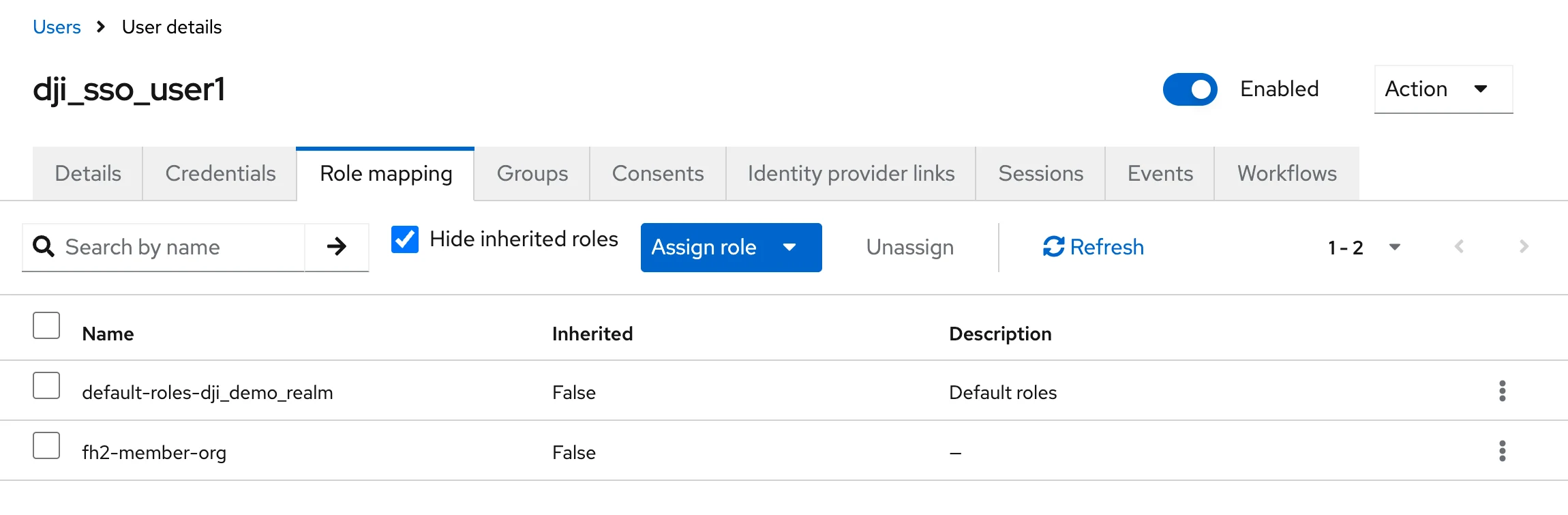
An enterprise Realm in Keycloak and a Realm in FlightHub 2 are different configuration units and do not need to have the same name. When integrating multiple protocols, configure a separate Client for each protocol and use different login routing domains.
OIDC Integration
Create an OpenID Connect Client in Keycloak, for example,
Enterprise_OIDC.Enable Client authentication and Standard flow, and disable Implicit flow. Direct access grants are not required for browser-based SSO. Enable Require PKCE and set PKCE Method to
S256. Look for these settings under Settings → Capability config.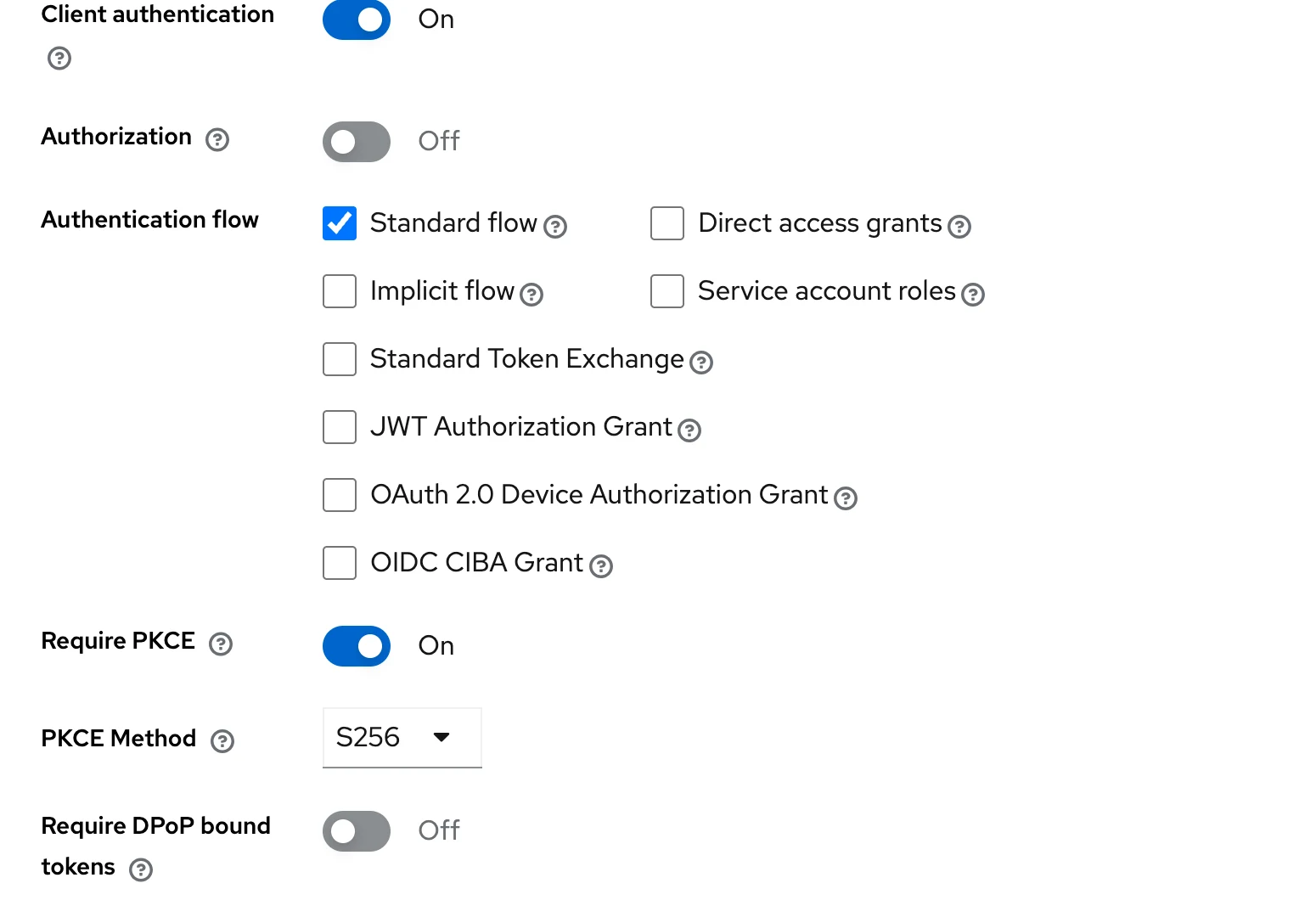
Create an OIDC Realm in FlightHub 2 and enter the login routing email, Client ID, Client Secret, and Discovery URL. The Keycloak Discovery URL has the following format:
https://idp.example.com/realms/Enterprise/.well-known/openid-configurationSave the FlightHub 2 draft to obtain the actual callback information. Register the normal and test login callback URLs under Valid redirect URIs in the Keycloak Client, and configure Web origins using the information generated by FlightHub 2. Obtain the Client Secret from the Client's Credentials tab.
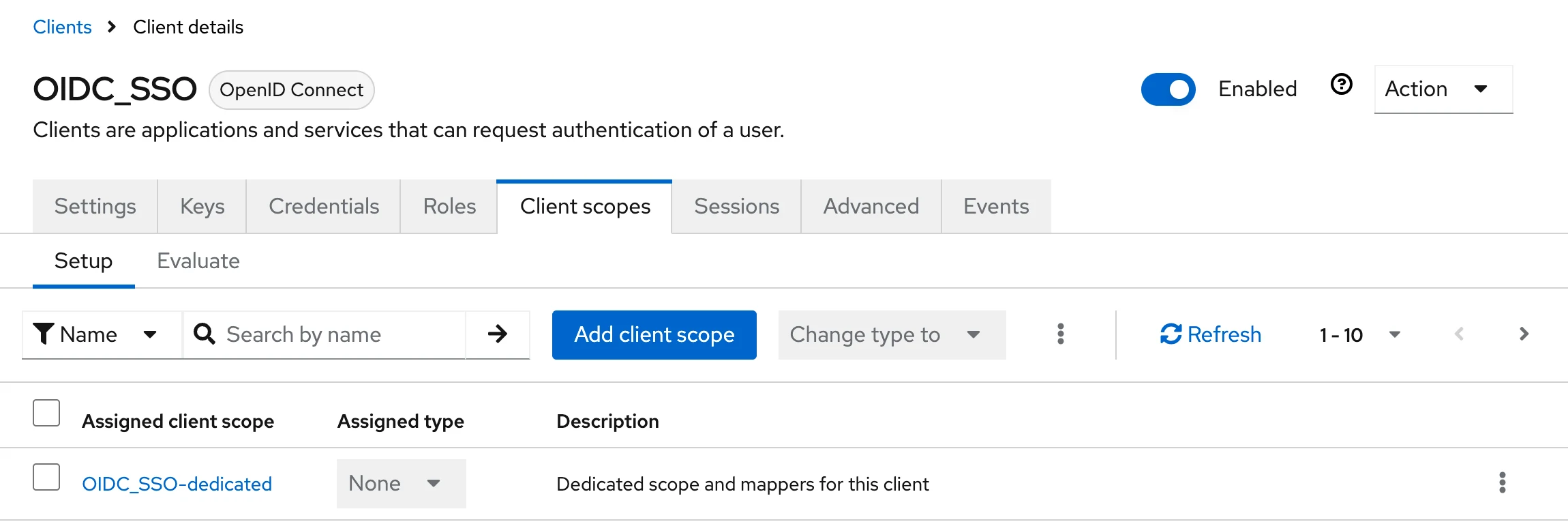
Add a User Realm Role Mapper under Client scopes → the Client's dedicated scope → Mappers:
Open Client scopes, select the current Client's dedicated scope, and open the mapper configuration.
Setting Example value Name sikong-rolesToken Claim Name rolesClaim JSON Type StringMultivalued On Add to ID token / Add to access token / Add to userinfo On 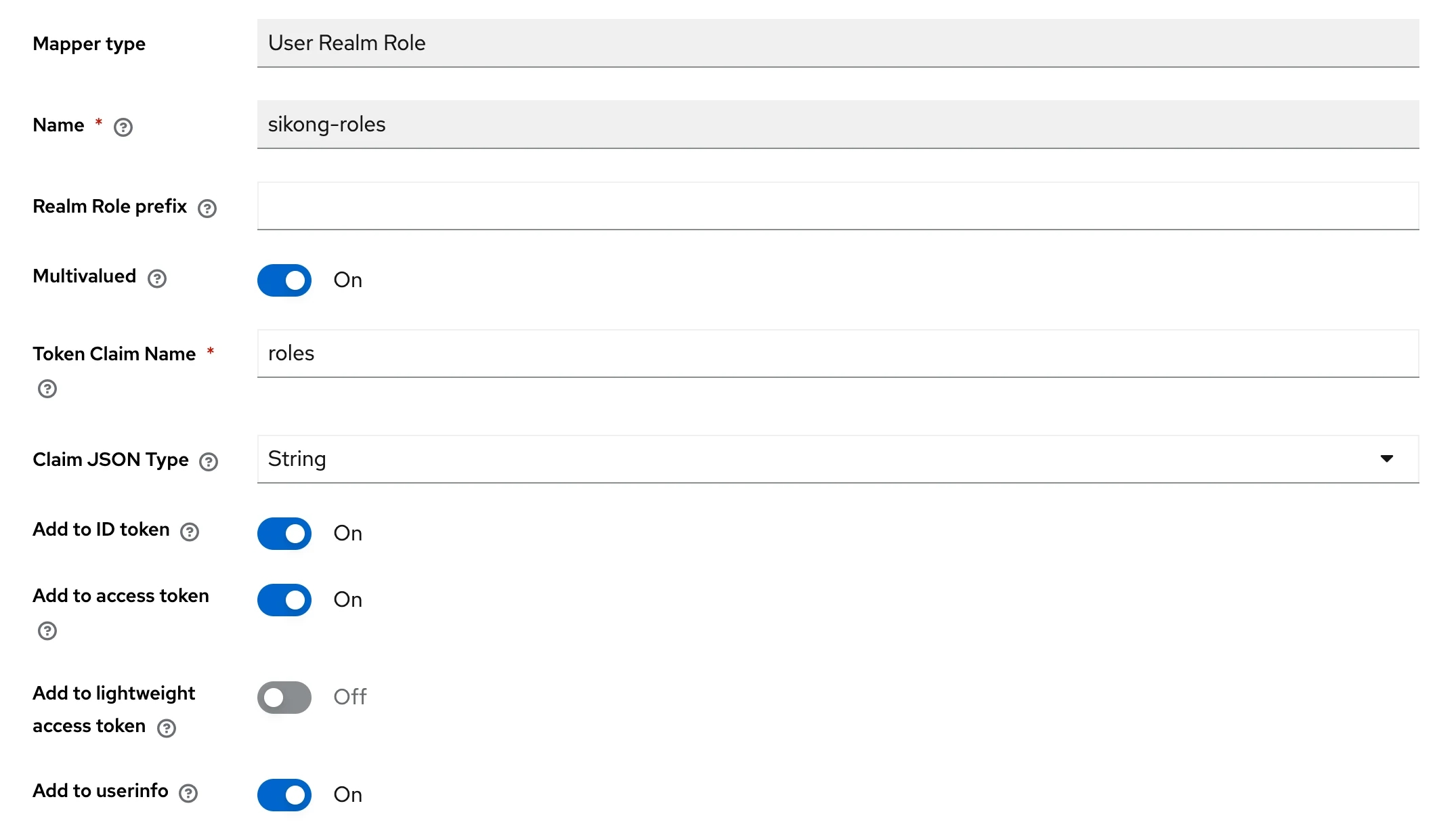
In FlightHub 2, set Role Path to
roles, configure management role mappings, and run Connectivity Test and Test Login. Verify the roles, then save and apply the configuration.
SAML 2.0 Integration
Retrieve IdP Metadata from Keycloak using a URL in the following format. The Metadata XML returned by this URL can also be used for file upload.
https://idp.example.com/realms/Enterprise/protocol/saml/descriptorCreate a SAML 2.0 Realm in FlightHub 2, import the IdP Metadata, save the draft, and download the generated SP Metadata XML.
In Keycloak, import the SP Metadata under Clients → Import client, or create a SAML Client manually and verify the following fields:
Setting Example value Client ID Entity ID from the FlightHub 2 SP Metadata Name A name to identify the application, for example, Enterprise_SAMLValid redirect URIs FlightHub 2 ACS URL Name ID format persistentForce name ID format On Force POST binding On, to return the SAML response using POST Sign documents / Sign assertions On Signature algorithm RSA_SHA256Client signature required On. Import the SP signing certificate from the FlightHub 2 SP Metadata IDP-Initiated SSO URL name Leave blank. Initiate login from FlightHub 2 The screenshot below shows where to configure persistent NameID and POST Binding. Verify the signature and certificate settings against the table above.
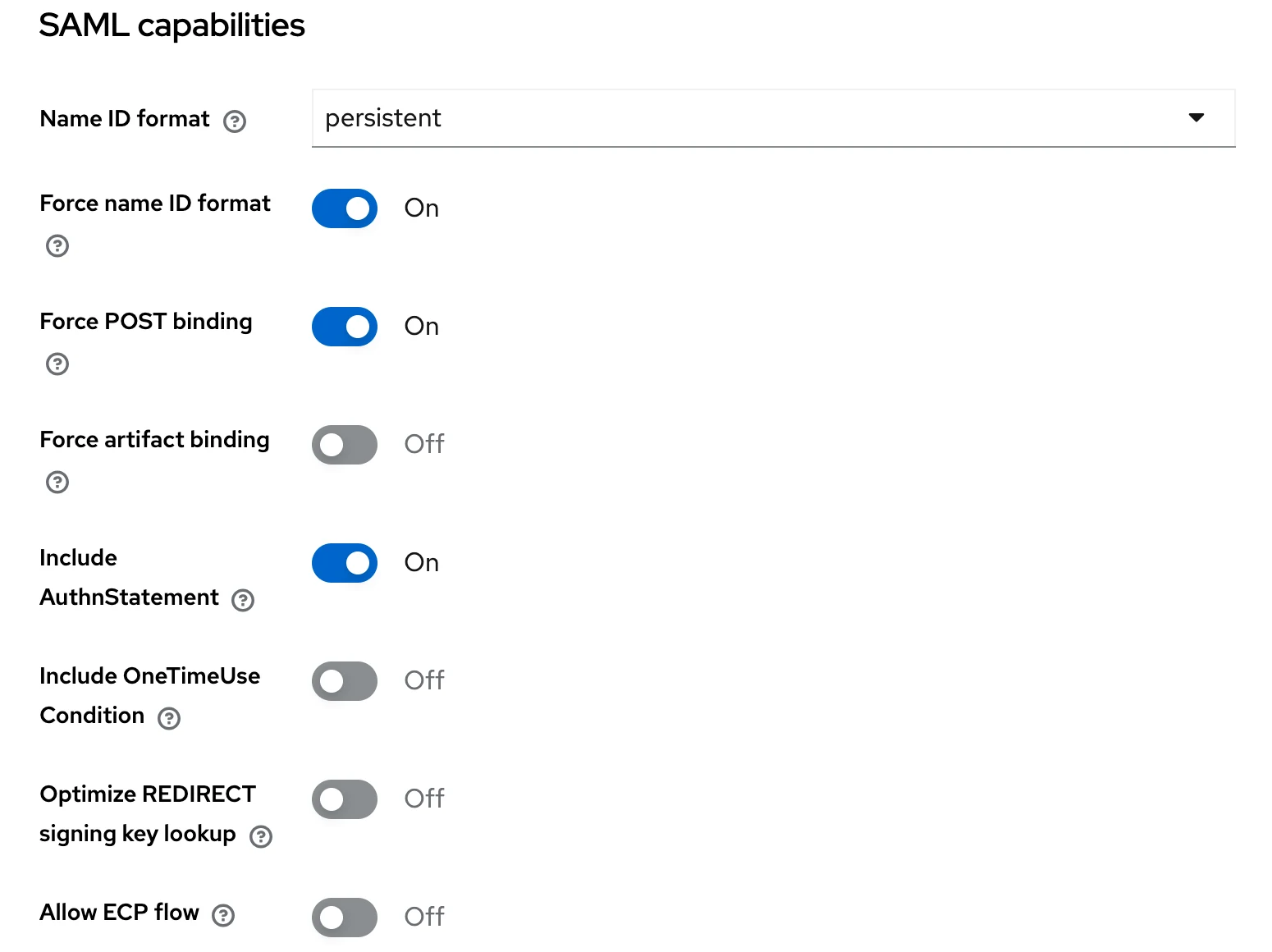
Configure role and user information Mappers in the SAML Client's dedicated scope:
Mapper type Key settings Role list Name and Role attribute name: roles; NameFormat:Basic; Single Role Attribute: OnUser Property User property: username; Attribute name:displayNameUser Property User property: email; Attribute name:email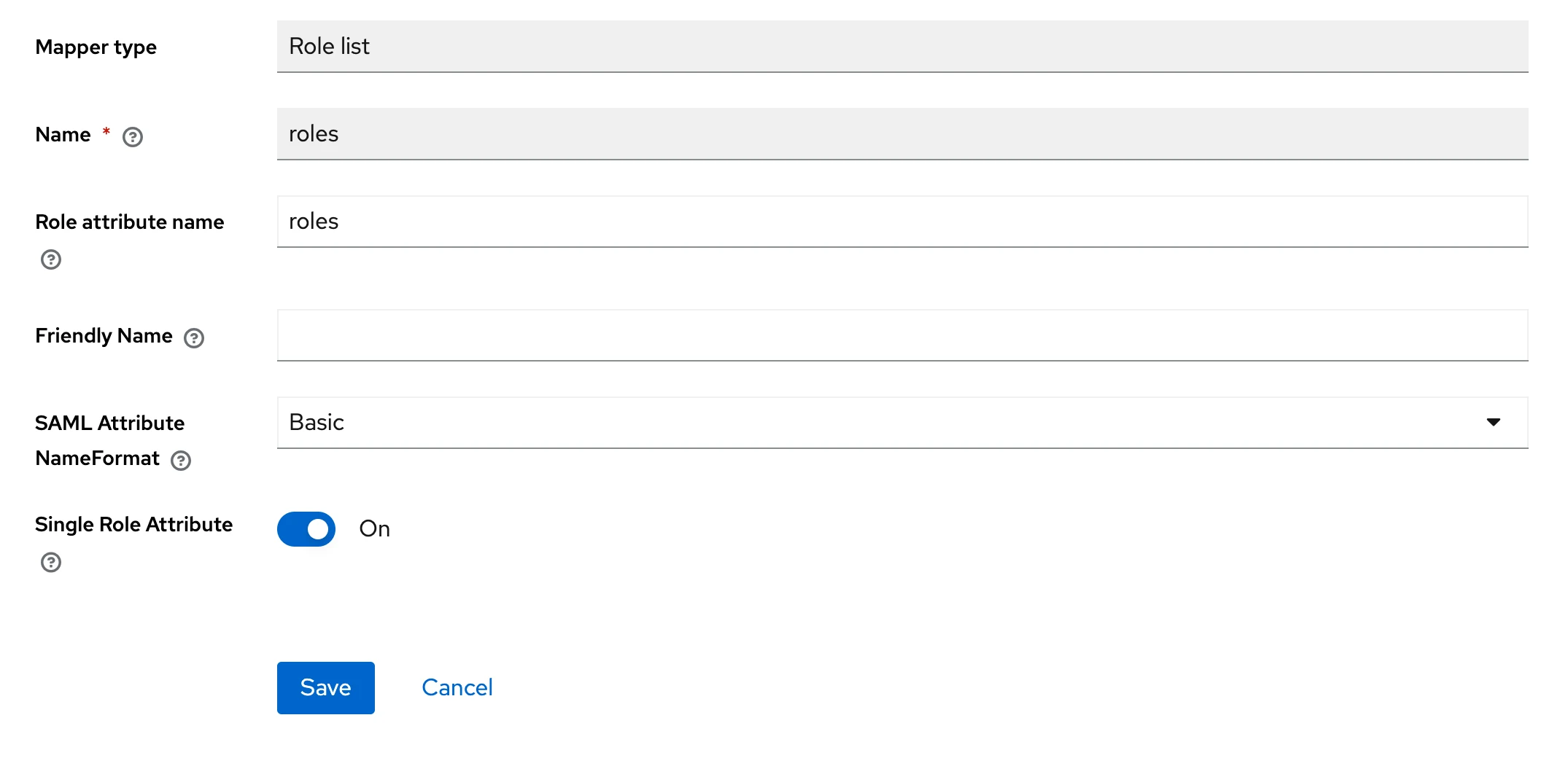
Check the Client's default
role_listscope and custom role Mapper to avoid duplicate or conflicting role output. When using the customrolesMapper above, remove any conflicting default scope assignment from this Client.In FlightHub 2, set Role Attribute to
rolesand the user display name Attribute todisplayName, then configure management role mappings. Save and apply the configuration after both tests pass.
Client ID must use the actual SP Entity ID, not the application display name. The FlightHub 2 AuthnRequest can use Redirect Binding while the IdP response uses POST Binding; these bindings serve different purposes. After recreating a FlightHub 2 SAML Realm, retrieve the new SP Metadata and verify and update the Entity ID, ACS, and certificate settings in the IdP.
OAuth2 Integration
Keycloak provides OAuth2 endpoints through an OpenID Connect Client. Select the OAuth2 protocol on the FlightHub 2 side.
Create a separate Client in Keycloak, for example,
Enterprise_OAuth2. Follow the OIDC example above to configure Client authentication, Standard flow, PKCE, and normal and test login callback URLs, and obtain this Client's own Secret.Add a User Realm Role Mapper in the Client's dedicated scope. Set Token Claim Name to
rolesand Multivalued to On, and ensure that Add to userinfo is On.Create an OAuth2 Realm in FlightHub 2 and enter the corresponding application credentials, login routing email, and the following settings:
FlightHub 2 field Keycloak example Authorization URL https://idp.example.com/realms/Enterprise/protocol/openid-connect/authToken URL https://idp.example.com/realms/Enterprise/protocol/openid-connect/tokenUser URL https://idp.example.com/realms/Enterprise/protocol/openid-connect/userinfoUSER_ID_KEY subUSER_ACCOUNT_KEY preferred_usernameScopes openid profile email, for the Keycloak user information API in this exampleRole Path (UserInfo) rolesSave the draft and configure management role mappings. Save and apply the configuration only after Connectivity Test and Test Login both pass and the user information and management role match the expected results.
The example Scopes and user fields apply to the Keycloak configuration described above. Adjust them according to the API documentation when integrating with another IdP.
Frequently Asked Questions
Why can users not log in even though the connectivity test passed?
The connectivity test checks configuration and endpoints. Test Login verifies actual identity information, role retrieval, and management role mappings. Run Test Login and check the stable user ID, role fields, mapping results, callback URLs, and signature validation results.
How do I resolve a callback URL mismatch?
Compare the redirect_uri in the actual request with the callback URL registered for the corresponding IdP application. They must match exactly, including the protocol, domain, port, and path. Register both normal and test login callbacks according to the deployment. Do not use the frontend configuration page URL or placeholder values from an unsaved form.
Must the login routing email match the user's email in the IdP?
The login routing email selects the identity source, while the IdP user email is part of the user's profile. They serve different purposes. Follow the IdP configuration requirements for accounts and email addresses. The login routing domain must meet email format requirements and must not contain underscores. Enter a complete email address when creating the Realm.
Why can FlightHub 2 not retrieve the roles returned by the IdP?
For OIDC, check Role Path against the array structure in the identity information. For OAuth2, check the role array returned by User URL. For SAML, check Attribute Name capitalization and ensure that multiple roles use separate AttributeValue elements. Also check for conflicts between default and custom IdP Mappers and confirm that the returned Role values match the management role mappings.
Why are no projects visible after successful login?
SSO management roles do not automatically grant project permissions. An administrator must add the user in project member management, assign a project role, and match the user using the stable unique identifier for the user's Realm.
Can an email address be used as the unique user identifier?
No. Email addresses may change or be reused. OIDC uses issuer + sub, SAML uses IdP Entity ID + persistent NameID, and OAuth2 uses Realm + stable user ID. Display names and account names also do not replace the stable unique identifier.
How do I resolve Discovery or Metadata retrieval failures?
Check that the URL is correct, that the FlightHub 2 backend can access it over HTTPS, and that the backend trusts the IdP certificate. Browser access or acceptance of a certificate does not mean that the FlightHub 2 backend can access or trust it. For SAML, the actual Metadata XML exported by the IdP can also be uploaded. After resolving the issue, save and test again.
How do I resolve a token exchange failure after IdP authentication?
Check the network connection and TLS certificate trust between the FlightHub 2 backend and the Token URL. Verify the corresponding Client ID, Client Secret, actual callback URL, and PKCE parameters. Retest after resolving the issue and confirm that user information and management roles are retrieved successfully.
How do I update certificates or endpoints?
For OIDC, refresh Discovery. For SAML URL import, refresh Metadata; for XML upload, upload the updated file again. Check manually overridden fields and update them or restore automatic values as needed. For OAuth2, update endpoints manually. Run the tests again after making changes.
Does logging out of FlightHub 2 also log the user out of the enterprise IdP?
Logging out ends only the FlightHub 2 session. It does not log the user out of the enterprise IdP. The enterprise session may still be active on the next login, and Test Login may require reauthentication.
How can access be restored if the IdP fails after local password login is disabled?
The emergency Super Admin designated when disabling local account login can use a local password to access the system, re-enable local account login, or correct the SSO configuration. Confirm that this account and password work before disabling local account login.
What should I check if an identity source cannot be enabled?
Check whether the draft has been saved, required fields are valid, retesting is requested, or the limit of 8 enabled Realms has been reached. For a newly created OAuth2 Realm, also confirm that both tests have passed.