
Map Details
The map displays dock and aircraft locations in real time. Click a dock or aircraft icon to display the connections between devices.
When a dock is performing a task, select its information panel to display the flight route in green and the aircraft trajectory in blue on the map. If the aircraft is performing a flight route task, waypoint numbers are also displayed.
Map Search
Click  to use map search. You can search for geographic locations, latitude and longitude coordinates, map annotations, device information, and models or photos loaded on the map.
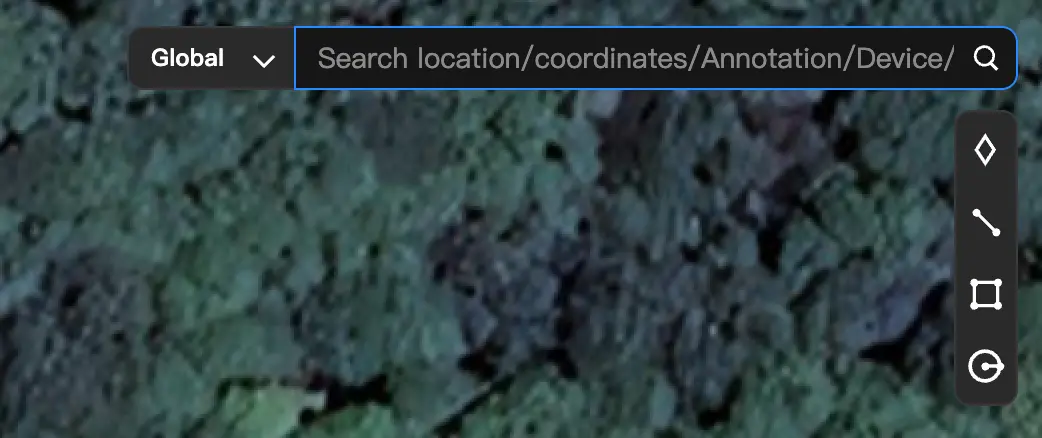
Map Controls
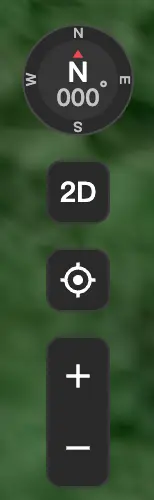
| Icon | Description |
|---|---|
 | View the current map orientation angle. |
 | Click to switch the map to 3D mode. Press and hold the Control/Ctrl key and the left mouse button together to rotate the map. |
 | Click to return to the center of the project's operation area. |
| + / - | Zoom in or out on the map. |
Map Layers
Click  to view map layers.
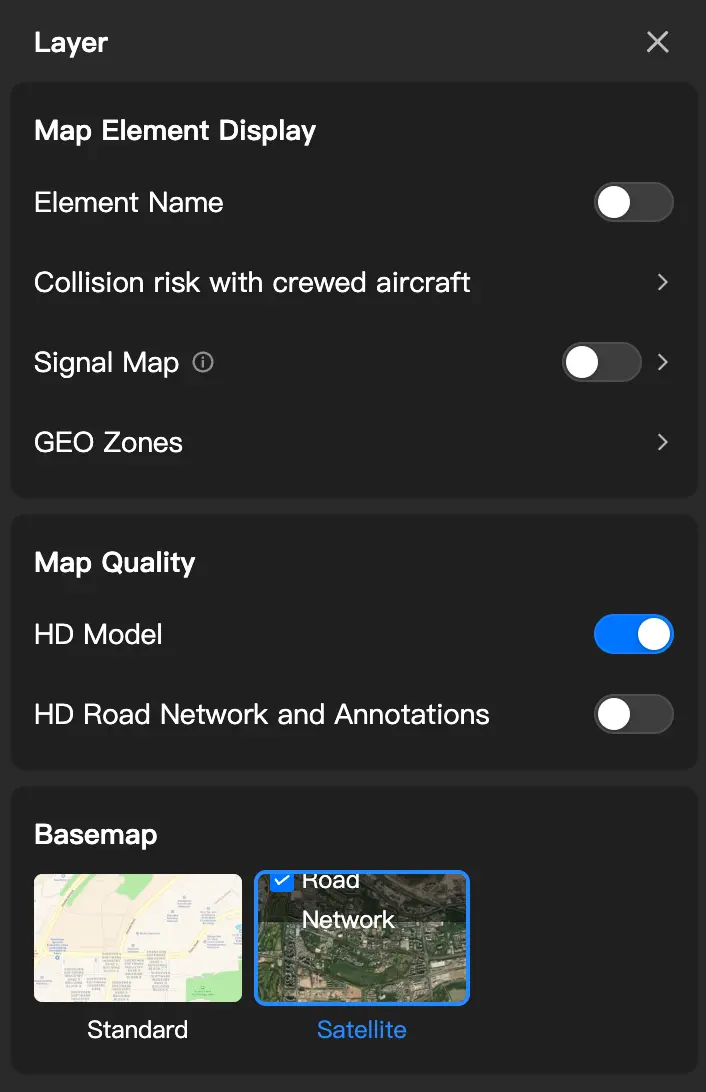
Map Element Display
- Element Name: Enable this option to hide element names on the map.
- Collision risk with crewed aircraft: Display alerts for the selected risk levels on the map.
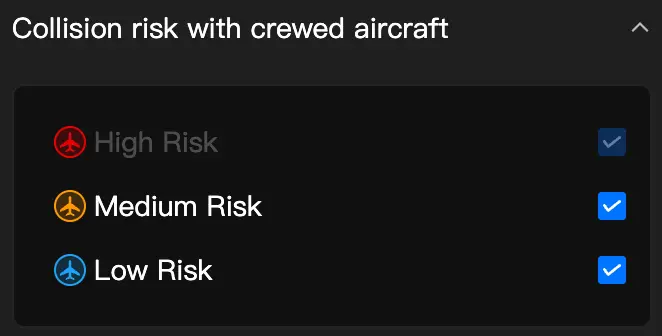
You can customize the threshold for collision risk with crewed aircraft under Airspace Safety - Airspace Alerts.
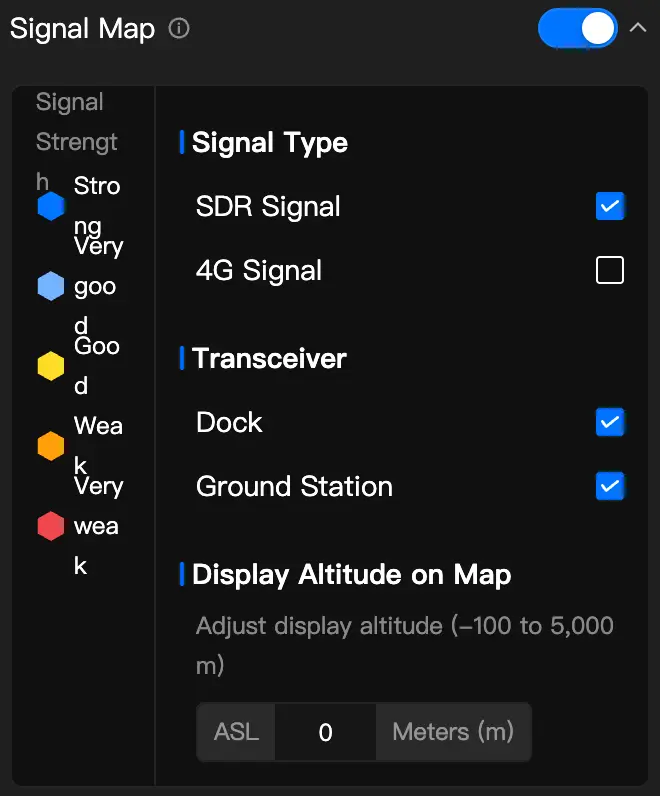
- Signal Map: Enable this option to display the selected signals on the map. The default signal map altitude is 0 m above sea level. You can set an appropriate elevation in the Signal Map toggle settings.
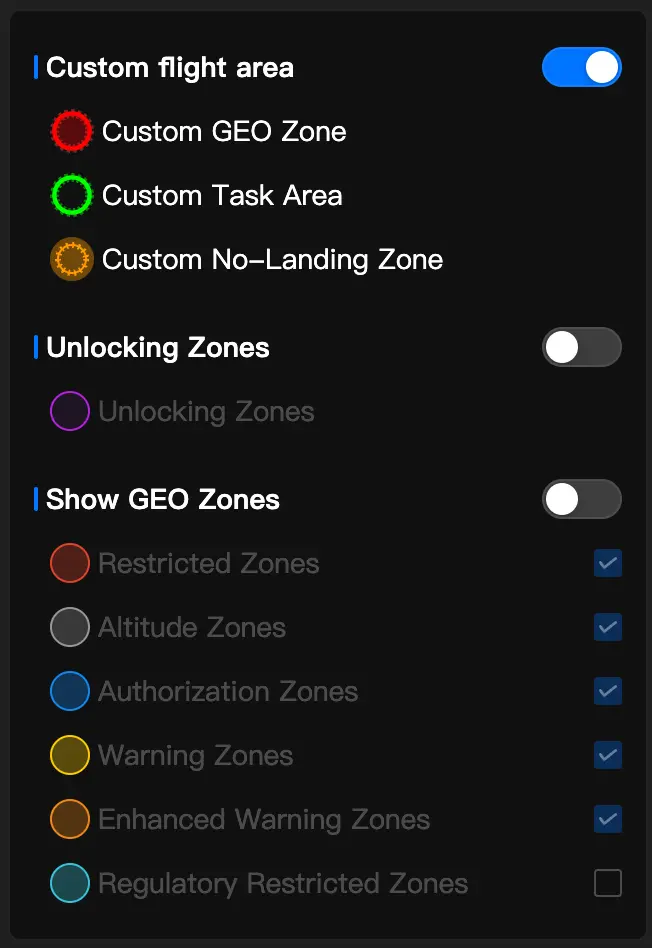
- GEO Zones: Enable or disable the display of GEO Zone information here.
Map Quality
- HD Model: Enable this option to improve model display quality. If your computer has limited performance, disable it to avoid lag when interacting with the page.
- HD Road Network and Annotations: Enable this option to improve the display of the map's road network and annotations. If your computer has limited performance, disable it to avoid lag when interacting with the page.
Basemap
- Choose between a standard map and a satellite map.