
Create a Project
Project Creation Process and Introduction
Administrators can click “+” in the middle of the project list panel or in the upper right corner to create a project.
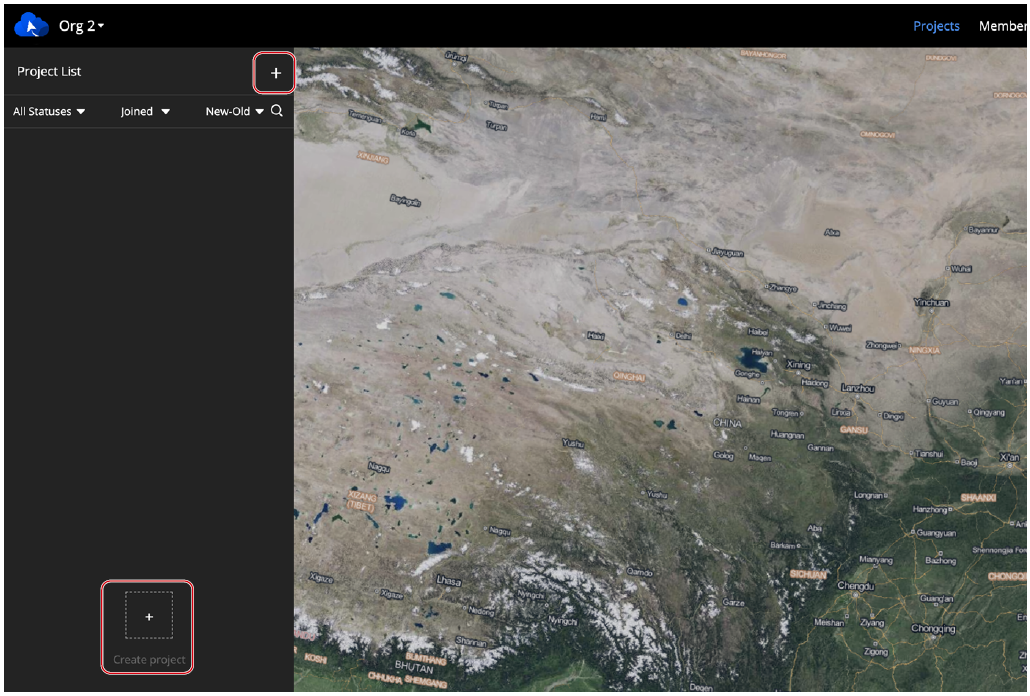
The location information of the administrator will be requested when creating a project, and the geographic location obtained will be used as the default project point of interest.
Fill in the following information to create a project.
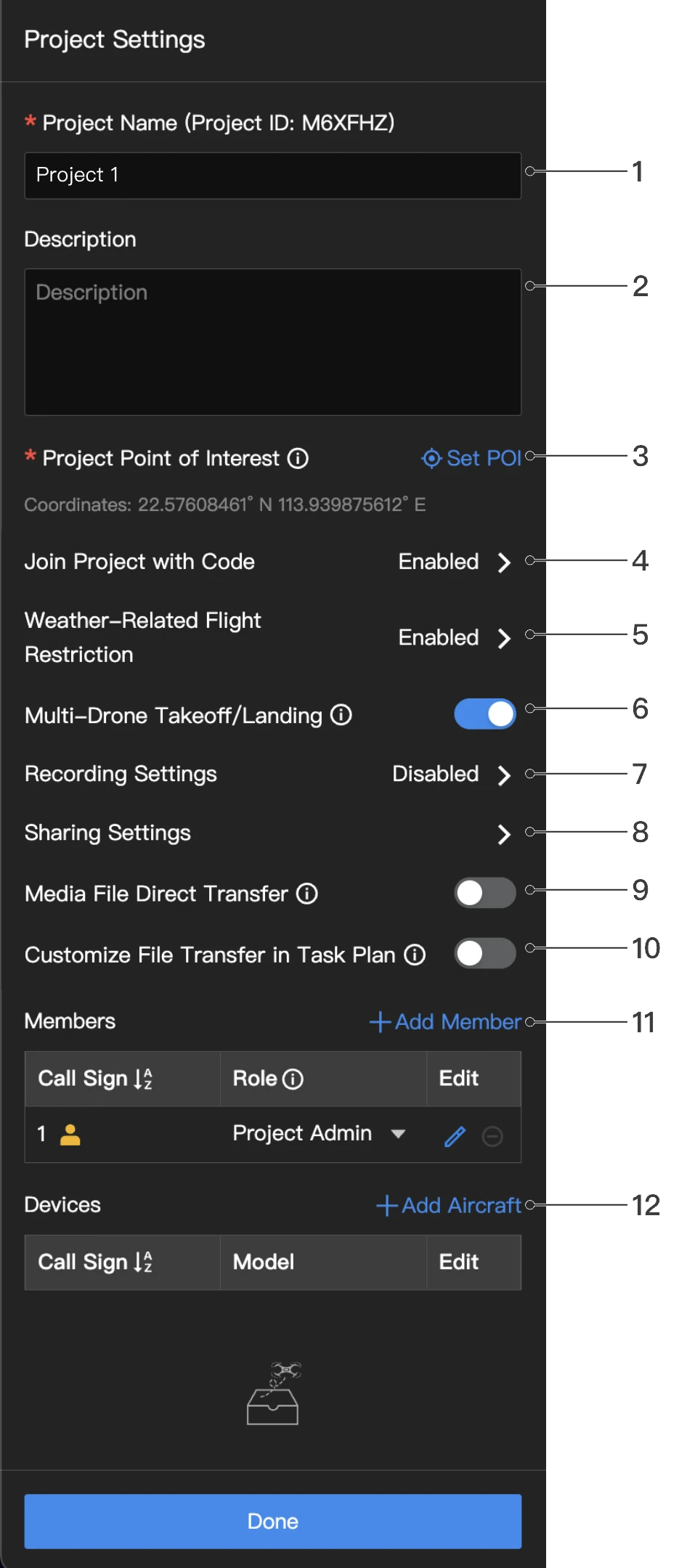
1. Project Name
The project name is required and should be within 40 characters.
2. Description
The project description is optional.
3. Project Point of Interest
Click Set Point of Interest. The set point will be displayed in the middle of the web page when users enter the project.
4. Join Project with Code
Administrators can enable Join Project with Code after creating a project. Click Copy Code to copy the project ID and code as well as the project link and send them to members who wish to join the project.
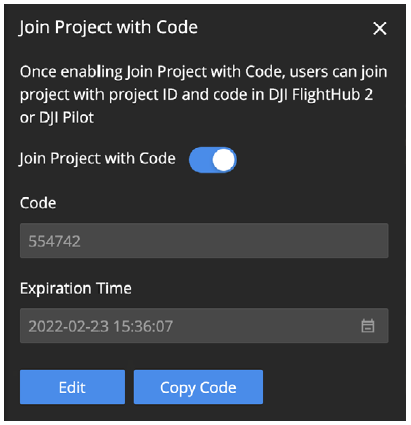
DJI FlightHub 2 users can click the link or enter the project ID and code on the My Organization page to join the project. DJI Pilot 2 users can log in to the DJI FlightHub 2 cloud service and join the project with the project ID and code. For users who are not organization members but join projects under the organization, their organization roles will be assigned as Temporary Member.
5. Weather-Related Flight Restriction
Click to set flight restrictions for different device models, and settings apply only to the current project.
6. Multi-Drone Takeoff/Landing
Click to enable or disable the multi-drone takeoff/landing settings within this project. Once the status is updated, it will take effect on the next flight task and will not affect the flight tasks currently in progress. See Multi-Drone Takeoff/Landing for more details.
7. Recording Settings
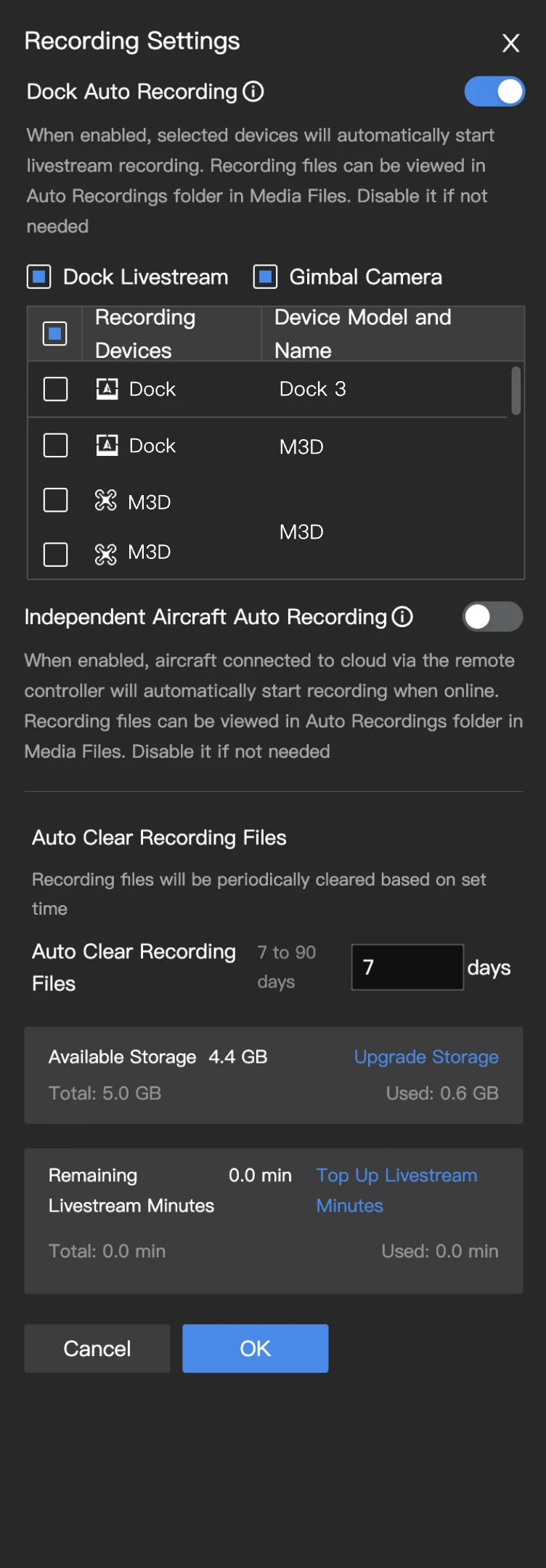
The project administrator can enable either Dock Auto Recording or Independent Aircraft Auto Recording. When enabled, the system will consume the organization's livestream minutes and storage space. It is recommended to enable this feature according to actual needs.
7.1 Dock Auto Recording
- When enabled, the selected device will automatically start livestream and recording, and the recorded files will be stored in the Auto Record Playback folder in the media file library.
- Trigger Logic: Docks will start recording at the beginning of a task and stop at the end.
- Device Selection: Users can quickly select devices in batch based on device categories. Checking Live will automatically select all dock security cameras within the project. Checking FPV Camera will automatically select all FPV cameras of dock aircraft within the project. Checking Gimbal Camera will automatically select all gimbal cameras of dock aircraft within the project. Alternatively, users can select the required recording devices individually from the device list according to actual needs.
7.2 Aircraft Auto Recording
When enabled, all aircraft connected to the project will automatically start recording when online, and the recorded files will be stored in the Auto Record Playback folder in the media file library. The aircraft will start recording automatically once the device is online and stops when the device goes offline.
7.3 Auto File Cleanup
After enabling any automatic recording function, a retention period for recorded files must be set. The default is 30 days, with a modifiable range of 7 to 90 days. The system will periodically clear the cache of automatically recorded videos based on the set retention period to avoid storage redundancy.
7.4 Resource Consumption Display (for FlightHub 2 public version only)
Below the recording settings, the remaining storage space and livestream minutes for the organization related to the project will be displayed. If resources are insufficient, users can click Upgrade Storage and Top Up Livestream Minutes to navigate to the DJI FlightHub 2 package link for renewal and purchase.
8. Sharing Settings
Project administrators can enable livestream view and photo sharing.
9. Media File Direct Transfer
Organization administrators can go to My Organization > Organization Settings > FlightHub Sync Beta > Media File Direct Transfer to add a third-party cloud service. After enabling Media File Direct Transfer, the data collected by the dock will only be uploaded to the third-party cloud platform.
10. Customize File Transfer in Task Plan
When enabled, users can enable or disable Media File Direct Transfer when creating task plans. When disabled, the task plan settings will apply the project settings.
11. Members
Click Add Member to add organization members to the project. If the member is not on the list, the organization administrator can add the member in Member Management. Users can also join the project with the project ID and code.
12. Devices
Devices include the docks and the aircraft that are bound to the current project. Click Add Aircraft to add aircraft that are bound to the organization to the project. See Device Management for more details.
b. For DJI Pilot 2 users who enter the cloud project, once their aircraft are linked with remote controllers, the aircraft information will automatically be displayed on the device list.
Click Create Project to create the project.
Both super and organization administrators can edit, archive, and delete projects. They can also activate archived projects. The project administrator can edit, archive, activate, and delete projects they manage. Other members can only view information of joined projects.
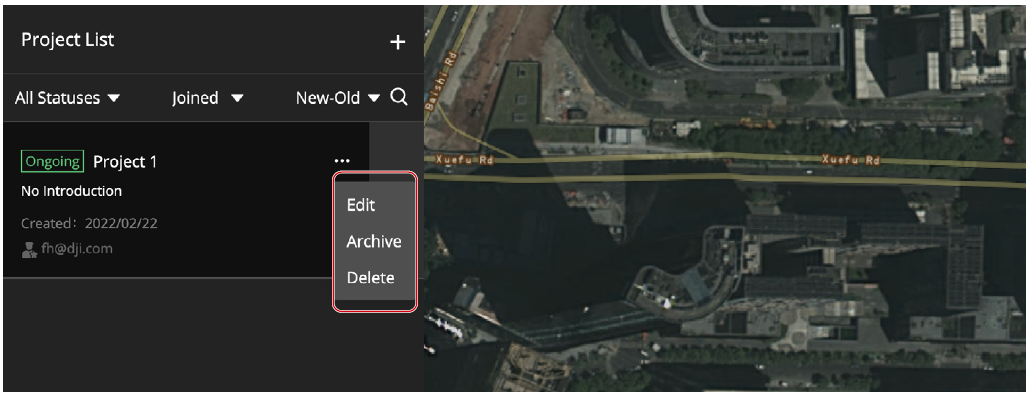
Note: DJI Pilot 2 users cannot view or work on archived projects.
Notes on On-premises Version
The FlightHub 2 on-premises version does not support joining projects with a code and archiving or activating archived projects.