
Design Files on Map
This section mainly introduces how to load design files onto the map.
Prerequisites
- Only calibrated design files can be loaded onto the map.
- Data Management > Design File Management permissions are required.
Steps
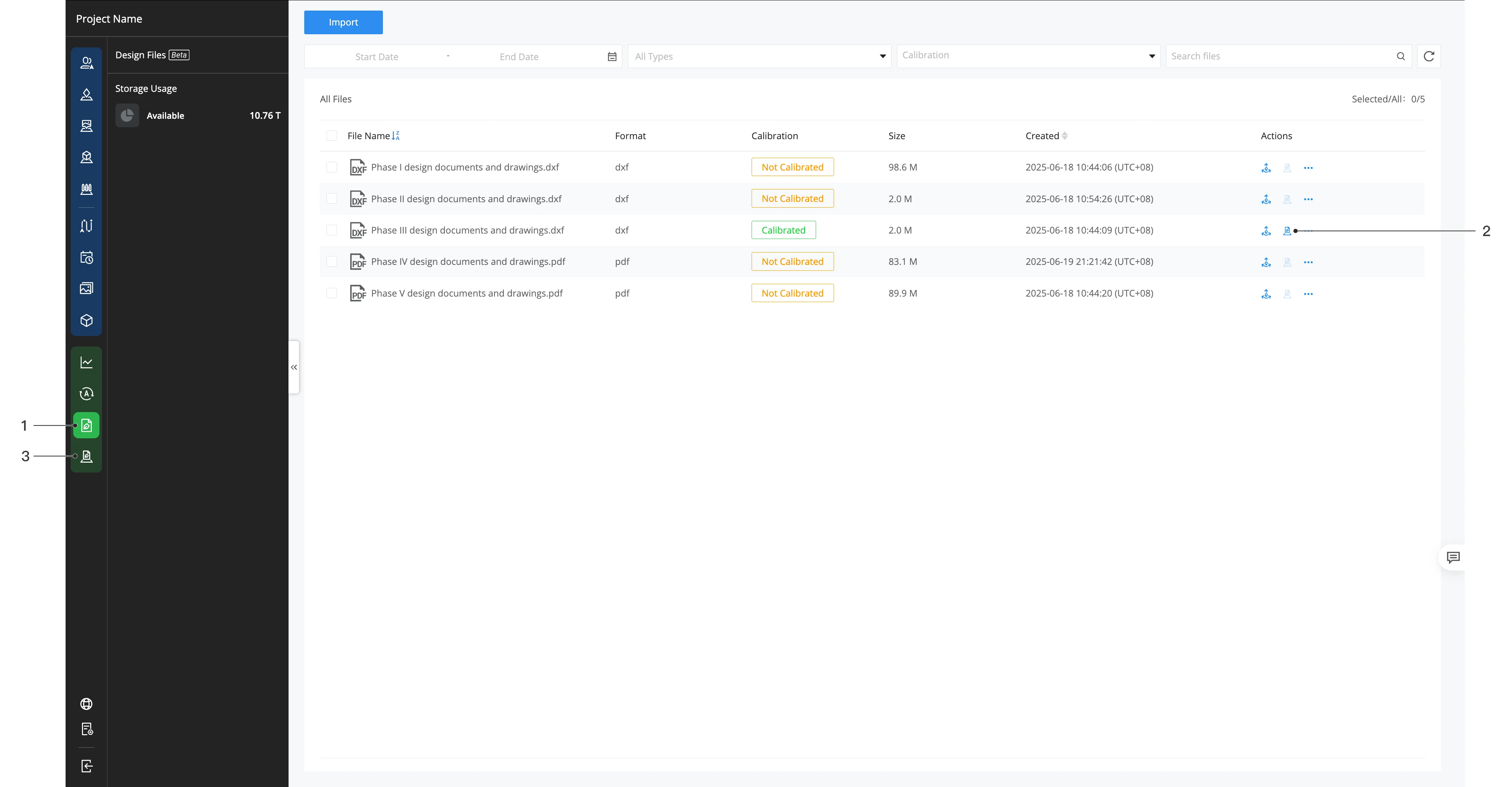
Log in to FlightHub 2, enter a project, and click
 to enter the Design Files page.
Select the design file you want to import, click
 , and load the design file onto the map.
After the design file is successfully loaded onto the map, click
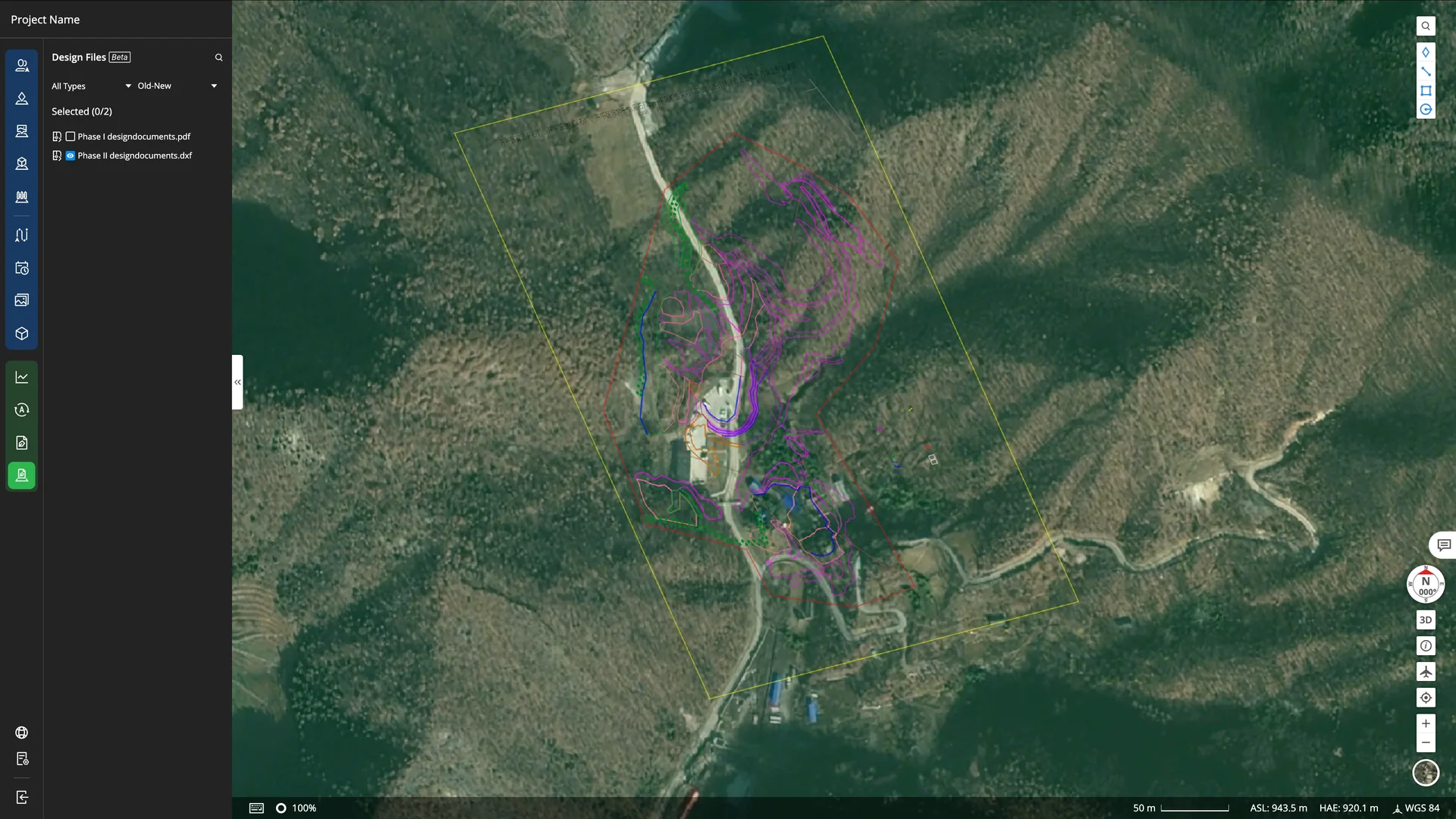
 to enter the "Design files on map" page.
- Check the loaded design files, and the design files will be displayed on the map.
- Click the dropdown arrow next to the design file to open the secondary menu. Here, you can adjust the color and opacity of the design file.
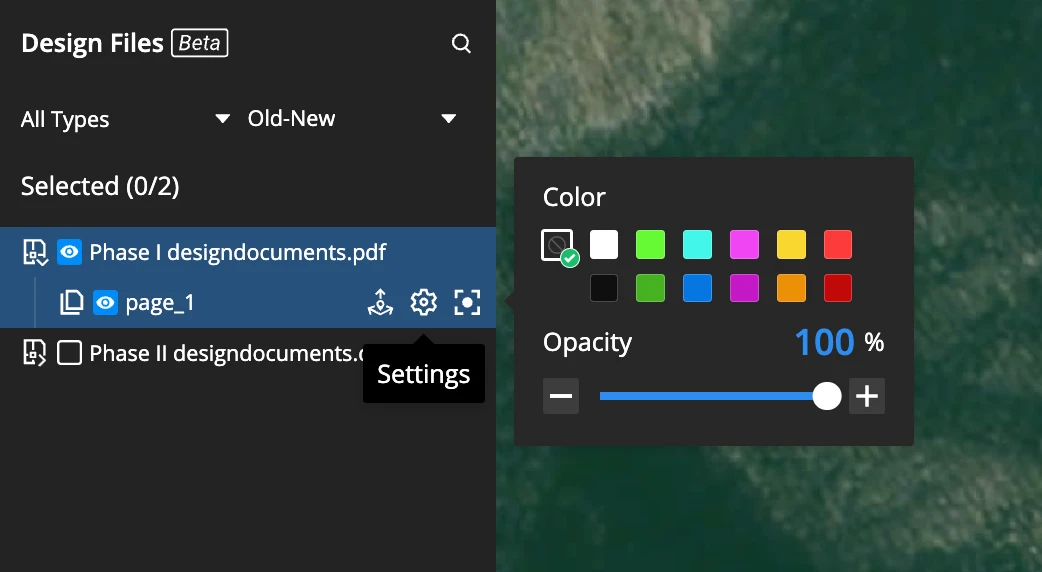
- Note: When selecting as a PDF file, this option can be set. If selecting a DXF file, only the return function is supported.