
Workflow Management
Overview
Automated workflows are an integrated hardware-and-software system for unattended operations. With a one-time configuration, users can manage tasks centrally via the cloud to achieve fully unmanned operations across the entire process—automatic takeoff, automatic capture, automatic upload and archiving, and automatic report generation—greatly improving industry operation efficiency.
Users can view, create, start/stop, edit, and manage workflows in a unified manner on the Automation page. The system supports two types of workflows:
| Workflow Type | Description |
|---|---|
| Periodic Workflow | Runs automatically at a preset time, cycle, or schedule. Suitable for scenarios such as scheduled inspection, scheduled aerial photography, automatic modeling, and automatic analysis. |
| Triggered Workflow | Runs when triggered by an external interface, an alarm event, or a system condition. Suitable for scenarios such as automatic dispatch, alarm linkage, and emergency response. |
Pre-permission Instructions
- Assign project members a project role that includes the relevant "Automated Workflow" permissions, so that they can create, edit, enable, disable, and manage workflows.
- Alternatively, set project members directly as the "Project Administrator". The Project Administrator has management permissions for automated workflows within the project by default and can use the relevant features directly.
- Note: Before enabling an automated workflow, you can complete the relevant basic configurations first. For example, configure the flight plan in the "Task Plan Library" module, and configure the analyzer and report template in the "Analyzer" module, so that they can be referenced directly in the workflow.
Workflow List
The workflow list displays the automated workflows created under the current project. Here, users can view the workflow status, type, update time, and process nodes, and start/stop, edit, and perform more operations on workflows.
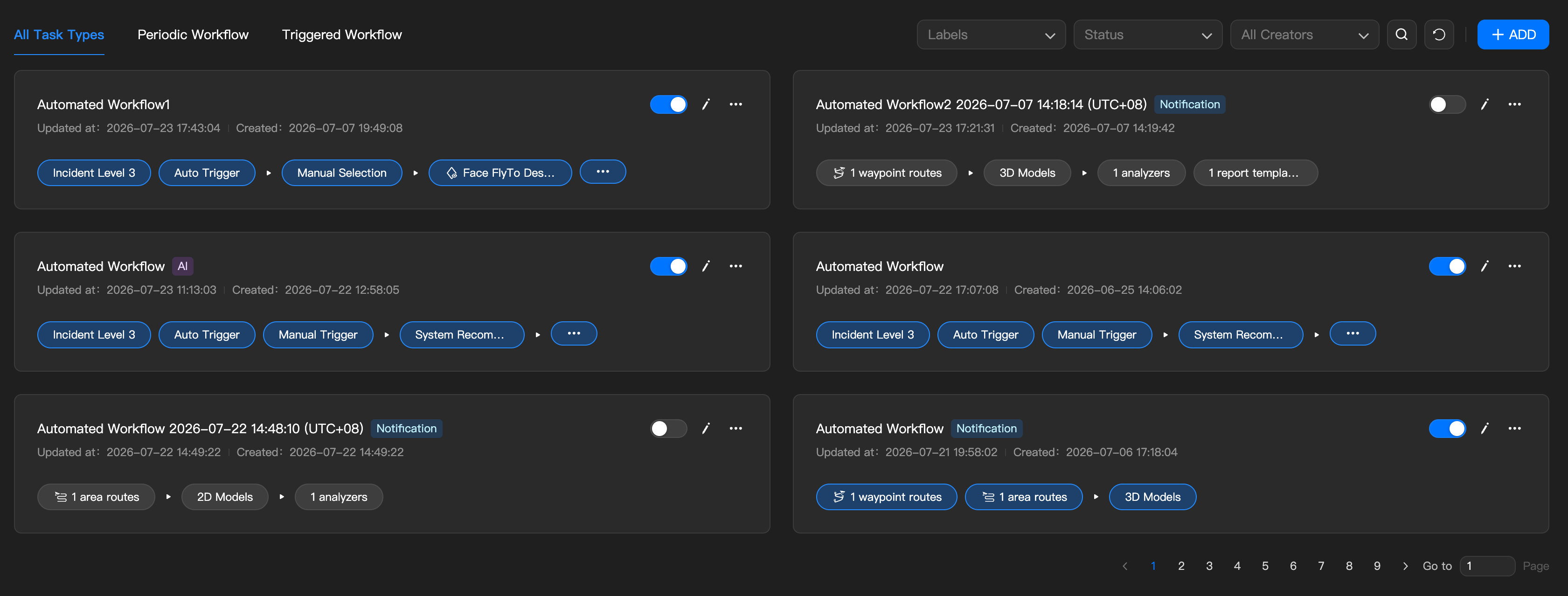
The area above the workflow list provides filtering and search functions to quickly locate the target workflow. Supported filters include:
| Filter | Description |
|---|---|
| Task Type | Displayed by task type, including All, Periodic, and Triggered |
| Tag | Filtered by workflow tag, such as Notification, AI, etc. |
| Enablement Status | Filtered by enabled or disabled status |
| Creator | Filtered by workflow creator |
| Search | Enter a workflow name keyword to search |
Each workflow is displayed as a card, with key information including: name, tag, update time, creation time, process nodes, enablement toggle, edit, and more operations (execution logs, operation logs, delete), etc.
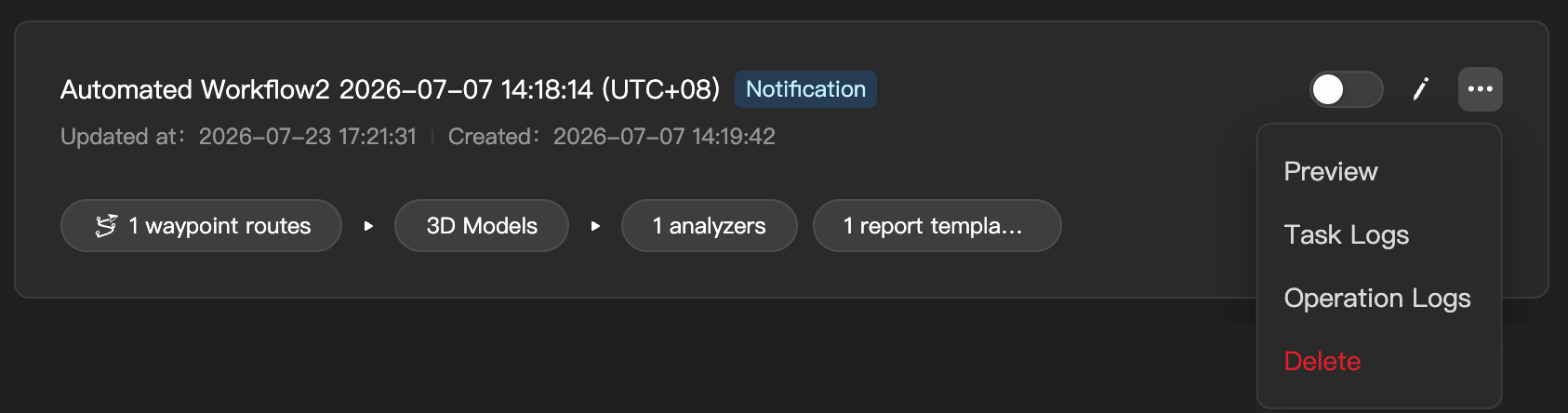
- Note: A disabled workflow will not continue to run automatically, but its historical run records and configuration content will still be retained.
Creating a Workflow
Click the "+ New" button in the upper-right corner of the page to create a new automated workflow. Enter a configuration name and select a workflow type. After confirming, you will enter the corresponding configuration page. After completing the configuration, save it and enable the workflow as needed.
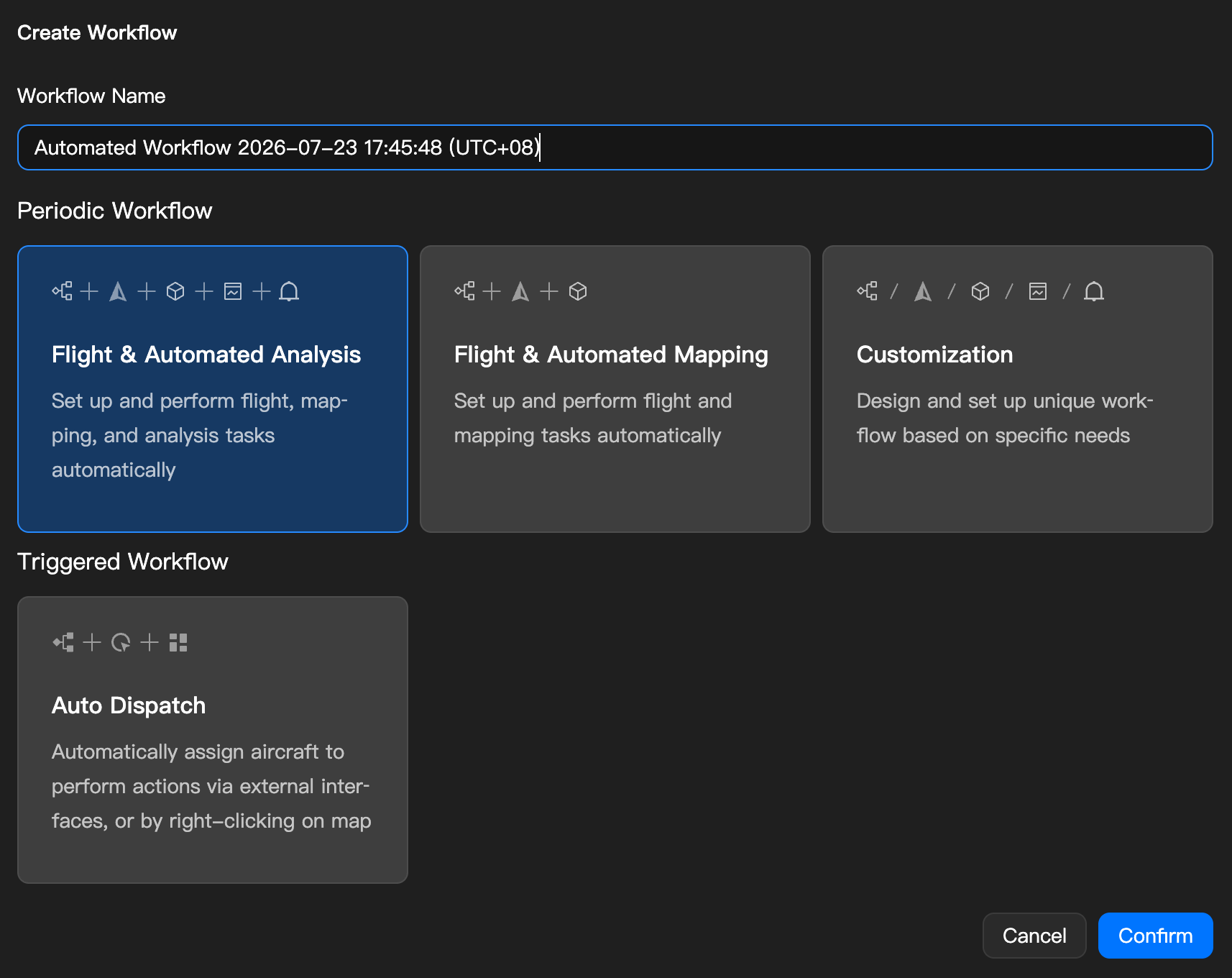
Supported Workflow Types
1. Periodic Workflow
Periodic workflows are suitable for tasks that run automatically at a fixed time and fixed frequency, such as scheduled inspection, scheduled modeling, and scheduled generation of analysis results.
Available templates include:
- Flight and Automatic Analysis Workflow: Configure a flight task, and modeling and analysis are performed automatically after the task is completed.
- Flight and Automatic Modeling Workflow: Configure a flight task, and modeling is performed automatically after the task is completed.
- Custom Workflow: Customize the workflow nodes and execution order based on business needs.
- Note: For detailed configuration methods, refer to the documentation Periodic Workflow.
2. Triggered Workflow
Triggered workflows are suitable for tasks triggered by external events, interface calls, or business instructions, such as automatically dispatching a drone to perform a flight task after receiving an alarm.
Available templates include:
- Automatic Dispatch Workflow: Triggered by an external interface or a map instruction to automatically dispatch a drone to perform flight and subsequent actions.
- Note: For detailed configuration methods, refer to the documentation Triggered Workflow.
Data Statistics
The top of the page displays an overview of the automated workflow runs over the past seven days, helping users quickly understand the workflow run results and trigger status.

1. Periodic Workflow Statistics
Displays the overall run status of periodic workflows over the past seven days, including:
- Success Rate: The proportion of periodic workflows that were executed successfully.
- Run Count: The number of times periodic workflows were executed.
- Flight Sorties: The number of flight tasks triggered by periodic workflows.
2. Triggered Workflow Statistics
Displays the overall run status of triggered workflows over the past seven days, including:
- Success Rate: The proportion of triggered workflows that were executed successfully.
- Average Arrival Speed: The average time from triggering to the drone arriving at the target area.
- Run Count: The number of times triggered workflows were executed.
- Flight Sorties: The number of flight tasks triggered by triggered workflows.
3. Notification Management Statistics
Displays the invocation of notification capabilities in automation over the past seven days, including:
- Number of Webhook sends.
- Number of Open API triggers.
- Number of Sync operations.
Click "View Details" in the corresponding statistics card to enter the details page and view more specific run records or notification records.