
Obstacle Data
The obstacle data is sourced from the global elevation data and the models in the project. Users can enable Obstacle Data on the cloud and synchronize the data to the dock aircraft. Based on the obstacle data, the aircraft can plan an optimal route to bypass obstacles along the route when performing FlyTo tasks or returning home.
Obstacle Data Introduction
- By default, the obstacle data is sourced from the global elevation data within a 40 km × 40 km (24.85 mi × 24.85 mi) area centered around the dock. When both the global elevation data and the model data are present on the map, the model data will be prioritized.
- To ensure the reliability of the obstacle data, it is recommended to perform the RTK calibration when deploying the dock and choose the RTK mode when creating task plans.
- When the environment is suitable for the vision system to work properly, the aircraft will automatically plan an optimal route based on the obstacle data and the data collected by the vision sensors. The optimal route will maintain a safe distance from the objects on the 2.5D map and in the models. The horizontal distance is approximately 10 meters, while the vertical distance from the 2D or 3D models is about 30 meters and 60 meters from the objects on the map. When the environment is not suitable for the vision system to work properly, such as low or no light at night, only the obstacle data will be valid. There will be potential safety risk if the model data is not accurate.
- Based on the obstacle data, the aircraft will bypass the area that has weak GNSS signal to ensure aircraft positioning accuracy. If there are objects such as power cranes, power lines, and bridges, the aircraft will try to bypass the obstacles by flying above the objects.
- When the aircraft is performing tasks based on the GNSS positioning, the obstacle bypassing performance may be affected. Users should pay close attention to the flight route and the livestream view and fly with caution.
Obstacle Data Settings
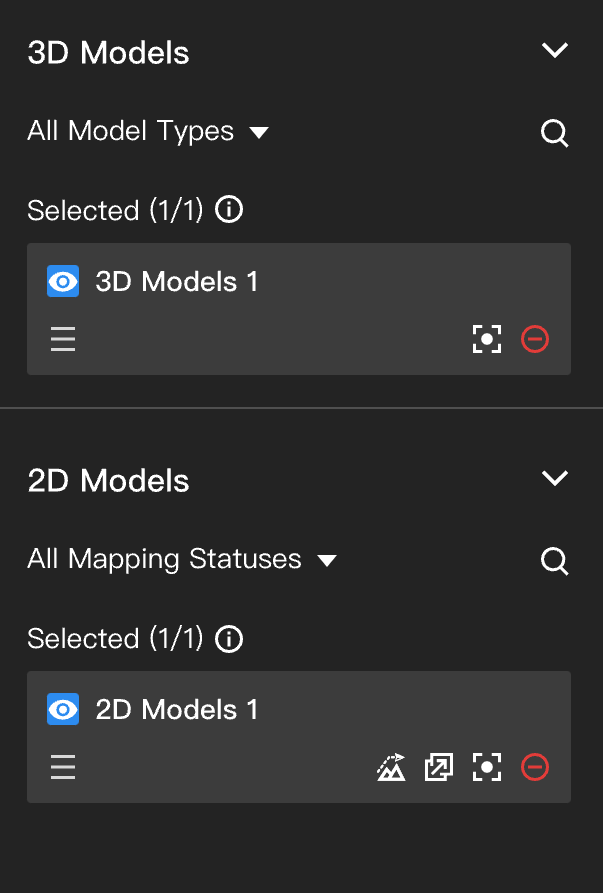
- If there are 2D or 3D models within the task area in the project, users can click Map on the left to load the model data onto the map.
- The project administrator can enable Obstacle Data.
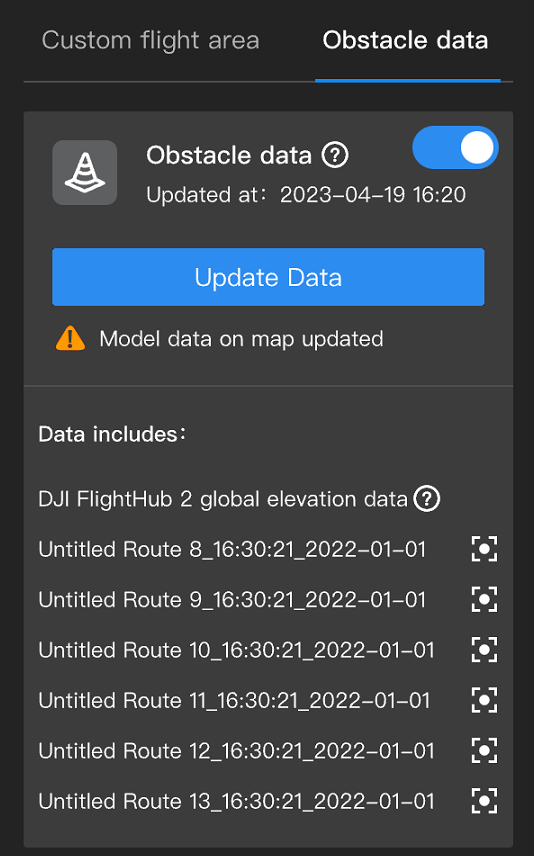
The obstacle data will automatically be synchronized to the dock aircraft for optimal route planning.
Notes on On-premises Version
Since the on-premises version of FlightHub 2 does not include global elevation map data by default, it is highly recommended that you import offline elevation data for your work area to ensure flight safety.
Downloading Offline Elevation Data
On the DJI Developer website's FlightHub 2 On-Premises Service page, navigate to Download Elevation Data to proceed.
- Step 1: Verify your License ID.
- Step 2: Select an area on the map or enter the latitude and longitude range for the work area.
- Step 3: Download the elevation data.
Notes:
- If the coordinates you enter are not whole numbers, the final data package will cover an area expanded to the nearest whole-number coordinates (rounded up).
- Data generation can take a long time. Please wait for the process to complete.
Importing Offline Elevation Data
For on-premises service users:
- Step 1:Clear the existing data from the target directory:
rm -rf ${DATA_ROOT_PATH}/static_data/elevation - Step 2:Unzip the downloaded elevation data package.Then,
elevation/move the contents of the elevation${DATA_ROOT_PATH}/static_data/elevation/folder into the server's static data directory. - Step 3: Navigate to
${deployment package extraction directory}/tool/map/to run the publishing script:bash ./publish-elevation.sh - The import is successful when the script's progress reaches 100%.
