
Online Project Information
Online users on the web can view team online information, device details, and enable online livestreams on the Team page to stay updated on operations in real time.
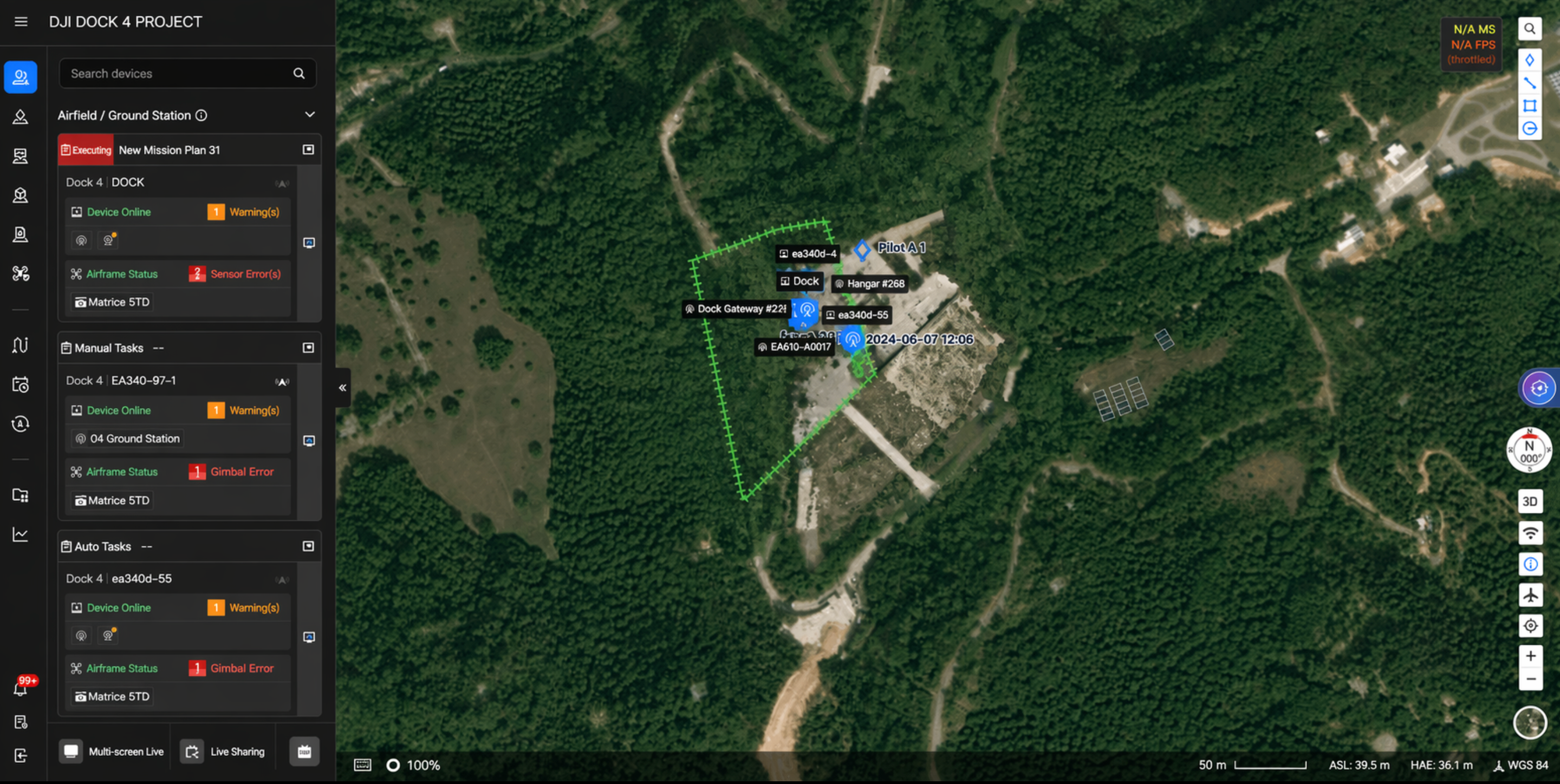
After joining a project, project members can view the Dock/Ground Station, Online Devices, and Online Member List on the left.
The Online Information section on the Team page also displays the online members in the current project, as well as the connection relationship and online status between the DJI Dock 4 and its aircraft. Device online/offline status is refreshed in real time.
Dock/Ground Station
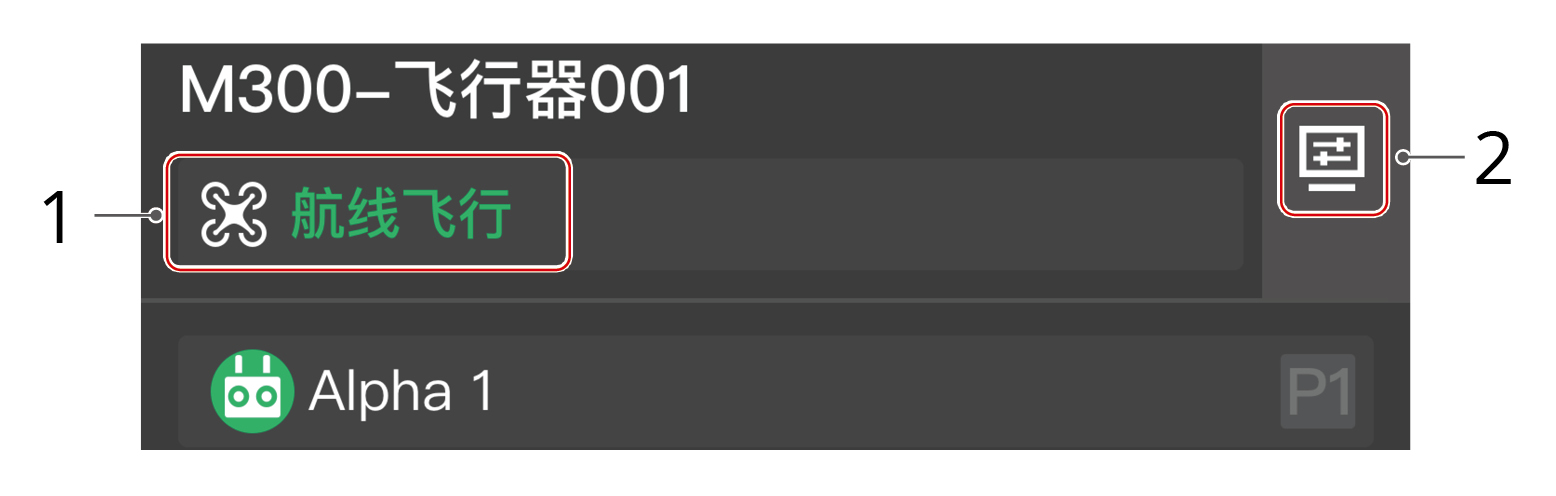
Through the Dock/Ground Station panel, you can view the task status of the Dock and Ground Station, the operation status of the bound aircraft, and device warning messages, as well as open the device mini-window. When multiple Docks/Ground Stations are online, the information of the online Docks/Ground Stations will be placed at the top of the panel.
Note: The page content displayed may vary slightly depending on the Dock/Ground Station model. Please refer to the actual interface.
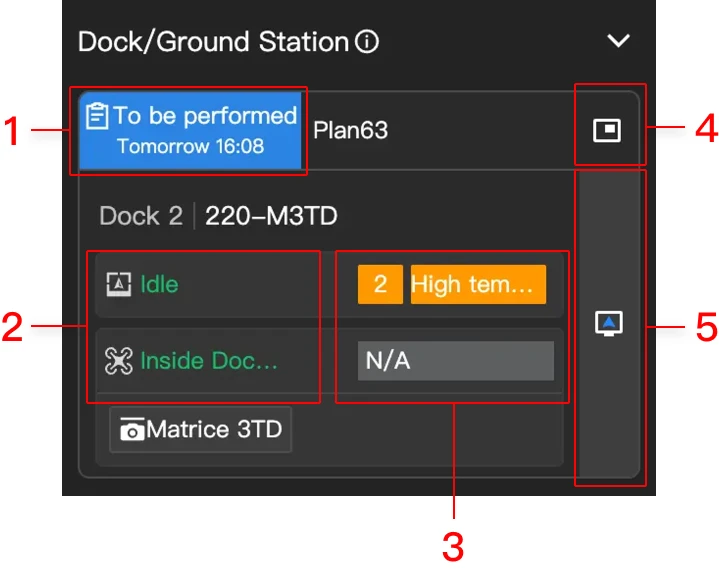
1. Dock/Ground Station Task Status
The Dock/Ground Station task status includes "Planned Task Status" and "Live Flight Controls Status". Click the task status bar to view the flight task list for the day.
- Planned task statuses include: No task, To be performed, In progress, Task failed, and Task ended.
- To be performed: Displays the scheduled date and time.
- In progress: Displays the estimated remaining time.
- Live Flight Controls statuses include: Live Flight Controls, Live Flight Controls (Manual Flight), and Live Flight Controls (Auto Flight).
- Live Flight Controls: When a user obtains control of the aircraft.
- Live Flight Controls (Manual Flight): When a user is controlling the aircraft via keyboard or device mini-window buttons.
- Live Flight Controls (Auto Flight): When the aircraft is automatically executing remote control commands.
2. Device Status
Click the device status bar to center the device on the map.
- Dock statuses include: Idle, Task preparing, Flight task executing, Closing dock cover after task, and Offline.
- Ground Station statuses include: Idle, Power saving, Task preparing, Flight task executing, and Offline.
- Aircraft statuses include: Standby, Powering off, Powering on, Prepare to take off, Ready to take off, Manual flight, Auto takeoff, Task in progress, Returning to home, Landing, Updating firmware, Auto avoidance, Forced landing, and Not connected.
The operation status changes of the Dock, Ground Station, and aircraft during a flight task are as follows:
| Device | Task Preparation | Task in Progress | Task Completion |
|---|---|---|---|
| Dock | Idle > Task preparing | Flight task executing | Closing dock cover after task > Idle |
| Ground Station | Idle > Task preparing | Flight task executing | Idle |
| Aircraft | Powering off > Powering on > Standby > Prepare to take off > Ready to take off | Auto takeoff > Task in progress | Returning to home > Landing > Standby > Powering off |
3. Device Warning Messages
Displays the warning messages for each device. Click the warning content to expand the warning list and view all warning messages for the current device.
4. Device Mini-Window
Click to open the device mini-window, which supports remote control of the aircraft, such as issuing commands or executing tasks.
For more details, see Live Flight Controls - Device Mini-Window.
5. Virtual Cockpit
Project administrators can click "Virtual Cockpit" to enter the virtual cockpit interface for remote control.
For more details, see Live Flight Controls - Virtual Cockpit.
Online Devices
In Online Devices, you can view currently online RTMP streaming devices, standalone aircraft, and associated remote controllers.
- When the device is online, its information is displayed in the left panel.
- When a device is offline for less than 5 minutes, its information will be displayed in gray.
- If the device remains offline for more than 5 minutes, it will no longer be displayed in the left panel.
1. RTMP Streaming Devices
1.1 RTMP Streaming Device Status
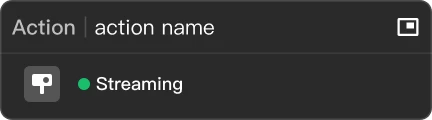
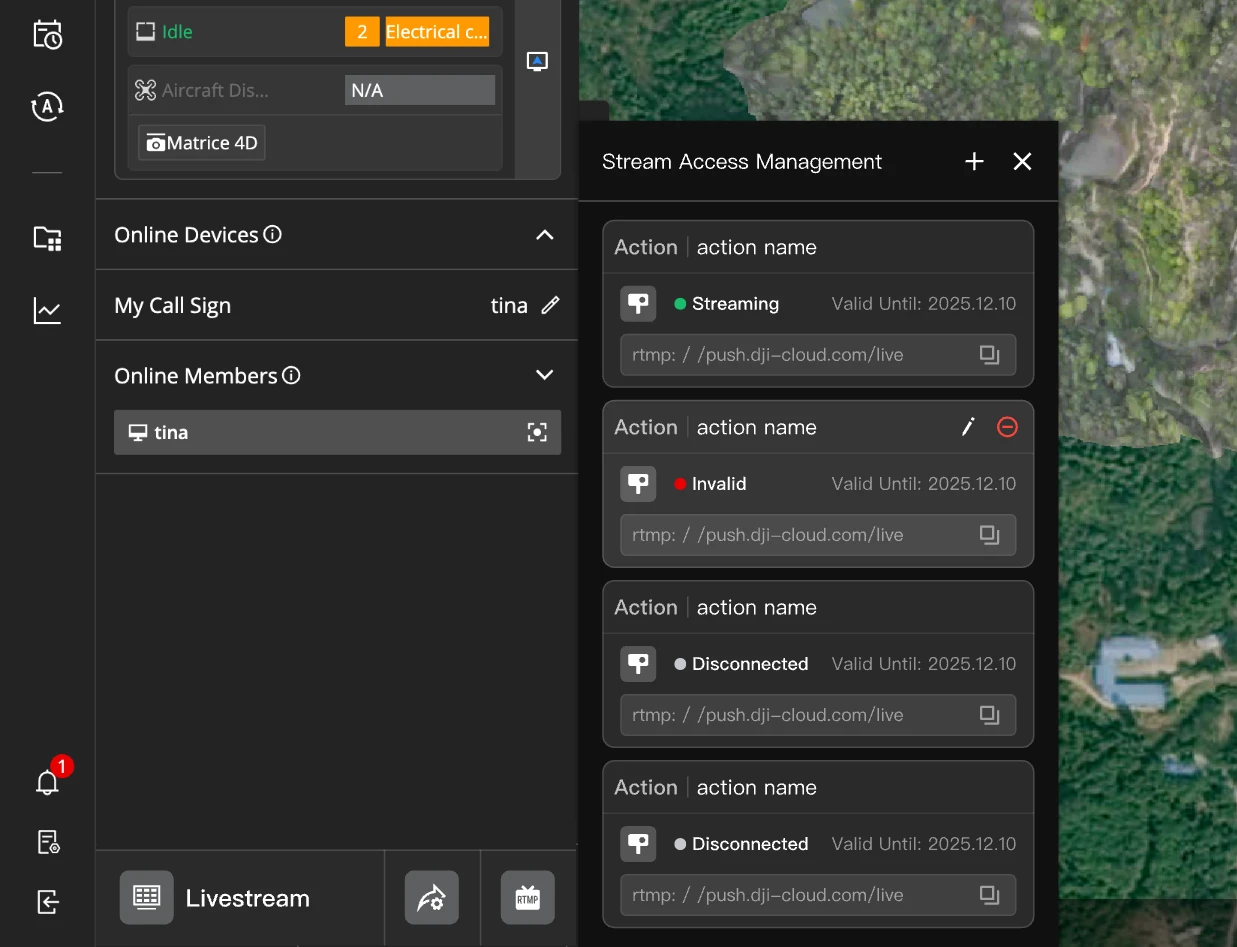
The status of RTMP streaming devices includes: Streaming (online), Disconnected, and Invalid.
- Disconnected: The device is currently offline, but the stream URL is still valid.
- Invalid: The device's stream URL has expired.
1.2 Stream Access Management
Click  in the lower-left corner of the page to add new RTMP streaming devices or manage existing streaming devices in the project.
1.3 Edit
Hover over the panel to display the  Edit and
  Remove buttons. Click Edit to change the device name, or click Remove to remove the device from the current project. This feature is available only to roles with project settings management permission.
- RTMP stream access for DJI consumer drones and handheld devices is currently supported only on the public cloud.
- Minutes generated by viewing livestreams from streaming devices and auto-recording will consume the livestream billing duration.
- Devices connected via RTMP streaming do not count towards the online device limit in the Enterprise Edition.
- For more information, refer to the DJI Fly App Live Streaming Guide and DJI Mimo App Live Streaming Guide.
2. Aircraft and Remote Controllers
- The aircraft statuses include: Standby, Powering off, Powering on, Prepare to take off, Ready to take off, Manual flight, Auto takeoff, Task in progress, Returning to home, Landing, Updating firmware, Auto avoidance, Forced landing, and Not connected.
- Aircraft details
Aircraft details include: aircraft status, video transmission, satellite status, battery level and status, altitude, horizontal speed, and distance to the Home Point.
Note: When the aircraft is disconnected, the last recorded coordinates and time will be displayed. Click the information to center the aircraft location on the map, and right-click to create a PinPoint to help locate the aircraft.
- Click the flight camera or payload camera button to view the livestream.
Note: When using DJI Mavic 3 Enterprise Series aircraft with firmware version V09.02.07.04 or later, PinPoints will be projected on the camera view to facilitate ground-air coordination.
- During the livestream, click
 to configure sharing settings and share the livestream with other users. Click
  to start recording. The recorded video will automatically be saved to Media Files.
- Click "Live Stream Share" in the lower-left corner of the page to view shared device information, current viewer count, and views. You can also manage shared live stream links or turn off sharing.
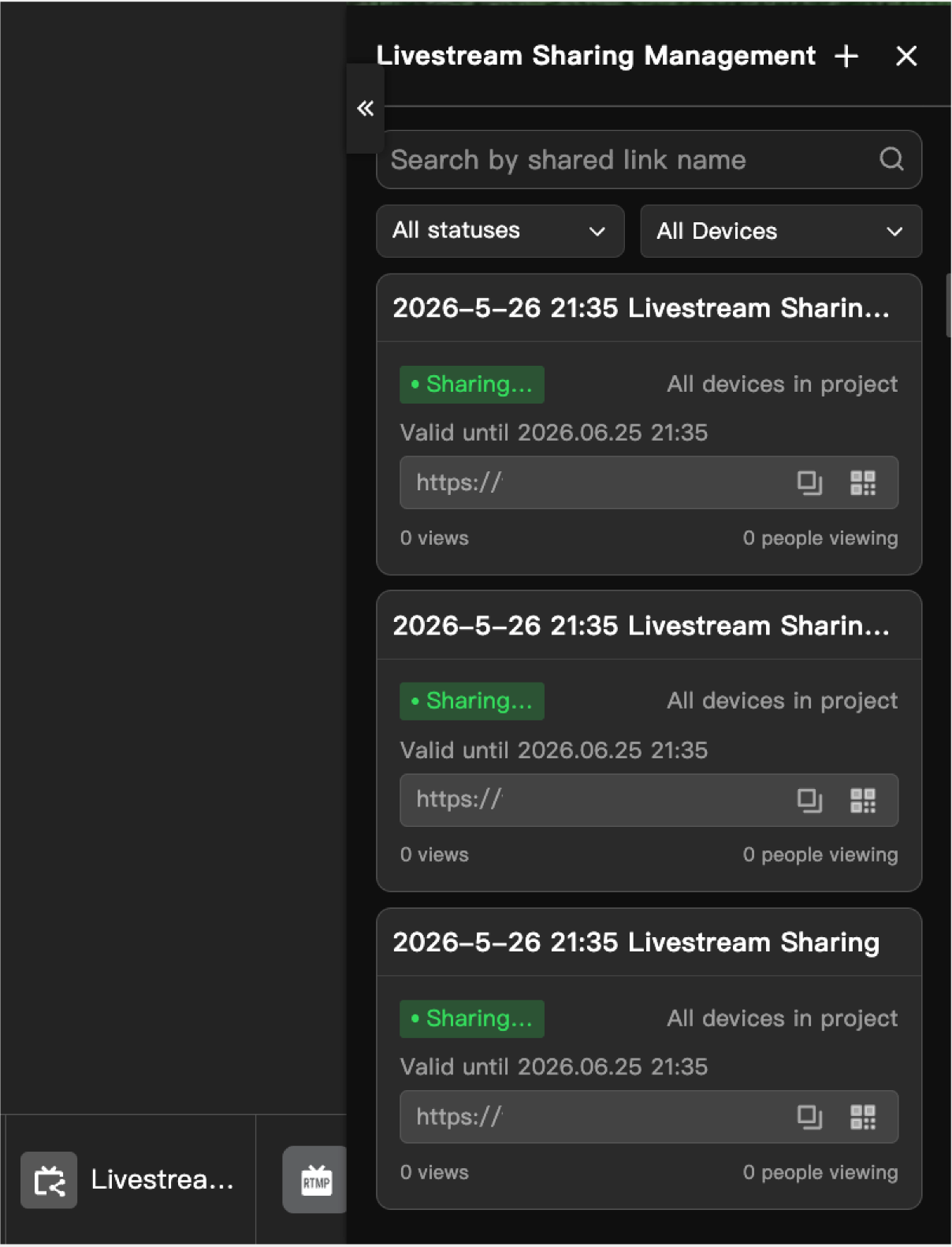
- Live stream sharing consumes the live stream usage of the current organization. The consumed usage is the total time all users visiting the live stream sharing page spend watching the live stream.
Online Members
Online members include:
- Members accessing via a computer.
- Members whose remote controller is logged in but not connected to an aircraft.