
Copilot Flight Report Generation
The Report Agent is a conversational data analysis assistant in DJI FlightHub 2. Describe the flight, device, or alert data you want to analyze in natural language to generate a report with charts and AI insights, then refine it through follow-up messages.
There is no need to export data or create charts manually. Specify what to analyze, the time range, and the metrics of interest. The Agent automatically queries the data, creates visualizations, and provides insights.
Use Cases
- Get a quick overview of operations: Review flight count, task success rate, device utilization, and workload trends.
- Identify anomalies and their causes: Analyze changes in alerts, causes of failures, offline devices, and task interruptions.
- Create shareable reports: Organize multiple analysis Blocks into a complete report and export it as a PDF.
Basic Concepts
| Concept | Description |
|---|---|
| Report | All content generated in a conversation, including the report title and multiple chart Blocks. |
| Block | The smallest unit of analysis in a report, consisting of a title, subtitle, chart, and AI insights. |
| Conversation context | Within the same conversation, the Agent understands references to existing content, such as "the first chart" or "the alert chart". |
| Historical Reports | Previously generated reports that are saved automatically. In the current version, they are read-only and cannot be reloaded for further editing. |
How to Access
- Open the Copilot Assistant: Click the floating Copilot button in the bottom-right corner of the DJI FlightHub 2 web interface.
- Switch to Flight Report mode: Select "Flight Report" in the assistant's mode selector, or select "Summarize Flight Report" on the Copilot welcome page.
- Start asking questions: Select a shortcut or describe the data you want to analyze directly in the input field.
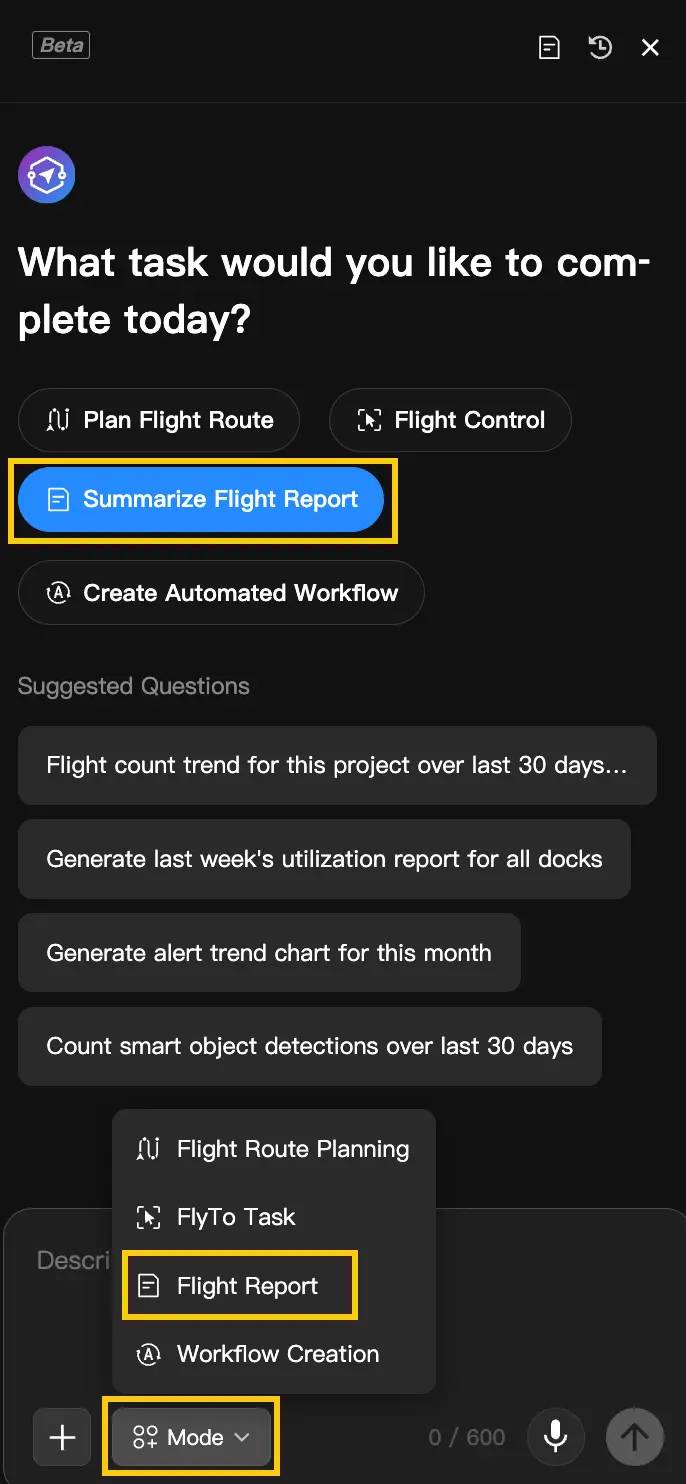
Note: If the entry point is not visible, check that Copilot access is enabled for your account and environment.
Quick Start
- Describe the data you want to see: For example:
"Show the utilization of each device over the past 30 days in a bar chart." - Wait for the Agent to generate the result: The input field and shortcuts are temporarily disabled during processing. Once complete, the first Block appears in the Copilot conversation area.
- Refine the report: Send follow-up requests such as
"Add another chart","Change the first chart to...", or"Why...", or open the full report to read and export it.
Verify the results: AI insights support your analysis. Verify important conclusions against the original data and actual operational conditions.
Writing Effective Prompts
The more detail you provide, the more likely the Agent is to produce the expected result on the first try. Include at least what to analyze, the time range, and the metrics. Specify a chart type if you need a particular presentation.
Recommended prompt structure: What to analyze + time range + metrics or question + chart type (optional).
A complete prompt reduces follow-up questions from the Agent and makes the initial result more useful.
| Query Topic | Example Prompt |
|---|---|
| Device performance | "Show the utilization of each device over the past 30 days in a bar chart." |
| Flight trends | "Show the flight count trend for this month and compare it with last month." |
| Alert analysis | "Analyze the distribution of alert levels and the main causes of errors over the past 7 days." |
| AI results | "Show the number of targets detected by AI this month and their distribution by category." |
Generating a Report
After you send the first prompt requesting a report, the Agent identifies your intent, queries the data, selects a chart or uses the type you specified, and generates AI insights. The report is automatically created and saved when the first Block is successfully generated.
Report generation process: Identify intent → Extract conditions → Query data → Generate chart → Write AI insights.
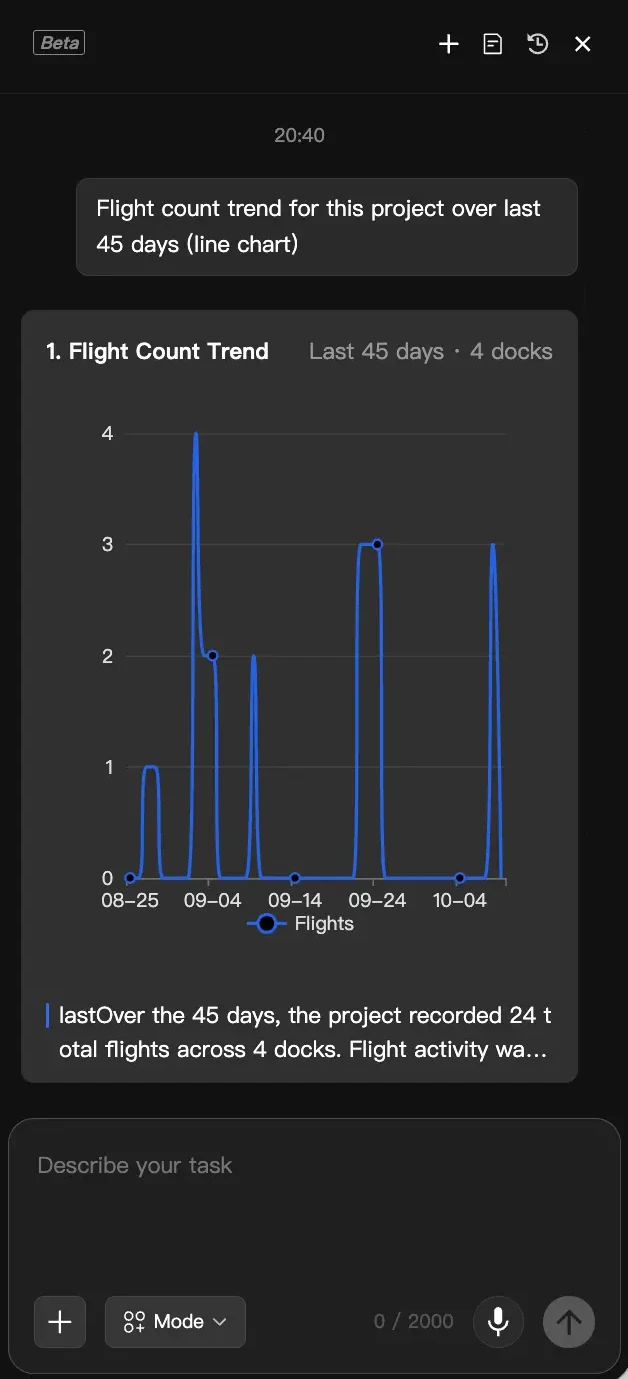
Automatic saving: Once the first Block is successfully generated, the system uses its title as the report title and saves the report to "Historical Reports". No record is created if generation fails or the first chart is not yet complete.
Adding, Editing, Deleting, and Asking Follow-up Questions
You can continue refining the current report within the same conversation. Clearly identify the target Block to reduce clarification questions and unintended changes.
| Intent | Example | Agent Behavior |
|---|---|---|
| Add | "Add a pie chart showing the distribution of task types." | Adds a new Block at the end of the report without changing existing content. |
| Edit | "Change the first chart to a line chart and show only M4D-07." | Updates the chart type or filter scope of the specified Block in place. |
| Delete | "Delete the second chart." | Removes the specified Block and updates the automatically saved report. |
| Ask a follow-up question | "Why did the flight count drop on August 12?" | Returns a text explanation in the conversation area without changing the Block list. |
After an "Add" request, the Agent retains the existing flight trend Block and adds a new alert level distribution Block at the end of the report.
Recommended Ways to Identify a Block
- Use a number where possible, such as
"the first chart"or"Delete #2". - You can also use keywords from the title, such as
"Change the alert trend chart to a pie chart". - If your description could refer to multiple Blocks, the Agent asks for confirmation before making changes.
Viewing, Saving, and Exporting Reports
Viewing the Full Report
When the current report contains at least one Block, click "View Details" at the bottom of the preview area. The full report displays all Blocks in the order they were generated, along with the complete AI insights.
Automatic Saving and Historical Reports
- Reports do not require manual saving. They are automatically added to "Historical Reports" when the first Block is successfully generated.
- Adding, editing, or deleting Blocks updates the current report. Text-only follow-up questions do not change the report's last updated time.
- Clicking "New Conversation" starts a new report while keeping the current report in the history list.
Exporting a PDF
Select the report you want to download in "Historical Reports", then click "Download as PDF" in the top-right corner of the report page to start the PDF export.

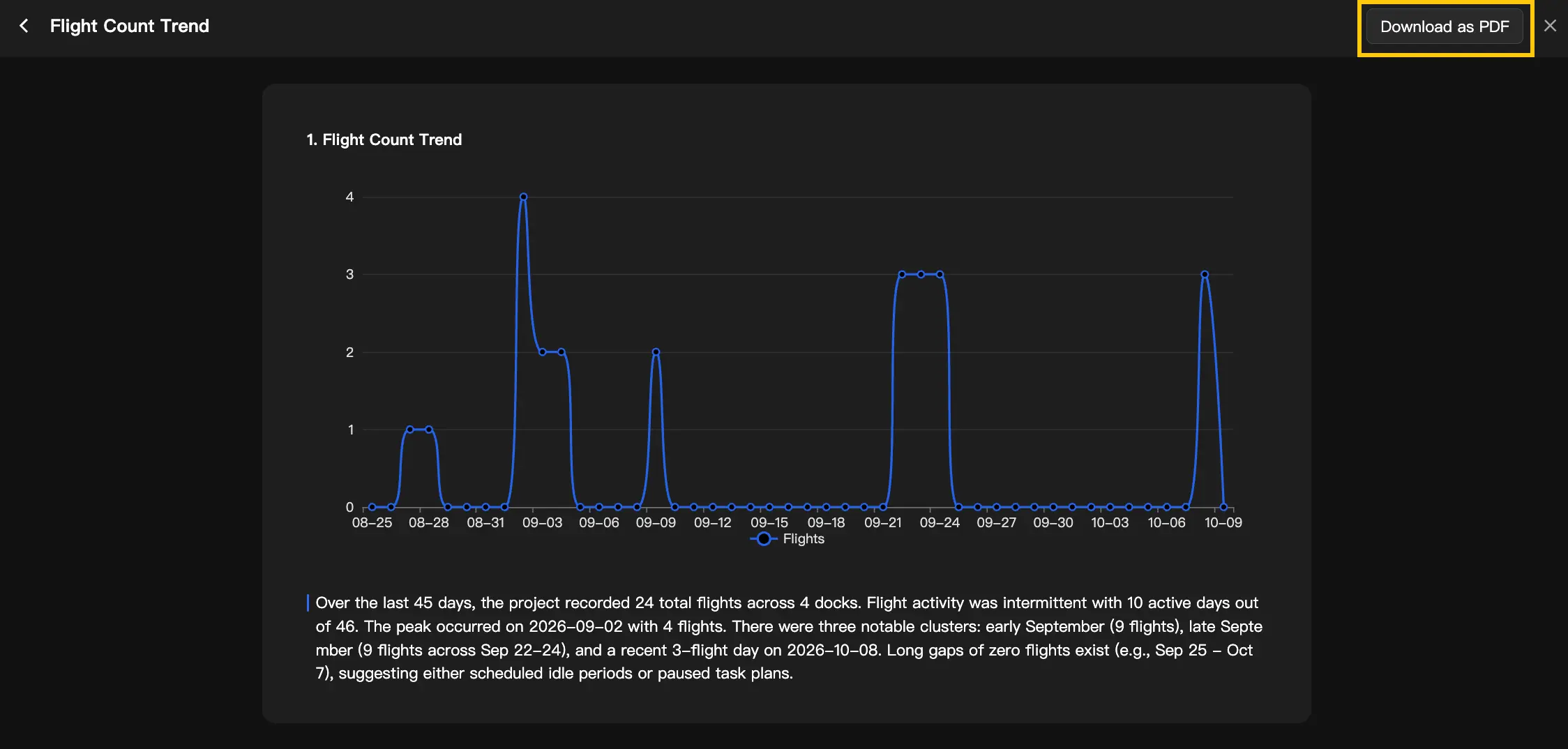
Note: The export runs asynchronously in the background. Closing the report dialog does not interrupt the task. Once the export is complete, return to the report details page and click "Download as PDF" again to download the report to your device.
Supported Data Topics and Charts
The data you can query depends on the project data, account permissions, and current version. The following topics are useful starting points for common queries.
| Data Topic | Suggested Queries | Notes |
|---|---|---|
| Device utilization and performance | Utilization, workload rankings, cumulative distance and duration | Recommended |
| Flight count and tasks | Flight count trends, task types, success rate, distance efficiency | Recommended |
| Alert analysis | Alert trends, level distribution, common errors, and device comparisons | Recommended |
| AI targets and results | Target count, distribution by category and time, and output density | Recommended |
| Media output | Media types, quantity, and output efficiency per flight | Recommended |
| Devices and firmware | Online rate, operating status, firmware versions, and number of devices awaiting upgrades | Recommended |
Chart Types
If you do not specify a chart type, the Agent selects a default based on the data characteristics. You can also request a bar chart, line chart, KPI card, pie chart, scatter plot, dual-axis chart, heatmap, radar chart, or another presentation.
Tip: Use line charts for trends over time, bar charts for group comparisons, pie charts for proportions, and KPI cards for individual key metrics. If the chart you requested is not suitable, ask the Agent to change it.
CTA Action Suggestions
When the data reveals an issue worth addressing, some Blocks provide suggested next steps below the AI insights. Click a button to open the corresponding top-level feature page in DJI FlightHub 2.
For example, when device utilization is low, a suggestion may be "Go to the Mission Plan Library to create a task". You still need to confirm and complete the settings on the destination page.
- A CTA may open a top-level feature such as the Mission Plan Library, Automated Workflow, wayline editor, or device management.
- The button label describes the action to complete after opening the page.
- No Block or CTA is generated when there is no data. A CTA may also be absent when metrics are normal, the account lacks permission, or the destination feature is unavailable.
Troubleshooting and Capability Limits
| Status | Description |
|---|---|
| Loading | While the Agent processes a message, the input field, send button, and shortcuts are temporarily unavailable to prevent duplicate requests. |
| Agent unavailable | The page displays the cause of the error and an option to retry. Generated content is retained, and Historical Reports remain available for read-only viewing. |
| Query timeout | If a data query times out, retry later or narrow the time range and the scope of the query. |
| No data | A message appears only in the conversation area, indicating that no data is available and suggesting a wider time range, different devices, or revised filters. No Block or CTA is generated. |
Usage Limits
- Each input is limited to 600 characters.
- The data available for queries may vary by project, device, version, and permissions.
- The Agent may not remember previous discussions across conversations. Provide the necessary context again when starting a new conversation.
Frequently Asked Questions
Q: Why does the Agent ask follow-up questions?
A: This usually means you have not specified what to analyze, the time range, or the Block to modify. Provide details such as "which device", "what time range", or "which chart" to continue.
Q: Can I leave the chart type unspecified?
A: Yes. The Agent selects a default chart based on the data characteristics. After it is generated, you can change it with a request such as "Change the first chart to a line chart".
Q: Why does my query return no data?
A: There may be no relevant data within the time range, the device may not have reported the corresponding records, or your account may lack permission to access the data. When no data is available, a message appears only in the conversation area, and no Block or CTA is generated. Try widening the time range, switching devices, or checking project permissions.
Q: Will I lose the report if I close the side panel?
A: The report is automatically saved once the first Block is successfully generated. Conversations that have not successfully generated a first Block do not create a record in Historical Reports.
Q: Can I close the page during export?
A: Yes. The PDF is generated asynchronously in the background, and closing the report dialog does not affect the task. Once the export is complete, return to the report details page and click "Download as PDF" again to download it to your device.
Q: Can I use AI insights directly for business decisions?
A: AI insights help identify trends and anomalies. For decisions involving safety, device maintenance, or important business matters, verify the original data and consider actual conditions before making a judgment.
Disclaimer: This content is generated by an AI Agent. Please verify the data. The projects, devices, and values shown in the illustrations are demonstration data and do not represent actual operational results.