
Create an Organization
Create Organization
If users have not joined any organizations, they will be directed to the Organization Management page. Click Create Organization and enter an organization name to create an organization. The user who creates the organization will be assigned as a super administrator.
At the next login, users will be directed to the Projects page and be able to switch organizations in the upper left corner of the page.

Message Subscription
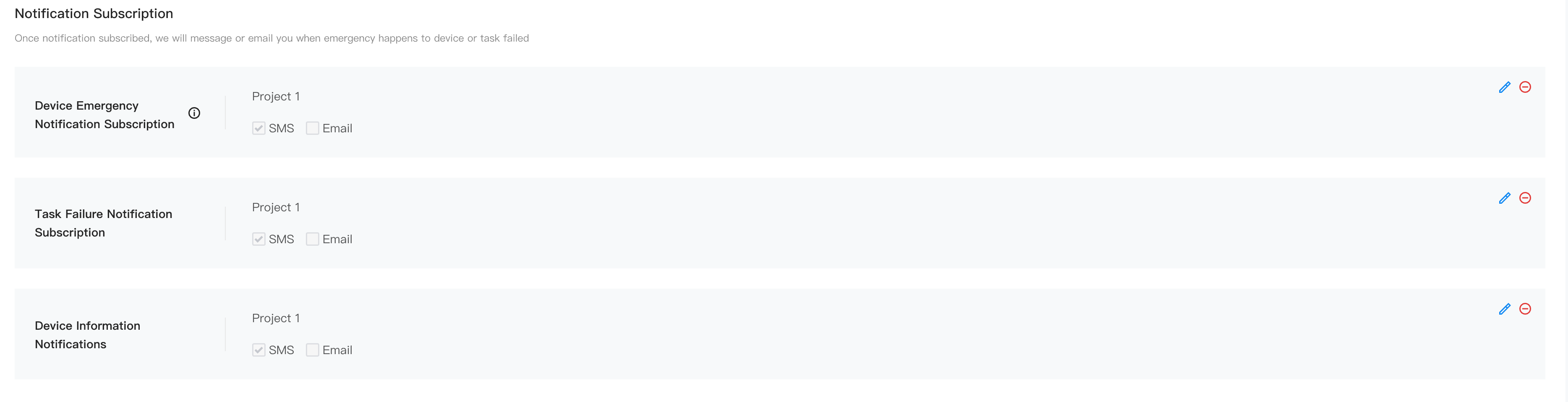
Users can click the user account in the upper right corner and select User Center to view the account and organization information and add a mobile number or email address for service subscription.

Once notification is subscribed, the system will automatically send a message or email to notify users of an emergency, a failed task, or a device error.
My Organization
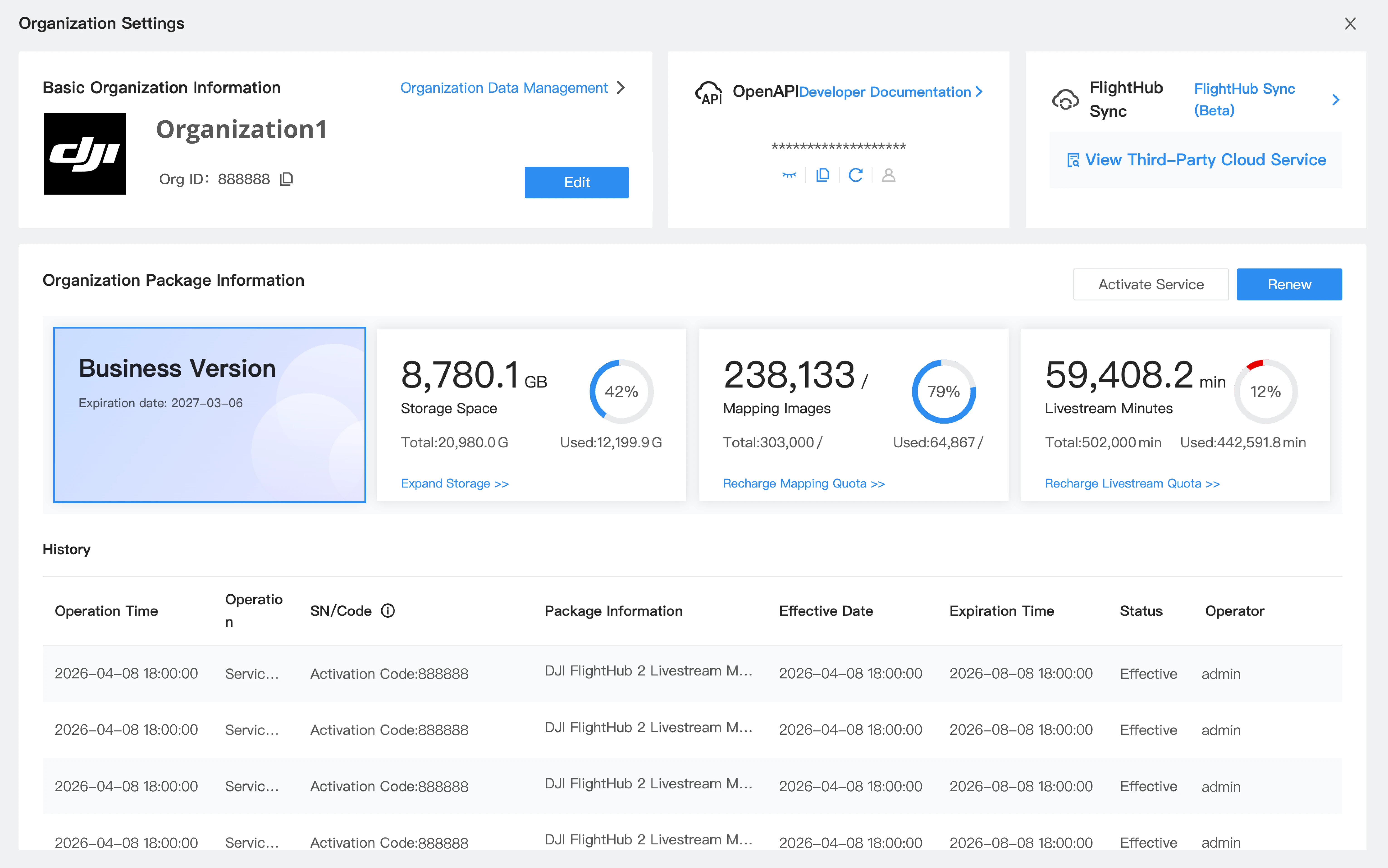
Users can also select My Organization to edit the organization information or exit the organization. Click  to enter Organization Settings to upgrade the organization package, add FlightHub Sync Beta service, join the DJI Dock User Experience Improvement Program, and edit the basic organization information, including uploading the organization logo and selecting the units of measurement.
Two-Factor Authentication for Login
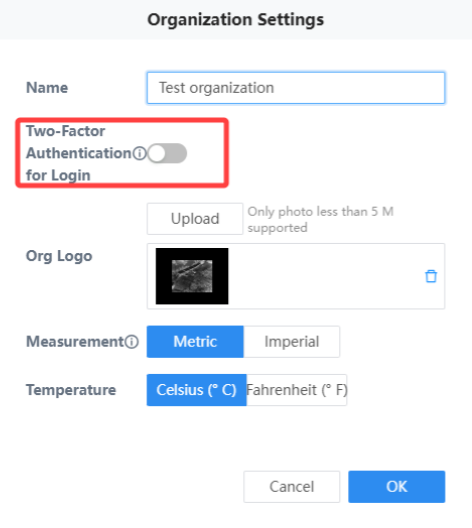
To enhance the security of FlightHub accounts, super admins can enable the Two-Factor Authentication for Login feature. The super admin can click My Organization > Organization Settings > Organization Basic Information > Edit button to enable the feature. Once enabled, all organization members will be required to bind an authenticator app (Google Authenticator is recommended) and enter a dynamic code during login.
Organization Package Information
Users can choose to:
- Purchase or activate packages.
- View activation history.
- View purchase records and usage of resources.
- Storage Space: Displays the storage space occupied by each project.
- Mapping Images: Display the total number of mapping images used on a specific day within the organization. If mapping fails, related images will be returned. Users can download a CSV file to view details, including the usage time, user, project, and model name.
- Livestream Minutes: Display the total livestream minutes used on a specific day within the organization. Users can download a CSV file to view details, including the livestream time and duration, project, livestream type, user information, and device name.
Note: Users can only view the details of resource usage on and after November 7, 2024.
Notes on On-premises Version
Users can also select My Organization to edit the organization information or exit the organization. Click to enter Organization Settings to add FlightHub Sync Beta service and edit the basic organization information, including uploading the organization logo and selecting the units of measurement.