
Mapping
Mapping Introduction
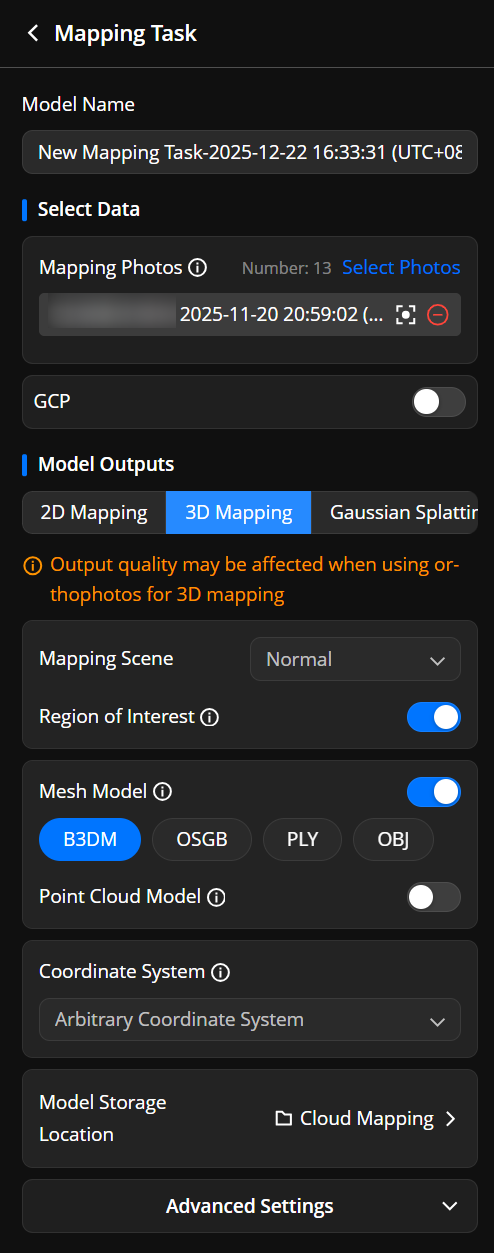
Enter the Model library and click "Start Mapping".
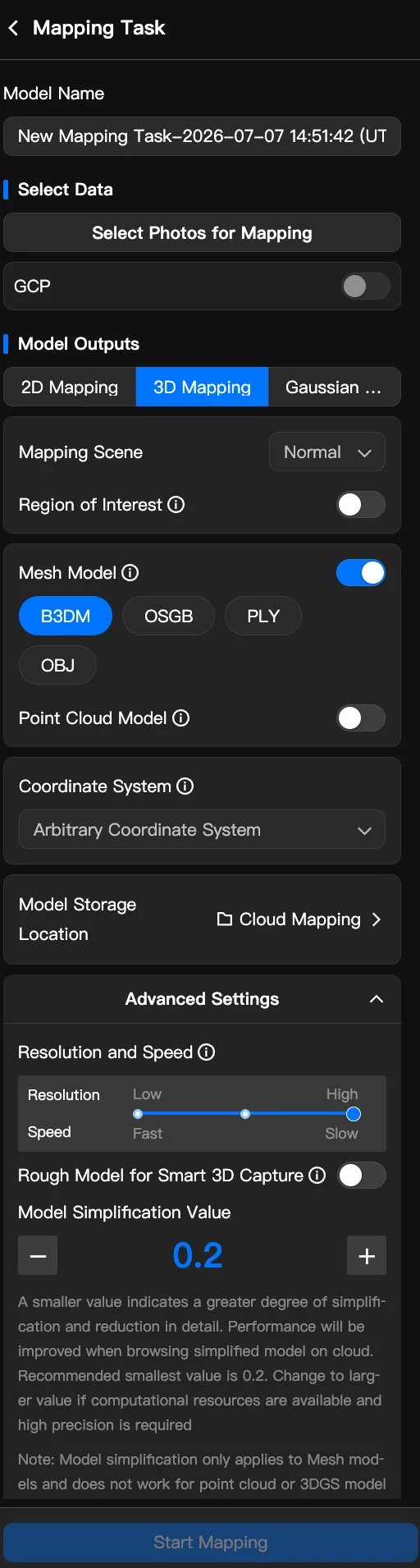
Model Name: Model name can be edited.
Mapping Photos: Click Select Photos and select the mapping photos from "Files captured by aircraft" or "Files in media file library".
Reconstruction Type: Select 2D, 3D, or Gaussian Splatting.
Mapping Scene: Users can select from Normal and Circle before generating 3D models. It is recommended to select Circle when the photos for mapping are collected by the geometric routes or other routes that circle around an area.
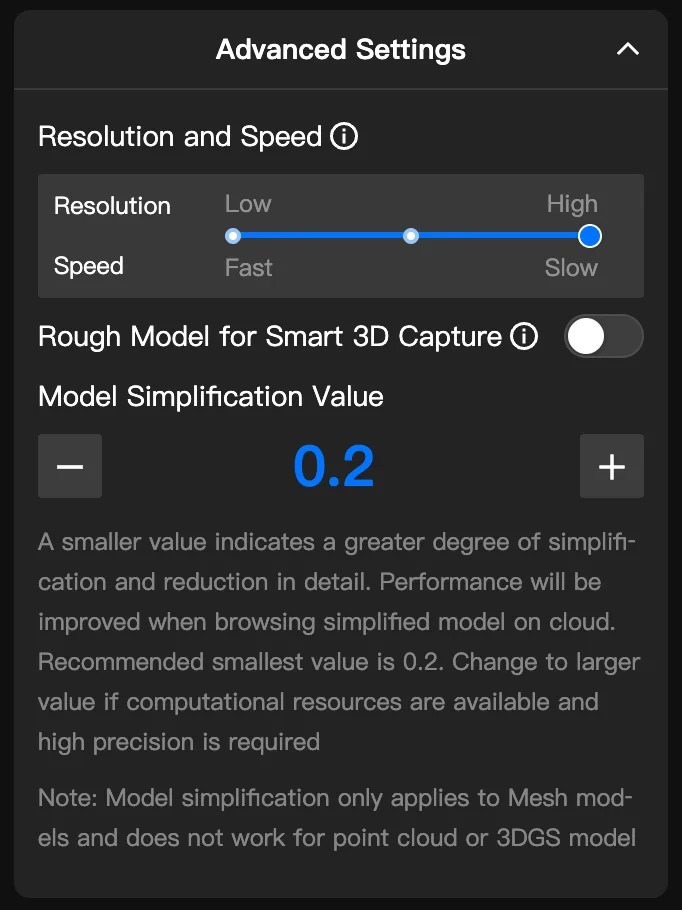
Resolution and Speed: (Advanced Settings panel) You can reduce the model resolution to increase the mapping speed. The model resolution and mapping speed are inversely proportional.
The following are the reference effects of speed and resolution, using 627 photos as an example for mapping:
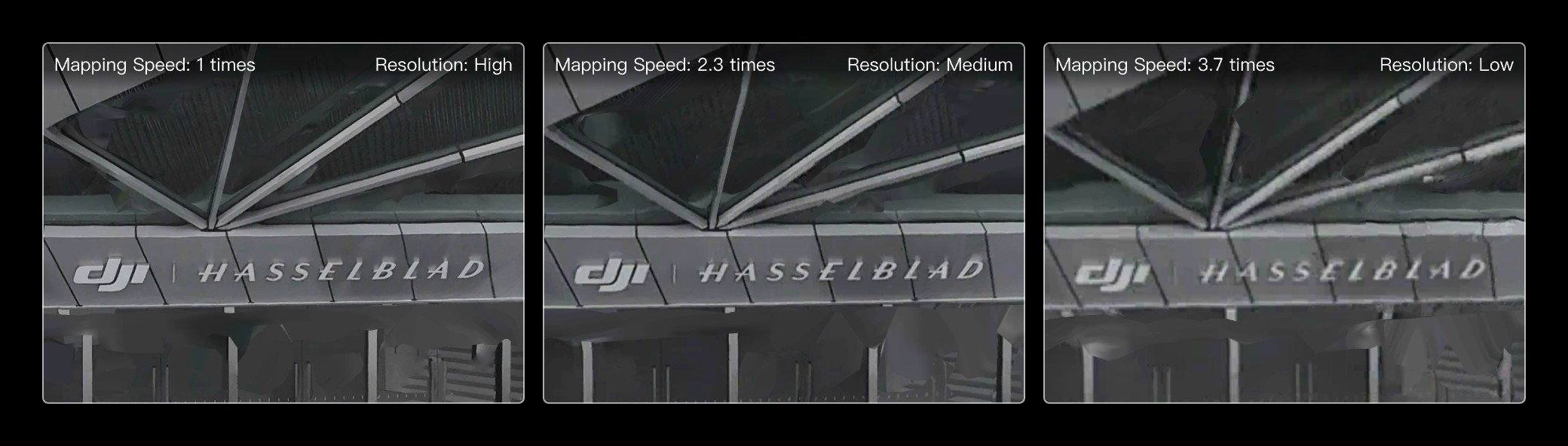
- Note: The mapping effects and speed are for reference only.
- Region of Interest: When enabled, only photos within the region of interest will be used for mapping to increase efficiency.
- Setting one region of interest is supported.
- For the flight tasks that are planned on the cloud, the region of interest will automatically be set as the mapping area. If the photos for a mapping task cannot be collected in one single flight, blurriness at the edge of the model may occur. It is recommended to reduce the region of interest to be within the mapping area.
Model Output: Users need to select at least one output format before generating 3D models. To use the model for Smart 3D Capture route planning, users need to enable Rough Model for Smart 3D Capture.
Coordinate System: Users can select from Known Coordinate System and Arbitrary Coordinate System. If there are no specific requirements, it is recommended to use the default selection.
Model Simplification Value: It is recommended to set the model simplification value to 0.2 for enhanced mapping efficiency and better browsing experience.
Click OK to start the mapping task.
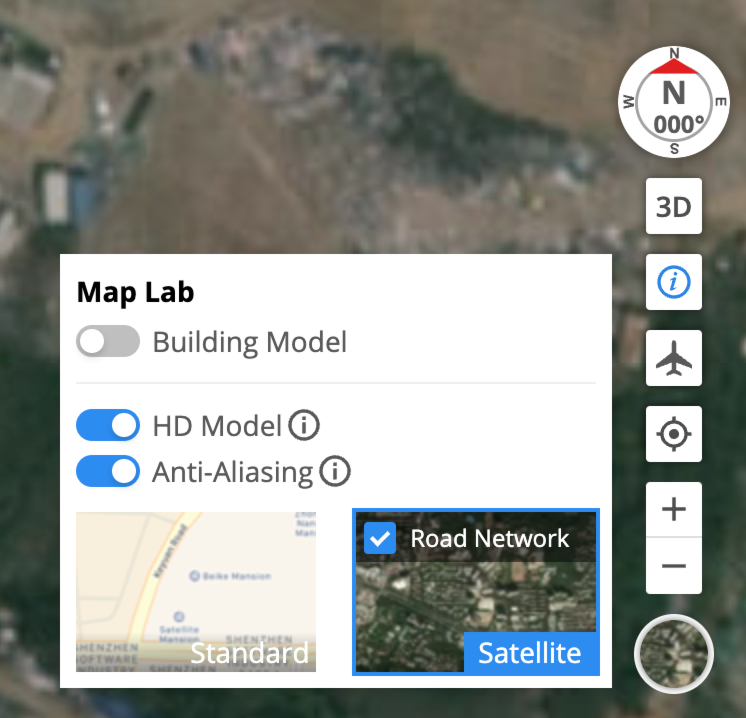
- Users can change to a larger model simplification value if the computer performance is good or high precision is required. Users can also enable HD Model in the lower right corner of the web page to enhance the model details.
- The mapping time required depends on the mapping type and number of photos.
Using Ground Control Points for Mapping
For more accurate model reconstruction, you can use Ground Control Points (GCPs). Enable the GCP feature after selecting the photos for your mapping task.
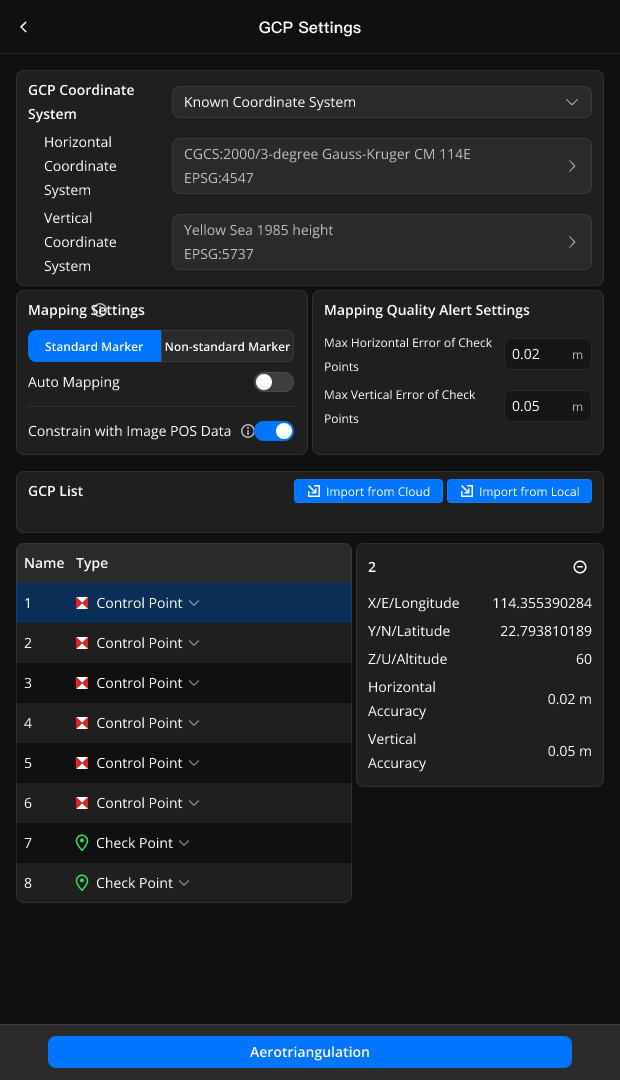
GCP Settings
Coordinate System and Data
- GCP Coordinate System: Select horizontal and vertical coordinate systems using standard EPSG codes.
- Image POS Data: Enable this to use the position data from your images. This improves reconstruction accuracy and can reduce the number of control points required.
Marker Type
Select the type of physical marker used in the mapping area.
- Standard Marker: Markers with red and white patterns.
- Non-standard Marker: Choose this for any other marker style.
Standard marker layout size recommendations: For a flight altitude of 150 meters above the ground, marker of at least 114 cm is recommended. For a flight altitude of 100 meters, marker of 76 cm is recommended. For a flight altitude of 65 meters, marker of 50 cm is recommended.

Auto Mapping
- Automatic marking is only available for Standard Markers.
- When enabled, the software will automatically add marks after the aerotriangulation stage. After marking is complete, it will proceed to aerotriangulation optimization and final model mapping.
- You can set a minimum number of required control points. If the software finds fewer control points than this threshold, the automated process will pause, allowing you to manually intervene. You can also review and edit the automatically added marks in the model library. Check values like Reprojection Error and 3D Point Error to identify and correct any issues, such as misidentification or intentional movement of markers.
Mapping Quality Alert
Set a maximum acceptable error threshold for your check points. If the final model's check point error exceeds this value, the system will display a warning, indicating that the model's accuracy may not meet your requirements. This helps you identify potential data accuracy issues with the model.
Importing and Configuring GCPs
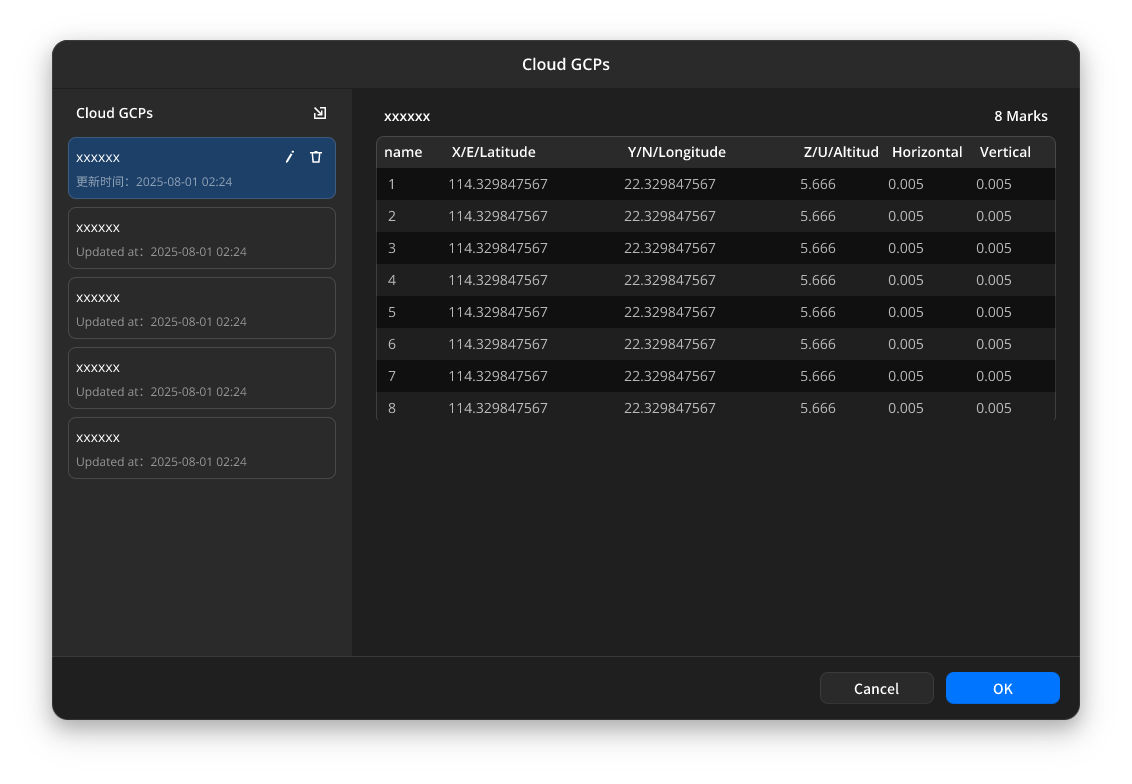
- You can import GCPs from local CSV or TXT files. Once imported, GCP files are automatically saved to the FlightHub cloud, making them accessible for future projects.
- Saved GCPs can be managed from the model library.
- After importing, you must set control or check points. For best results, make sure your GCPs are distributed as evenly as possible across the area, as shown on the map.
- Note: The GCP positions shown on the map are based solely on their EPSG coordinates. There might be some slight inaccuracies.
Notes on On-premises Version
The model reconstruction feature of FlightHub 2 On-premises version requires a separate deployment of the Terra service together with a computing server. You can visit the official website or contact an authorized agent to request a trial.
Note: Only one reconstruction task can be initiated at a time, and each task is limited to no more than 2,000 photos.
Rapid Modeling
In the FlightHub 2 on-premises version's model mapping feature, you can enable the rapid mapping feature for photos with captured thumbnails. Thumbnail capture must be enabled when distributing the task for the returned media files to include thumbnails.
Note: After selecting rapid modeling for a single modeling task, the original images will not participate in the reconstruction.
Using Ground Control Points for Mapping
on On-Premises Deployment is currently not supported.