
Manage Flight Routes
After clicking the Flight Route Library, the file structure will be shown on the left and files within the selected folder will be displayed on the right.
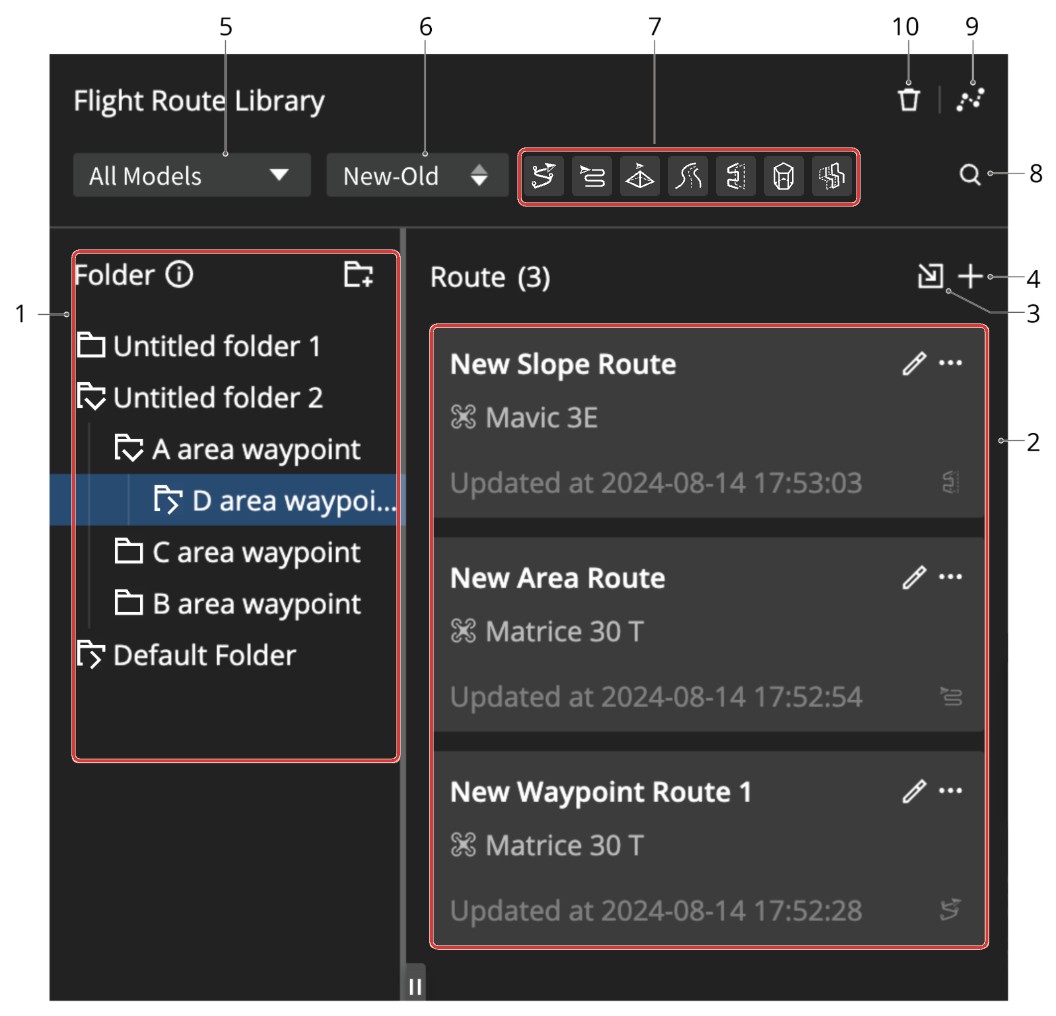
- Folder: Users can manage all the folders here. Files in the selected folder will be displayed on the right.
Note: Files stored in the subfolders will be displayed only when the subfolders are selected.
- Create Folder: Click
 to create a subfolder under the currently selected folder.
 - Folder Management: Click a folder to change the folder's name. Drag the folder to change its hierarchy. The number after the folder name means the total number of the flight routes in the current folder and its subfolders.
- Create Folder: Click
- Route: Displays the basic information of the flight route. Press Control/Cmd and click to multi-select routes and click
 for more settings.
 - Import flight route: Click to import flight routes.
- Add flight route: Create a new flight route in the current folder.
- Search aircraft model: Click All Models and filter aircraft model to view flight routes performed by the same aircraft model.
- Sort by time: Users can sort flight routes by last modified time.
- Filter flight route: Users can select a flight route type and filter all flight routes of the same type.
- Search: Users can search by folder or flight route name. Folders and route files that meet the criteria will be displayed in the search results.
- Merge flight routes: Users can select files and merge. Selected routes should meet the following requirements:
- Only waypoint routes are supported.
- Routes are performed by the same aircraft model.
- For waypoint altitude that is set as relative to takeoff point, takeoff point should be set.
- The currently supported models are Matrice 30 series, Matrice 3D series, Mavic 3 enterprise series, Matrice 4 enterprise series, Matrice 4D series, Matrice 400, and Matrice 5TD.
- Delete selected flight route file: Select a file, click
 to delete.