
Billing Instructions
DJI FlightHub 2 public cloud charges for three billing items: livestream minutes, mapping images, and storage space.
How to verify your consumption
Go to My Organization→Organization Settings→Organization Package Information→Usage Details to download CSV files for livestream and mapping usage and view usage details.
1 Livestream Minutes Billing
1.1 Parameter Details
| Parameter | Definition & Common Misconceptions |
|---|---|
| Stream Count | Each video stream counts as 1 stream. Viewing aircraft infrared + wide-angle simultaneously = 2 streams; Virtual Cockpit defaults to "camera view + auxiliary view" = 2 streams. Common Misconception: Thinking "one cockpit page = 1 stream". |
| Viewer Count | Each browser/client opening the page counts as one viewer. Billed individually and not shared. 3 people opening pages for the same aircraft = 3 viewers. Common Misconception: Thinking "multiple people watching the same livestream stream is billed as one". |
1.2 Livestream Minutes Calculator
Single Device Livestream Consumption Estimator (1 Dock + 1 Aircraft)Based on official billing logic to help understand consumption
Usage Mode
Simultaneous Streams (Streams) · Infrared + wide-angle = 2
Viewer Count (Viewers) · Each open page counts as one viewer
Enable Multimodal AI Object Detection · Additional +1 / min
Background Auto-recording Streams (Streams) · Billed even with no viewers
External Cloud Algorithm Instance · Billed once enabled, additional +1 / min
Livestream minutes consumed per minute
6 min
2 × 3 = 6
Continuous 1 Hour ≈ 360 minContinuous 24 Hours ≈ 8,640 minRunout 2,000 min/month takes approx. 5.6 hours
Livestream minutes consumed = Stream count × Viewer count. Multimodal AI object detection, auto-recording, and cloud algorithms are additional add-ons.
The calculation is for reference only based on public billing standards. Please refer to "Organization Package Information - Usage Details" for actual billing.
1.3 Top 4 Scenarios Most Prone to Overspending
Forwarding Channel Left Open (Sync / OpenAPI)
Why overspent?
Billed even with no viewers. Streaming continues as long as "device online + channel open". For RTSP, additional charges apply for each pull client.
How to control?
Manually close channels or delete forwarding configurations when not in use, and check for redundant pull clients.
Background Auto-recording / Cloud Algorithm Instance
Why overspent?
Runs continuously in the background once enabled in "Project Settings", regardless of whether anyone is watching.
How to control?
Regularly check auto-recording switches in project settings and the number of active cloud algorithm instances.
Virtual Cockpit Defaults to Dual Streams
Why overspent?
System automatically enables auxiliary view upon cockpit entry, totaling 2 streams (min. 2 min/minute).
How to control?
Manually close auxiliary view if not required.
Multiple Viewers Watching Same Livestream
Why overspent?
Each viewer is billed individually and not shared; 5 people watching means ×5.
How to control?
Limit simultaneous viewers; close the page immediately after viewing rather than leaving it in the background.
1.4 Billing Standards for Each Feature
| Usage Scenario | Billing Rules | Billed with No Viewers |
|---|---|---|
| Device window, Virtual Cockpit (including manual cloud recording), multi-channel livestream, livestream sharing, device management (device O&M livestream) | Livestream minutes consumed per viewer = Stream count viewed × Viewing minutesNote: If viewing aircraft infrared and wide-angle cameras simultaneously, the stream count is 2. | NoStops on page close |
Multimodal AI Object Detection Enabling multimodal object detection in Virtual Cockpit and route missions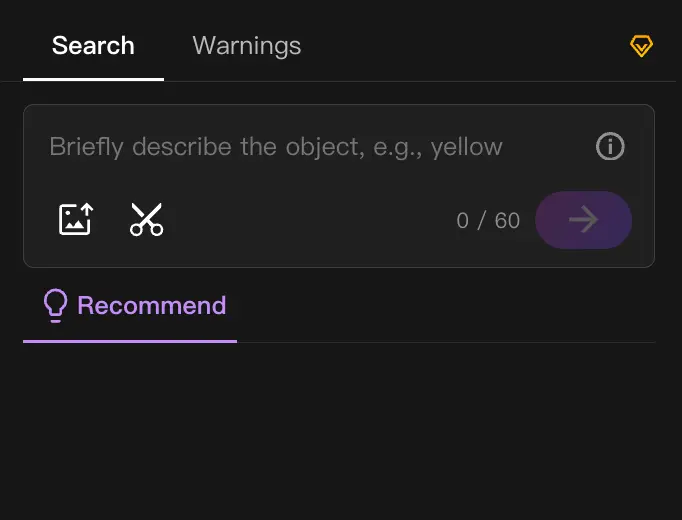 | Additional livestream minutes consumed = Duration of multimodal object detection enabled | Yes |
Background Auto-recording Enabling auto recording for devices in Project Settings for continuous background recording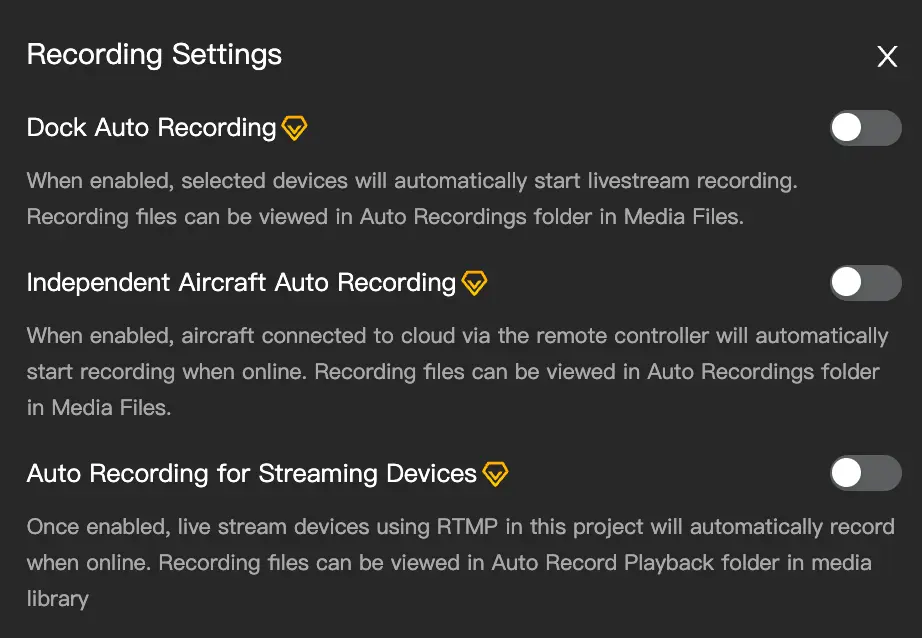 | Livestream minutes consumed per recorded stream = Auto recording duration | Yes |
Cloud Interconnect / FlightHub Sync livestream forwarding, Open API livestream forwarding Pushing livestream via Sync forwarding or OpenAPI to third-party systems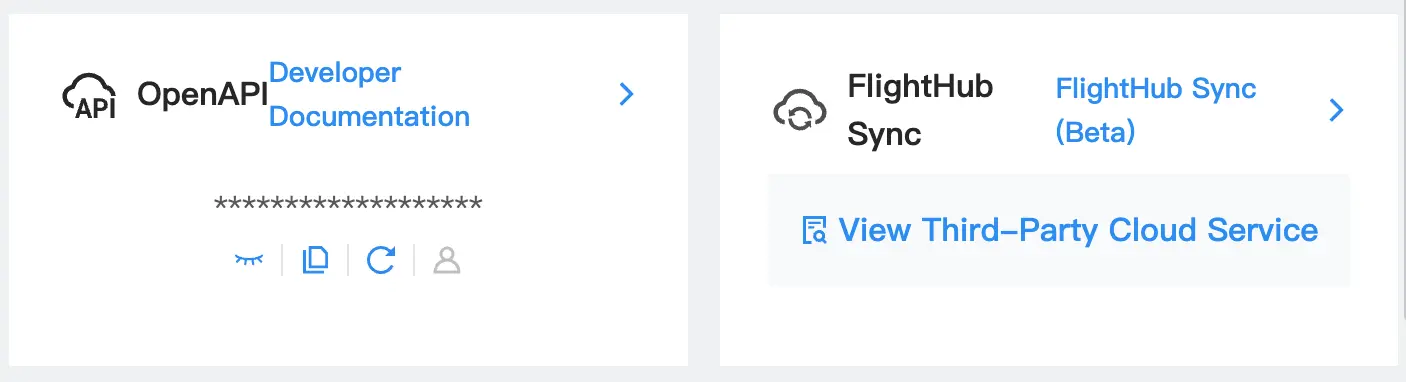 | RTMP forwarding channel: Livestream minutes consumed = Forwarding channels × Streaming duration RTSP forwarding channel: Minutes consumed per channel = Channel streaming duration + pull client 1 duration + pull client 2 duration + ... + pull client N duration RTSP bills both streaming and pulling. Each pull client is charged based on its pull duration, which is the most common cause of abnormal bills. | Yes |
Cloud AI Algorithm (External Cloud Algorithm) 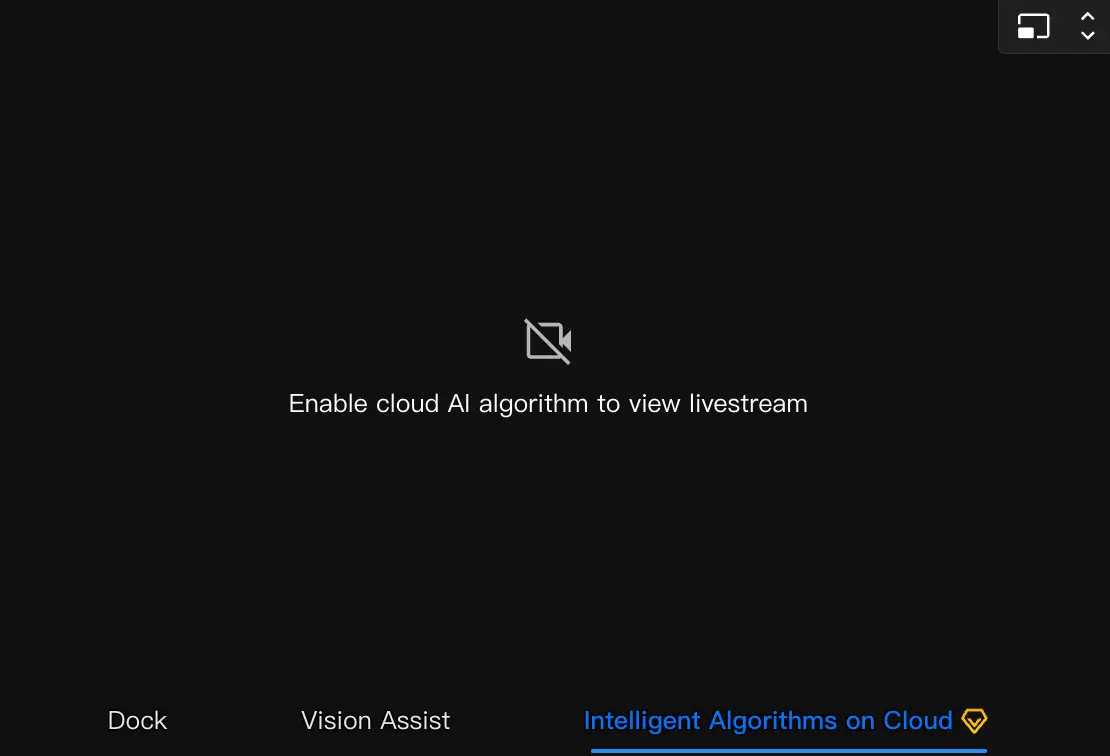 | Livestream minutes consumed per viewer = Algorithm instance active duration × Number of active instances | Yes |
1.5 Comparison Table: How Much is Consumed per Minute?
| Scenario Description | Stream Count | Viewer Count | Consumption per Minute |
|---|---|---|---|
| Virtual cockpit viewing 1 aircraft camera stream (no auxiliary view), 1 viewer | 1 | 1 | 1 min |
| Virtual cockpit viewing 1 aircraft camera stream + auxiliary view, 1 viewer | 2 | 1 | 2 min |
| Virtual cockpit viewing 1 aircraft camera stream + auxiliary view, 3 viewers | 2 | 3 | 6 min |
| Above + Multimodal AI Object Detection enabled, 3 viewers | 2 + 1 | 3 | 2×3+1 = 7 min |
| Above + Cloud recording (auto-recording aircraft camera stream), 3 viewers | 2 + 1 + 1 | 3 | 2×3+1+1 = 8 min |
| FlightHub Sync forwarding 1 stream via RTSP, pulled by 5 clients throughout | 1 | 5 | 1 + 5 = 6 min |
| Multi-channel livestream page with 4 panels open, 2 viewers | 4 | 2 | 4×2 = 8 min |
1.6 Common Questions
Q: Billing records appear at 2–3 AM. Is this an abnormal deduction?
Not abnormal. Dock devices perform scheduled restart maintenance at 2–3 AM, and billing records are automatically segmented on a 24-hour cycle. The billing entries during this period are due to billing segmentation, not new consumption.
Q: No one is viewing the livestream forwarding channel. Why is there still a charge?
Once a forwarding channel is enabled, it continuously streams while the device is online and the channel remains open.
To stop billing: Manually close the channel or delete the forwarding configuration.
Q: Why are 2 minutes consumed per minute after entering the virtual cockpit?
After entering the virtual cockpit, the system automatically enables auxiliary view (FPV feed) by default, equivalent to viewing 2 streams simultaneously, resulting in 2 billing entries per minute.
Manually close auxiliary view if FPV is not required, returning to 1 minute per minute.
Q: The Sync forwarding configuration is not closed. Will charges continue?
If your forwarding channel is RTSP, as long as the forwarding configuration is enabled and the source device is streaming, billing will continue regardless of whether any clients are watching.
It is recommended to close the channel or delete the configuration when not in use.
Q: Why is the billing for RTSP channels significantly higher than other types?
RTSP bills both streaming and pulling: the channel itself is billed for streaming, and each pull client is billed for pulling. For example: 1 stream forwarding for 10 minutes, with 5 players pulling for 8 minutes each, the billed consumption = 1×10 + 5×8 = 50 minutes.
Check whether there are redundant pull clients.
2 Mapping Images and Storage Space
2.1 Mapping Images
Operations that consume mapping images include: Real-time mapping and Model reconstruction.
Pre-deduction and Refund
The required number of images is pre-deducted when mapping starts. If mapping fails, the images are refunded.
2.2 Storage Space
The following resources are counted towards storage space:
| Category | Source | Type |
|---|---|---|
| Media | Pilot 2 upload, dock upload, local upload, local recording, alarm snapshot | Photos, videos, compressed files |
| Models | Real-time mapping, model reconstruction, local upload | 2D models, 3D models |
When storage space is insufficient
- Existing data will not be deleted and can be viewed and used normally.
- Ongoing data recording and uploads can complete normally, but subsequent uploads, recording, and related features will become unavailable, with a prompt indicating insufficient space.
3 Resource Usage Details: How to Check Your Bill
You can view resource purchase history, remaining usage, and usage details under My Organization→Organization Settings→Organization Package Information, and download a CSV file to check specific usage.
| Billing Item | Details | CSV Fields |
|---|---|---|
| Livestream Minutes | Total daily livestream minutes consumed by the organization | Usage time, livestream duration, type, viewing platform, project, user, device name, device lens, device SN |
| Mapping Images | Total daily mapping images consumed by the organization (refunded automatically if mapping fails) | Usage time, usage quantity (images), user, project, usage type, model name, remarks |
| Storage Space | Storage space occupied by projects within the organization | — |
Note
- Usage history is only available for data generated on or after November 7, 2024. Viewing of historical data is not supported.
- When multiple packages are active (e.g., Business and Recharge/Upgrade), resources are consumed from the package with the earliest expiration date first, prioritizing package with the earliest expiration.