Immersive Control
Immersive control is a core capability of the DJI Enterprise app. Users can view aircraft video in real time on a mobile phone and directly control the aircraft and gimbal through touch gestures and virtual joysticks.
Enter the Live View
- After the aircraft takes off, tap the device icon on the map to open the device card, or tap the upper-left corner to expand the device list directly.
- Tap the "Livestream" button on the aircraft card to view the aircraft feed in real time.
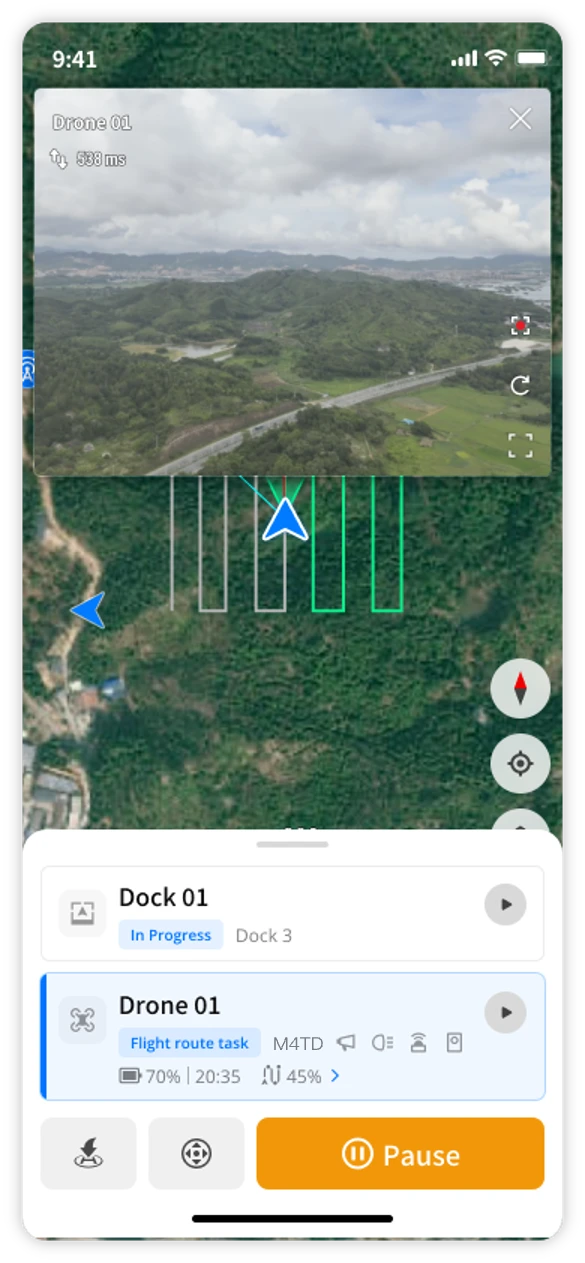
- Tap the "Fullscreen" button for a more immersive live viewing experience.
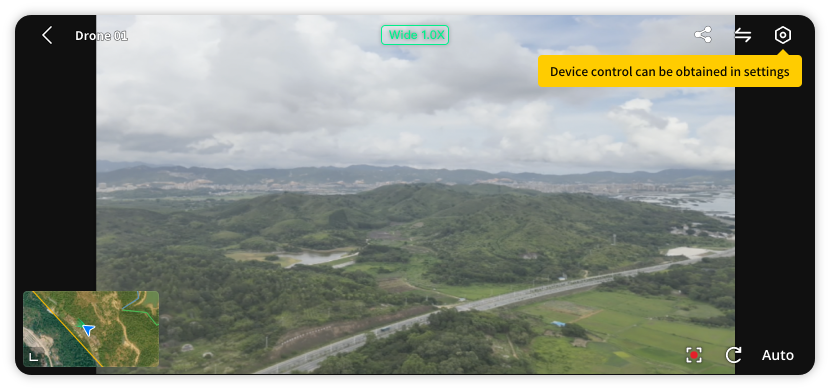
Live view is supported only when the aircraft is powered on.
Control the Gimbal and Camera
In the fullscreen live view, tap "Settings" in the upper-right corner to obtain payload control. The following control methods are supported:
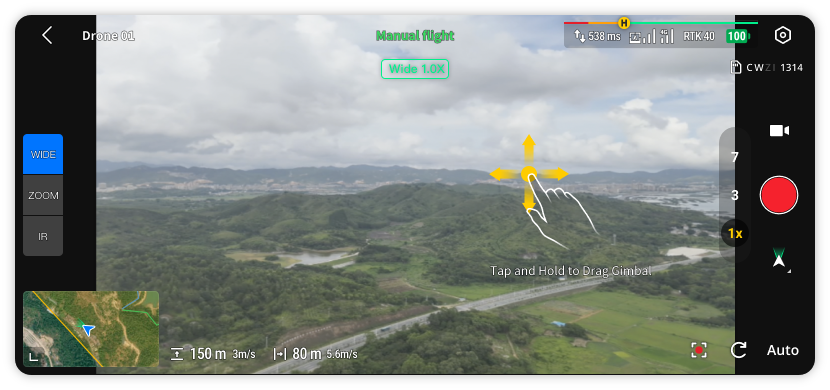
Gimbal Rotation
Press and drag on the screen to control gimbal direction in real time based on your finger movement.
Camera Zoom
Pinch with two fingers to zoom in or out.
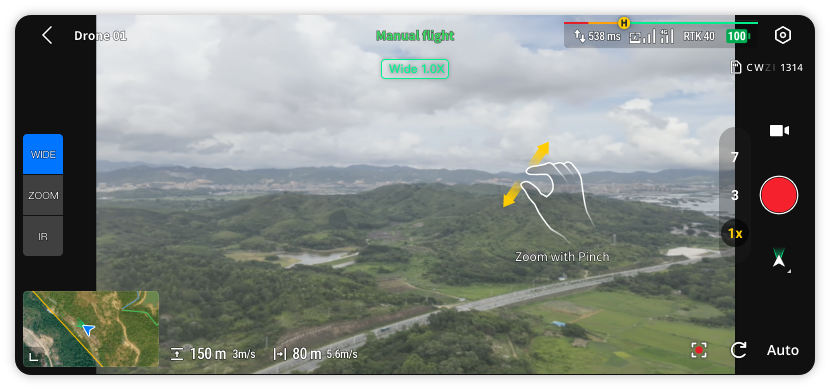
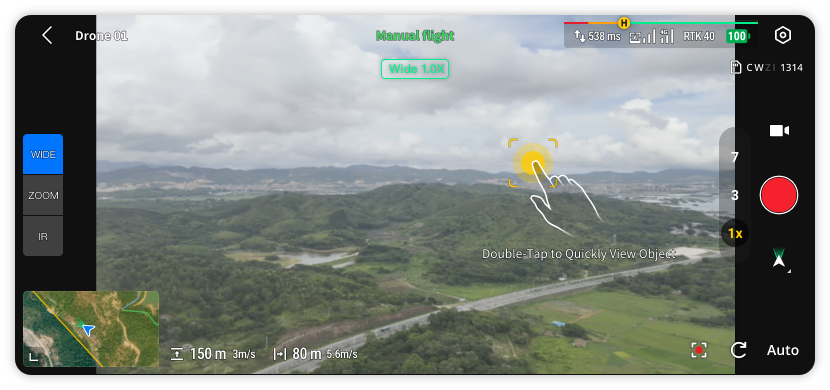
Quick Target Viewing
Double-tap the screen to quickly point the gimbal toward the target position.
Focus and Metering
Tap the screen once to focus and meter the target area.
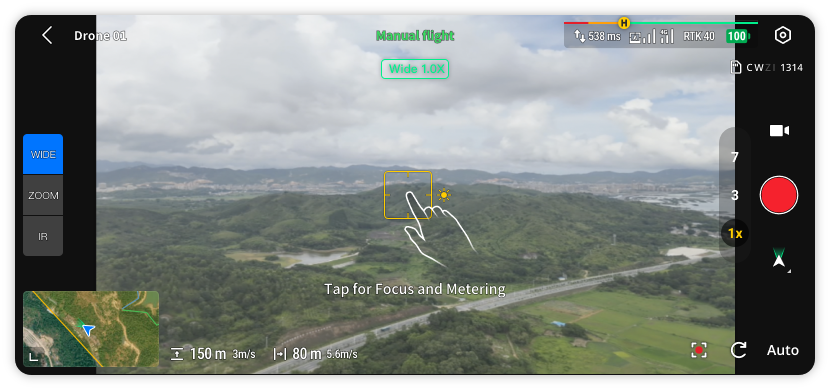
Photo and Video
Tap the mode switch button on the right to switch between photo and video mode. Tap the shutter button to take a photo or start/stop recording.
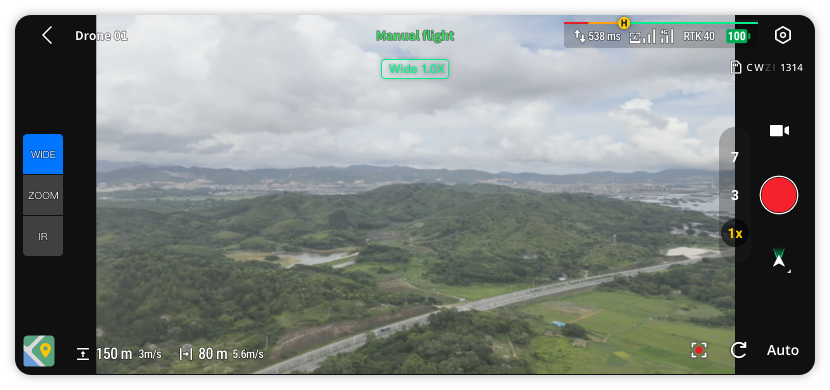
Other Controls
| Control Action | Operation | Description |
|---|---|---|
| Switch Lens | Tap the "Wide/Zoom/Infrared" button on the left | Switch between different camera lens modes |
| Video Quality | Tap "Auto" in the lower-right corner | Switch video quality level |
Use Virtual Joysticks to Control Aircraft
If you need to directly control aircraft movement from the live view, follow these steps:
- Tap the "Back" button in the upper-left corner to exit fullscreen live mode.
- In portrait mode, tap the aircraft livestream button to re-enter the live view.
- Tap the "Control" button at the bottom.
- Tap "Obtain Control."
- Virtual joysticks appear on the screen. Use them to control aircraft movement.
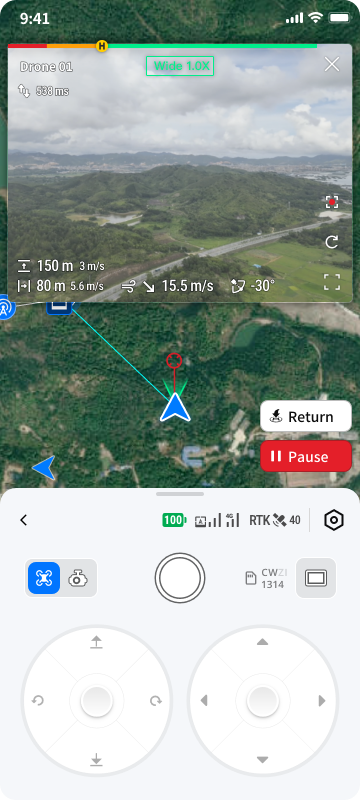
In the control panel, you can also switch to gimbal control mode and use directional buttons to precisely control gimbal direction.
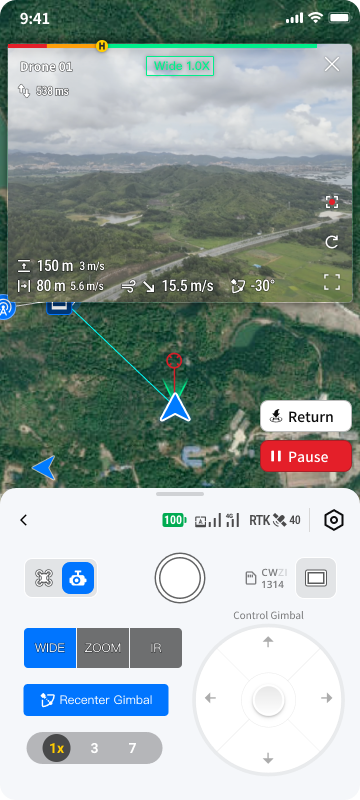
After obtaining control, you directly control the aircraft. Ensure the surrounding environment is safe and operate with caution.
Execute Return-to-Home
- After completing the task, tap the "RTH" button on the screen.
- The aircraft automatically returns to the takeoff point/dock and lands.
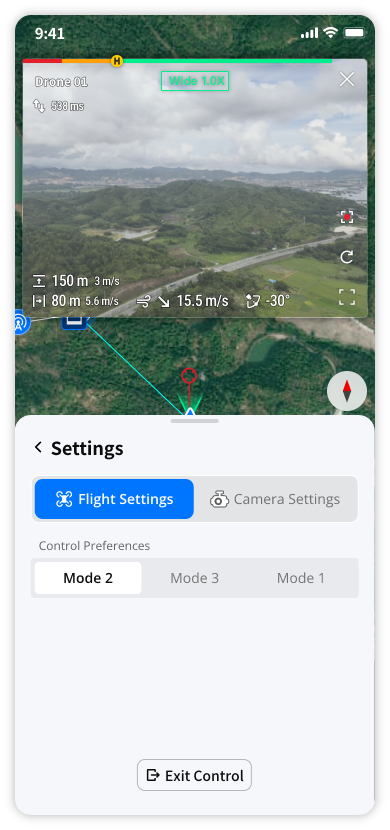
Exit Control
Tap the "Back" button in the upper-left corner, or go to the  page and tap "Exit Control" to close the livestream and release control. After exiting, the aircraft remains in its current state (hovering or continuing mission execution).