
Edit Smart 3D Capture
Smart 3D Capture routes can be created based on rough models. DJI FlightHub 2 users can use photos uploaded from dock or imported from media file library to generate Smart 3D Capture rough model in model library, and then create a new Smart 3D Capture route in flight route library based on the rough model. This feature is currently supported by select aircraft models only (unsupported models will not be able to select this route type). After planning in DJI FlightHub, acquire the route via remote controller and run the route.
Compared to local Smart 3D Capture route on DJI Pilot 2, DJI FlightHub 2 is suitable for planning and managing Smart 3D Capture route over a larger area. Rough model mapping on the cloud outperforms modeling on remote controller. It is recommended to flexibly select DJI Pilot 2 or DJI FlightHub 2 for Smart 3D Capture route planning based on scenario requirements.
Notes
- If there are obvious missing parts in the rough model, add a custom model first to assist in generation of the flight route.
- Make sure there is enough space when aircraft is performing tasks. Avoid starting tasks in narrow space between buildings or areas with many trees.
- Make sure RTK is converged, signal strength is good, and no warning messages appear when collecting the rough model data or during the Smart 3D Capture task.
Overall Process
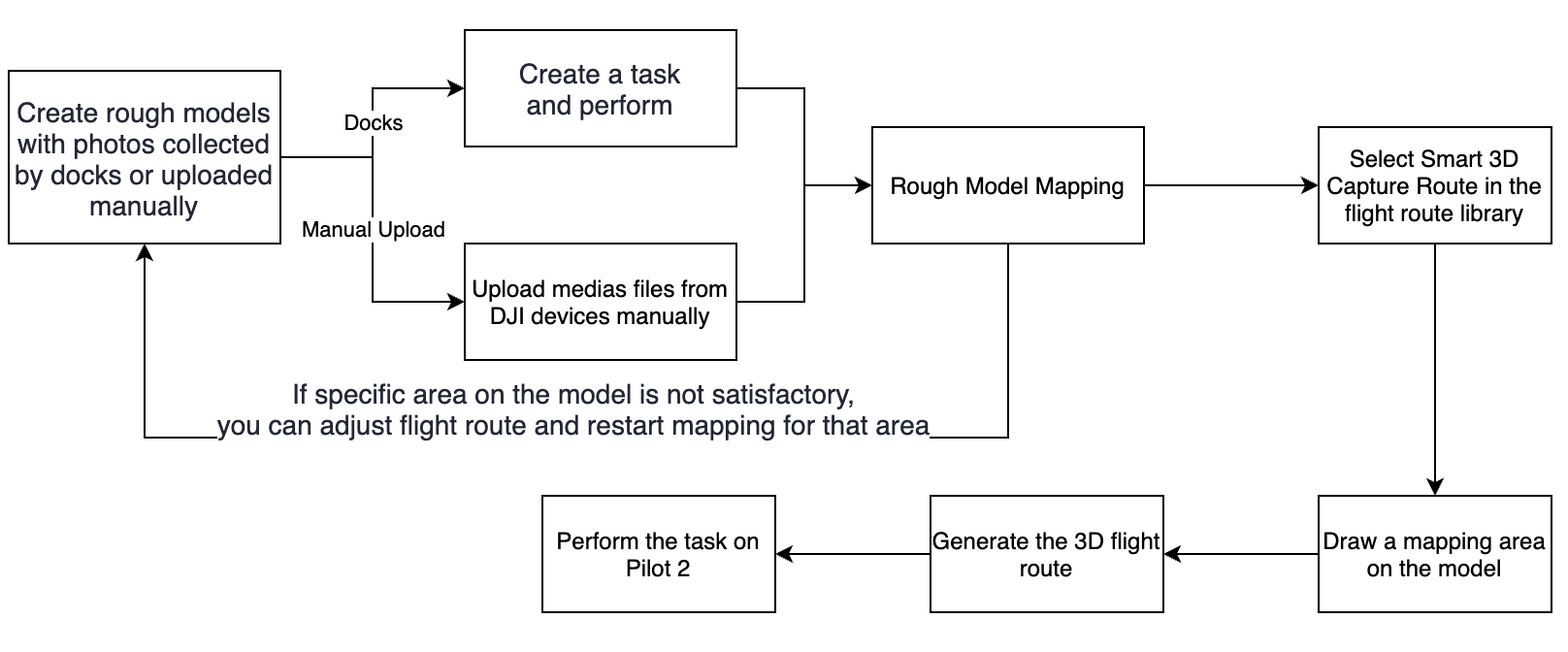
Rough Model Mapping
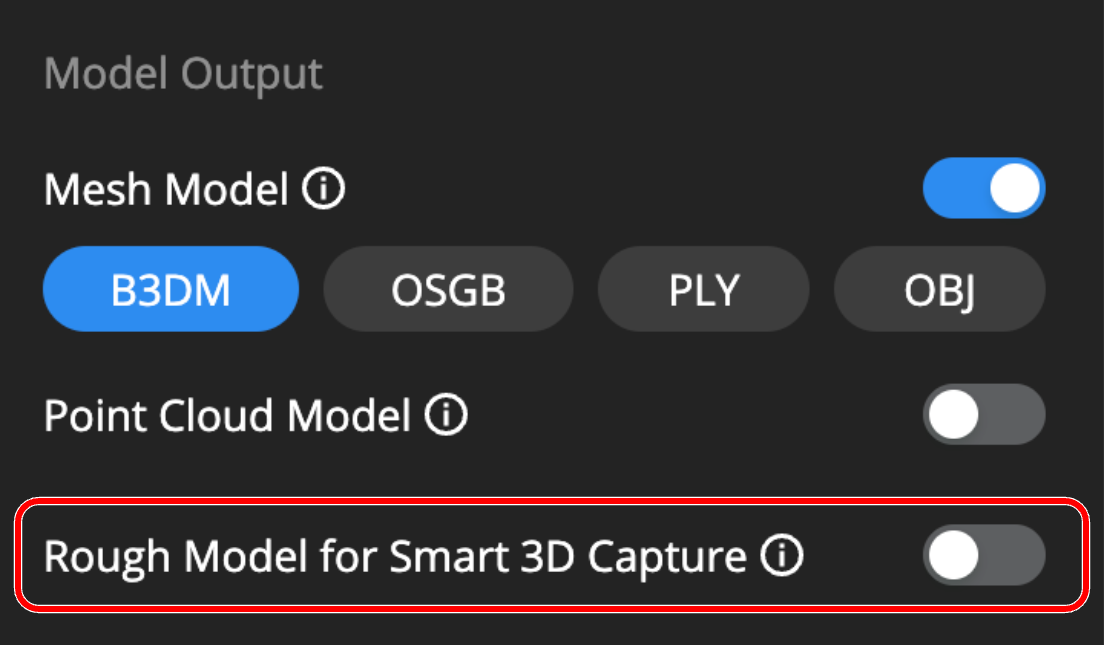
Rough Model for Smart 3D Capture can be enabled in the Model library. When enabled, generated models can be used for Smart 3D Capture. Make sure the RTK signal is converged during photo collection. Besides using the photos uploaded from docks for mapping, users can also import media files from local to the media file library. Since rough model files will be compressed together with route files, avoid using too many photos to prevent the compressed file size from being too large.
- Import local photos to the media file library or select photos uploaded from docks.
- Enable Rough Model for Smart 3D Capture to generate a model for route planning.
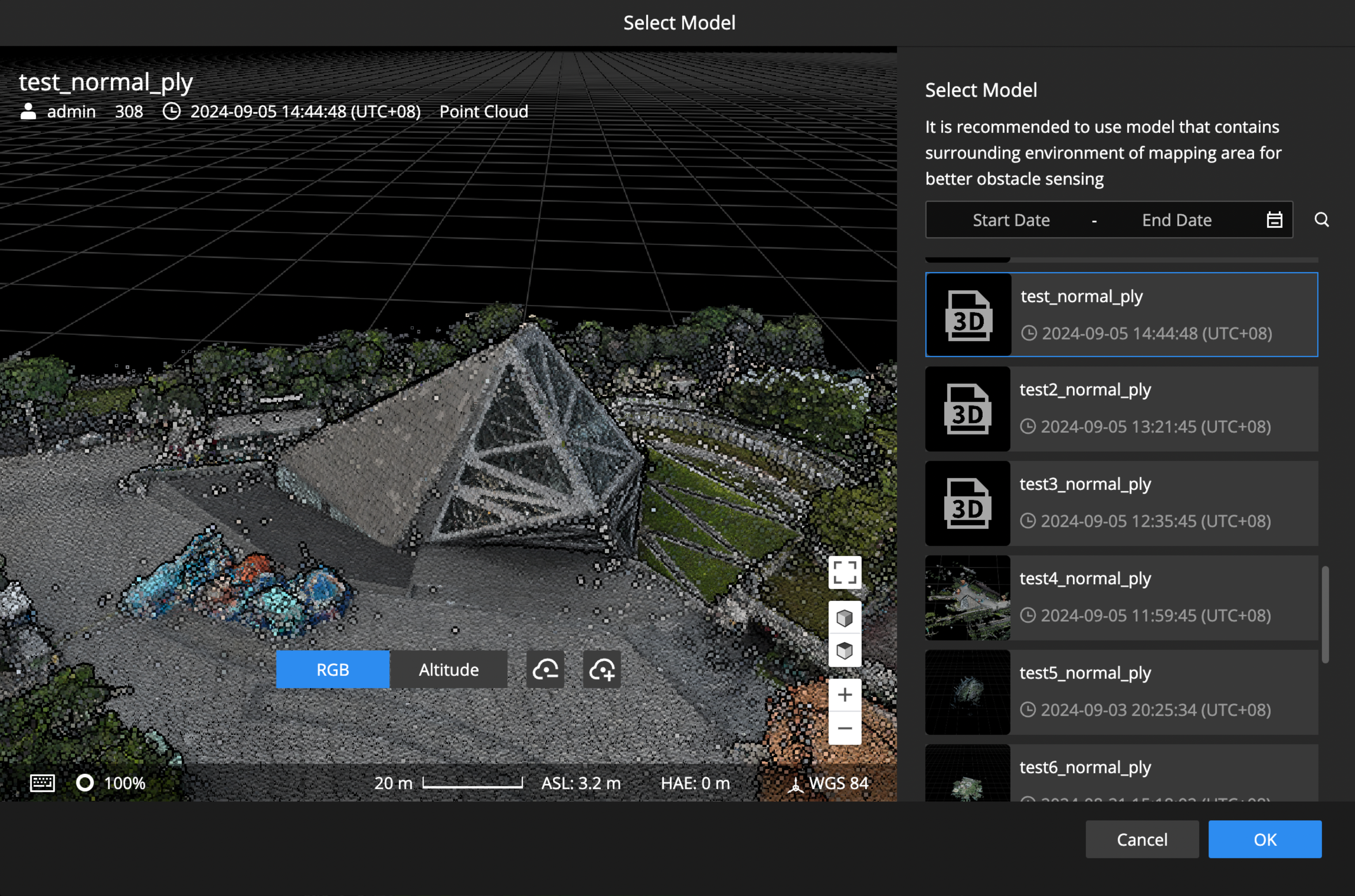
Smart 3D Capture Route Planning
- Select Smart 3D Capture Route in the flight route library or edit routes uploaded from Pilot 2.
- Choose a rough model for route planning. If Rough Model for Smart 3D Capture is not enabled before model mapping, the model will not be available.
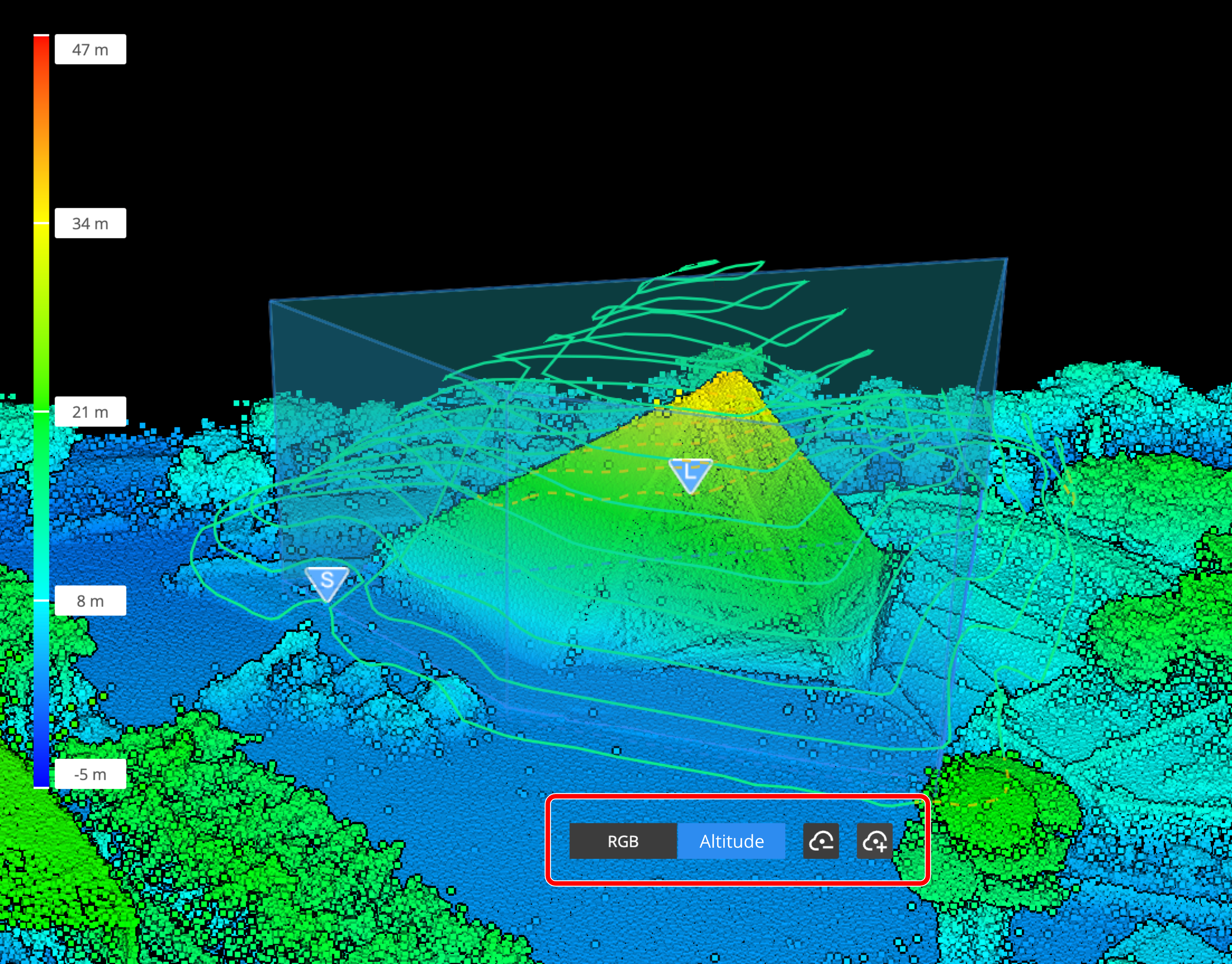
- Draw a mapping area on the model, and a 3D area will be automatically generated based on the highest and lowest points within the selected area. There is a size limit for the mapping area. If the area is too large, the area will turn red and the route cannot be generated. It is recommended to divide large scenes into sections and collect data from one part at a time.
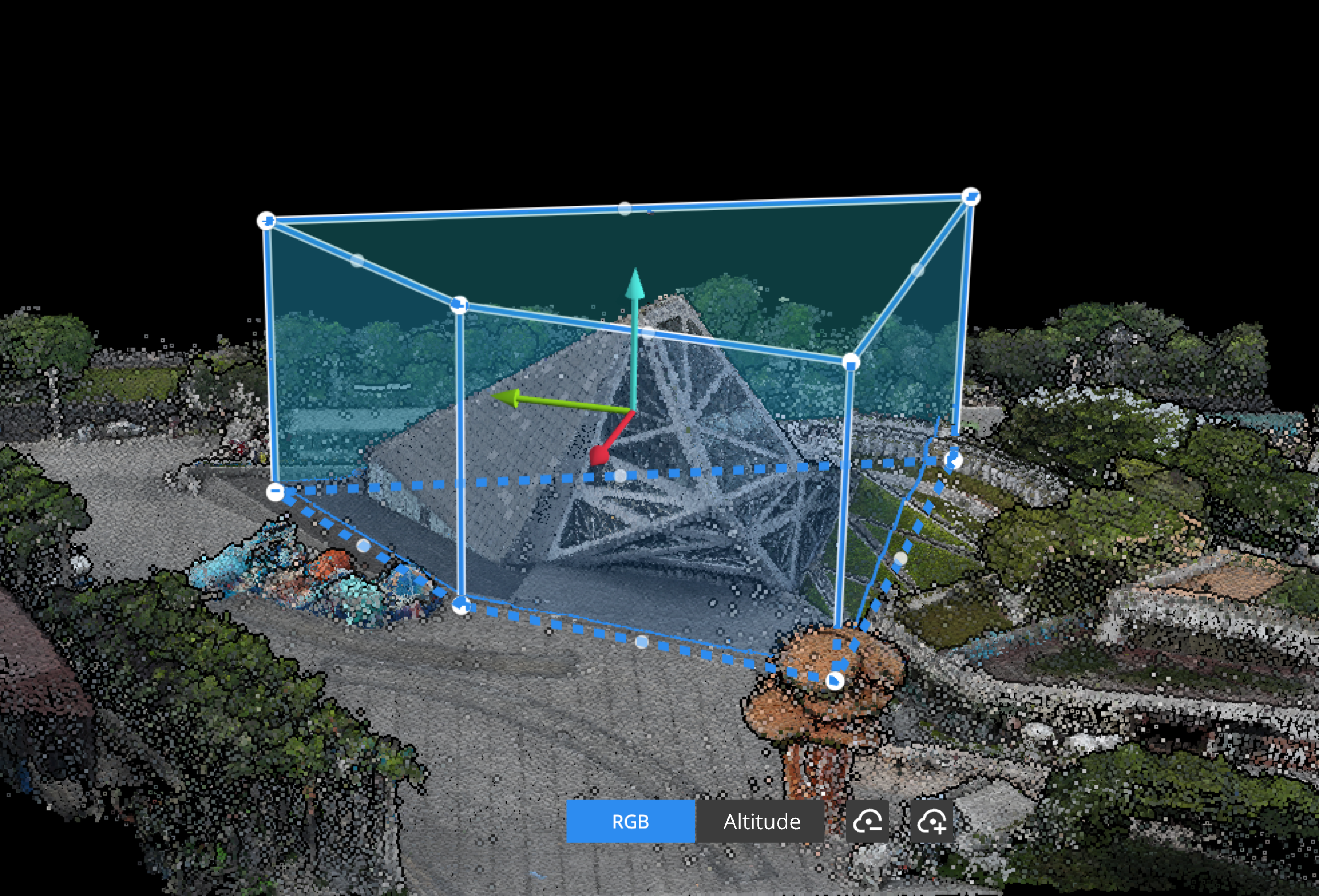
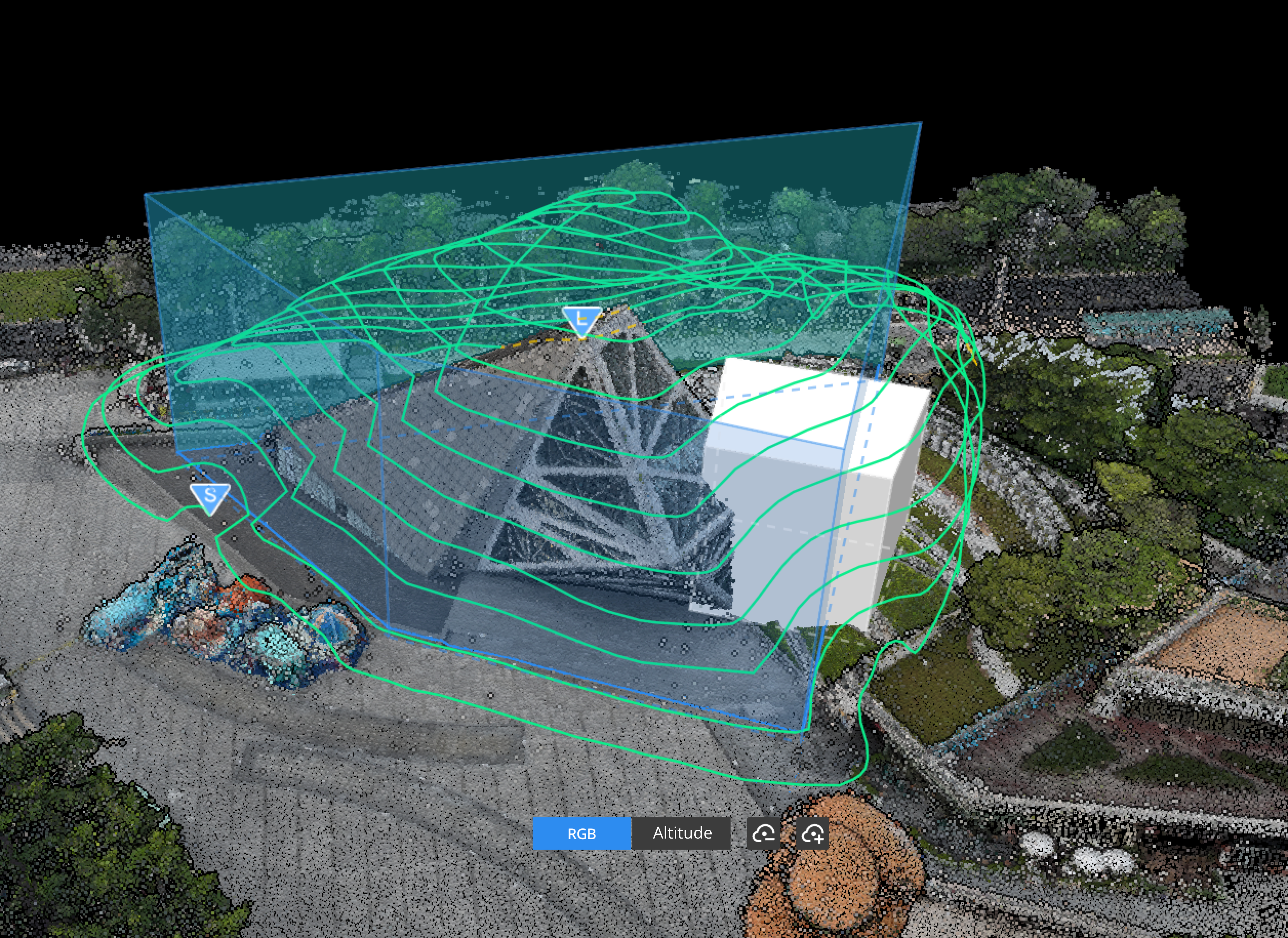
- At the bottom, users can switch the point cloud display mode between Height or RGB mode and the point cloud density according to the scene.
Refine Model (Customize Model)
- To refine a model, users can click
 in the upper right corner to create a custom model. After creating the shape of the model base, pull the model base upwards or downwards to complete the creation of the model. A route will be automatically regenerated after the custom model is created.
Flight Route Execution
Currently, docks do not support performing Smart 3D Capture routes. Users can distribute the route to the remote controller and perform the task using Pilot 2. Before task, it is recommended to perform a safety check of the flight route using the AR display.