
2D Model Management
2D Model Panel
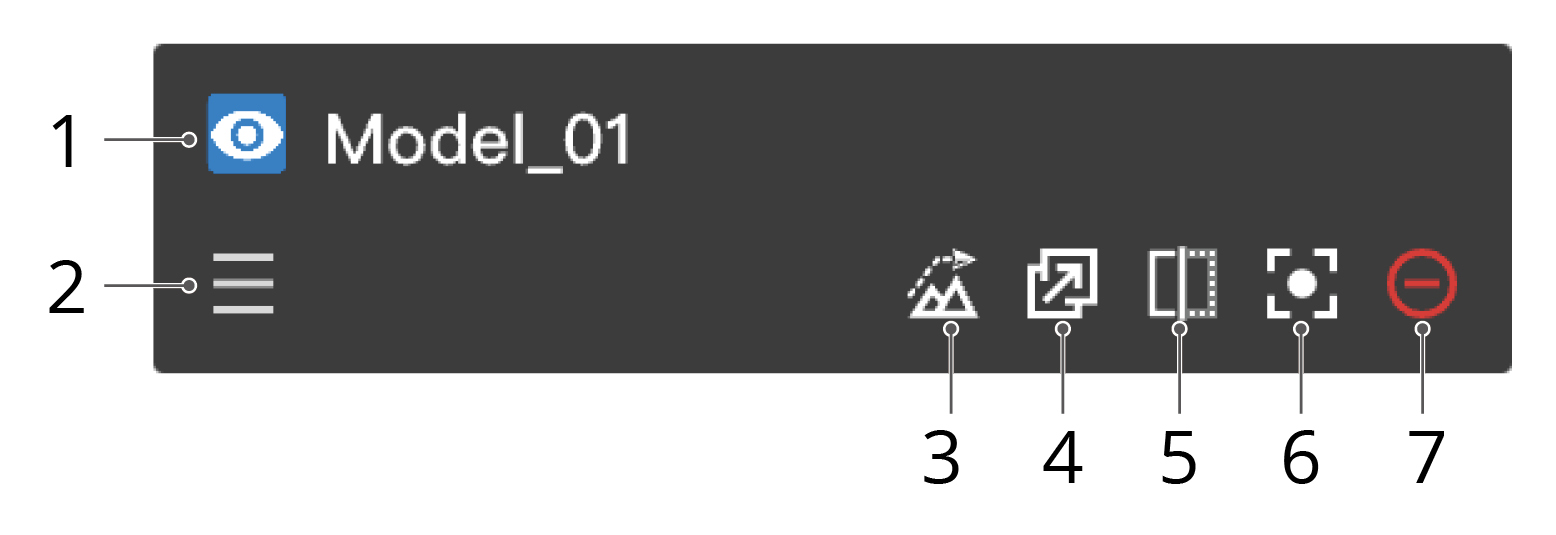
1. Display the Model on the Map
The project administrator can click  to display the model on the map.
2. Change the Display Order
The project administrator can drag  to change the display order of the models. If there are overlapping models in the same area, the 2D models at the top of the list will be displayed on the top of the map.
3. Load the Elevation Data
After the elevation of a mapped area is calculated, the project administrator can click  to load the elevation data onto the map.
Note: Users can only load the elevation data of a mapped area one at a time.
4. Distribute the Mapping Output
The 2D model can be distributed to DJI Pilot 2. The project administrator can click  to cancel the distribution.
5. Compare 2D Models
Click  to compare models that have overlapping areas. See Manage Models for more details.
6. Center the 2D Model
Users can click  to select the 2D model, and the model will be displayed in the middle of the web page.
7. Remove the 2D Model
Users can click  to cancel the display of the 2D model on the map. The 2D model will still exist in the model library.
Cloud Mapping
DJI Pilot 2 users can log in to the DJI FlightHub 2 cloud service to perform cloud mapping and manage the mapping progress on the web.
- Tap Flight Route on the DJI Pilot 2 home screen and select Area Route.
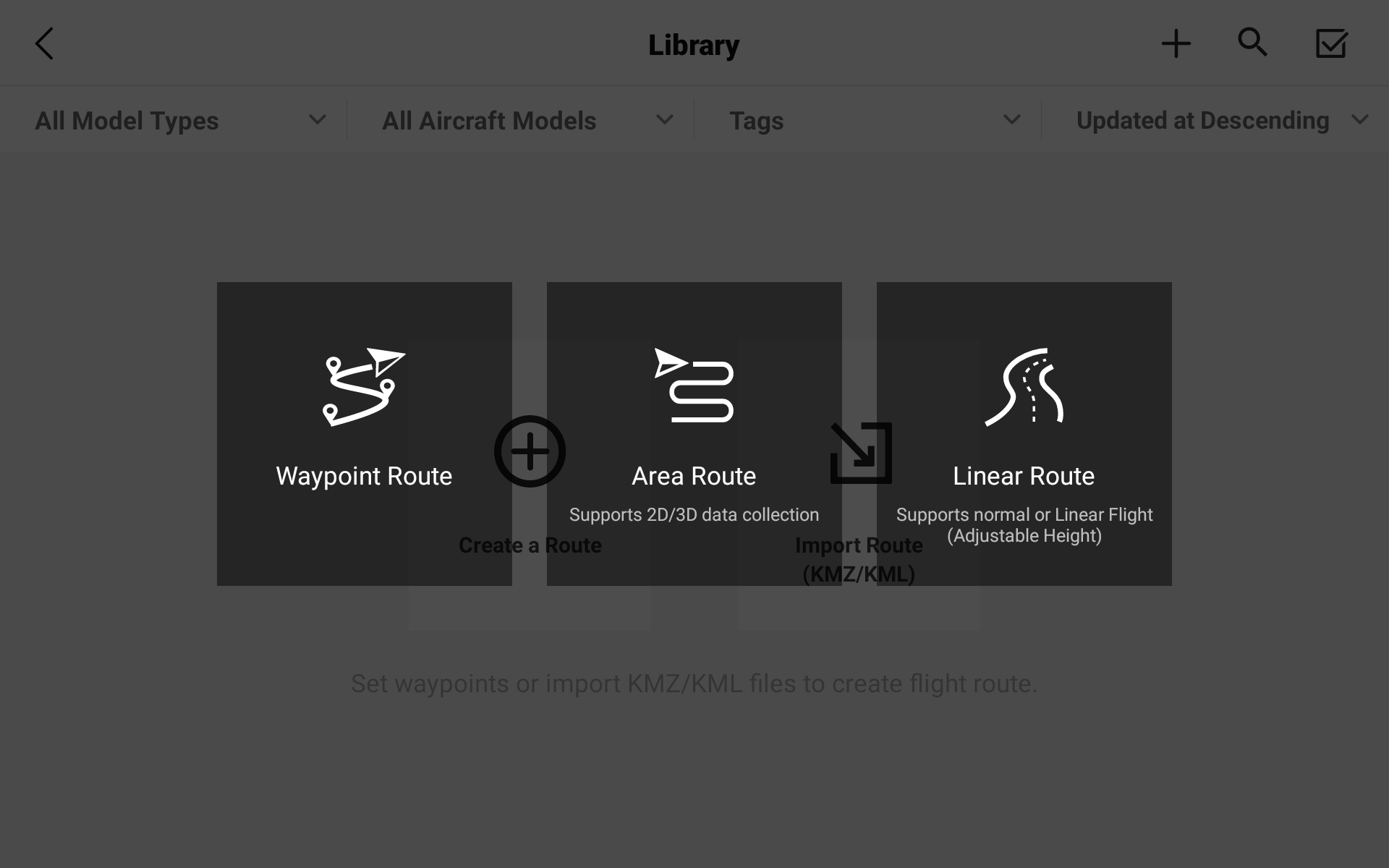
- Configure settings on the right panel. Tap
 to save settings and tap
  to perform the mapping task.
DJI FlightHub 2 supports infrared and visible light mapping tasks with Zenmuse H20/H30 series, and the Matrice 30 series (including the dock version), Mavic 3 enterprise series, and Matrice 3D series cameras.

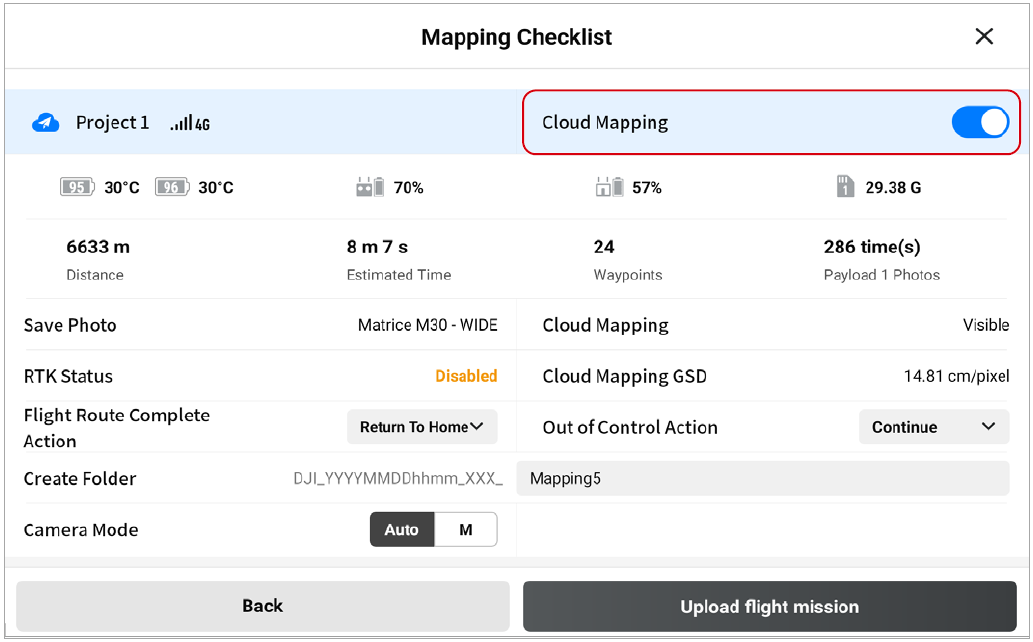
- Enable Cloud Mapping on the mapping checklist and upload the flight task.
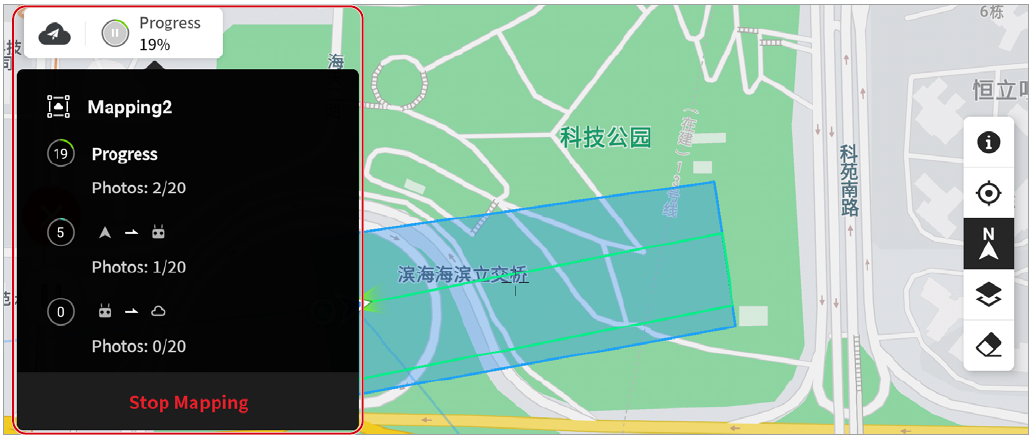
- Tap Progress to view the mapping status.
DJI FlightHub 2 project members can click  to enter the Map page. Select the mapping task to view the task planning area and mapping output.