
PDF File Calibration
Calibration Process
After importing the PDF file, you can click  to enter the calibration interface and calibrate the PDF file to the specified position on the map.
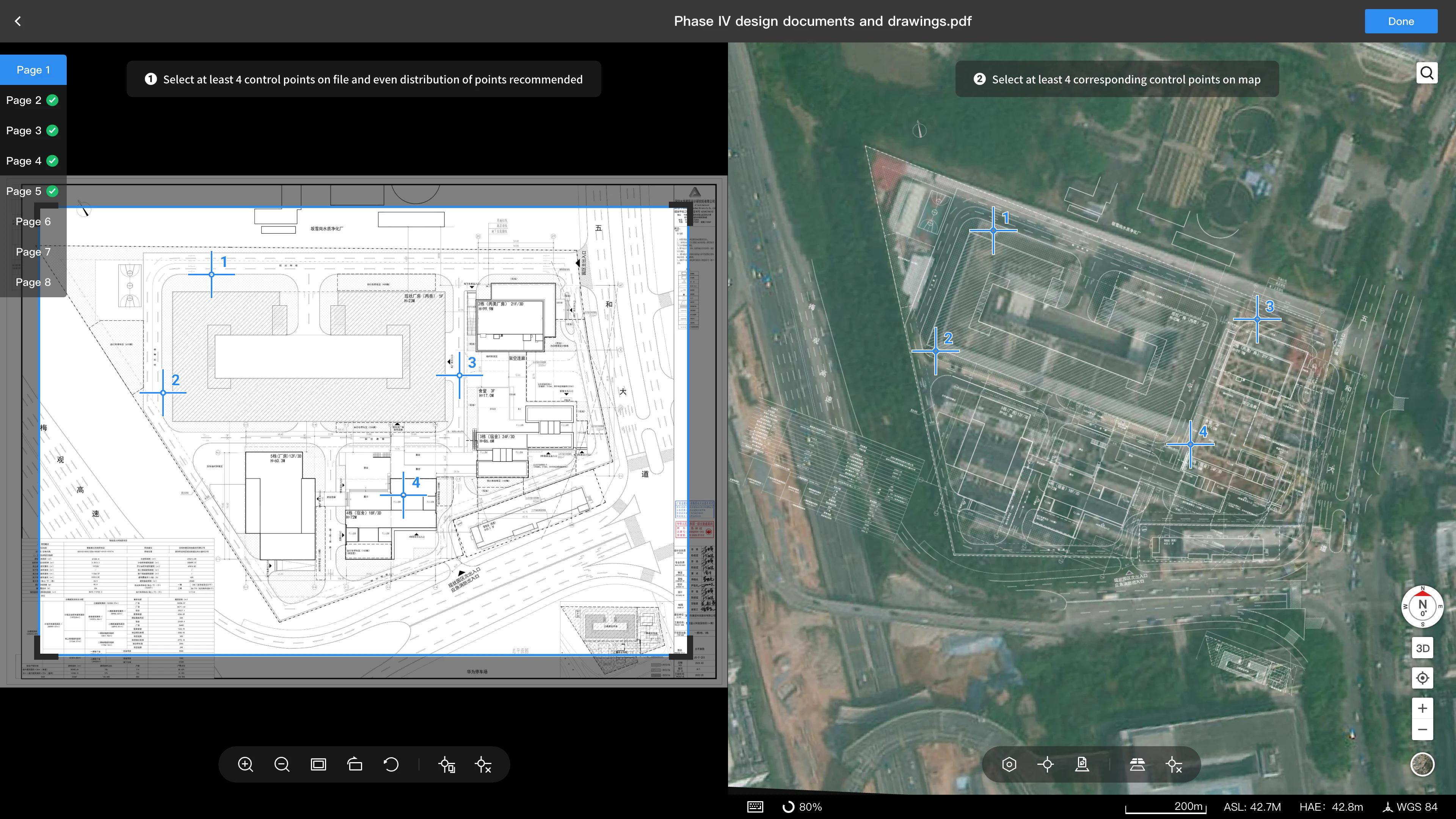
Please add at least 4 matching points, and ensure the matching points are as dispersed as possible and not aligned in a straight line to achieve the best calibration effect.
If the calibration is incorrect, you can click on a specific matching point and double-click  the button to delete that matching point.
Toolbar Description
PDF Interface:

- Zoom in the file
- Zoom out the file
- Scale the file to fit the current screen size
- Rotate the file
- Reset the page size and orientation
- Copy all matching points from the previous page of the current file
- Delete all matching points on the current page
Map interface:

- Set the color and transparency style of the PDF file after being overlaid on the map
- Adjust the coordinates of matching points
- Choose whether to overlay the file on the map after calibration
- Show or hide map elements on the current page
- Delete all matching points on the current map page