
Device Status Window
FlightHub 2 enables remote control of aircraft at DJI Dock, DJI Dock 2, DJI Dock 3, and DJI Dock 4 via the device status window, allowing for command transmission and task performance.
Note: The DJI Dock firmware version should be later than v01.03.0902, and the aircraft version should be later than v06.02.0803 before using Live Flight Controls.
Device Status Window Information
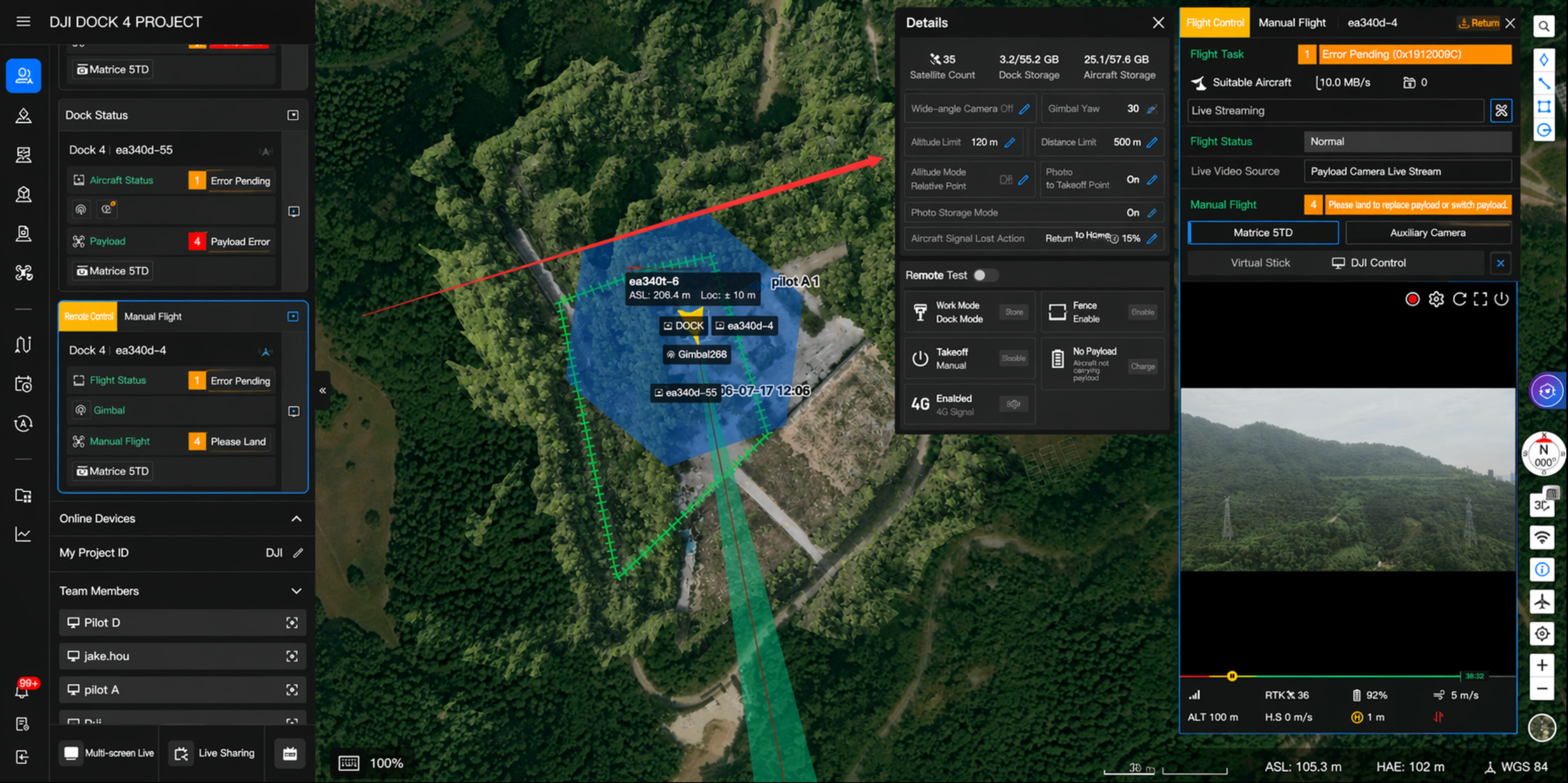
Click the "Window" button in the upper-right corner of the device card to open the device status window without entering the Virtual Cockpit. You can view the aircraft's flight status, battery level, image transmission signal strength, GPS coordinates, flight altitude and speed, and other information in real time. Click the livestream area of the window to view the current image transmission feed.
Aircraft Control
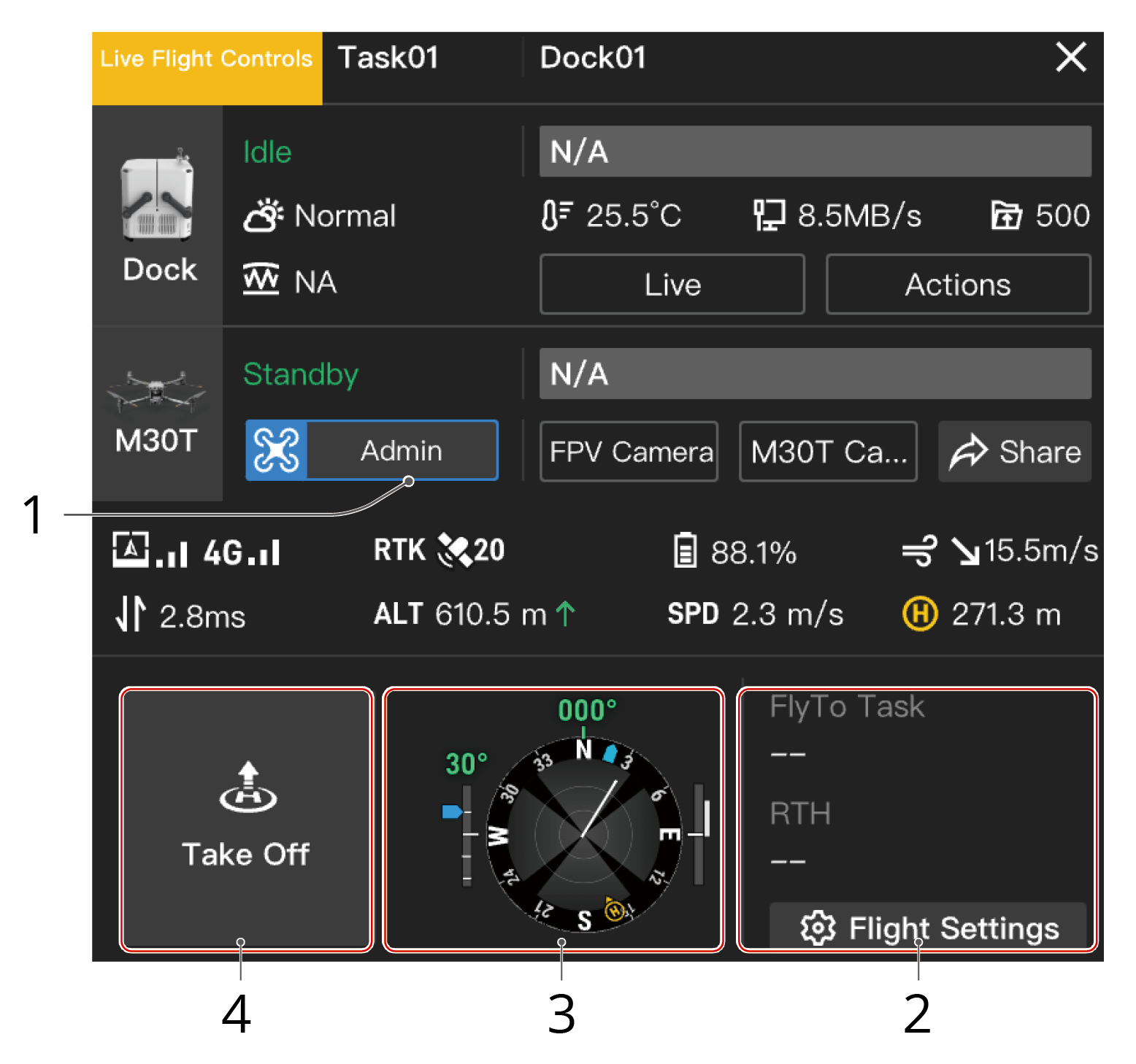
1. Obtain Aircraft Control
Project administrators can right-click the dock or aircraft icon on the map or click Aircraft Control in the device status window to enable Live Flight Controls.
- When Live Flight Controls is enabled, the remote control latency will be displayed. Users can hover the mouse over
 to view the uplink and downlink latency. Uplink means transferring data from the aircraft to the cloud, while downlink refers to the data transmission from the cloud to the aircraft.
 - Users can click the FPV or camera view button to view livestreams.
2. Flight Settings
2.1 Optimal Route Planning:
- When the environment is suitable for the vision system to work properly or Obstacle Data is enabled, the aircraft will automatically plan an optimal route to improve task efficiency and preserve battery life.
- When the environment is not suitable for the vision system to work properly and Obstacle Data is disabled, the aircraft will fly based on the task altitude and RTH altitude settings.
- When Optimal Route Planning is enabled, the aircraft will intelligently adjust the flight altitude and speed based on the obstacle data and the environment conditions such as the wind speed and direction, so that the aircraft can reach the FlyTo destination or the Home Point with improved efficiency.
- It is recommended to enable Obstacle Data in Task Area Management to improve the route planning performance. See Obstacle Data for more details.
- When the environment is not suitable for the vision system to work properly or other issues occur when the aircraft is performing FlyTo tasks or returning to home, the aircraft will not be able to plan an optimal route. If Obstacle Data is also disabled, the aircraft can only fly based on the set altitude and will not be able to avoid obstacles along the route. Therefore, users should set appropriate task altitude and RTH altitude before starting FlyTo tasks or returning to home.
- When Optimal Route Planning is disabled but the environment is suitable for the vision system to work properly or Obstacle Data is enabled, the aircraft can still fly horizontally or vertically to avoid obstacles.
- If the maximum flight altitude is lower than the current aircraft altitude, the aircraft will descend directly to the maximum flight altitude before continuing tasks. If the maximum altitude is higher than the current aircraft altitude, the aircraft will stop ascending when the aircraft reaches the maximum flight altitude.

- When there are obstacles such as wires and electric towers that are hard for the vision sensors to detect, users should disable Optimal Route Planning and make sure the set task altitude and RTH altitude are higher than the obstacle altitude along the route.
2.2 Task Altitude (ALT):
The lowest altitude (relative to the takeoff point) of the aircraft when performing FlyTo tasks. DJI FlightHub 2 will display a prompt when the aircraft altitude is lower than the task altitude.
Note: For the DJI Dock aircraft with the firmware version earlier than v08.00.0003, DJI FlightHub 2 will display a prompt when the aircraft altitude is lower than the task altitude.
2.3 RTH Altitude (ALT):
The aircraft altitude relative to the dock when the aircraft is returning to the dock. The RTH altitude should be set based on the actual flight condition, surrounding environment, and GEO information. It is recommended that the altitude is set higher than the highest geographical point in the flight area and should be lower than the maximum flight altitude.
- For DJI Dock 2
- When Optimal Route Planning is enabled, the aircraft will intelligently plan an optimal route based on the obstacle data or the vision system data when the environment is suitable for the vision system to work properly.
- When Optimal Route Planning is disabled but the environment is suitable for the vision system to work properly or Obstacle Data is enabled, the aircraft can still fly horizontally or vertically to avoid obstacles.
- When the dock aircraft is more than 5.5 meters away from the Home Point horizontally, the aircraft will ascend to the RTH altitude and return to home. When the dock aircraft is 5.5 meters or less than 5.5 meters away from the Home Point horizontally, the aircraft will maintain the current altitude (when it is higher than 15 meters) or ascend to 15 meters (when it is lower than 20 meters) before returning to home.
- For DJI Dock
- When the dock aircraft is more than 5.5 meters away from the Home Point horizontally, the aircraft will ascend to the RTH altitude and return to home. When the dock aircraft is 5.5 meters or less than 5.5 meters away from the Home Point horizontally, the aircraft will maintain the current altitude (when it is higher than 20 meters) or ascend to 20 meters (when it is lower than 20 meters) before returning to home. When the environment is suitable for the vision system to work properly, the aircraft can still fly horizontally or vertically to avoid obstacles.
- For the DJI Dock aircraft with the firmware version earlier than v08.00.0003, the aircraft will not be able to bypass obstacles and GEO Zones. Check the surrounding environment when the aircraft is returning to home.
2.4 On Signal Lost: Users can choose from Return to Home, Hover, or Continue. The dock aircraft will perform the signal lost action when the aircraft is disconnected from the dock. To ensure flight safety, it is recommended to set the signal lost action as Return to Home.
2.5 Destination Altitude (AGL): The default altitude above the ground of the FlyTo destination.
Note: All parameters can be set when the dock aircraft is powered off.
3. Situation Awareness
Users can view the Home Point location, aircraft and payload orientation, and obstacle sensing information in the Navigation Display.
4. Take Off
When the aircraft is inside the dock, users can click Take Off, and the aircraft will ascend to the task altitude and hover.
5. Keyboard Commands
When the Live Flight Controls status is Manual Flight, users can click the buttons or press the keyboard keys to control aircraft movements.
| [W]: Forward | [S]: Backward |
| [C]: Ascend | [Z]: Descend |
| [A]: Roll left | [D]: Roll right |
| [Q]: Yaw left | [E]: Yaw right |
| [Space]: Pause |
6. FlyTo Tasks
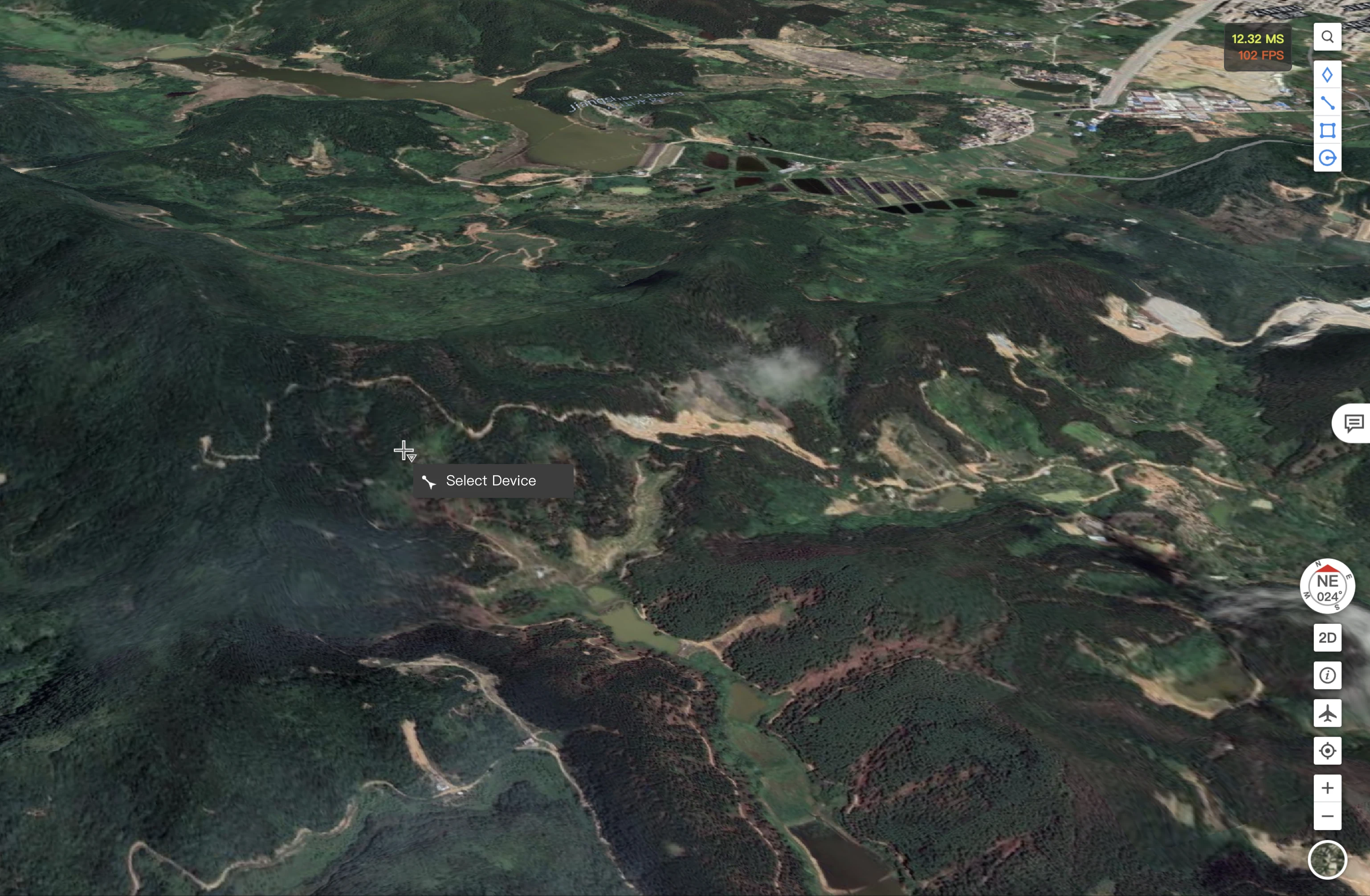
Right-click on the map to set a FlyTo destination. Users can also set a PinPoint or the search result on the map as the FlyTo destination. After the FlyTo destination is set, a virtual flight route will be displayed on the map. Users can click Start, and the aircraft will fly directly to the destination.
- When the aircraft starts the FlyTo task from DJI Dock 2:
- When Optimal Route Planning is enabled, the aircraft will plan an optimal route, ascend 20 meters, and then perform the FlyTo task.
- When Optimal Route Planning is disabled and the FlyTo altitude is higher than the task altitude, the aircraft will ascend to the task altitude before performing the FlyTo task. When the FlyTo altitude is lower than the task altitude, the aircraft will fly at the task altitude, reach above the FlyTo destination, and descend to the FlyTo altitude.
- When the aircraft starts the FlyTo task from DJI Dock:
- When the FlyTo altitude is higher than the task altitude, the aircraft will ascend to the task altitude before performing the FlyTo task. When the FlyTo altitude is lower than the task altitude, the aircraft will fly at the task altitude, reach above the FlyTo destination, and descend to the FlyTo altitude.
- For the aircraft with the firmware version earlier than v08.00.0003, the aircraft will ascend to the task altitude and directly fly to the FlyTo destination.
During a FlyTo task, users can select a new FlyTo destination, and the aircraft will fly to the destination directly.
Note: To change the destination, the DJI Dock firmware version should be v01.06.17.02 or later, while the dock aircraft version should be v09.01.00.05 or later. As for DJI Dock 2, the firmware version should be v09.02.01.08 or later, while the Dock 2 aircraft version should be v09.02.01.08 or later.
If Live Flight Controls is enabled when the aircraft is performing a flight task, users can click Resume to resume the task, or click RTH to disable Live Flight Controls and the aircraft will return to home automatically.
- To ensure flight safety, a reasonable task altitude, RTH altitude, and FlyTo destination altitude should be set based on the surrounding environment and task requirements and at least 5 meters lower than the maximum flight altitude allowed in Altitude Zone. Users should also make sure that there are no obstacles during flight.
- The aircraft will bypass GEO Zones and obstacles during FlyTo tasks. If there is a GEO Zone with a maximum width of more than 400 meters between the current aircraft position and the FlyTo destination, the aircraft may not be able to bypass the area and will hover at the area boundary. Users should pay close attention to the the livestream view and fly the aircraft manually to bypass the GEO Zone.
- When Low Battery RTH is triggered, DO NOT cancel RTH or enable Live Flight Controls during RTH, otherwise the aircraft will exit RTH and may not be able to return to the dock.
- When the aircraft battery is critically low, the aircraft will land automatically, and the landing cannot be canceled.
- DO NOT control the aircraft to land on the dock using keyboard commands, otherwise the aircraft will not be able to stop propellers after landing and return to the dock automatically.
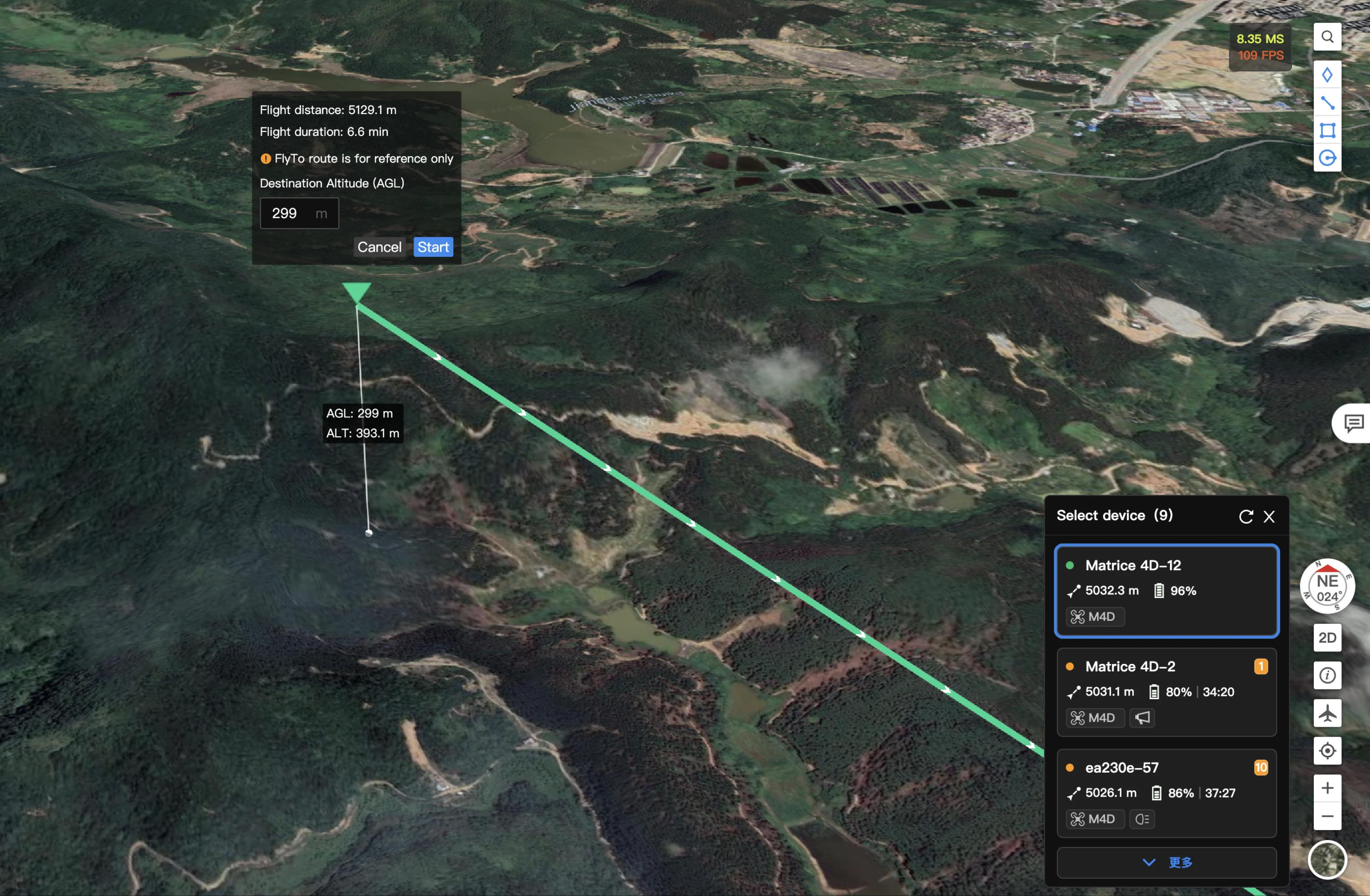
When no device is selected, right-click on the destination point on the map, and the menu will show the FlyTo option. After confirmation, the device recommendation list panel will expand on the right side of the map, and the system will display available aircraft in recommended order.
After selecting the most suitable device for the current task, fill in the destination altitude, and click Start to begin the flight. The aircraft will start flying to the destination point.
7. POI
FlightHub 2 users can select any location or PinPoint on the map and start a POI task when DJI Dock is in the Live Flight Controls mode. After the FlyTo destination is set, the dock aircraft will face the FlyTo destination, and a virtual flight trajectory will be displayed on the map. Users can set the POI direction and speed and use the keyboard shortcuts to adjust the aircraft altitude and distance to the FlyTo destination. The task panel will display the estimated time needed for completing the POI task. Users can click Start to start the POI task.
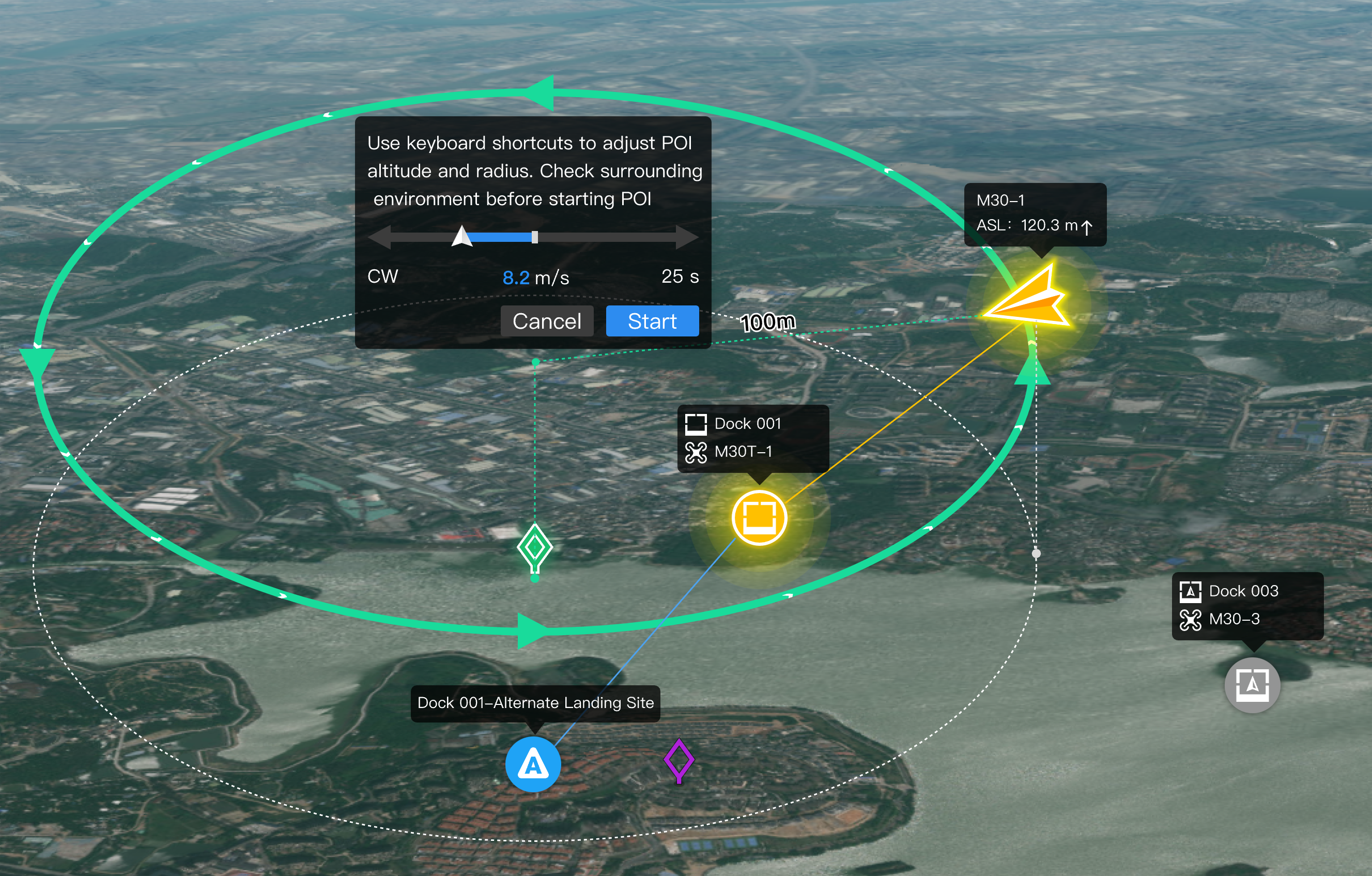
Users can click buttons on the device status window or use the keyboard shortcuts to adjust the aircraft direction and speed during POI. Click Exit or press the Space key to exit POI.
- Users need to obtain the flight and gimbal control before starting POI tasks.
- To start POI, the DJI Dock firmware version should be v01.06.17.02 or later, and the dock aircraft version should be v09.01.00.05 or later.
- If the aircraft approaches a GEO Zone or detects obstacles during POI, the aircraft will hover. Pay attention to the aircraft status and livestream view. Fly with caution.
- The aircraft will fly sideways during POI. When the environment is not suitable for the vision system to work properly, the aircraft may not be able to bypass obstacles. Users should check the surrounding environment on-site or the flight trajectory on the cloud before starting POI.
- FlightHub 2 will intelligently adjust the maximum speed of POI based on the distance between the aircraft and the point of interest.
- During POI, when the user double-clicks the livestream view, the aircraft will not be able to face the clicked point. Dragging the livestream view or using the keyboard shortcuts to adjust the gimbal angle are also not supported.
8. One-Click Multi-Aircraft Return-to-Home
Right-click on the map and select Return All to Home from the menu. After confirmation, the system will send return instructions to all aircraft currently performing flight tasks within the project. For aircraft performing automatic tasks, the current task will be immediately interrupted and the aircraft will initiate automatic return-to-home. For aircraft under manual control, the operator with control authority will receive a return request and must manually confirm execution.
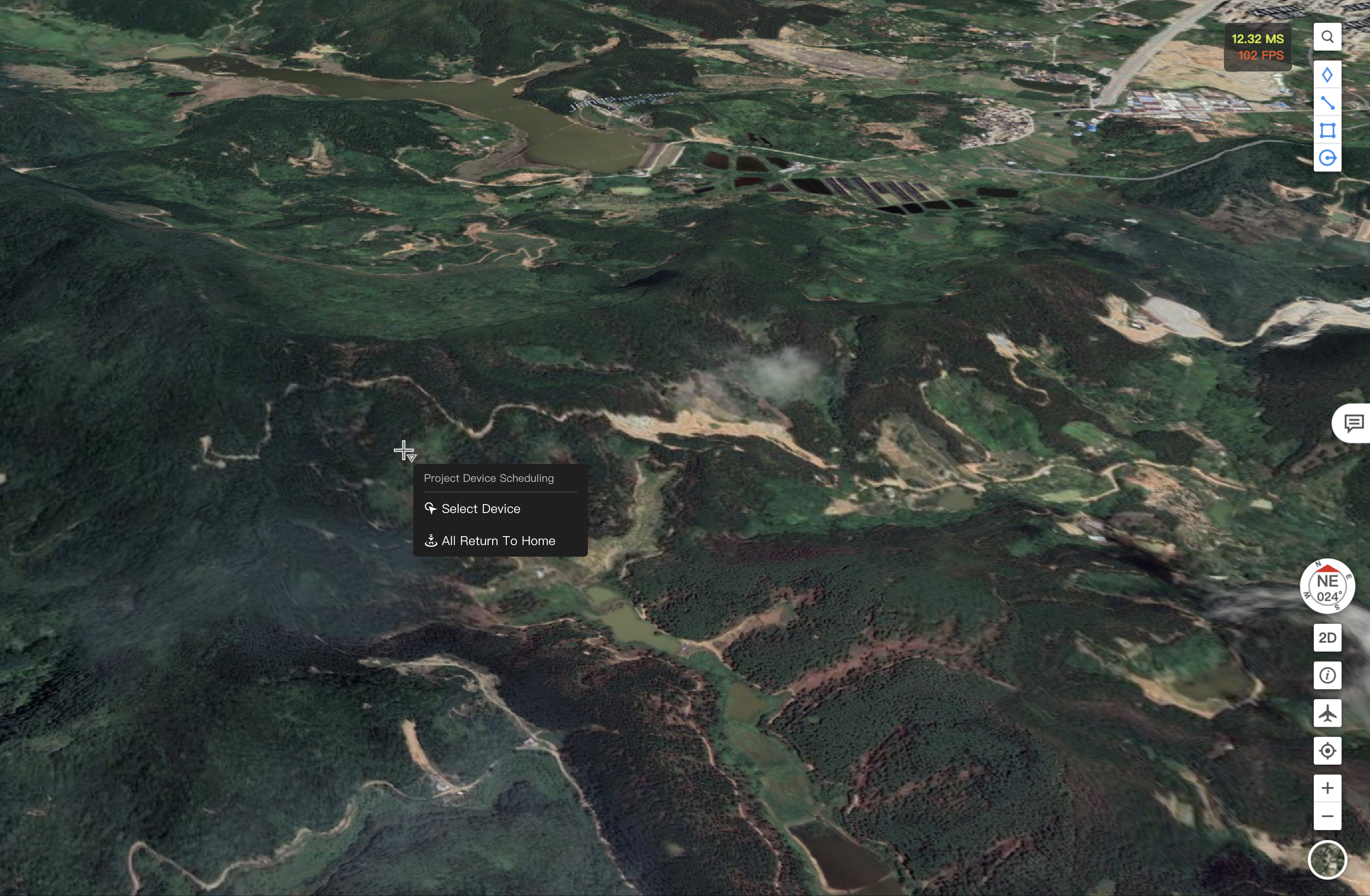
Note: Before sending the Return All to Home command, make sure that all aircraft within the project are at a safe altitude and have set an appropriate return height to avoid collision risks during the return process.
Gimbal Camera Control
1. Obtain Camera Control
Users can click the camera view button to start livestream and click  to obtain the gimbal camera control.
2. Switch Cameras
Depending on the device model, users can switch between wide-angle, zoom, and infrared cameras. Below is the introduction of the zoom camera view of Matrice 30 Series (Dock Version).
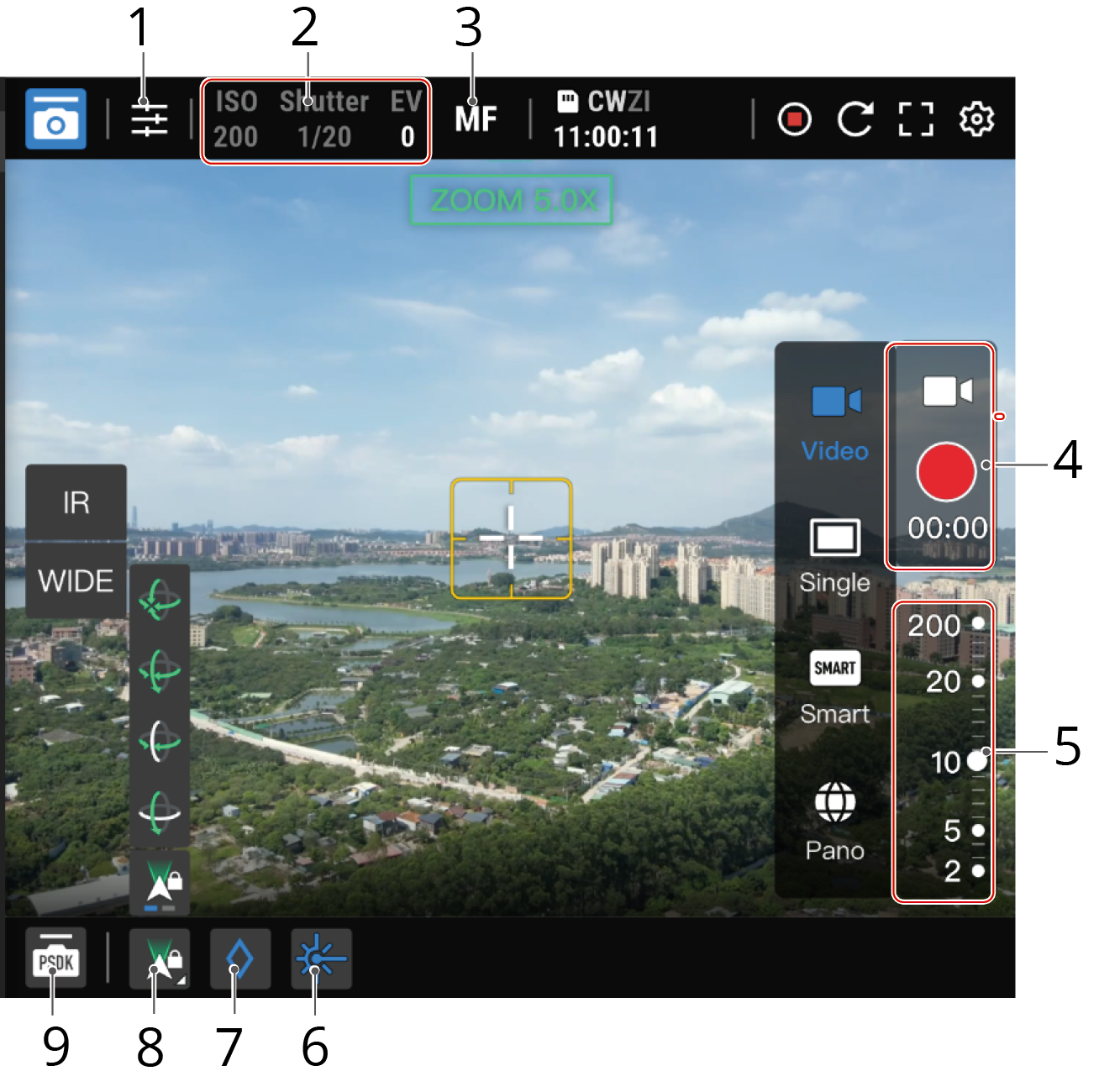
- Camera Settings: Click to customize the camera settings.
- Camera Parameters: Displays the ISO, shutter, and EV values.
- Focus Mode: Click to switch between MF (manual focus), AFC (continuous autofocus), and AFS (single autofocus) modes.
- Photo/Video Mode:
- Users can take single, smart low-light, and panoramic photos or start recording. Only the zoom camera supports taking smart low-light photos.
- Users are unable to start FlyTo tasks nor double-click on the livestream view to center the view around the clicked point. Enabling Face PinPoint or the subject zoom is also not supported.
- Users are unable to drag the livestream view or press [←] [→] [↑] [↑] to fine-tune the gimbal angle.
- Operating the aircraft will stop the process but will not affect the panorama stitching if stitching is in progress.
- Media files captured by the dock aircraft after obtaining the aircraft control will be transferred to the cloud in real time. Users can change the settings for DJI Dock 2 in the Details panel.
- The DJI Dock firmware version should be v01.06.17.02 or later, and the aircraft version should be v09.01.00.05 or later.
- The DJI Dock 2 firmware version should be v09.02.01.08 or later, and the aircraft version should be v09.02.01.08 or later. If the aircraft is recording or using PSDK functions, the transfer will be interrupted.
- When the aircraft is performing a planned task and the aircraft control is enabled, media files captured or videos recorded will be stored in a subfolder of the corresponding flight folder in the media file library. The name of the subfolder is "Remote Control".
- When the aircraft is performing a FlyTo task, media files captured or videos recorded will be stored in a separate folder in the media file library. The folder name follows the naming convention of starting with "the dock name-", followed by "FLY-TO-" and then the time when the task is performed.
- Users can take single, smart low-light, and panoramic photos or start recording. Only the zoom camera supports taking smart low-light photos.
- Zoom: Users can adjust the zoom slider or scroll the mouse to zoom in or out on the livestream view.
- Laser Rangefinder: Click
 to obtain the coordinates and altitude of the subject on the focal point, as well as the distance between the subject and the dock aircraft.
 - PinPoint: Click
 to add a PinPoint of the object on the focal point. Users can also right-click the PinPoint on the map and choose to Face PinPoint.
 - Gimbal Control:
- Users can switch from gimbal free and lock modes.
- Free Mode: Users can adjust the gimbal angle freely, and the aircraft orientation will not follow the gimbal angle.
- Lock Mode: When users double-click or drag the livestream view to change the gimbal angle, the aircraft will adjust its orientation to keep consistent with the gimbal. Users can enable the gimbal lock mode to achieve enhanced flight safety.
Note: When adjusting the gimbal angle of the DJI Dock 2 aircraft, the aircraft orientation will be adjusted simultaneously. When the aircraft orientation reaches limit, some of the gimbal control features will not be available. For example, gimbal control is not supported when DJI Dock 2 is in the Live Flight Controls mode.
- Users can also use shortcut keys to switch between following gimbal modes:
- Recenter
- Gimbal Down
- Recenter Gimbal Pan (for DJI Dock only)
- Gimbal Tilt Down (for DJI Dock only)
- Gimbal control also supports:
- Double-click on the livestream view to center the view around the clicked point.
- Drag the livestream view or press [←] [→] [↑] [↑] to fine-tune the gimbal angle.
- Press and hold the right mouse button and select a subject to zoom in. The camera in use will be switched from the wide-angle to zoom camera when zooming in the subject in the wide-angle view.
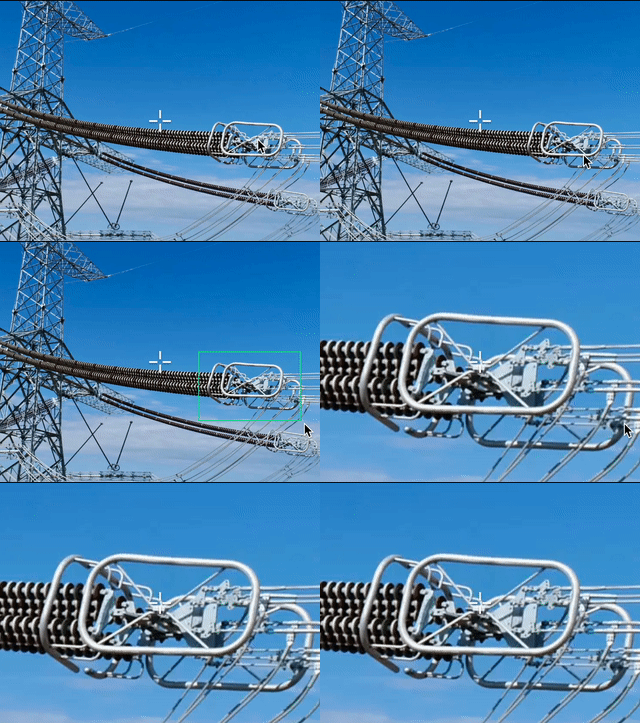
Note: Only DJI Dock 2 supports the subject zoom. To use the feature, the DJI Dock 2 firmware version should be v09.02.01.08 or later, and the dock aircraft version should be v09.02.01.08 or later.
- Users can switch from gimbal free and lock modes.
- PSDK Control: DJI FlightHub 2 supports remotely operating the PSDK devices. See PSDK Control for more information.
This section introduces the infrared camera view, and only the differences from the zoom camera view will be explained.
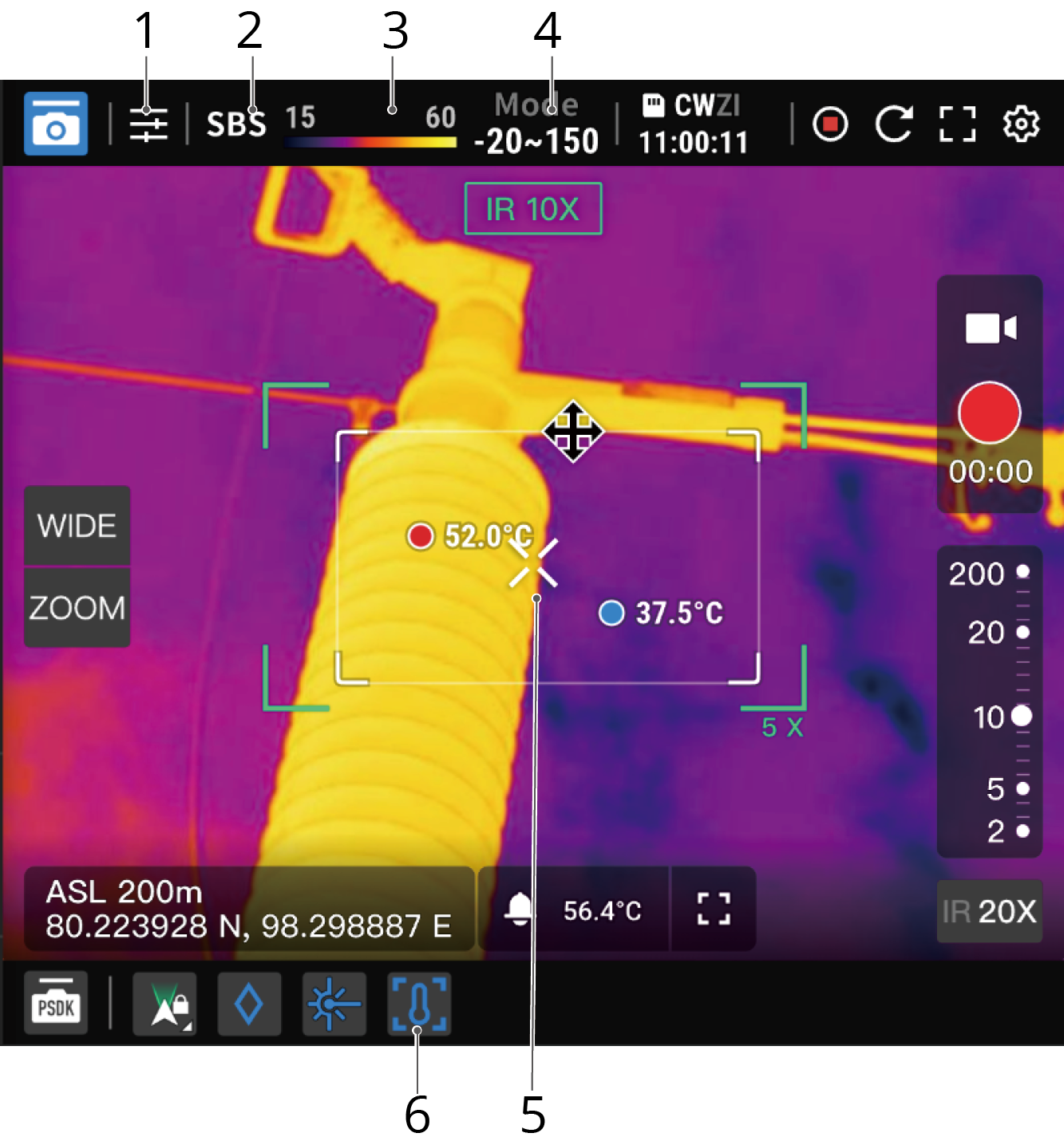
- Camera Parameters:
- IR Palette: Click to change the IR palette color.
- High Temperature Alarm: Click to customize the high temperature alarm settings.
- SBS: Click to display the infrared and zoom camera views side by side.
- Temperature Bar: Displays the highest and lowest temperatures of the objects within the camera view.
- Gain Mode: Click to switch between high- and low-gain modes. The high-gain mode provides more accurate temperature measurements, while the low-gain mode supports a wider temperature measurement range.
- Spot Temperature Measurement: Displays the temperature of the object at the focus point. Click anywhere on the camera view, and the camera will measure the temperature of the object at the clicked point.
- Area Temperature Measurement: Click
 to enable the area temperature measurement and adjust or drag the temperature measurement frame to change its size or location.
PSDK Control
Click  to enter the PSDK control interface.
- Main Interface: Displays the PSDK functions, including but not limited to the speaker, lighting device, and gimbal control, depending on the PSDK device installed.
- Settings: Click
 to customize the PSDK device settings.
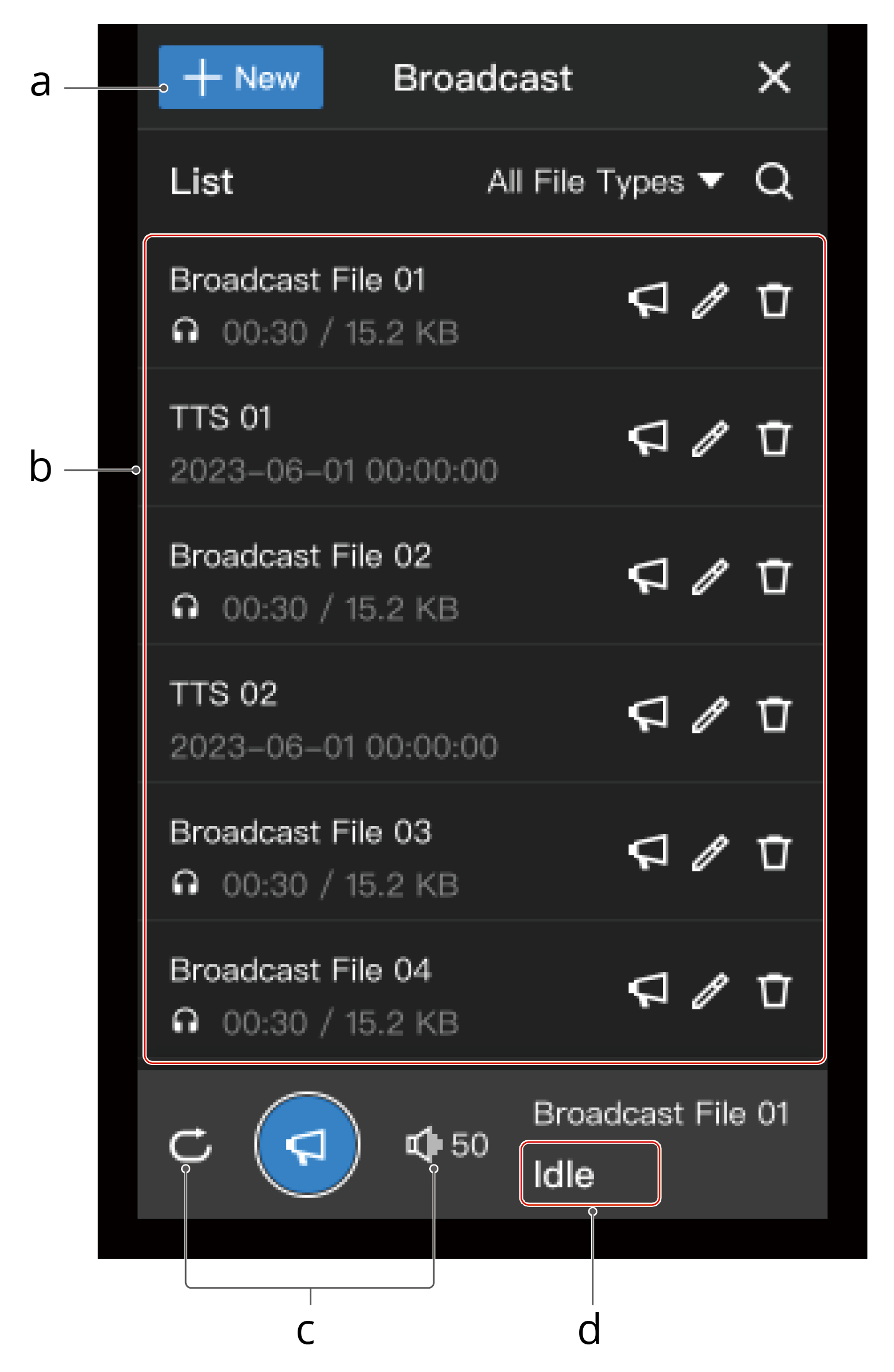
a. Create Broadcast Task
Click New to select from Record & Broadcast, Text to Speech, or Import Audio File.
b. Broadcast List
Displays all cloud files in the current project. Files stored in the PSDK speaker are not included.
c. Broadcast Settings
Users can set the loop play and adjust the broadcast volume.
d. Broadcast Status
Displays the current status of the speaker.
Click  to preview the audio. Click
  and the dock aircraft will broadcast the audio.
- Users need to allow DJI FlightHub 2 to access the microphone and install a voice input device if necessary.
- Users should contact the PSDK device manufacturer to upgrade the device to the latest version if the PSDK device version is too early.