
Copilot Remote Control
Copilot is an AI assistant integrated into the FlightHub 2 platform. Users can issue commands to Copilot using natural language (text or voice). The AI then interprets the request and controls the drone in real time to perform complex operational tasks such as flight, photography, and search, without requiring professional piloting skills.【Currently supported devices: DJI Dock 3 and DJI Dock 2】
How to Access
Copilot offers two entry points:
- Virtual cockpit entry: In the virtual cockpit interface, click the Copilot button to open the chat window on the right. The system will automatically bind Copilot to the currently controlled drone device.
- Team page entry: Click the Copilot button on the Team page to open the chat window. If a device is already selected, it will be automatically bound to the session. If no device is selected, the user must manually select a device within the chat window.
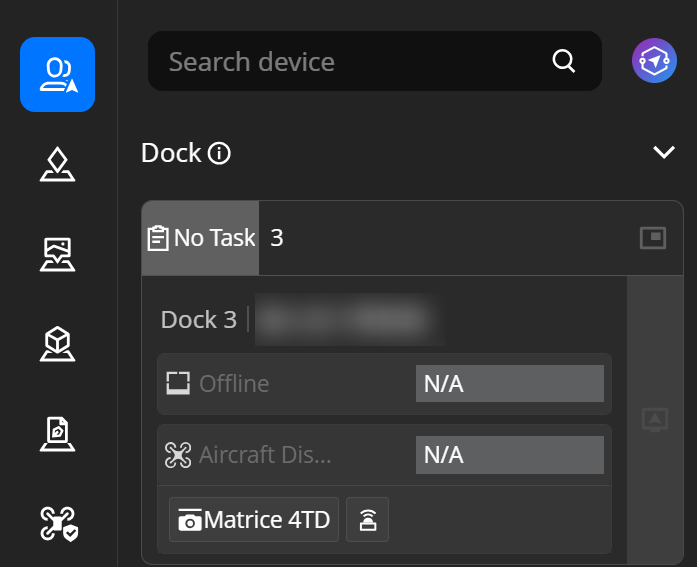
The screenshot shows the location of the Copilot button in the virtual cockpit interface and highlights the chat window that appears after clicking it.
Basic Concepts
- Conversation: Each interaction with Copilot is called a session. A session is strictly bound to one drone: (1 user : 1 Copilot : 1 drone). To control another aircraft, start a new conversation.
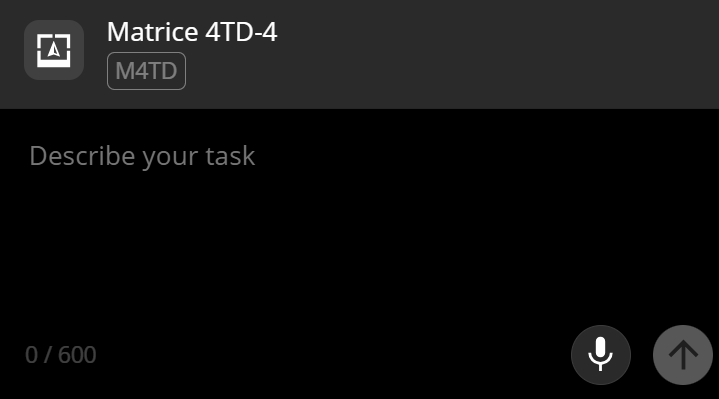
- Instruction: A command is the natural-language input entered by the user in the chat box, for example: “Fly to the park entrance and search for a person wearing red”. Copilot automatically parses the instruction to identify locations, actions, and targets.
- Planning confirmation: When a command involves high-risk operations such as takeoff or flight, Copilot generates a mission plan and requests user confirmation before executing it to ensure safety and control.
- Emergency stop: A red emergency stop button is always visible in the chat window. Pressing it will cause the drone to immediately hover in place. This command bypasses AI processing and is sent directly to the drone.
Copilot Capabilities Overview
The following tables describe all capabilities currently supported by Copilot, unsupported operations, and usage considerations for Copilot.
Flight Control
| Capability | Support Status | Description | Example |
|---|---|---|---|
| Fly to Destination Point Intelligently | Supported | Copilot automatically handles takeoff/in-air status, ground elevation calculation, and flight parameter retrieval. Altitude can be specified. It is recommended to enable Intelligent Optimal Flight Route Planning in the virtual cockpit. | “Fly to the park entrance”, “Fly to Marker B at 100 meters altitude” |
| Take Off / Fly to Specified Altitude | Supported | Altitude is measured as altitude above ground level (AGL). The system automatically calculates the absolute altitude. Due to potential inaccuracies in FlightHub global elevation data, we recommend leaving a sufficient safety margin. | “Take off”, “Take off to 100 meters”, “Fly to 80 meters altitude” |
| Relative Direction Flight | Supported | Based on the drone’s current position, supports relative movement in 10 directions: forward, backward, left, right, front-left, front-right, rear-left, rear-right, up, and down. | “Fly forward 100 meters”, “Fly left 50 meters”, “Ascend 30 meters” |
| Return to Home and Land | Supported | The drone automatically returns to the takeoff point and lands. | “Return to home” |
| Emergency Stop | Supported | The drone immediately hovers in place. Use only in emergency situations. After activation, a new command must be issued manually to resume operations. | “Emergency stop” or press the emergency stop button |
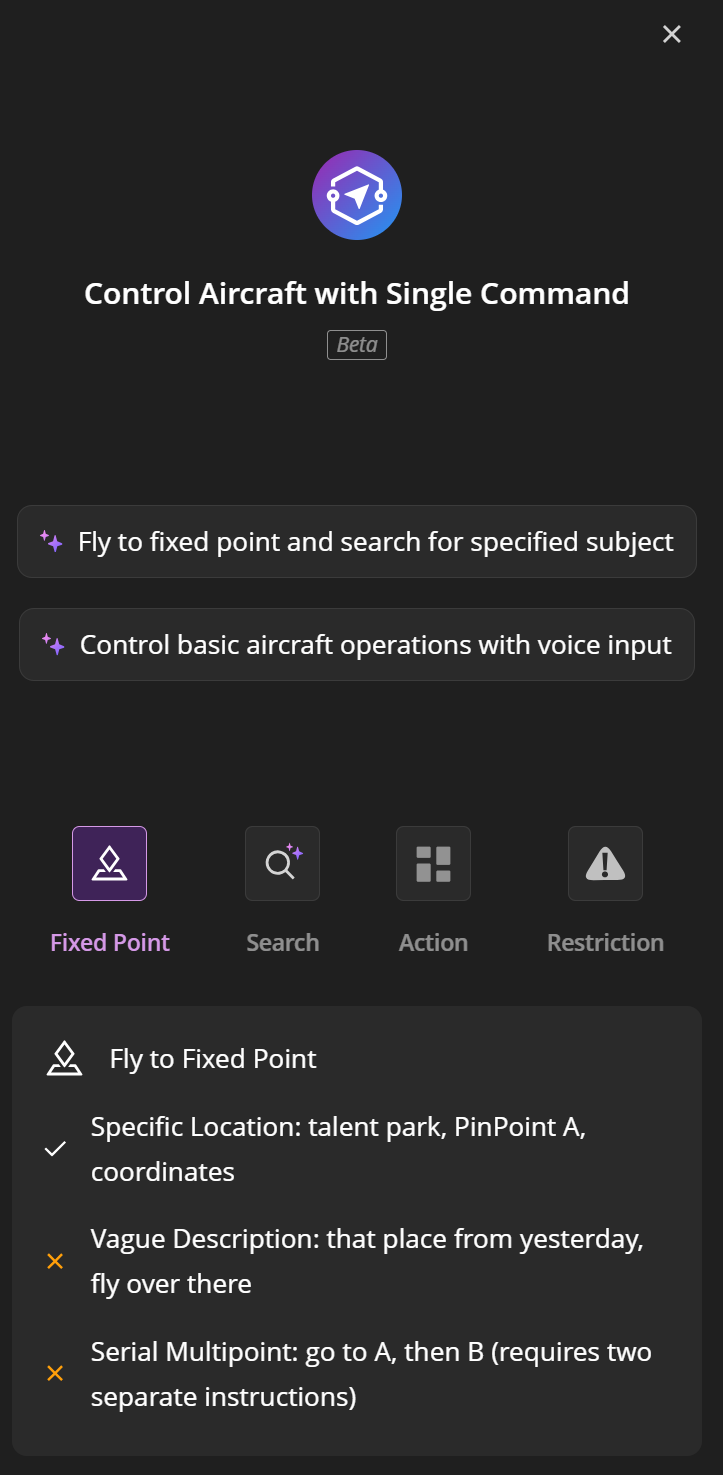
| Continuous Flights Between Multiple PinPoints | Unsupported | A single command supports only one absolute PinPoint. To fly to multiple locations, issue commands sequentially. | — |
| Flight Task Execution | Unsupported | Existing flight task files cannot be executed directly. Only real-time FlyTo is supported. | — |
Camera & Imaging
| Capability | Support Status | Description | Example |
|---|---|---|---|
| Photo Capture | Supported | Supports single or multiple photos. Users can set number of photos and interval timing. | “Take a photo”, “Take 3 photos”, “Take a photo every 2 seconds, 5 times”, “Zoom to 7x and take a photo” |
| Video Recording | Supported | Supports timed recording and continuous recording (manual stop). Camera mode switches automatically. | “Record for 30 seconds”, “Start recording” |
| Stop Recording | Supported | Stops an active recording session anytime. | “Stop recording” |
| Pano | Supported | Automatically switches to pano mode. The drone must maintain stable hover during capture (approx. 100 seconds). | “Take a pano photo” |
| Lens Switching | Supported | Supports switching between infrared, wide-angle, and zoom lenses. | “Switch to infrared camera”, “Switch to wide-angle”, “Switch to zoom lens” |
| Orient the Camera Toward a Coordinate | Supported | Points the camera toward a specified geographic location. | “Point the camera toward the park entrance” |
| Manual Focus / Exposure Adjustment | Unsupported | Manual focus (MF/AF), exposure compensation, night mode, and similar settings are not controllable. | — |
Gimbal Control
| Capability | Support Status | Description | Example |
|---|---|---|---|
| Gimbal Recenter (horizontal) | Supported | Gimbal returns to its horizontal position. | “Recenter the gimbal” |
| Tilt Gimbal Downward | Supported | Adjusts the gimbal to 90° downward, suitable for orthographic imaging and mapping tasks. | “Point the gimbal downward” |
| Precise Pitch / Yaw Angle Control | Unsupported | Only two preset positions are available: center and vertical downward. Precise angle adjustment is not supported. | — |
Circle Point of Interest (POI)
| Capability | Support Status | Description | Example |
|---|---|---|---|
| Circle POI | Supported | Circle a specified POI. The system automatically calculates the radius and duration. Circle speed can be specified. | “Circle the signal tower”, “Circle this building once” |
| Exit POI | Supported | Stops the current POI flight at any time. | “Stop circling” |
| Custom Circle Count | Supported | Allows multiple circles to be specified. | “Circle the signal tower 3 times” |
| Custom Circle Radius | Unsupported | The circle radius is automatically determined by the current distance between the drone and the PinPoint. If the distance is less than 100 m, the radius is automatically set to 40 m; if the distance is greater than 100 m, the radius is automatically set to 100 m. | — |
VLM Intelligent Search
| Capability | Support Status | Description | Example |
|---|---|---|---|
| Enable Object Detection | Supported | Performs real-time object detection using a Vision-Language Model (VLM). Custom detection labels are supported. | “Search for a person wearing red”, “Detect fire and smoke” |
| Disable Object Detection | Supported | tops an ongoing detection task at any time. | “Stop detection” |
| Search Scan | Supported | Executes a three-layer circular scanning pattern (near to far). The system automatically switches to the wide-angle camera and performs 360° rotational scans for each layer. This process is automatically triggered after a search command is issued. | “Search for nearby vehicles” (Copilot automatically orchestrates the scanning sequence) |
| Wait for Detection Results | Supported | Blocks and waits for VLM to return detection results. A timeout value can be configured. | Automatically invoked by Copilot; no manual command required. |
| Small Object Detection | Unsupported | Targets that are too small in scale are not supported (e.g., “road cracks larger than 2 cm”). | — |
| Highly Specialized Subjects | Unsupported | Extremely specialized targets are not supported (e.g., “double-tension insulator strings” or other niche industrial components). | — |
Location Search
| Capability | Support Status | Description | Example |
|---|---|---|---|
| Search by Place Name | Supported | Enter a location keyword. The system first searches PinPoints within the project. If no match is found, external locations are searched automatically. Up to five candidate locations are returned. | “Fly to Jiangang Mountain”, “Fly to the landing pad” |
| Location Confirmation | Supported | After coordinates are found, a confirmation card with a map preview is displayed. Users can review and modify the location before confirming to prevent incorrect navigation. | Automatically triggered by Copilot; user confirms or edits on the map card. |
| Fuzzy Historical Reference | Unsupported | Ambiguous references to previously visited locations are not supported. | — |
| Pure Relative Directions | Unsupported | Relative descriptions without a geographic anchor point are not supported. | — |
| Area Range Description | Unsupported | The destination must be a specific point. Area-based or corridor-style descriptions are not supported. | — |
Speaker
| Capability | Support Status | Description | Example |
|---|---|---|---|
| TTS Voice Broadcast | Supported | Converts text to speech and plays it through the drone speaker. Supports single playback or loop playback, with adjustable volume (0–100). The text should not exceed 200 characters. | “Broadcast: Please stay clear. Construction area ahead.” / “Loop playback: Please pull over for inspection.” |
| Stop Broadcast | Supported | Stops an ongoing voice broadcast at any time. | “Stop broadcasting” |
Interaction Confirmation
| Capability | Support Status | Description | Example |
|---|---|---|---|
| Location Confirmation | Supported | When a command involves flight targets, a map confirmation card is automatically displayed. Users can review or adjust the location on the map. | Automatically triggered by Copilot; user confirms on the card. |
| Plan Confirmation | Supported | For high-risk operations such as takeoff or movement, a full task plan preview is displayed. Execution begins only after user confirmation. | Automatically triggered by Copilot; user selects “Execute Now” or “Cancel”. |
| Automatic Device Parameter Retrieval | Supported | Automatically retrieves device parameters such as altitude and distance limitations, RTH altitude, and failsafe settings. | No user input required. The system completes this automatically. |
Usage Workflow
Basic Workflow
- Enter Copilot: Click the Copilot button in the virtual cockpit or on the team page.
- Confirm Device: Ensure the correct drone is linked.
- Enter a Command: Describe the task in natural language in the chat box, for example: “Fly to PinPoint B and take a photo”.
- Confirm Location: If the command involves a location, Copilot will display a location confirmation card. Confirm the location or modify it if necessary.
- Confirm Task Plan: If the command involves high-risk operations, Copilot will display a task plan summary. The operation will begin only after user confirmation.
- Monitor Execution: During the task, progress can be monitored in real time within the chat window.
- View Results: Check the result report after the task is completed.
Flowchart: Command Input > Location Confirmation Card > Task Confirmation Card > Execution Progress > Result Report.
Session Management
- Create a New Session: Click the New Session button to start a new conversation. Each session is bound to one drone.
- History: Historical sessions can be filtered by date or searched by title.
- Rename/Delete: Existing sessions can be renamed or deleted from the history list.
- Global Timeout: If a session remains active for more than 90 minutes, it will automatically terminate. Plan your task duration accordingly.
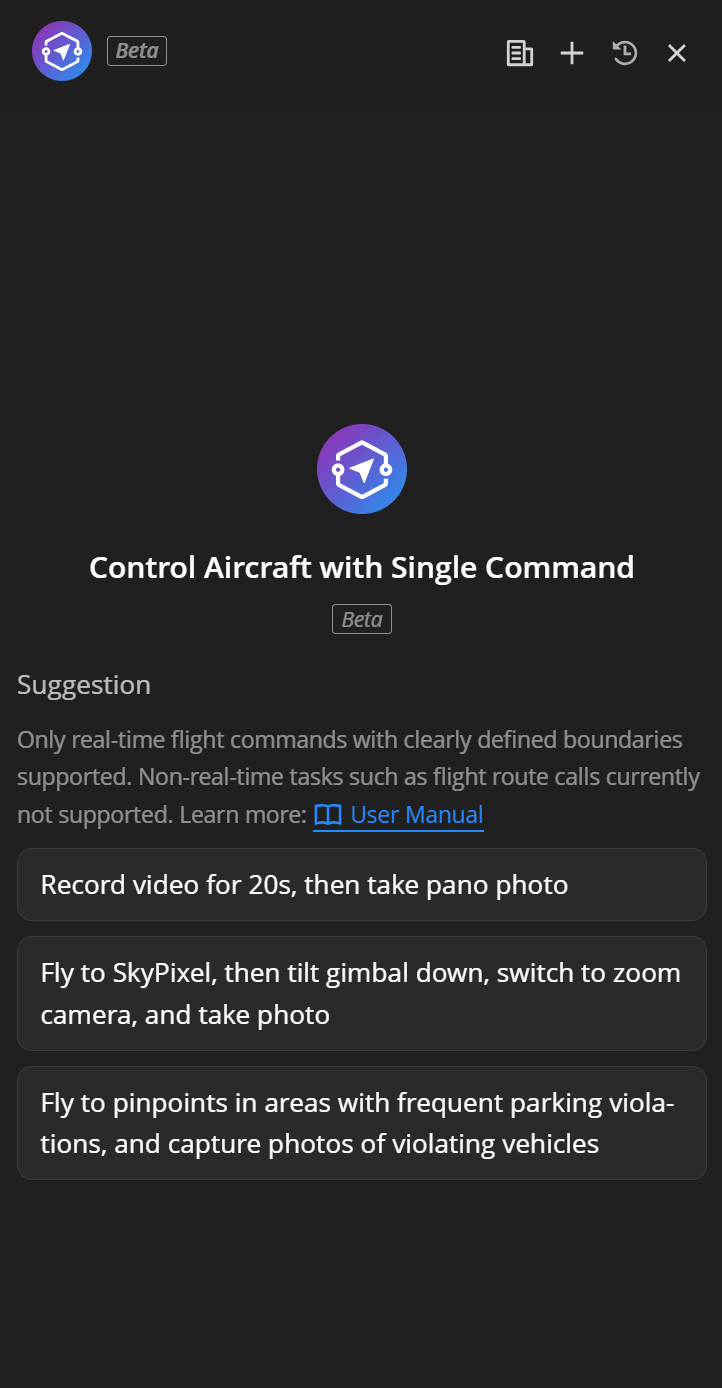
The screenshot shows the session list interface, and highlights the New Session, Search, and History controls.
Command Writing Guidelines
Copilot understands natural language, but following these guidelines will improve your experience:
Recommended Command Formats:
- “Take off and climb to 100 m” — A clearly defined altitude
- “Fly to the park entrance” — A clearly specified location
- “Fly forward 50 m, then take a photo” — Explicit direction, distance, and action
- “Search for a person wearing red” — Specific subject description
- “Start recording for 30 seconds” — Explicit duration
Commands Not Recommended
- “Fly to the place we visited yesterday” — Ambiguous historical reference. Copilot cannot interpret it.
- “Fly to Park A, then Square B, and finally Building C” — Contains multiple absolute destination points in a single command. Not supported.
- “Tilt the gimbal down 35 degrees” — Precise angle control is not supported.
- “Power off” — Commands beyond the control scope are not supported.
Best Use Scenarios
Scenario 1: Security Patrol — Target Search in a Designated Area
Scenario: Security personnel receive an alert and need the drone to fly to a specified location to search for suspicious individuals.
Example:
User: Fly to the south gate of the park, search for a suspicious person wearing a black jacket, and take a photo once found.
Copilot Workflow:
- Search for the location “South Gate of the Park” and display a location confirmation card with a list of candidate places.
- After the user confirms the desired location, generate a task plan (including flight altitude and search strategy).
- Once the plan is confirmed, the drone automatically takes off and flies to the location.
- Upon arrival, VLM intelligent search is automatically activated, and then the wide-angle camera engages for a three-layer circular scan.
- When a match is found, the gimbal automatically points toward the target and takes a photo.
- The task completes and a result report card is displayed (including captured photos and flight logs).
Scenario 2: Emergency Response — Rapid Arrival and Video Evidence Collection
Scenario: The command center receives a fire report and needs a drone to quickly reach the site and record video for evidence.
Example:
User: Fly to the main entrance of the warehouse area and record a video for 60 seconds upon arrival.
Copilot Workflow:
- Search for “Warehouse Area Entrance” and request user confirmation.
- Generate a flight plan that shows the estimated flight distance and duration.
- After confirmation, the drone takes off and the flight progress is displayed in real time.
- Once the drone reaches the destination point, recording automatically starts for 60 seconds.
- After recording ends, a result report is displayed.
Advanced Operation — Combined with VLM Detection:
User: Fly to the warehouse area, search for fire or smoke, and orbit and record a video once found.
Copilot automatically plans the route: Fly to the target > Enable VLM detection (labels: fire, smoke) > Perform circular search scanning > When a target is detected, orient the gimbal toward it > Start recording > Circle POI > Stop recording.
Scenario 3: Routine Inspection — Point-Based Photo Capture + Voice Broadcast
Scenario: A security team in an industrial park is on a routine patrol and needs a drone to fly to each inspection point to perform environmental checks and broadcast safety reminders.
Example:
User: Fly to Helipad B and take a photo.
User: Fly forward 200 meters, tilt the gimbal down, and take 3 photos.
User: Broadcast "Please stay safe. Entry to the construction area is prohibited."
Copilot Workflow:
- 1st Command: Fly to Landing Pad B (automatically matches PinPoint within the project). Take a photo upon arrival.
- 2nd Command: Fly forward 200 meters from current position, point the gimbal downward, and take three consecutive photos.
- 3rd Command: Use the speaker to broadcast the specified message.
Scenario 4: POI Circle Inspection
Scenario: Conduct a 360-degree circle around key buildings or facilities for inspection and recording.
Example:
User: Fly to the signal tower, then orbit and record a video.
Copilot Workflow:
- Search for “Signal Tower” and request confirmation.
- The drone flies to the signal tower.
- Recording automatically starts upon arrival (continuous recording mode).
- The drone starts circling POI automatically with the camera locked onto the tower.
- Stop recording after one circle is completed.
- The task result is displayed.
Safety Notice
Emergency Stop
A red Emergency Stop button is persistently displayed in the lower-left corner of the chat window. This is the most critical safety safeguard.
- Once pressed, the drone immediately hovers in place, and all ongoing tasks are terminated.
- The Emergency Stop command bypasses AI processing and is sent directly to the drone to ensure the fastest possible response.
- After an emergency stop is triggered, you must manually send a new command to regain control.
Screenshot showing the location and appearance of the Emergency Stop button, with a clear annotation indicating its function.
Permission Management
- Other operators can take over control of the drone from Copilot at any time. When this occurs, Copilot inserts a system notification in the conversation.
- If you attempt to take control of a drone that is currently executing a task, the system displays a secondary confirmation prompt.
- To control a different drone, create a new session. Switching devices within the same session is not supported.
Important
- Only one absolute PinPoint is supported per command: Commands such as “Fly to A and then fly to B” will be rejected. Please issue them as two separate commands.
- 90-minute session timeout: A session will automatically terminate if it exceeds 90 minutes. Plan your tasks accordingly.
- Always verify the location and parameters before flight: Copilot displays a confirmation card. Carefully review the coordinates and flight parameters before confirming execution.
- Monitor battery level: Before executing long-distance flights or search tasks, ensure the drone has sufficient battery power.
- Use clear and specific detection labels for VLM searches: “Person wearing red” yields better results than “a suspicious person”. The more specific the description, the better the detection.
- Sequence of recording and actions: If you want to record while circling, Copilot automatically starts recording first, and then begins circling; If you want to record after circling is complete, please specify "after completion" in the instruction.
- Pano: Panorama capture requires the drone to hover steadily for approximately 100 seconds. Ensure the surrounding environment is safe.
FAQ
Q: Can Copilot control multiple drones simultaneously? A: In the current version, each session can only be bound to one drone. To operate multiple drones, create separate sessions for each device.
Q: Can I manually take over control while Copilot is executing a task? A: Yes. You can stop the task at any time using the Emergency Stop button, or manually reclaim control in the virtual cockpit. Copilot will receive a notification in the conversation.
Q: Why did Copilot reject my command? A: Common reasons include: The command contains multiple absolute PinPoints. The request involves operations beyond Copilot’s capabilities (e.g., adjusting exposure parameters). The target description is too vague or overly specialized. Copilot will provide a specific explanation for the rejection.
Q: What should I do if VLM search fails to find the PinPoint? A: You may try the following: Refine the detection label to make it more precise; change the search location; lower the flight altitude to obtain a better visual angle. Note that VLM detection performance may be limited for very small objects or highly specialized targets.
Q: What is the flight altitude relative to? A: All flight altitudes in Copilot are altitude above ground level (AGL). The system automatically looks up ground elevation and calculates the absolute altitude. You do not need to worry about elevation conversions.
Q: In commands, what direction does “forward” refer to? A: In relative movement commands, “forward/backward/left/right” are defined relative to the aircraft heading, not the cardinal directions on the map (north, south, east, west).