O4 Ground Station
Overview
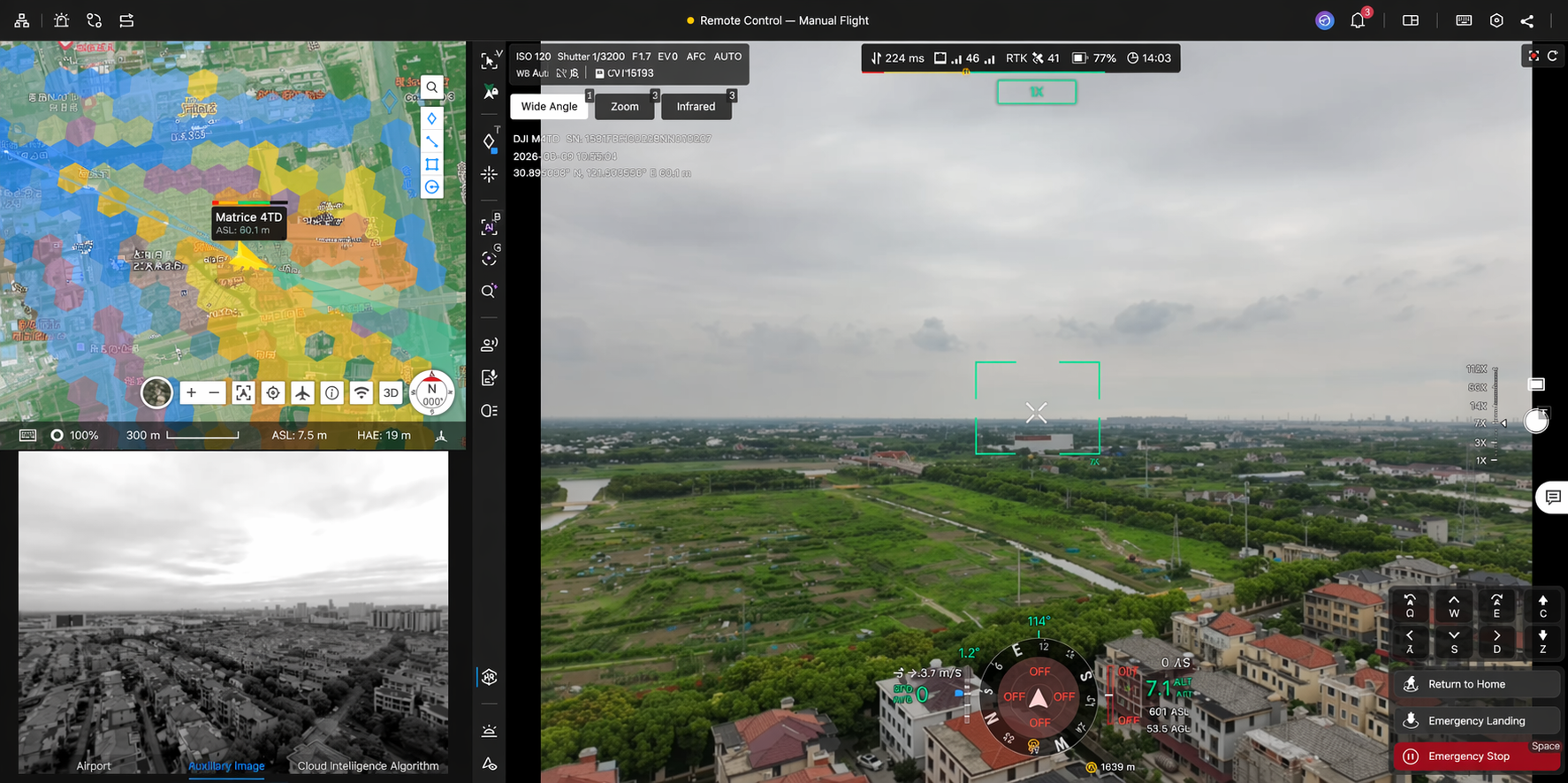
After the O4 Ground Station is connected to DJI FlightHub 2, you can remotely view and operate the station via the Device Status Window, and use it as a network station in the Virtual Cockpit to participate in flight operations (Fly To Here, One-Click Takeoff, etc.).
Function Overview
DJI FlightHub 2's support for the O4 Ground Station covers two modules:
- Device Status Window: Remotely view the O4 Ground Station's running status and alerts, perform operation and maintenance actions, view the on-site livestream, and control connected third-party peripherals via cloud widgets.
- Virtual Cockpit: Use the O4 Ground Station as a network station for flight operations such as Fly To Here, One-Click Takeoff, etc., with capabilities including station visualization, real-time cross-station flight observation, and signal map filtering.
Device Status Window
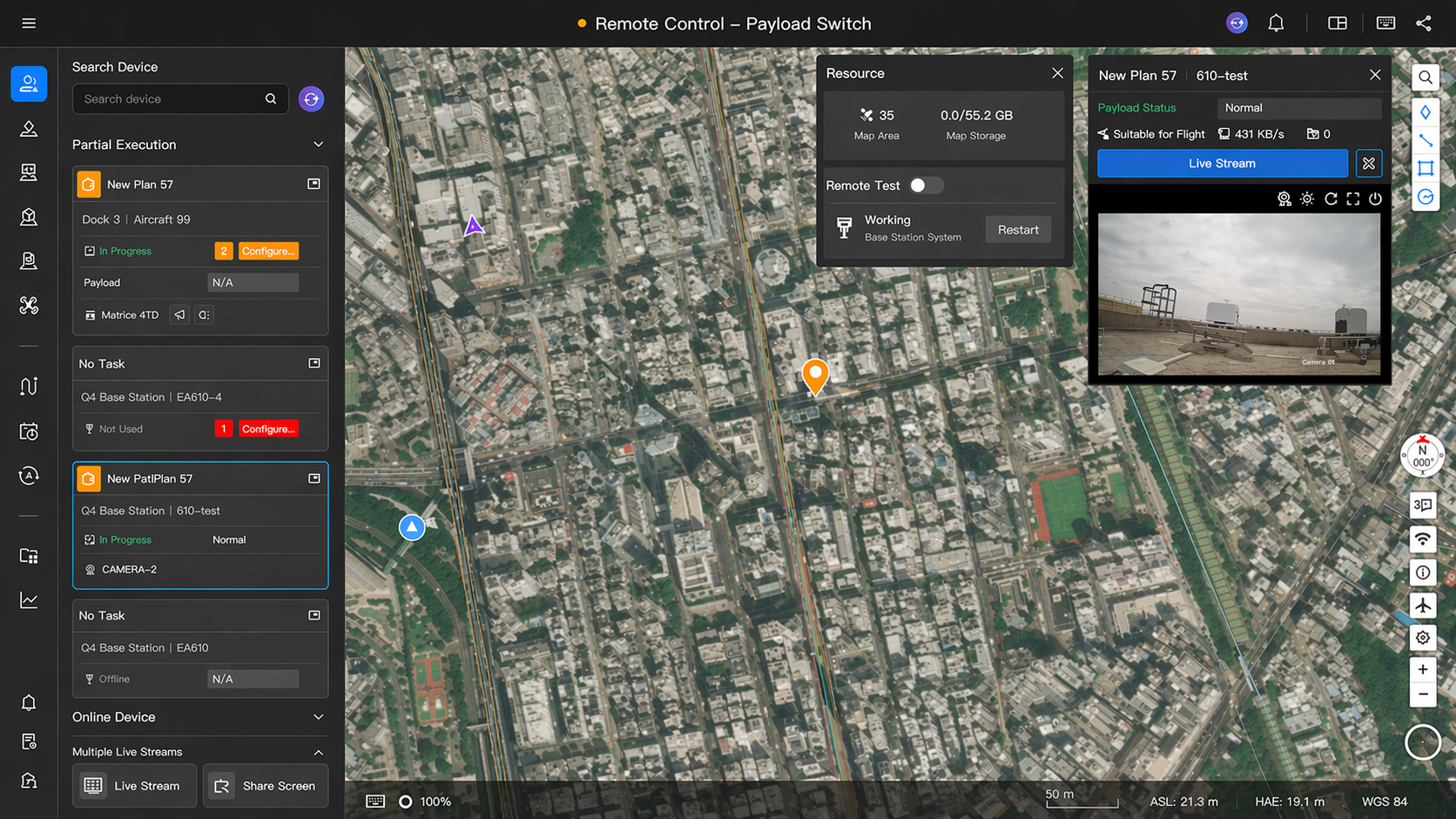
After the O4 Ground Station is connected to DJI FlightHub 2, click the O4 Ground Station device card in the team page's Dock/Ground Station list to open the Device Status Window.
Device Details
1. Basic Information
The Device Status Window shows the O4 Ground Station's basic information, including: device model, device SN, project callsign, power-saving status, GNSS status, storage status, and system status.
2. Device Alerts
The top of the Device Status Window shows alerts from the O4 Ground Station and connected devices. Click an alert to expand the alert list.
3. Ground Station Livestream
Click the Ground Station Livestream entry in the Device Status Window to view the on-site livestream from the O4 Ground Station, with real-time temperature and timestamp overlays.
Aircraft Connection Display
1. Aircraft Card
After an aircraft is bound to the O4 Ground Station, the aircraft card will display the bound station name and connection status.
2. Aircraft Cloud Access
After an aircraft goes online via the O4 Ground Station, you can view the aircraft's real-time status and livestream in the Device Status Window, and control the aircraft through remote operations.
Third-Party Peripheral Cloud Widget Control
The Device Status Window supports cloud-based control of third-party peripherals connected to the O4 Ground Station, including but not limited to:
- Gimbal control for standard cameras
- Hatch control for third-party docks
- Charging module control
Virtual Cockpit Adaptation
The Virtual Cockpit has been adapted for the O4 Ground Station, including pre-flight station recommendation and binding, map-based station visualization, real-time cross-station flight observation, and signal map filtering by the current controlled device.
The way an aircraft connects to the O4 Ground Station differs depending on the dock used:
| Dock Model | Station Connection Method | Description |
| DJI Dock 3 | Manual station selection | Before takeoff, you need to manually select an O4 Ground Station from the "Network Station" list in the pre-flight check menu. |
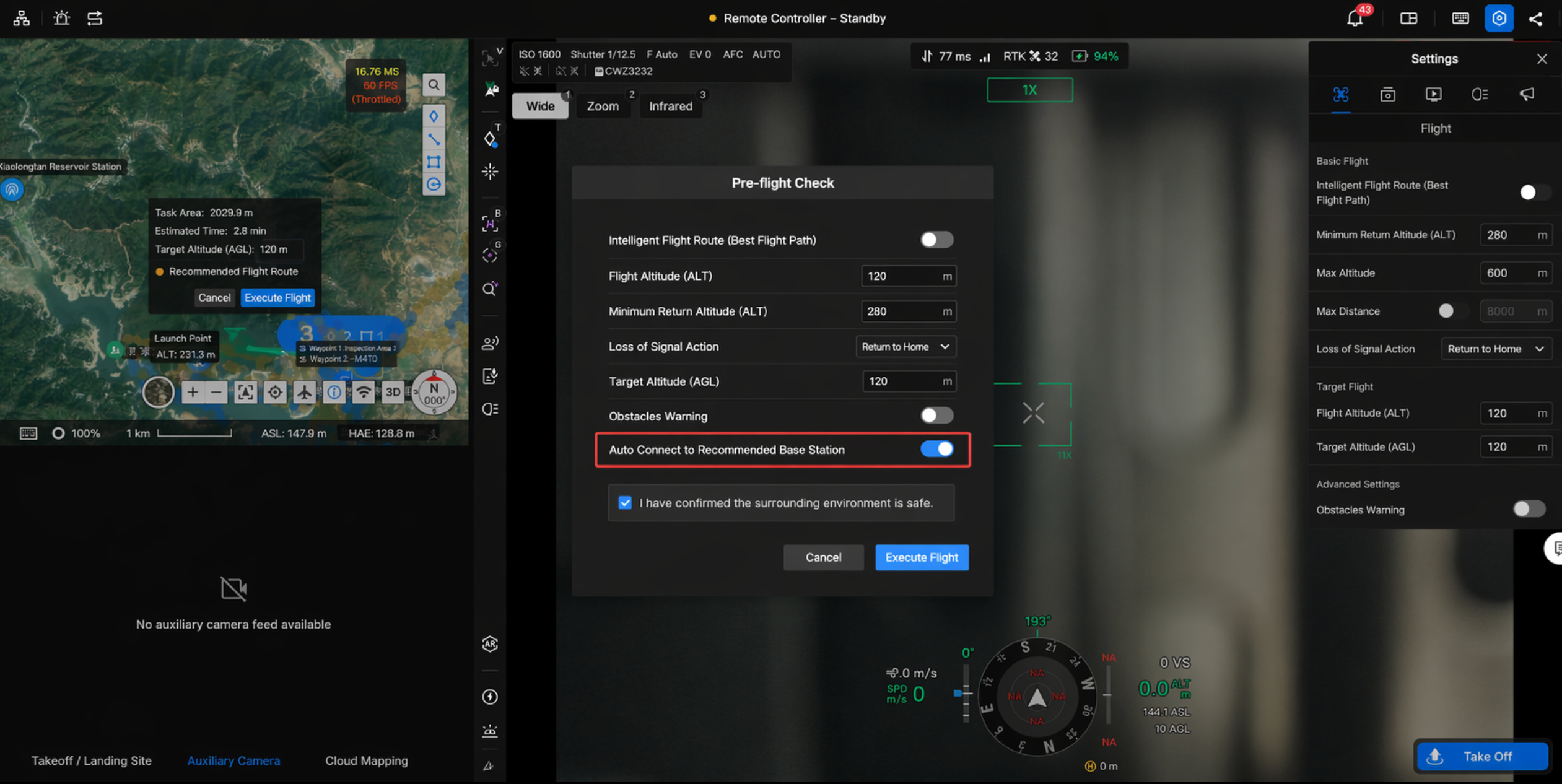
| DJI Dock 4 | Auto-connect to recommended station | After enabling "Auto-connect to Recommended Station" in the pre-flight check menu before takeoff, there is no need to manually select a station. The system will automatically connect to a suitable O4 Ground Station based on the signal conditions. |
Signal Enhancement (Fly To Here)
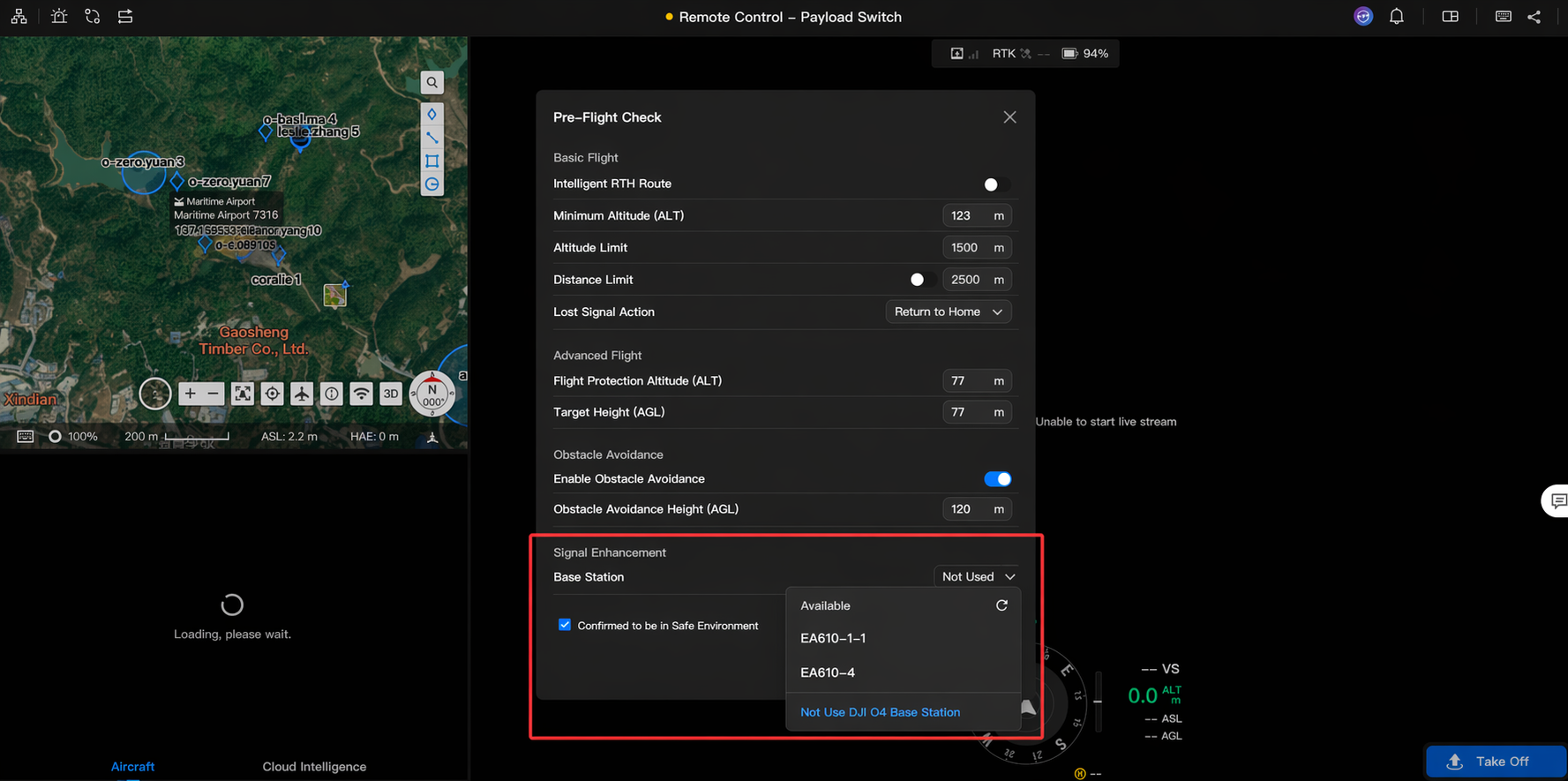
When you right-click "Fly to Here" on the Virtual Cockpit map, the pre-flight check menu now includes a new "Signal Enhancement" section:
- Network Station: Lists the "available nearby" O4 Ground Stations (manual refresh supported), sorted by signal strength in descending order. They are shown as "Station 1 / Station 2 / Station 3 / Station 4", and one can be selected manually. When using the DJI Dock 4, you can enable "Auto-connect to Recommended Station" to let the system connect automatically.
- No Network Station: Choose not to bind any station and fly using only the dock link.
Signal Enhancement (One-Click Takeoff)
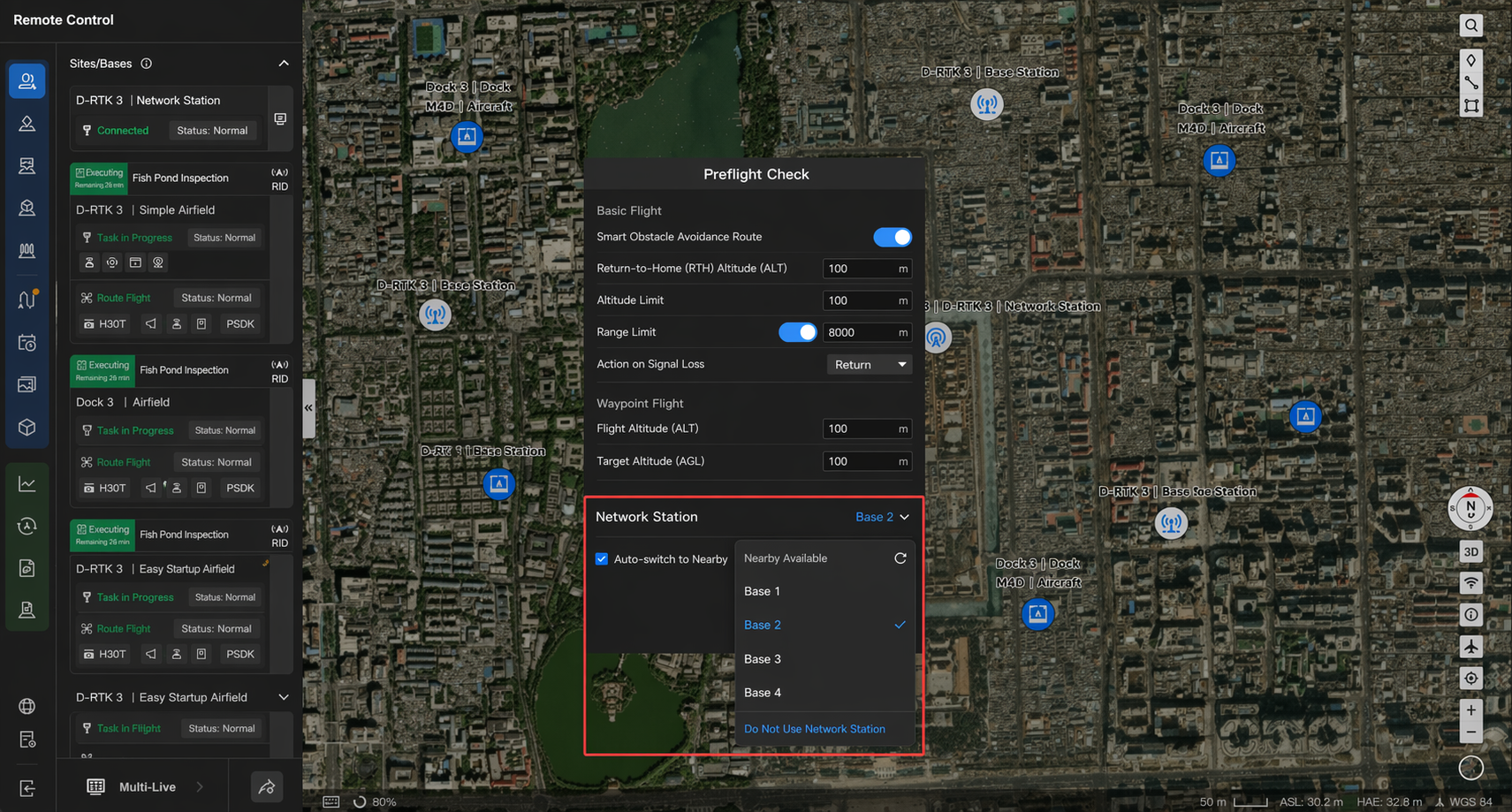
When you click "One-Click Takeoff", the pre-flight check menu now includes a new "Signal Enhancement" section:
- Network Station: Lists the "available nearby" O4 Ground Stations (manual refresh supported), sorted by signal strength in descending order. They are shown as "Station 1 / Station 2 / Station 3 / Station 4", and one can be selected manually. When using the DJI Dock 4, you can enable "Auto-connect to Recommended Station" to let the system connect automatically.
- No Network Station: Choose not to bind any station and fly using only the dock link.
Station Visualization
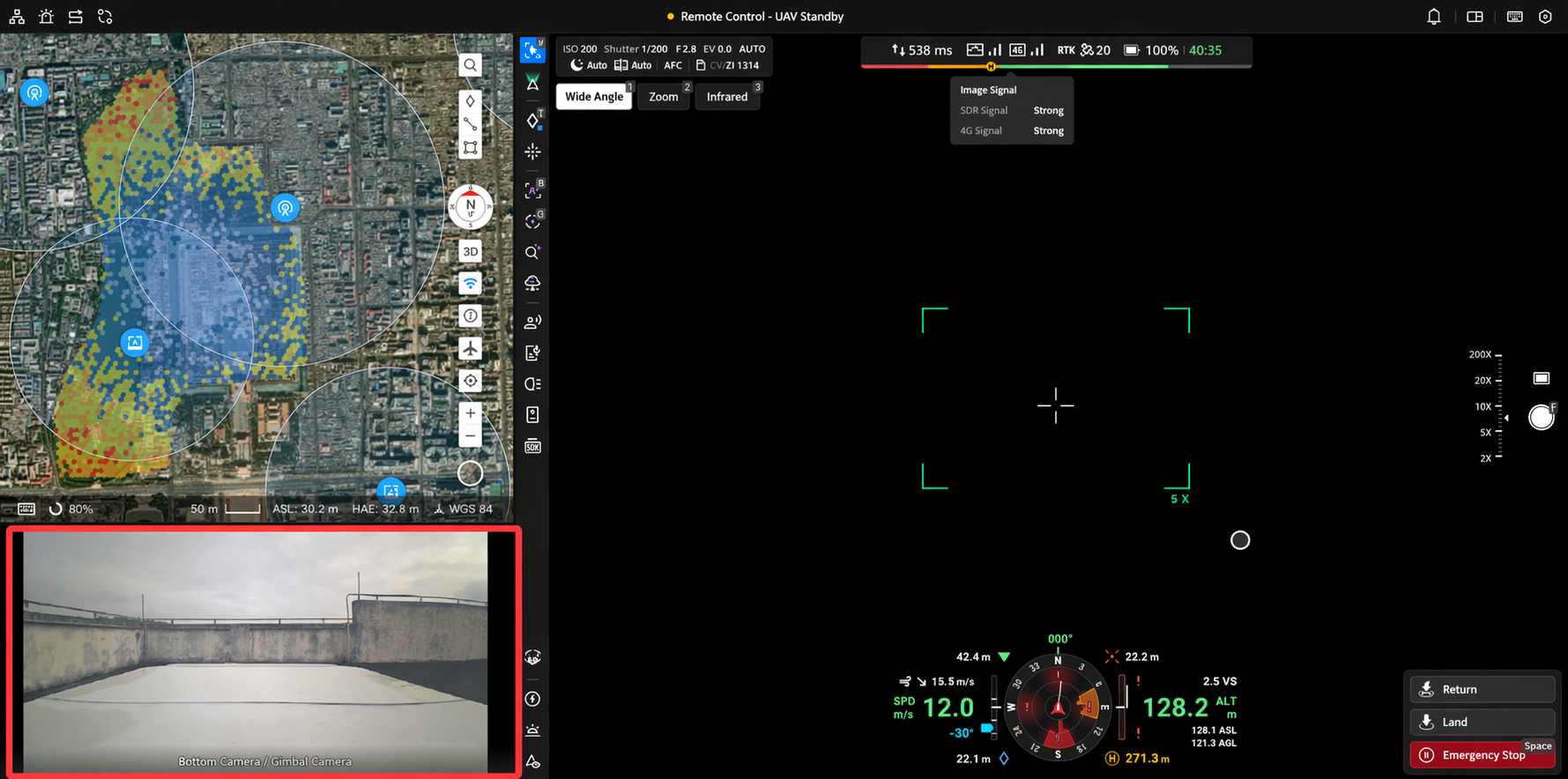
1. Binding Relationship between Station and Dock
- Before Pairing: The map displays the connection status and name of all bound stations in the organization by default.
- After Pairing: The map additionally shows the binding relationship status between paired O4 Ground Stations and their corresponding docks.
Real-Time Cross-Station Flight Observation (Planned Task)
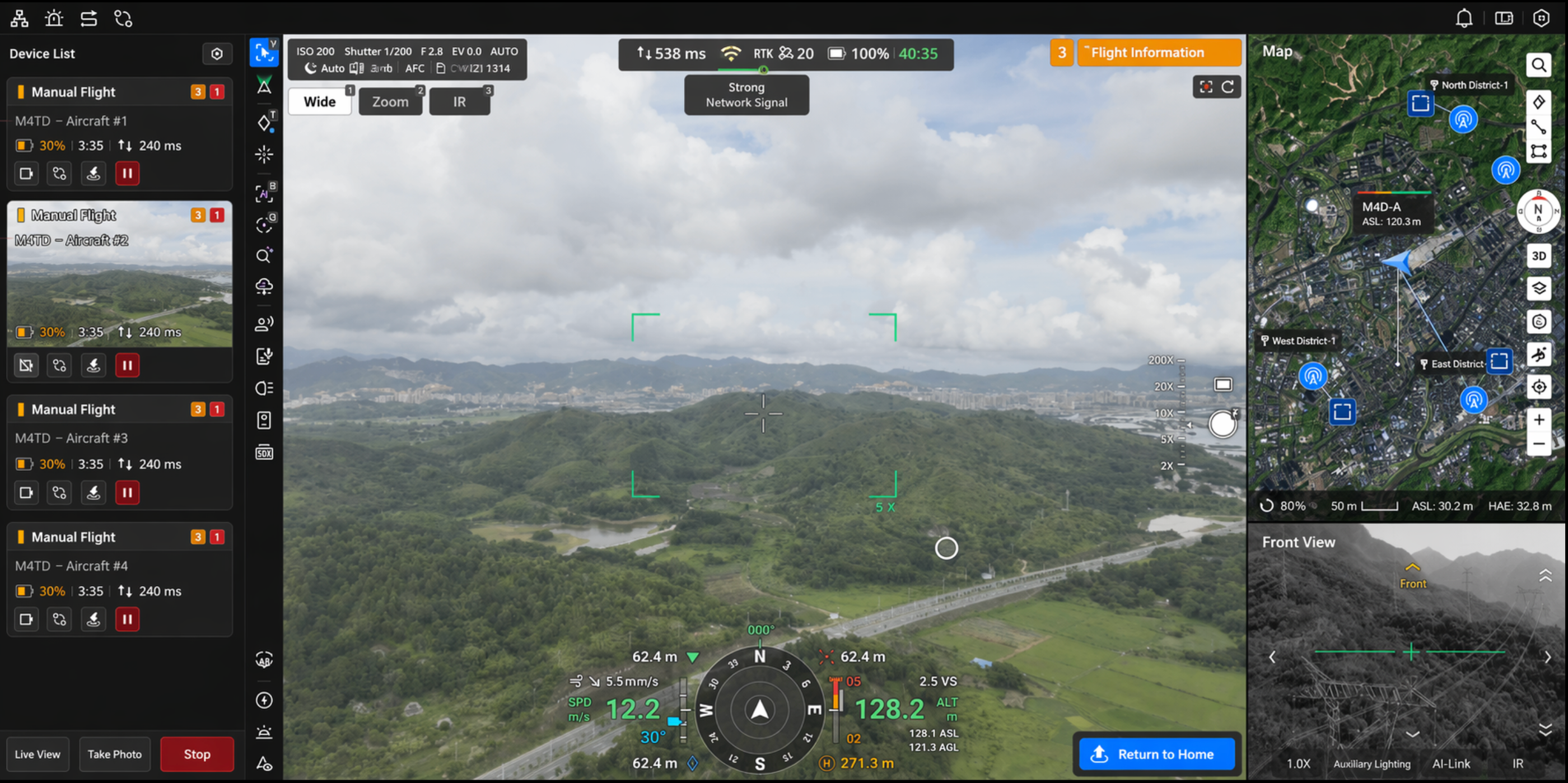
During a Planned task, you can observe the aircraft's cross-station flight in real time in the Virtual Cockpit:
- Current Controlling Device: Displays in real time which dock or O4 Ground Station the aircraft is currently associated with.
- Map: Shows the takeoff dock and the O4 Ground Station positions at the same time.
- Control Page: Displays the connected station information, including station icon, device name, and SDR signal status.
- Flight Records: Flight records and media files generated by cross-station flights are associated with the corresponding O4 Ground Station.
- Flight Operation Adaptation: During cross-station flights, the Virtual Cockpit's flight controls (in-flight route delivery, dual-aircraft relay, etc.), payload controls (panoramic photo, intelligent low-light, etc.), PSDK controls (Speaker, Spotlight, etc.), and livestream/recording features have all been adapted for cross-station scenarios.
Signal Map
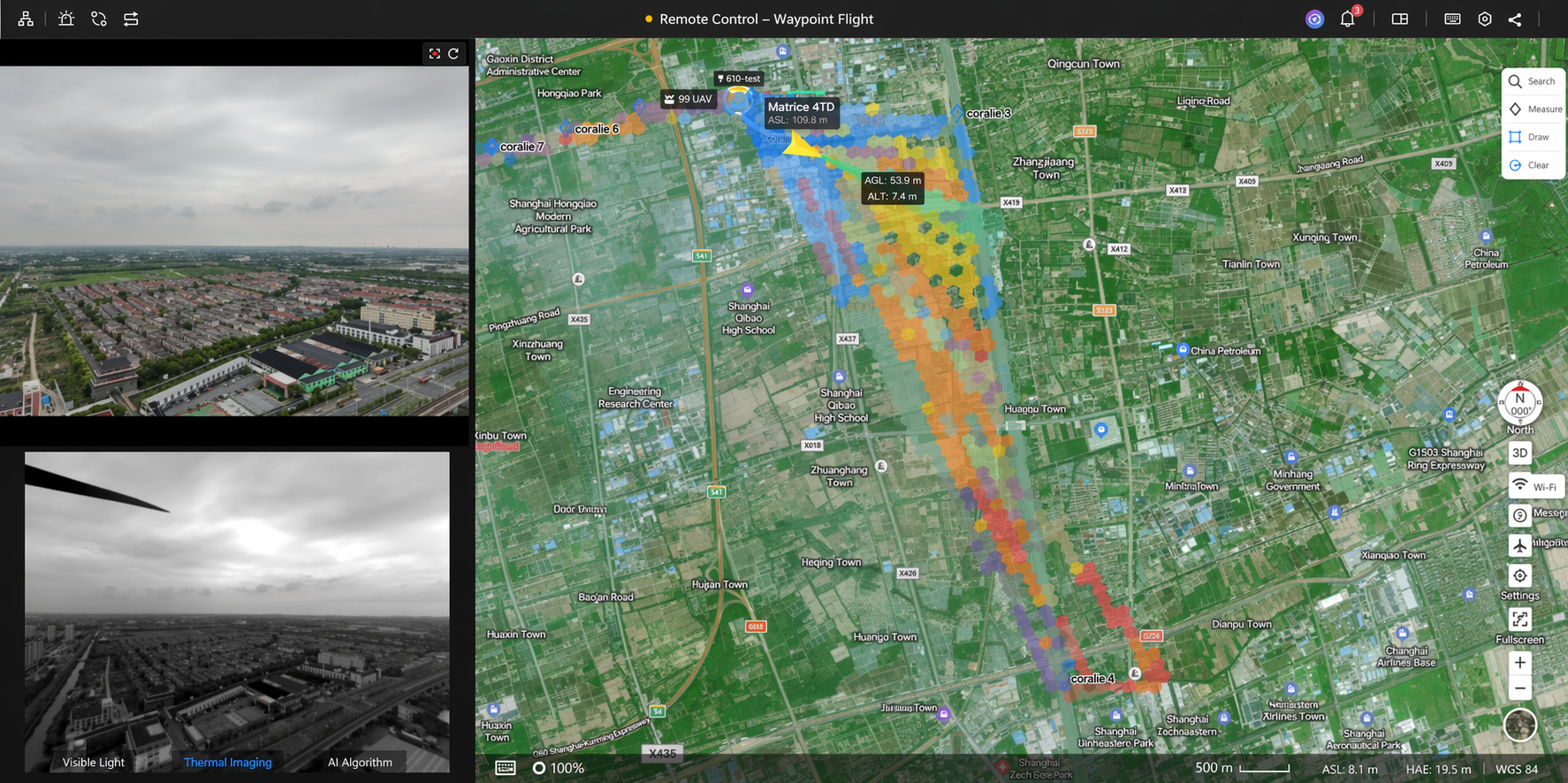
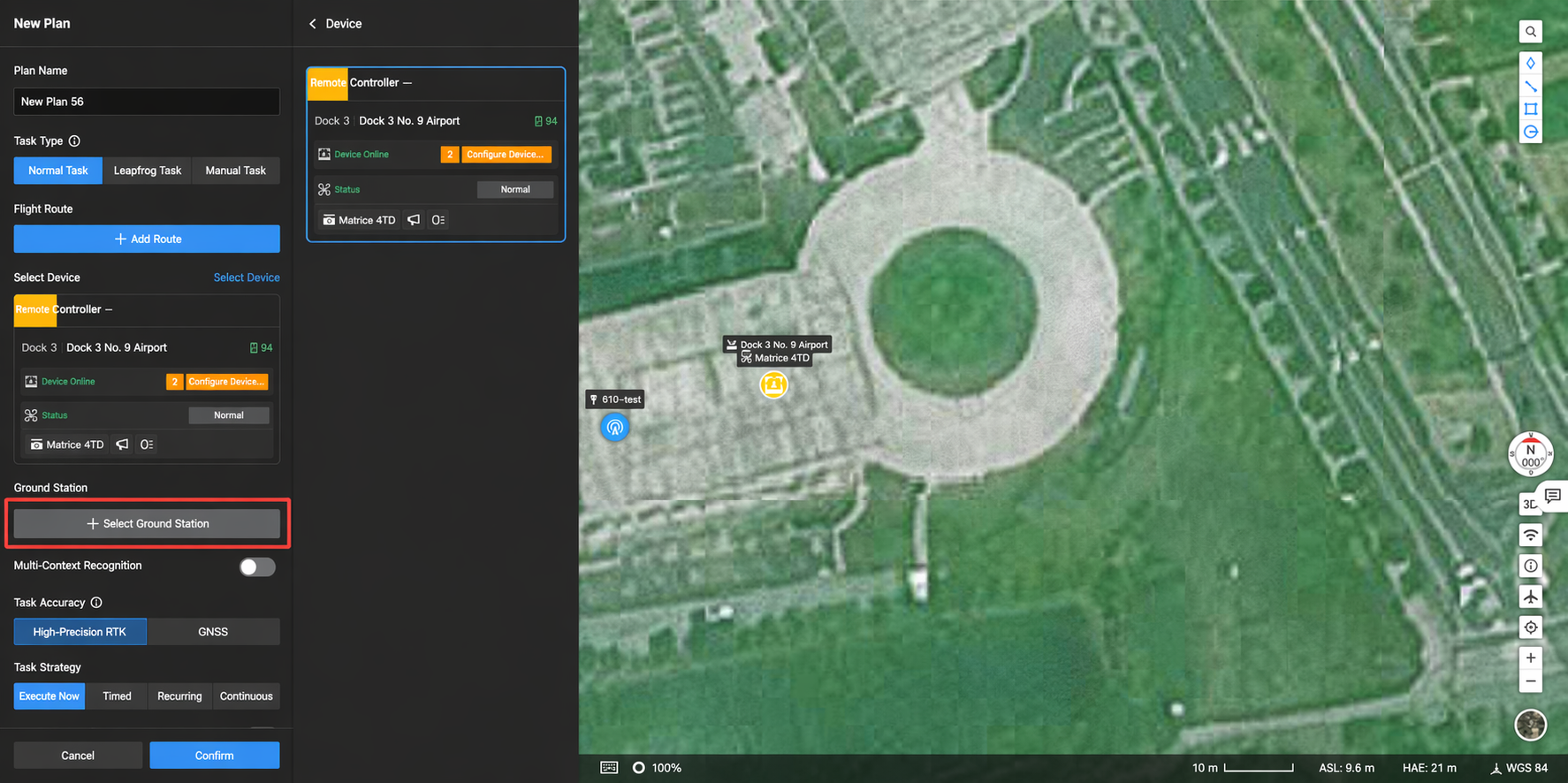
After entering the Virtual Cockpit, the signal map only shows the signal map of the device currently being controlled:
- Dock + Aircraft: Shows the signal map of the current dock.
- O4 Ground Station + Aircraft: Shows the signal map of the current O4 Ground Station.
- Dock + Relay + Aircraft: Shows the signal map of the current dock and relay.
- Dock + O4 Ground Station + Aircraft: Shows the signal map of the current dock and O4 Ground Station.