
DroneLogbook
Englische Anleitung
DroneLogbook & DJI FlightHub 2 Integration Guide
Use FlightHub Sync to transfer project flight logs to the storage bucket designated by DroneLogbook, then select and import the logs in DroneLogbook.
1Overview and workflow
This integration uses FlightHub Sync file synchronization. FlightHub 2 transfers flight logs from selected projects to the S3 bucket designated by DroneLogbook, according to the sync rule. On the DroneLogbook Import page, use the organization key and DJI server location to select a project, refresh available logs, and import them.
- Connection established: pass the storage connectivity check and save the configuration.
- Sync configured: select source projects, enable “Flight Logs: FlightHub → Third-Party,” and save the rule.
- Logs available: save the organization key and server location on the Import page, then refresh and review available project logs.
- Import completed: import selected logs and verify the corresponding flight information in DroneLogbook.
2Prerequisites
Register for a DroneLogbook account: https://www.dronelogbook.com/hp/1/index.html
- Prepare a DJI FlightHub 2 account with access to the relevant organization settings and support for FlightHub Sync. The official DroneLogbook guide states that FlightHub PRO users can enable this feature; confirm current version entitlements with DJI.
- Contact DroneLogbook in advance to obtain the Bucket SK for the designated storage bucket.
3Integration requirements and operational notes
Use this integration in supported regions outside the United States, as confirmed by DroneLogbook. Confirm regional availability before setup.
This guide configures flight logs from FlightHub 2 to the DroneLogbook-designated bucket, based on selected projects and sync rules.
For a private DroneLogbook server, replace www.dronelogbook.com in the Import URL with your server domain and retain /flightImport/logFlightImporter_DJIFlightHub.php.
Obtain the Bucket SK from DroneLogbook. Use the actual SK and organization key in the configuration interface and share redacted screenshots.
4Part 1 — FlightHub 2 configuration
Open My Organization
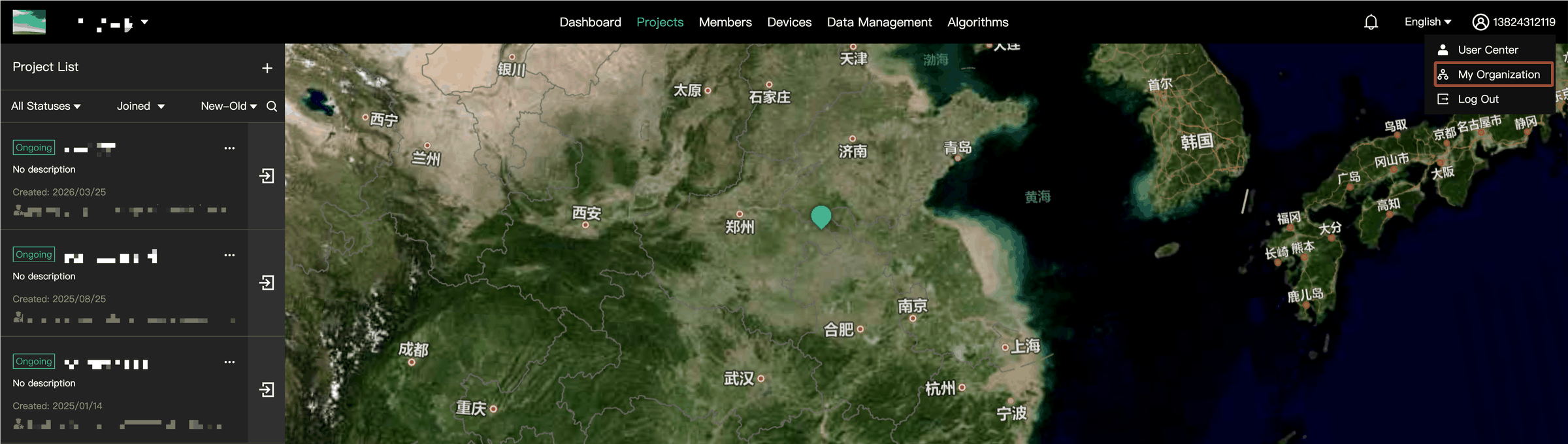
Open organization settings
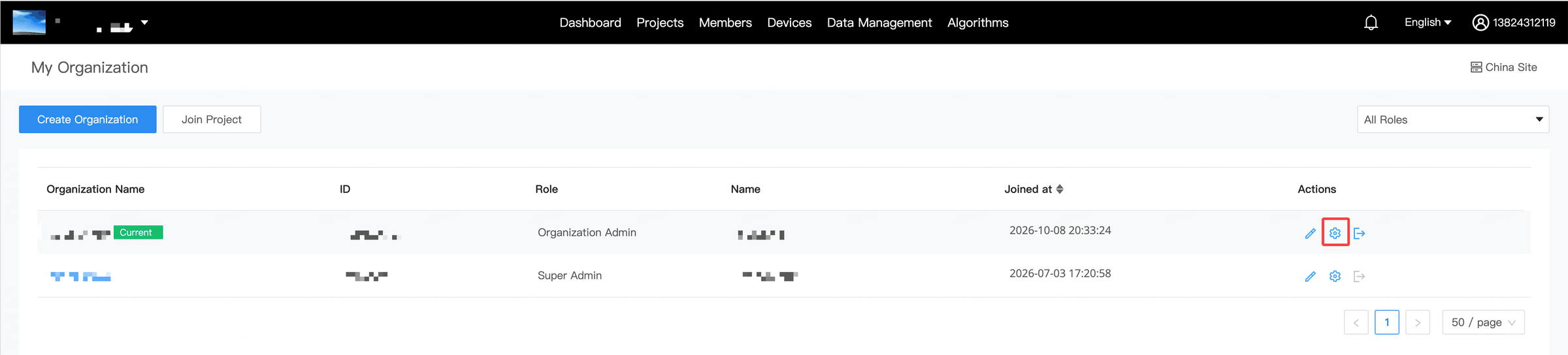
View Third-Party Cloud Service

Open File Synchronization
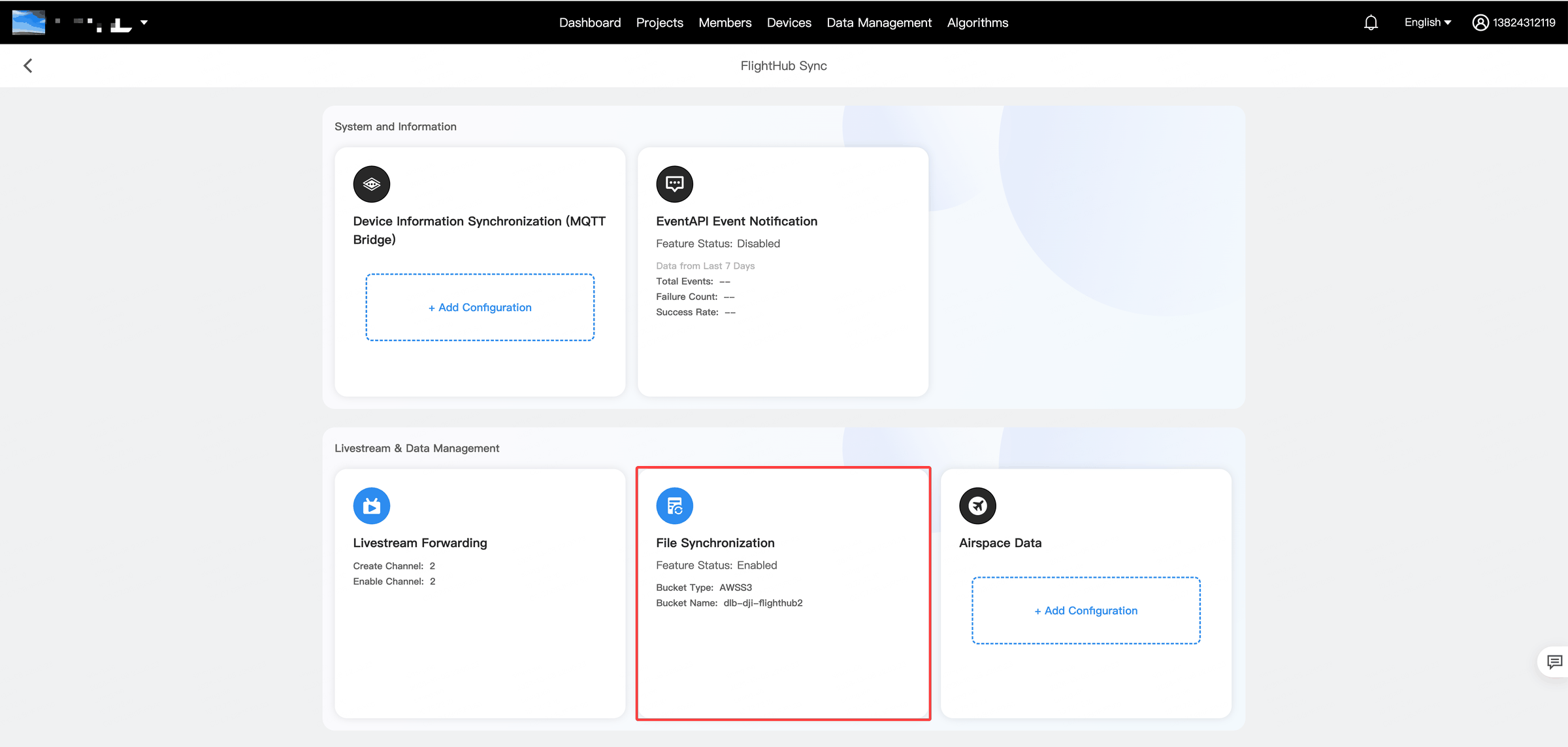
Add Storage Configuration
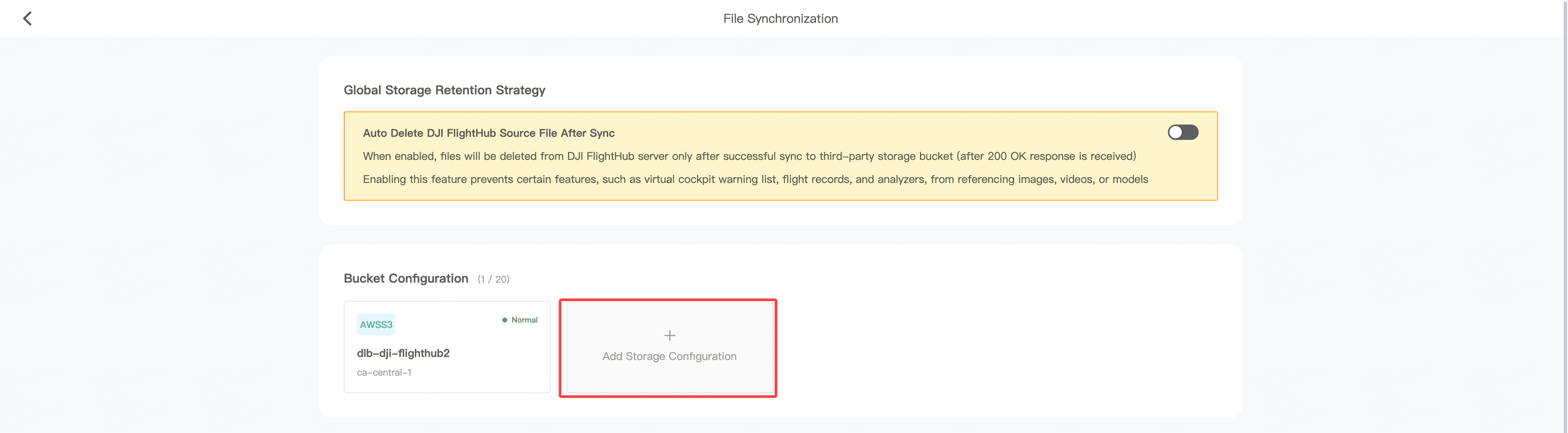
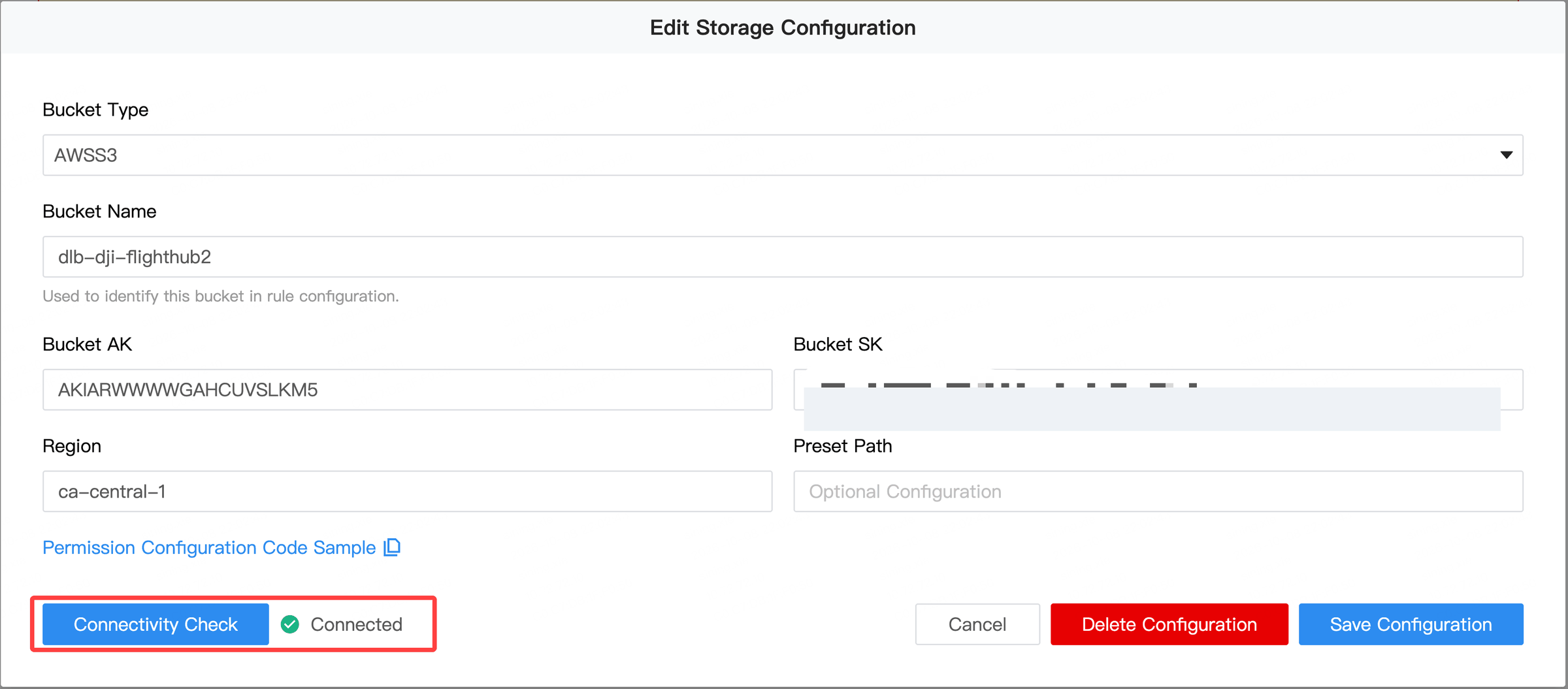
Enter bucket parameters and check connectivity
Enter the following storage configuration:
Bucket Name: dlb-dji-flighthub2
Bucket AK: AKIARWWWWGAHCUVSLKM5
Bucket SK: Contact DroneLogbook to obtain the secret key.
Region: ca-central-1
Click Connectivity Check to test the connection. Once the status shows Connected, click Save Configuration.
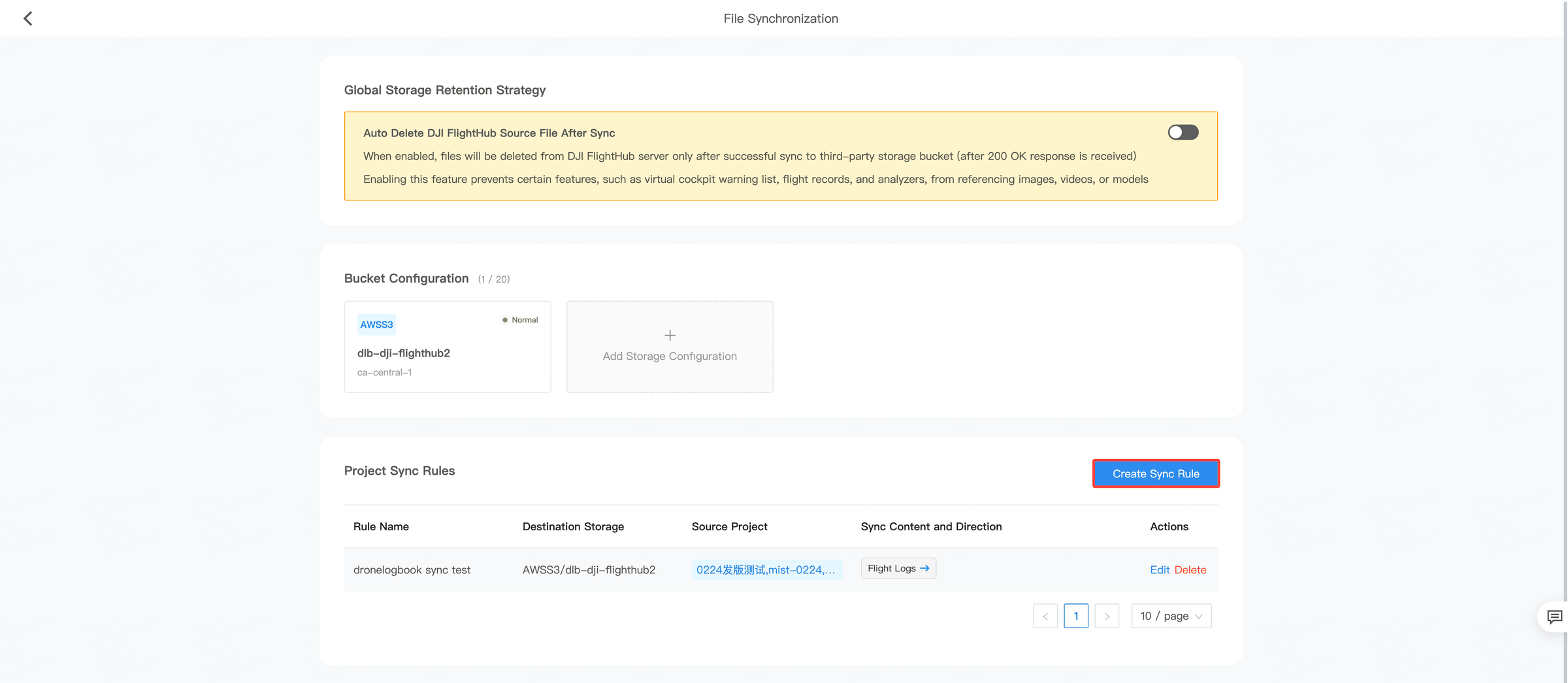
Create a sync rule
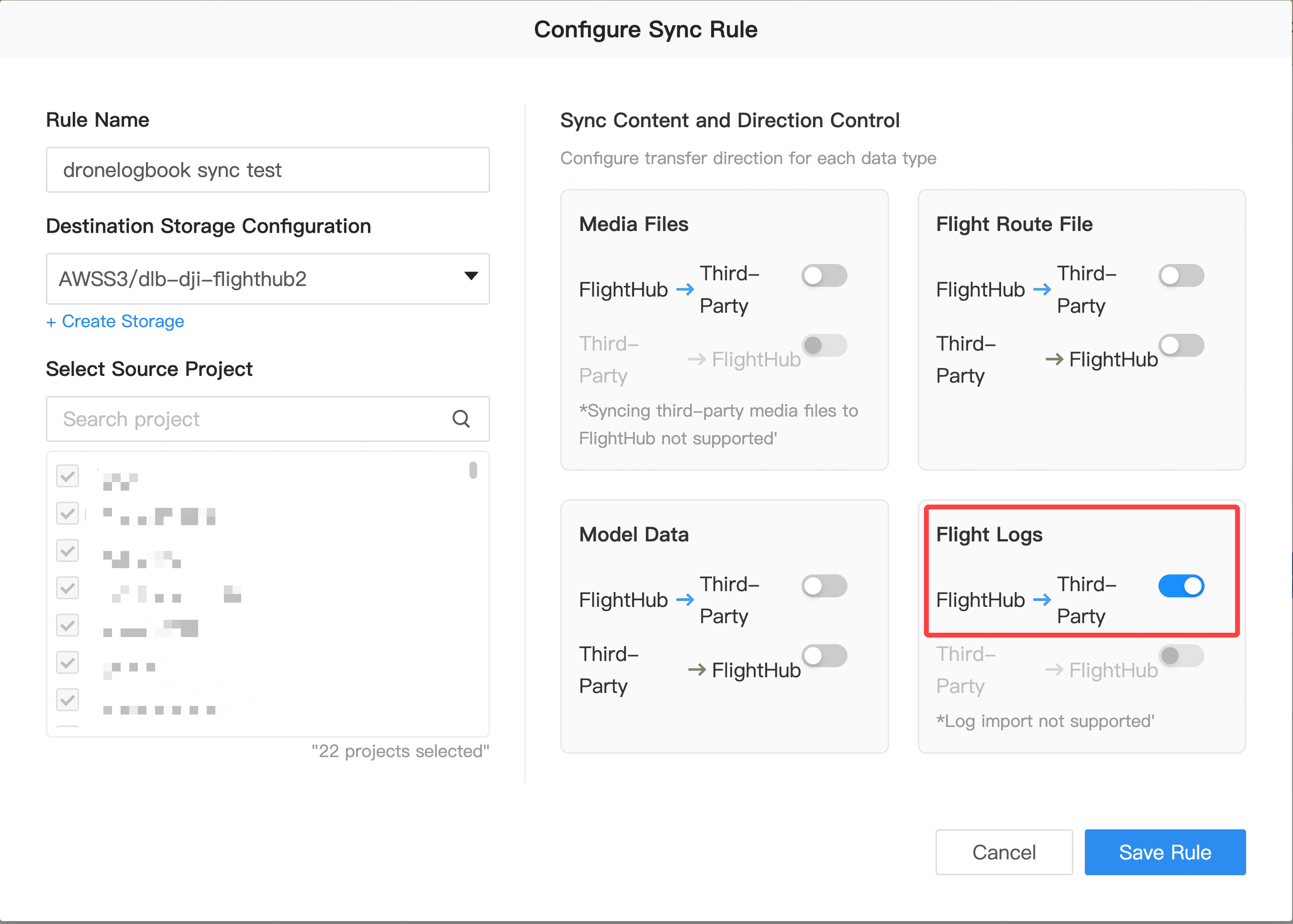
Select projects and flight log direction
- Under Destination Storage Configuration, select the storage configuration you just created.
- Under Select Source Project, select the projects you want to sync.
- Under Sync Content and Direction Control, enable FlightHub → Third-Party for Flight Logs.
- Click Save Rule.
Copy the organization key

5Part 2 — DroneLogbook import
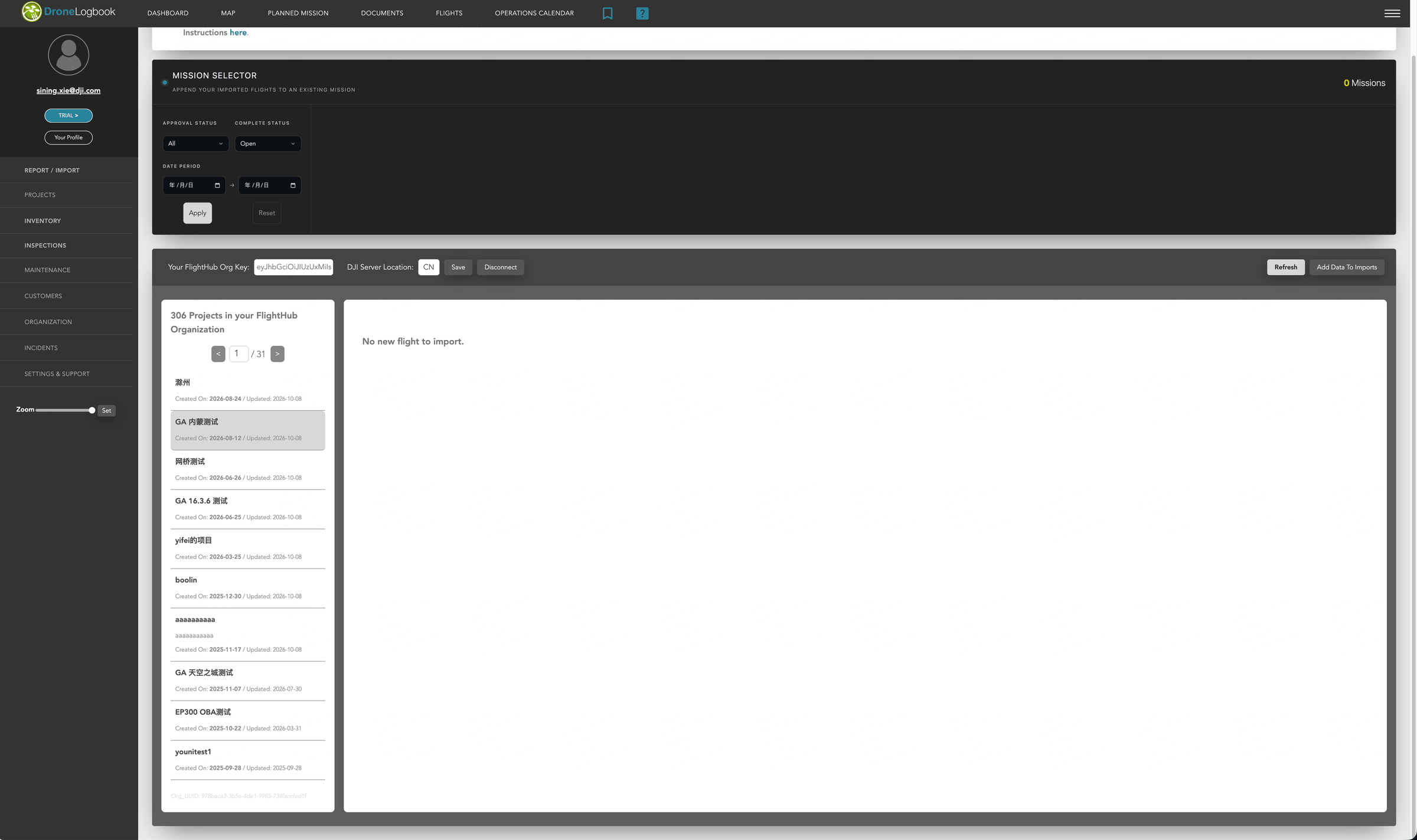
Configure DroneLogbook Import
- Open the DroneLogbook Import page.
- Enter the organization key in Your FlightHub Org Key and select the appropriate DJI Server Location.
- Click Save.
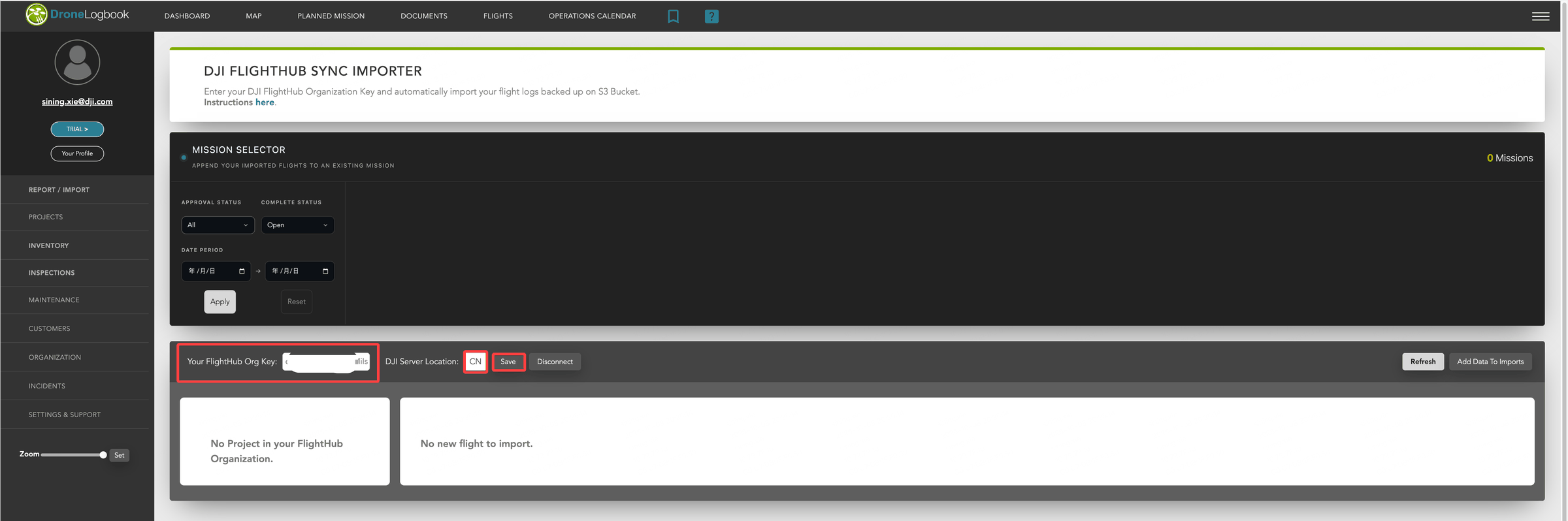
Refresh and select logs to import
- Click Refresh.
- Select the project you want to sync.
- Select the flight logs you want to import.
6Verify the result
- Confirm that the storage configuration passes the connectivity check and that both the storage configuration and sync rule have been saved. After verifying the connection, confirm log availability and import results on the Import page.
- Save the organization key and DJI server location on the DroneLogbook Import page, click Refresh, and select a project configured for synchronization.
- Select available flight logs to import. After importing, verify that the logs appear in DroneLogbook and check the corresponding flight information.
7References
DroneLogbook Official Integration Guide: DJI FlightHub Telemetry Log Sync (beta)
Official guide last updated: December 5, 2025.