
AirData UAV
Englische Anleitung
AirData & DJI FlightHub 2 MQTT Integration Guide
Connect DJI Dock flight data to AirData through MQTT device information forwarding, then review synced logs after each flight.
1Overview and workflow
This integration configures MQTT forwarding through Device Information Synchronization (MQTT Bridge) in FlightHub 2. FlightHub 2 forwards device information to the AirData MQTT service; logs appear automatically in the AirData account after flights are completed.
- Configure the AirData MQTT server and save the connection first, then confirm that forwarding is running.
- Conduct and complete a DJI Dock flight after setup.
- Review the log and pilot assignment in AirData under MY LOGS → FLIGHTS.
2Prerequisites
- Prepare a DJI FlightHub 2 account with access to the relevant organization settings.
- Ensure that you have an AirData Enterprise subscription, which is required for this integration.
- Obtain the intended pilot’s Auto Upload Token from app.airdata.com → My Account → Users/Pilots, and have the AirData password for that pilot account ready.
3Integration requirements and operational notes
DJI Dock 1, 2, and 3 flights completed after MQTT setup are synced. Use a new flight conducted after setup for verification.
The configured Auto Upload Token identifies the target pilot in AirData, and synced logs belong to that pilot. Confirm that the token matches the intended pilot account before setup.
Enter the Auto Upload Token and password in the configuration interface and use redacted screenshots for sharing. Update the MQTT password whenever the AirData account password changes.
4MQTT configuration guide
Open organization settings
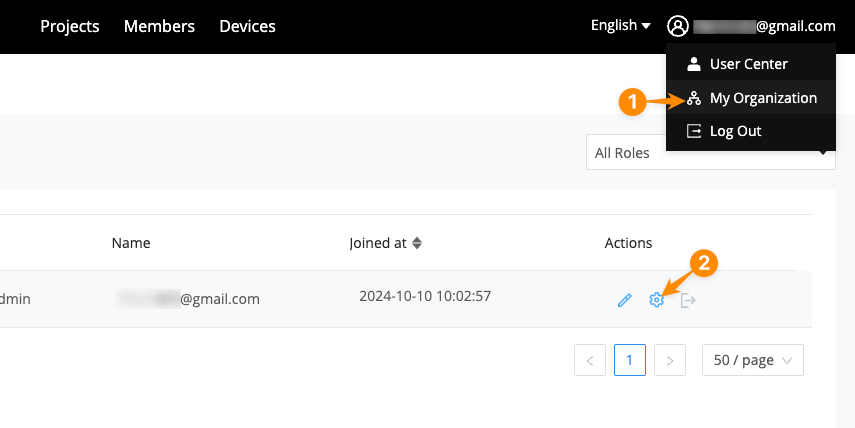
Open the configuration entry
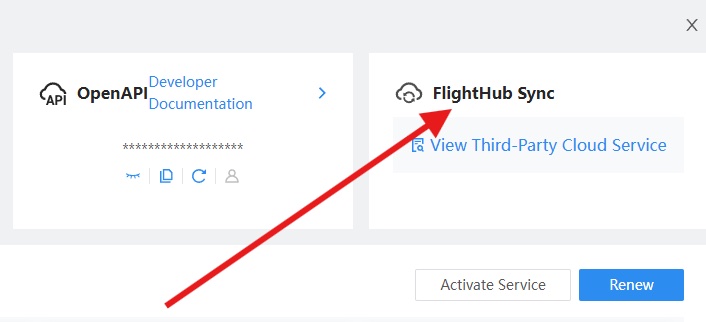
Open MQTT device information synchronization
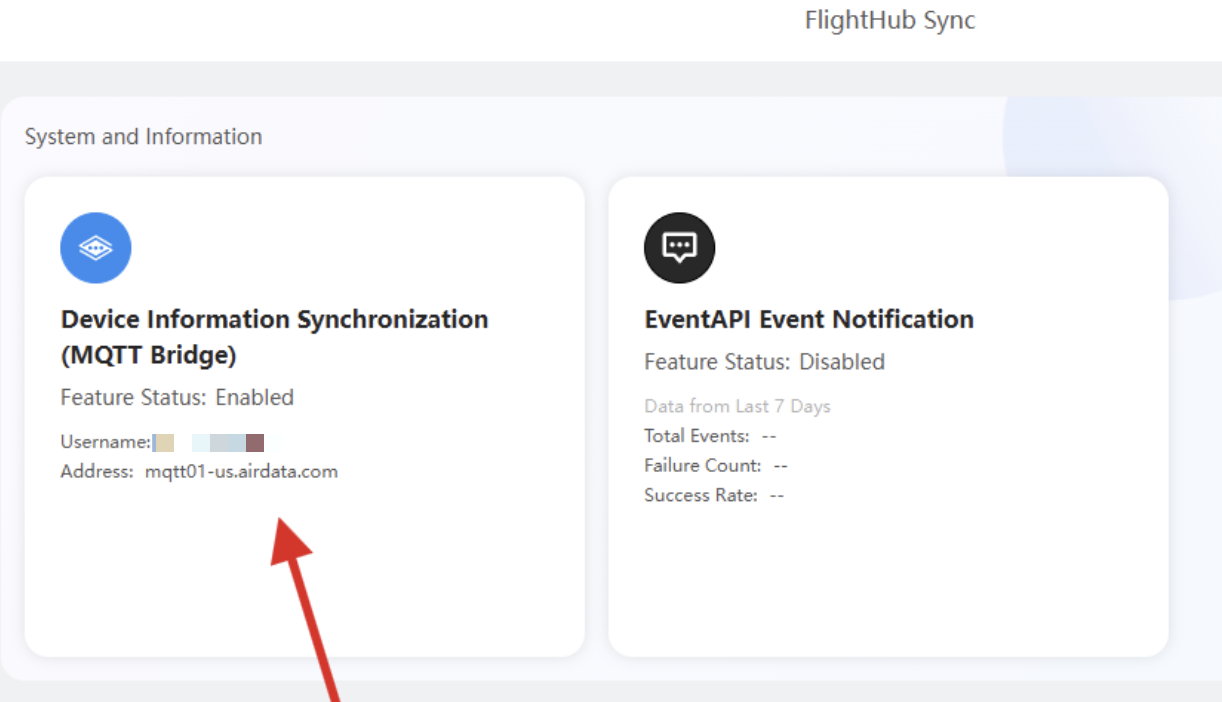
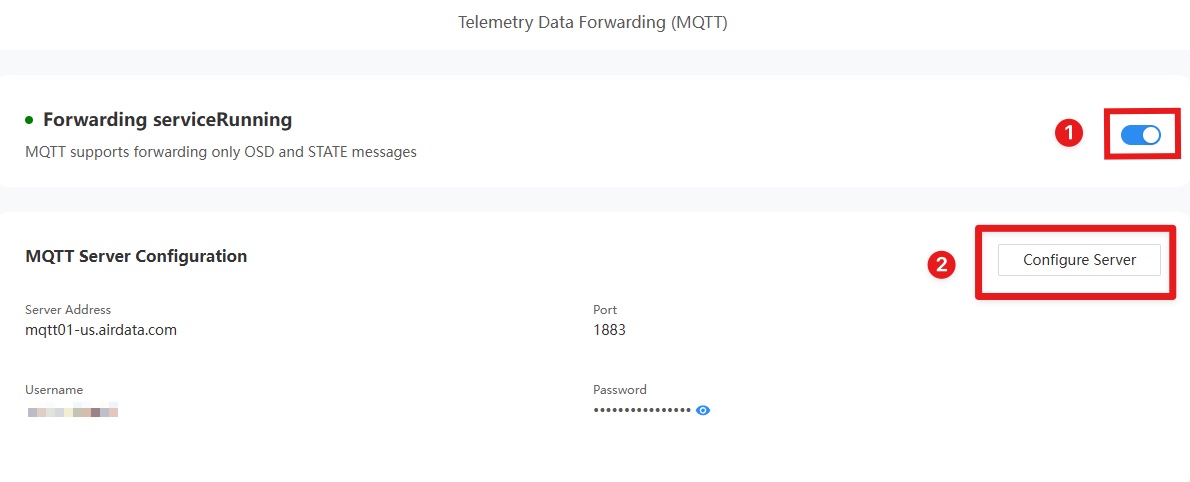
Configure the MQTT server
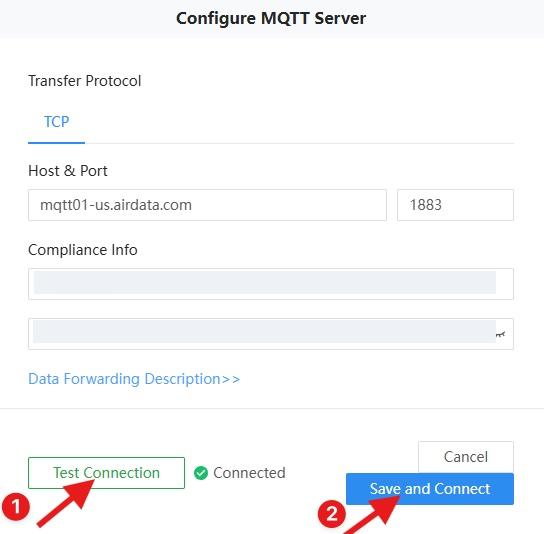
Click Configure Server to open the server configuration dialog, then enter the AirData MQTT parameters in the next step.
Enter AirData MQTT parameters
Enter the following configuration:
- Host:
mqtt01-us.airdata.com - Port:
1883 - Compliance Info (top field): The intended pilot’s AirData Auto Upload Token, available under app.airdata.com → My Account → Users/Pilots.
- Compliance Info (bottom field): The AirData password for the pilot account associated with the token above.
Click Test Connection to test the connection, then click Save and Connect.
Confirm forwarding is running and conduct a flight
After Save and Connect, confirm that Forwarding is enabled and the forwarding service is running. Then conduct and complete a DJI Dock flight through DJI FlightHub; its log will upload automatically to AirData.
5Verify the result
- Conduct and complete a DJI Dock flight after finishing the configuration.
- Check the synced log in AirData under MY LOGS → FLIGHTS. This location is confirmed by an official AirData support reply in the reference article’s comments. Dock logs appear alongside other flight logs in your account.
- Verify that the flight is assigned to the pilot associated with the configured token.
6Operational FAQ
Use a new flight conducted and completed after MQTT setup and review its log in AirData under MY LOGS → FLIGHTS.
Update the AirData password in the MQTT configuration, test the connection, and save. Official AirData support confirms that automatic and manual Dock flights should sync.
Contact support@airdata.com with your account email and a description of the issue. Keep credentials in the configuration interface.